Cognex 3D vision sensors incorporate firmware to program various features of the camera contained within the device. VisionPro supports a method for updating the firmware for 3D-L68 vision sensors to take advantage of any new features and enhancements of each release.
By default, the VisionPro installer copies the latest firmware for a 3D-L68 sensor to the directory C:\Program Files\Cognex\Common\L68 with the following naming structure:
ECCO_X_v<firmware version>_<date and build information>.swu
See the following sections for more information:
Perform the following steps to see if this release contains more recent firmware than your 3D-L68 currently uses:
Launch QuickBuild and select the 3D-L68 as your image source:
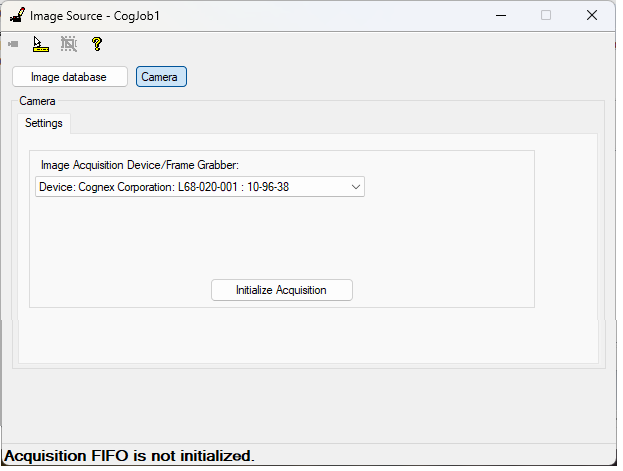
- Click Initialize Acquisition.
- Select the Imaging Device tab.
Enter the custom parameter FirmwareVersion in the Feature field and click Read.
QuickBuild displays the current firmware on the 3D-L68:
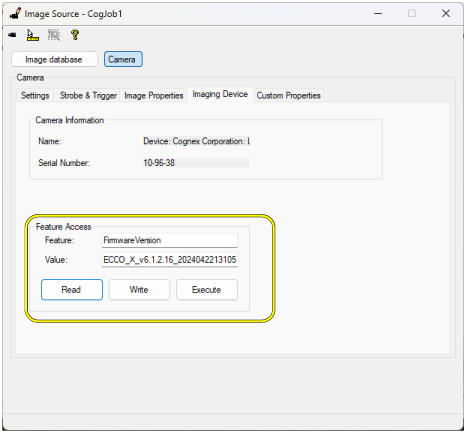
- Compare the Value field to the firmware file installed in the directory C:\Program Files\Cognex\Common\L68 to know if you need to perform a firmware upgrade.
- Exit QuickBuild.
Perform the following steps to upgrade the firmware on your 3D-L68:
- Open Windows Command Prompt and navigate to the %VPRO_ROOT%\bin directory.
Enter the following command:
L68_Configuration_Tool
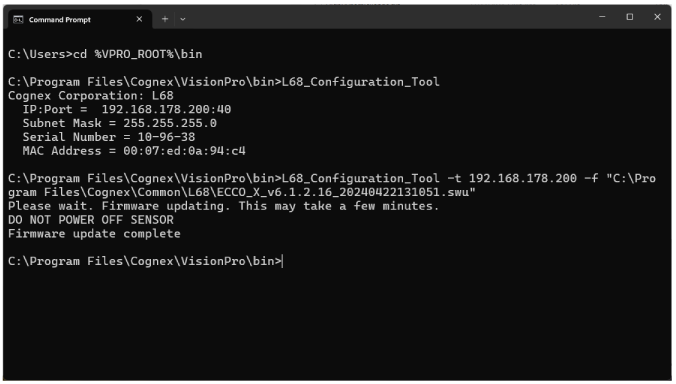
Windows Command Prompt displays network information regarding all 3D-68 sensors available to the PC:
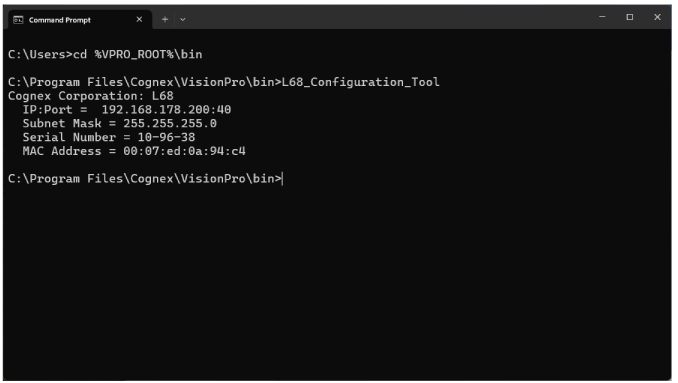
- For PCs with more than one vision sensor available, compare the serial number of the sensor you want to upgrade to the printed information on a label attached to the sensor.
Enter the following command:
L68_Configuration_Tool -t<IP Address of target L68>-f<firmware file path>
See the following figure for an example:
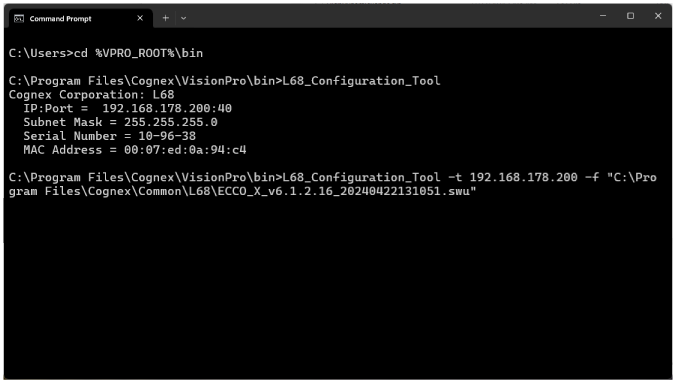
Note: Do not power off the 3D sensor or cancel the firmware update prematurely.
Wait until the executable finishes and Windows Command Prompt displays the string Firmware update complete:
Re-launch QuickBuild and use the Imaging Device tab to verify the 3D-L68 uses the new firmware.