To search your acquired images for a specific pattern, you must train the tool with details of the pattern you want to locate. VisionPro saves the trained pattern along with other tool parameters you specify.
Perform the following steps to create a trained pattern:
- Acquire a good image of the feature you want to train.
- Copy the acquired image to the train image buffer.
-
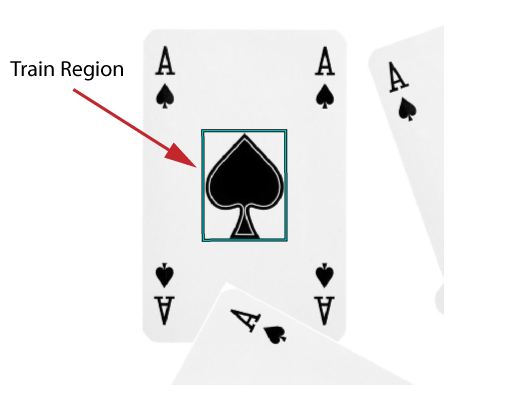
Use a train region to define the area of the image with the specific features you want to locate:
-
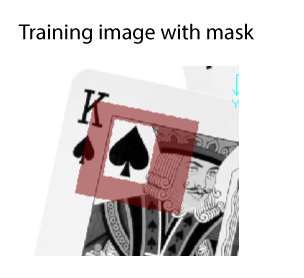
(Optional) Enable the Image Mask Editor to mask certain features in the train image from being considered as part of the trained pattern.
Depending on the training image the pattern you want to train might be closely surrounded by undesirable features. The following figure shows a training image with a mask around the feature of interest:
-
Define the origin of the trained pattern, which represents a linear transform describing how the appearance of the pattern changes from image to image:
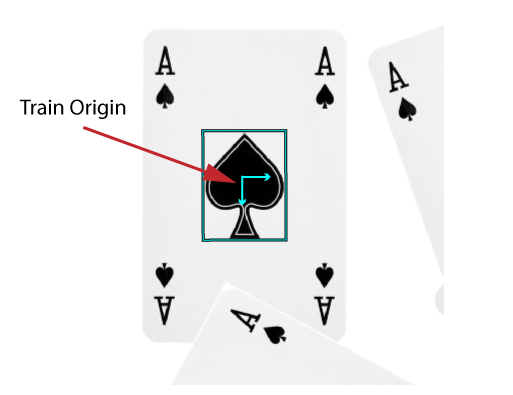
For example, the properties TranslationX and TranslationY represent how the trained pattern has moved position along the (x, y) axis of the run-time image as compared to the training image, while the Rotation property describes the angle of change between the two images.
In addition, any fixturing strategy you use based on the found pose of a PatMax RedLine pattern will use the train origin to define the origin of a new coordinate space you use for additional vision tools you add to the application later, and returns measurements and position information in this new coordinate space.
-
Configure either of the following parameters that allow you to create the most efficient trained pattern for your application:
- Coarse Grain Limit: Sets the maximum amount of subsampling the search algorithm applies to the input image when searching for the trained pattern.
- Fine Grain Limit: Sets the minimum amount of subsampling the search algorithm applies to the input image when searching for the trained pattern. You cannot specify a value less than 1.
By default the tool calculates suitable values automatically for Coarse Grain Limit and Fine Grain Limit when you create a trained pattern. You can choose to disable these determined values and specify your own, which can generate faster or slower search results.
Experiment with different settings if the default values prove insufficient for your vision application. The tool performs more precise pattern matching with smaller grain limits.
-
(Optional) Modify the default settings for Feature Threshold to determine what image features the tool considers strong enough for training. View the trained feature in the Current.TrainImage record to see the effect of different settings.
Raising this threshold trains fewer features, while lowering it trains more features.
Only adjust this parameter after you have looked at your trained pattern and confirmed that you need more (or fewer) image features. Large values (0.7 or higher) may produce too few features for accurate pattern finding. Large values may also eliminate so many features that it is impossible to even train a pattern.
- Create the trained pattern.