Connect your GigE Vision camera to your computer before or after your install your VisionPro software. See the CFG-8700 series hardware manual, included with the VisionPro documentation installer, for details on connecting GigE Vision cameras to your GigE Vision Cognex frame grabber.
Perform the following steps to acquire images from a GigE Vision camera:
-
Launch QuickBuild and select Tools->GigE Configurator to launch the GigE Vision Configuration Tool
Use the Configuration Tool to assign an IP address to each GigE Vision network adapter on your frame grabber and the GigE Vision camera connected to it.
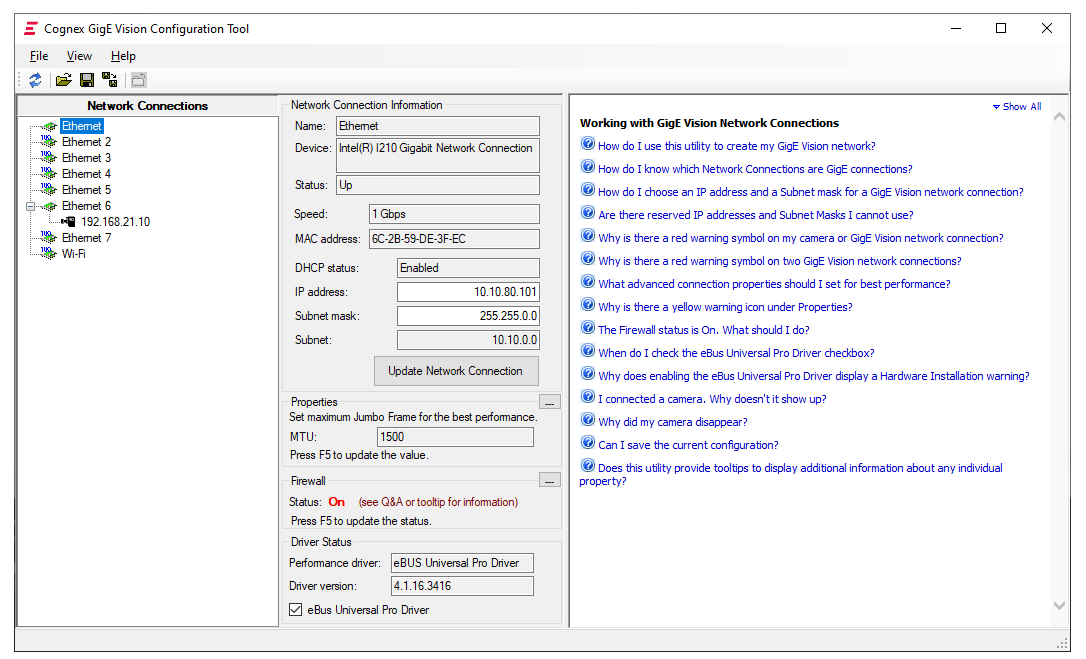
The tool includes embedded user documentation to guide you while you configure your GigE network. You must exit the application to return to QuickBuild.
-
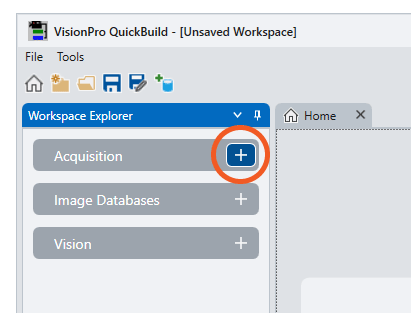
Go to the Workspace Explorer and click the "+" icon in Acquisition:
-
Use the Add Device dialog to select the connected camera you want to use:
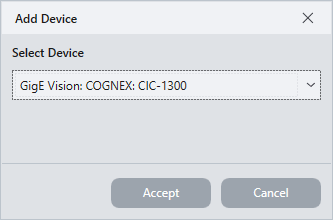
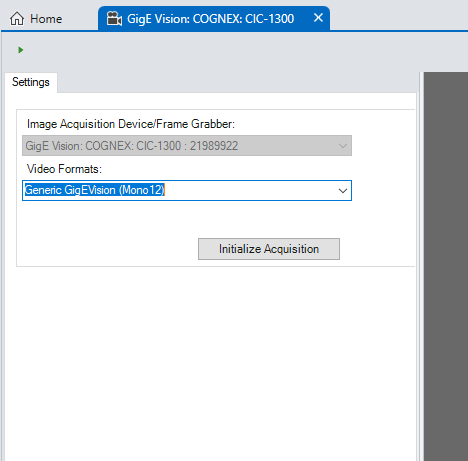
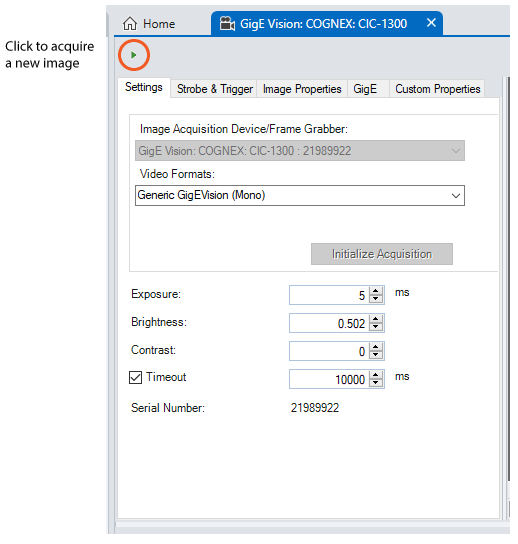
QuickBuild opens a new tab for configuring acquisition settings:
-
Use the Video Formats list to select a video format based on the camera you will use to acquire images and click Initialize Acquisition.
QuickBuild attempts to create a first-in-first-out (FIFO) acquisition queue for the ToolBlock associated with this camera and acquire an image. If successful, the tab displays additional tabs to set other image acquisition properties as needed:
Use the QuickBuild workspace to add any number of cameras you need for your application. Each camera can be associated with a different ToolBlock of vision tools.