Use the DIO Device Panel
QuickBuild supports a user interface for visualizing the I/O lines of an installed Cognex CC24 Communication Card.
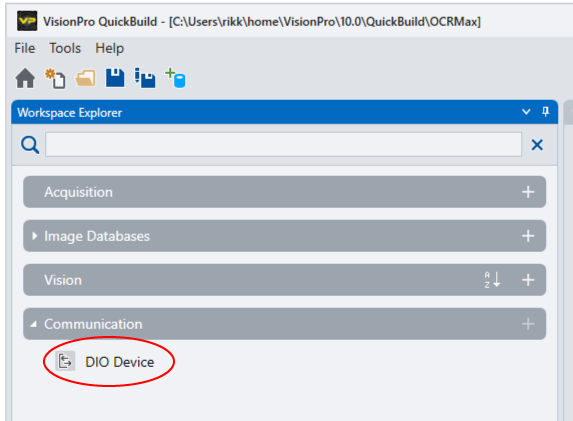
Double-click the DIO Device under Communication in the Workspace Explorer area of QuickBuild:
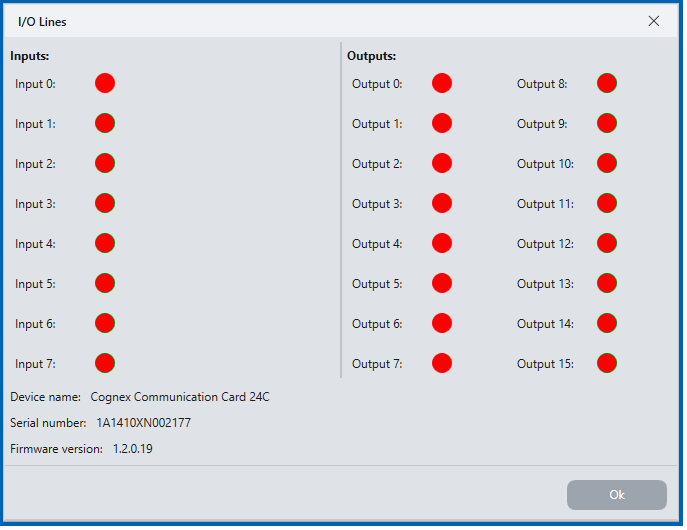
QuickBuild displays a panel representing the 8 input lines and 16 output lines:
Using .NET C# scripting, you can set the value of individual lines high or low. For example, the following sample script initializes the variable mCard to access the discrete I/O lines of a communication card:
public partial class Script
{
    private CommCard mCard;
    private Dio mDio;

    public void Initialize()
    {
        if (mCard == null)
        {
            var cards = new CommCardReadOnlyCollection();
            mCard = cards[0];
        }
        if (mDio == null)
        {
            mDio = mCard.DiscreteIOAccess.GetActiveDiscreteIO();
            if (mDio == null)
            {
                mDio = mCard.DiscreteIOAccess.CreateDiscreteIO();
            }
        }
    } // Initialize()
}
Other script statements can use the ReadLine() and SetOutput() API to get or set the current state of any I/O line, respectively.
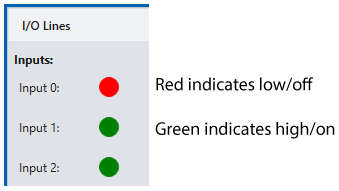
The QuickBuild panel uses two colors to indicate the state of any I/O line: