Adding the Edit Control to WinForms Applications
The VisionPro installer includes the SmartLine tool user interface as a Windows Presentation Foundation (WPF) control. Perform the following steps to add this WPF control to your Visual Studio Windows Forms (WinForms) application:
-
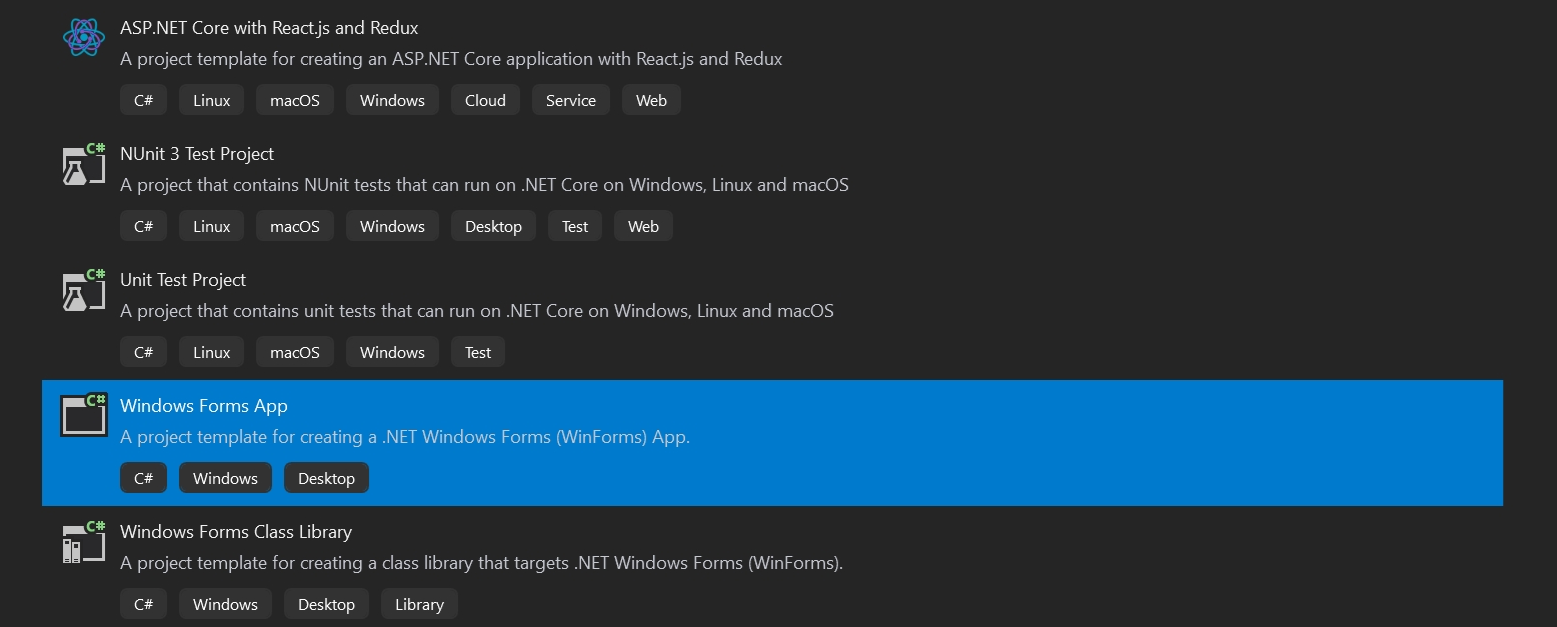
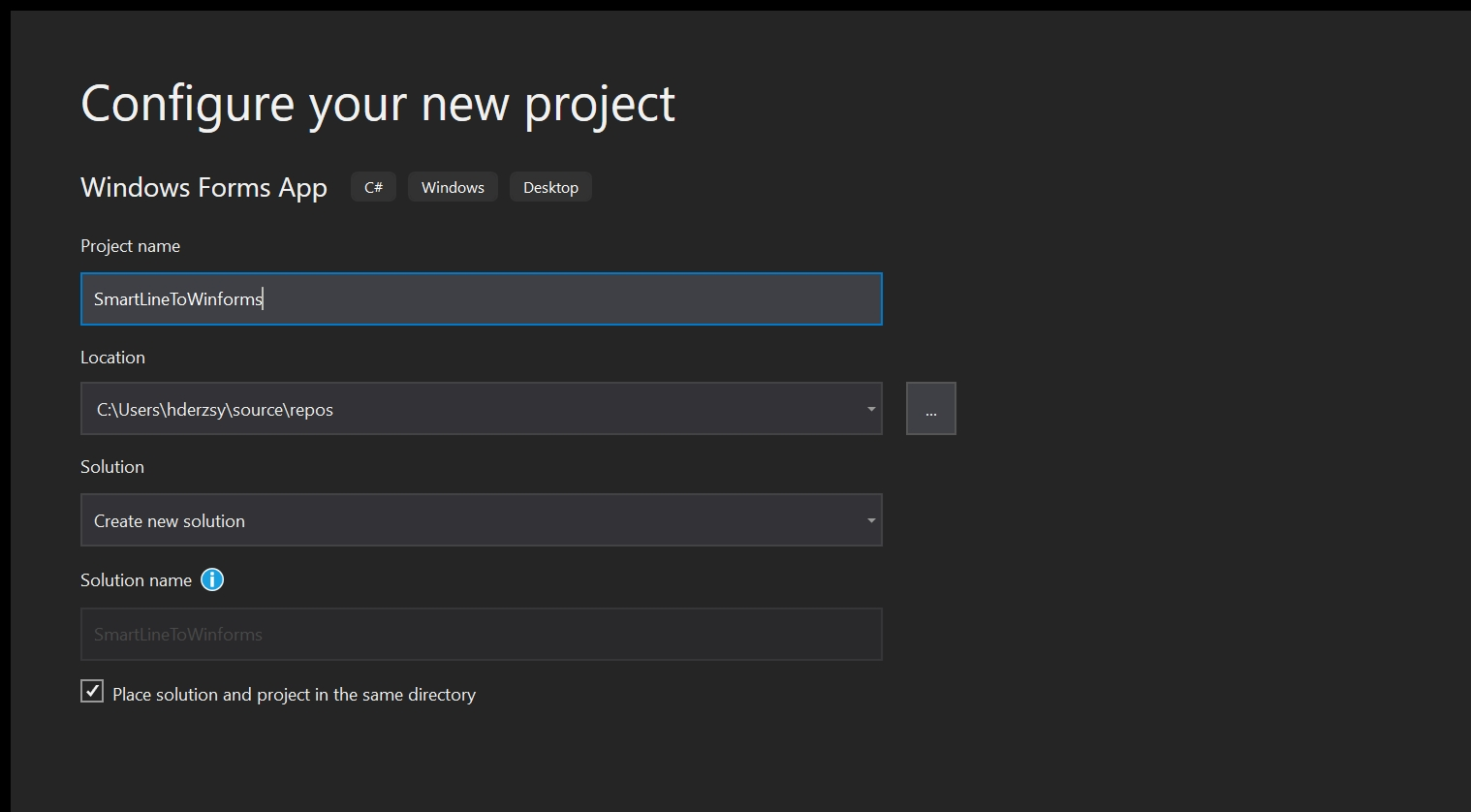
Launch Visual Studio and create a Windows Forms App:

-
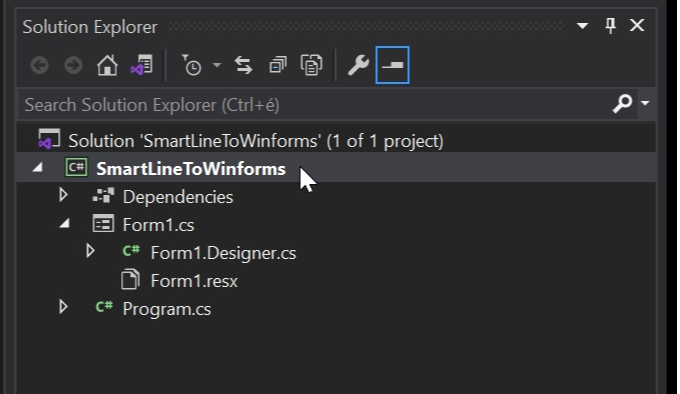
Double-click the project file in the Solution Explorer ("SmartLineToWinforms" in this example):
-
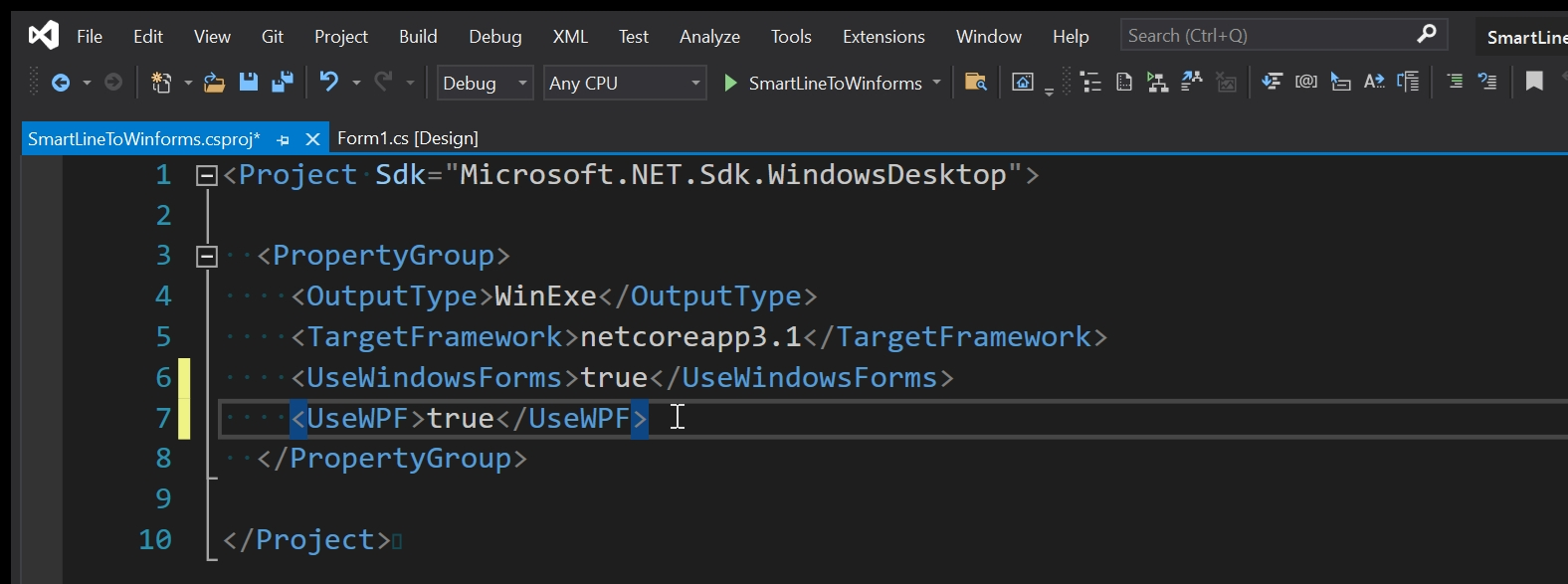
Modify the PropertyGroup as shown (use the <UseWPF> line) as shown:
-
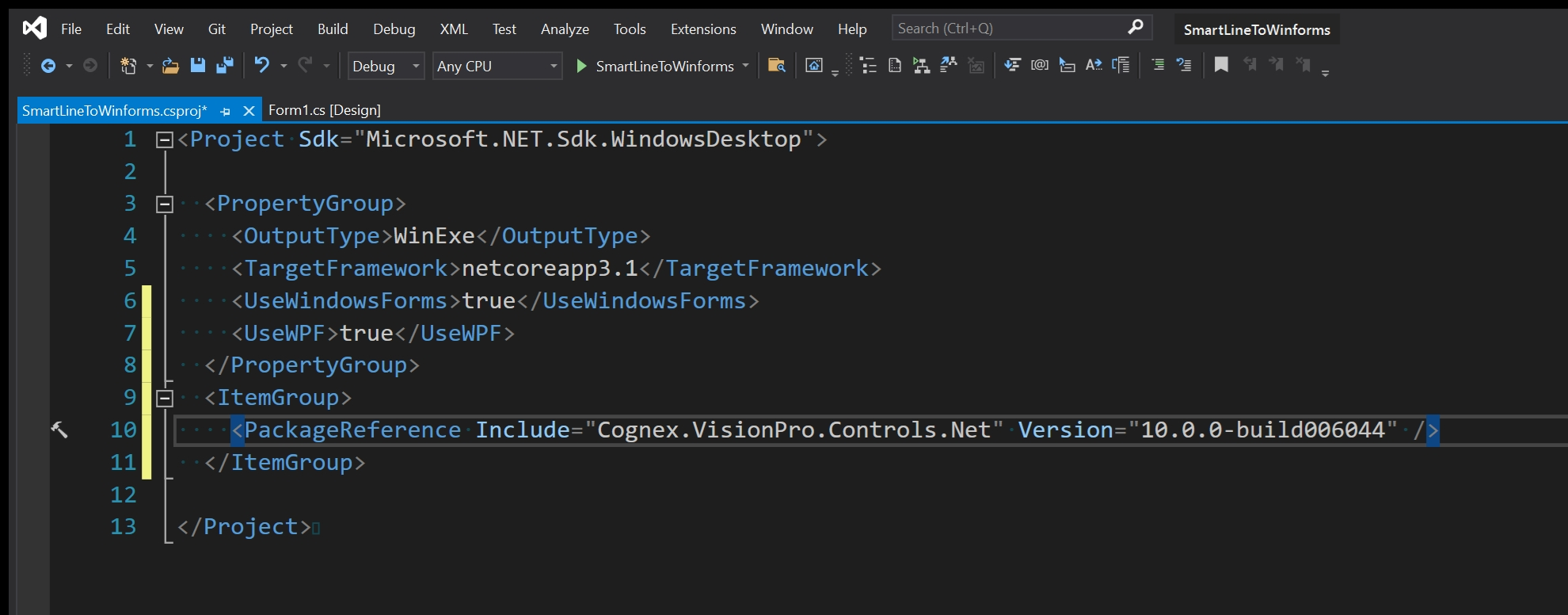
Add the reference for the Cognex.VisionPro.Controls.Net package. The following example uses a fixed version but you can specify it with a wildcard (Version="10.0.0-build"):
-
Now click on Build/Build Solution on the toolbar.
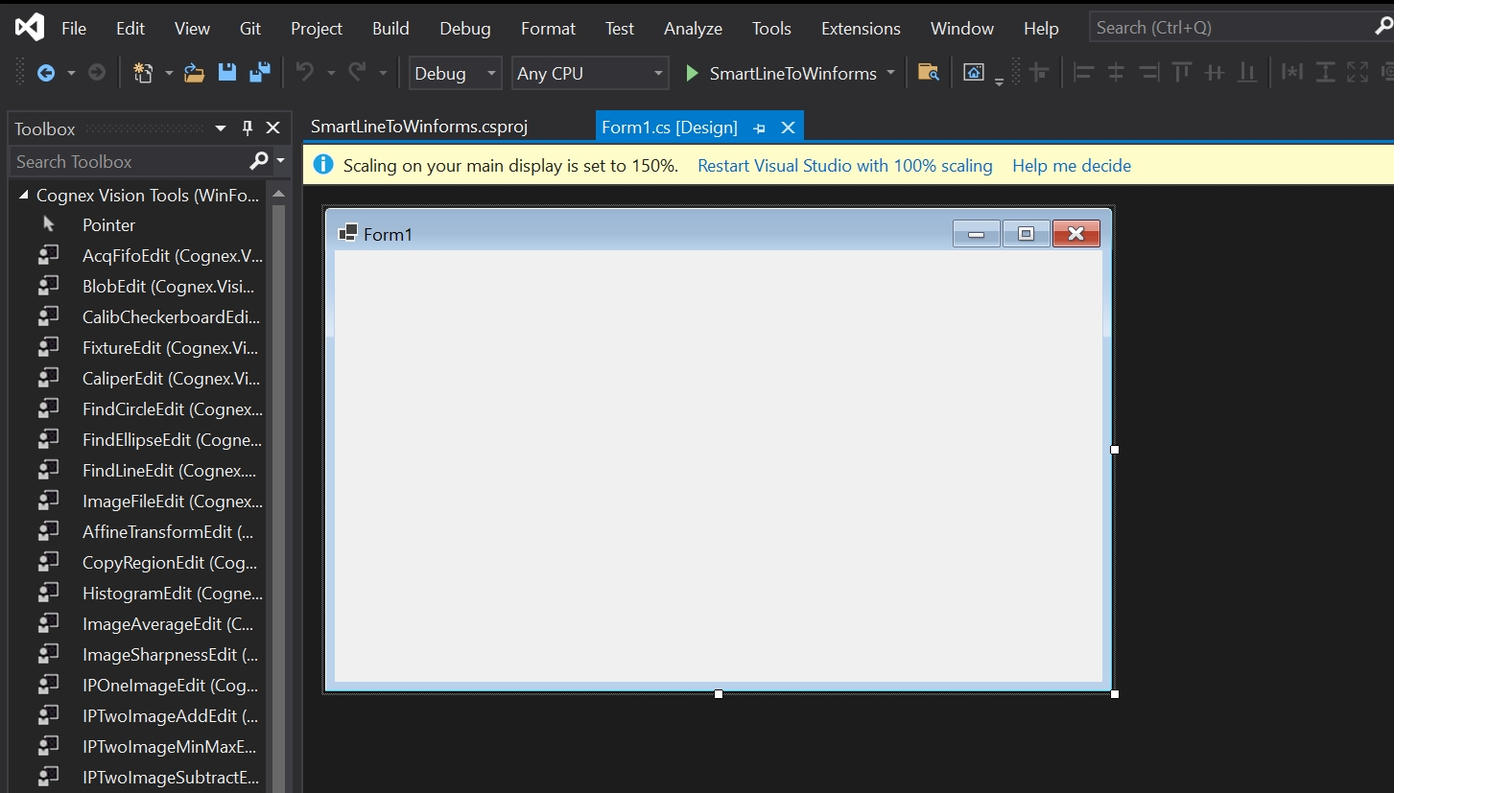
When it completes, double-click on Form1.cs to open the form:
-
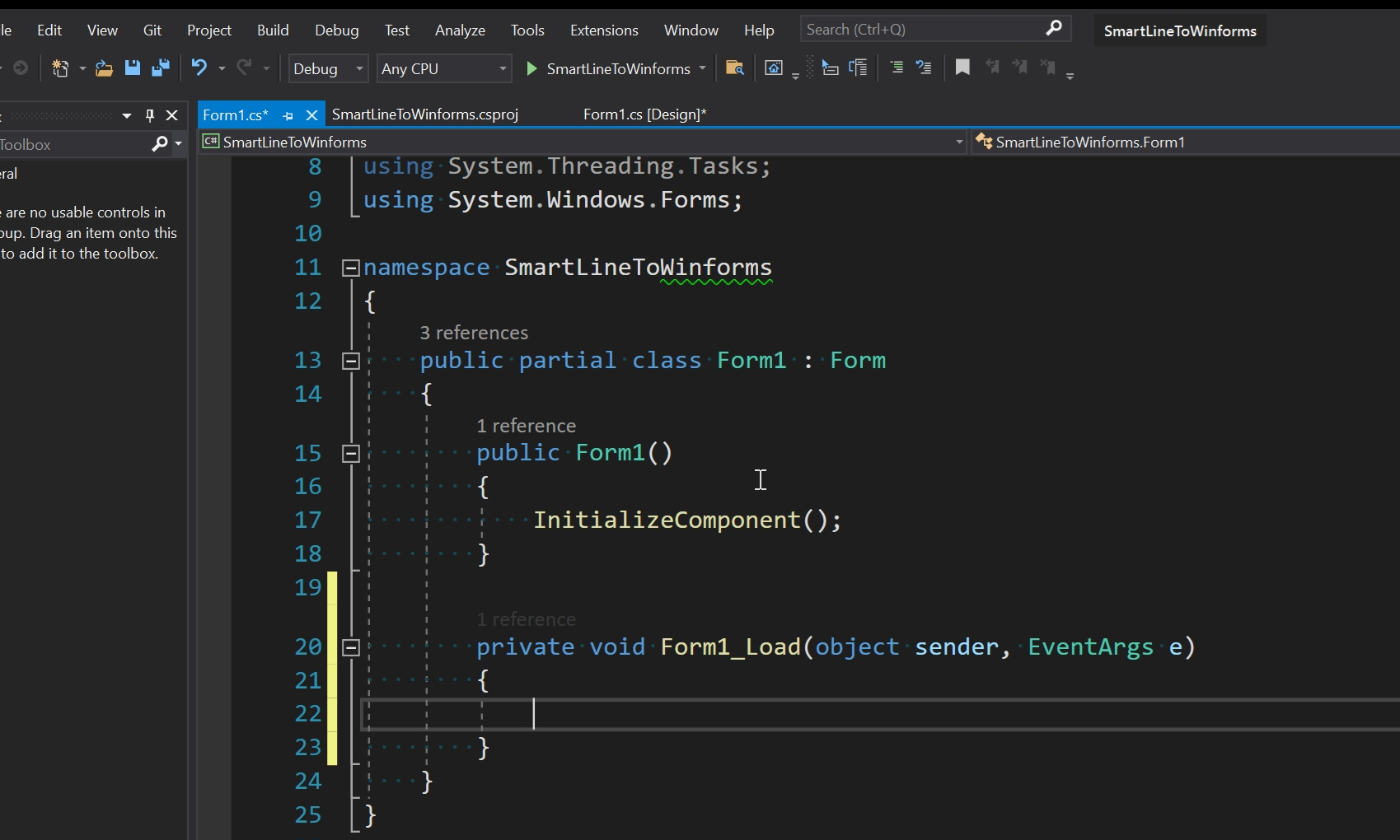
Double-click on the form to create the Form1_Load event:
-
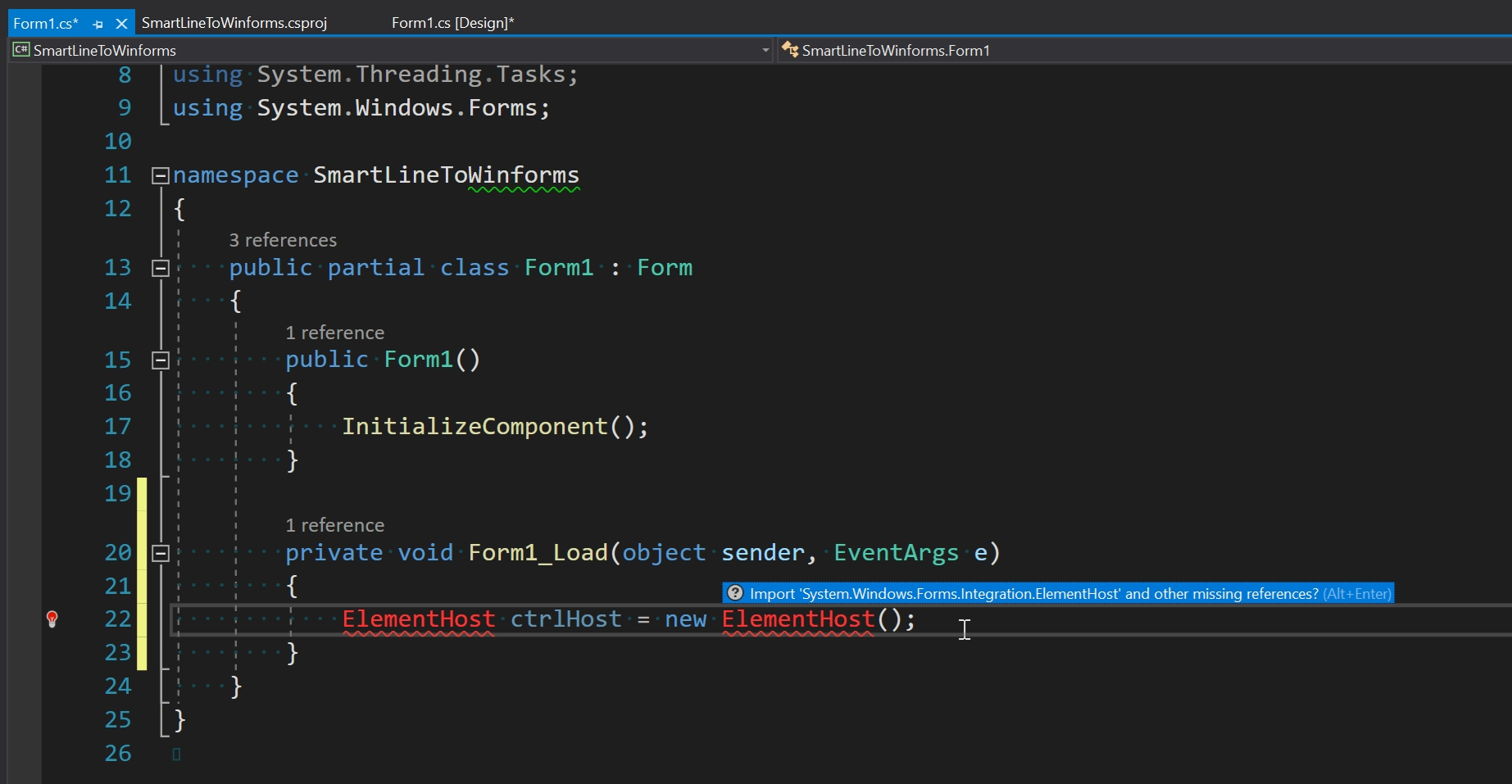
Add the line "ElementHost ctrlHost = new ElementHost()" and click on the import message to add System.Windows.Forms.Integration to the using statements:
-
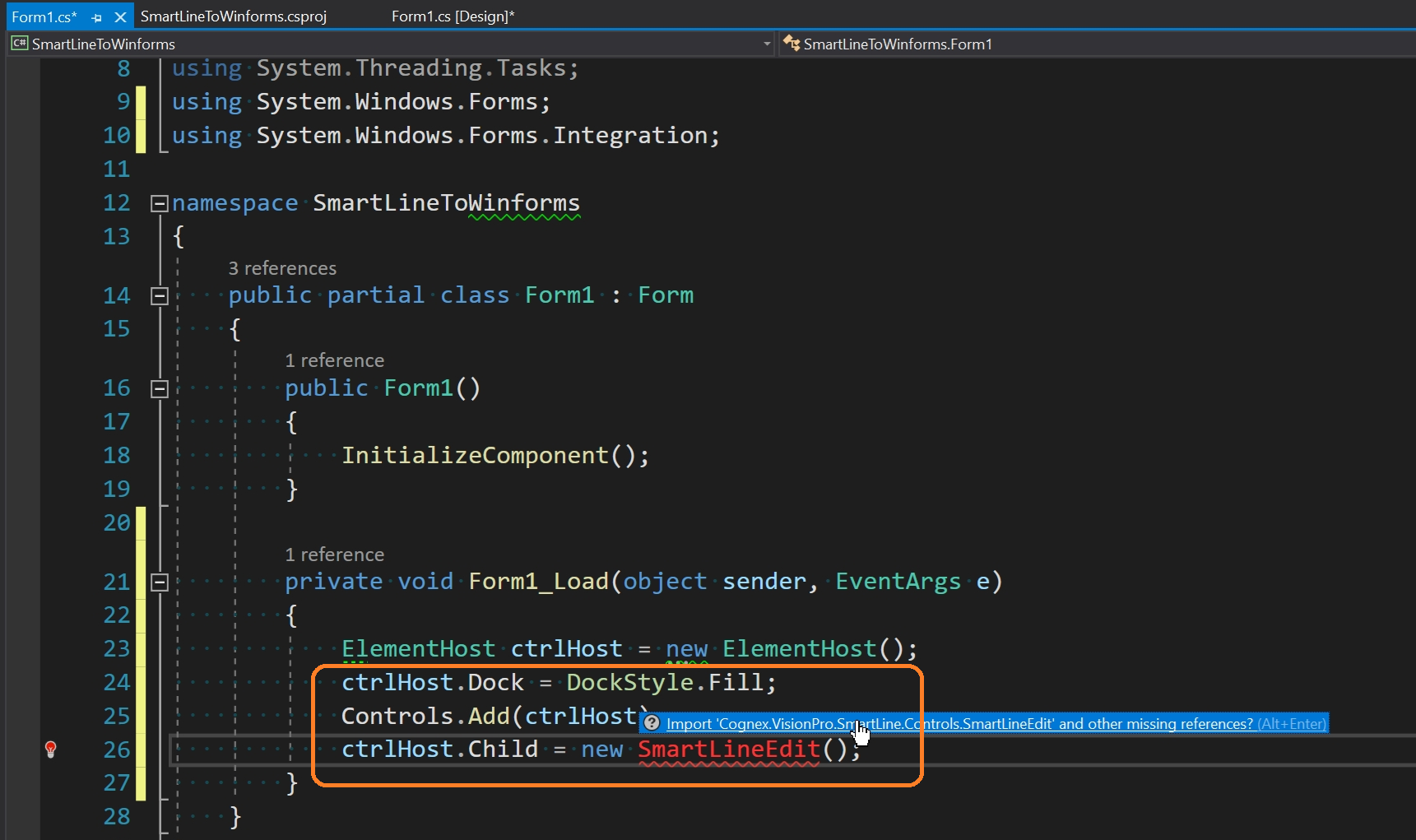
Add the following lines to the Form1_Load event:
- ctrlHost.Dock = DockStyle.Fill;
- Controls.Add(ctrlHost);
- ctrlHost.Child = new SmartLineEdit();
-
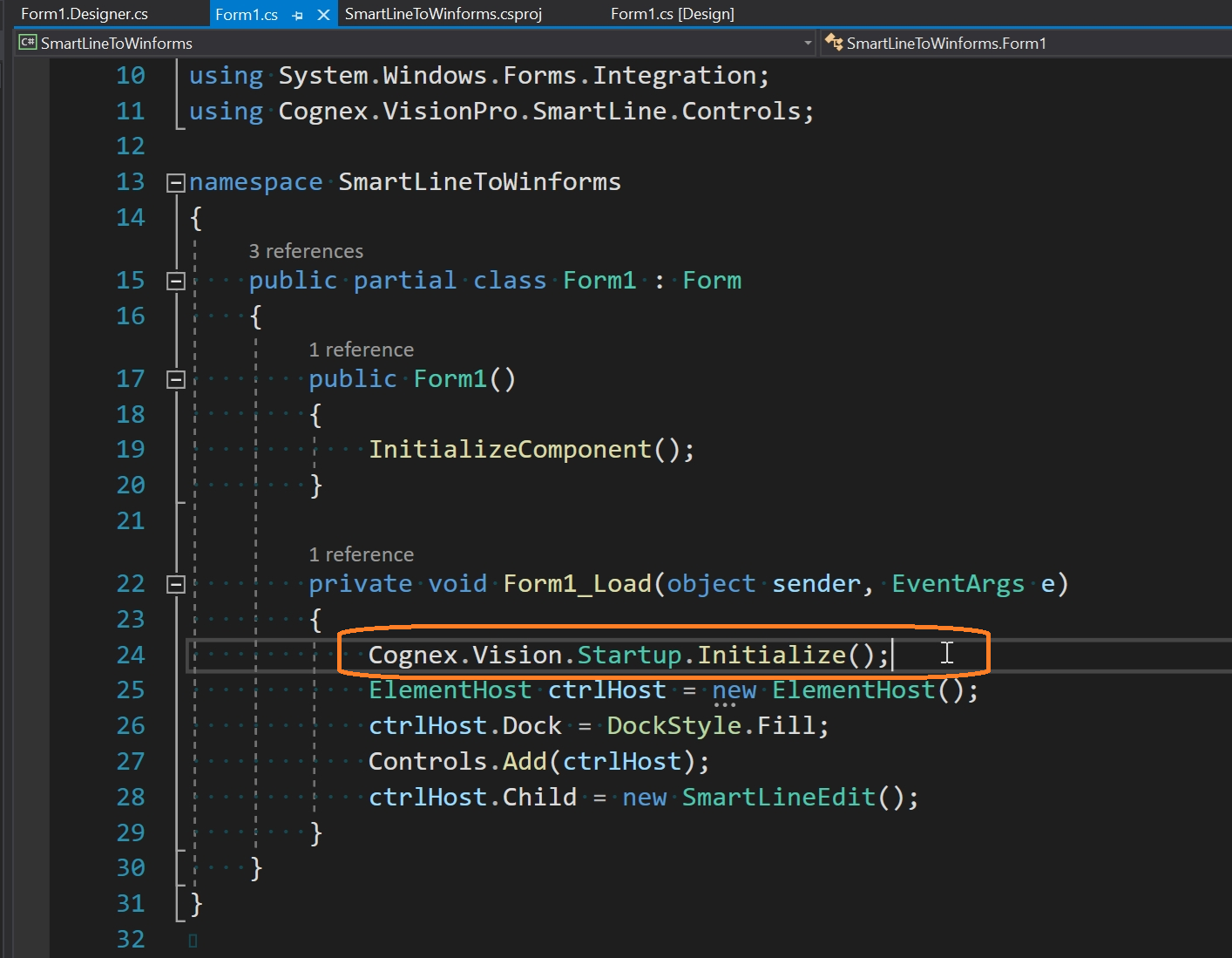
Click on the import message to add Cognex.VisionPro.SmartLine.Controls to the using statements, and add the line Cognex.Vision.Startup.Initialize() to the load event:
-
Build the project again and start the application.
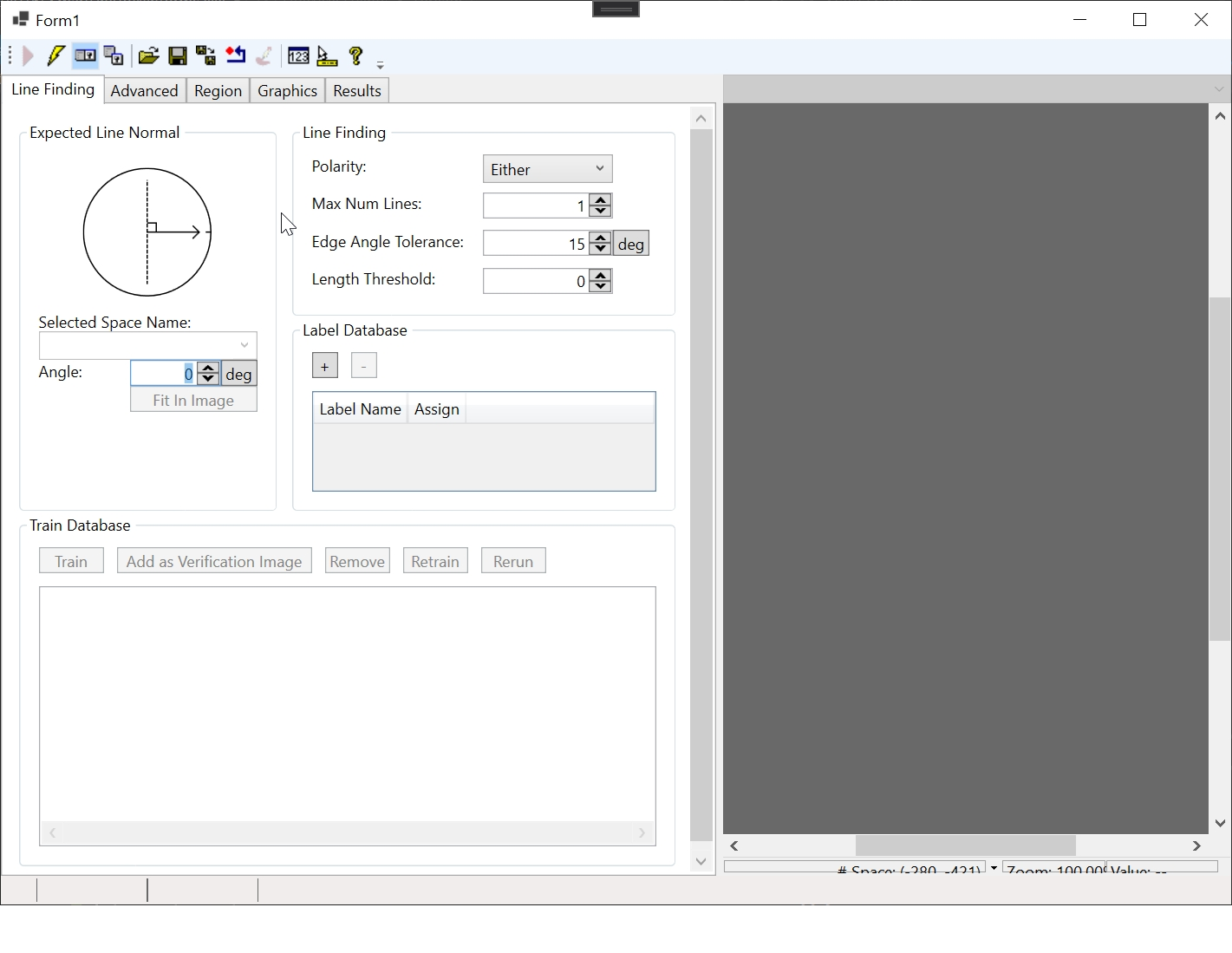
The SmartLine edit control should appear as shown: