Font
Use the Font tab to select the font used in the character string you want to verify.
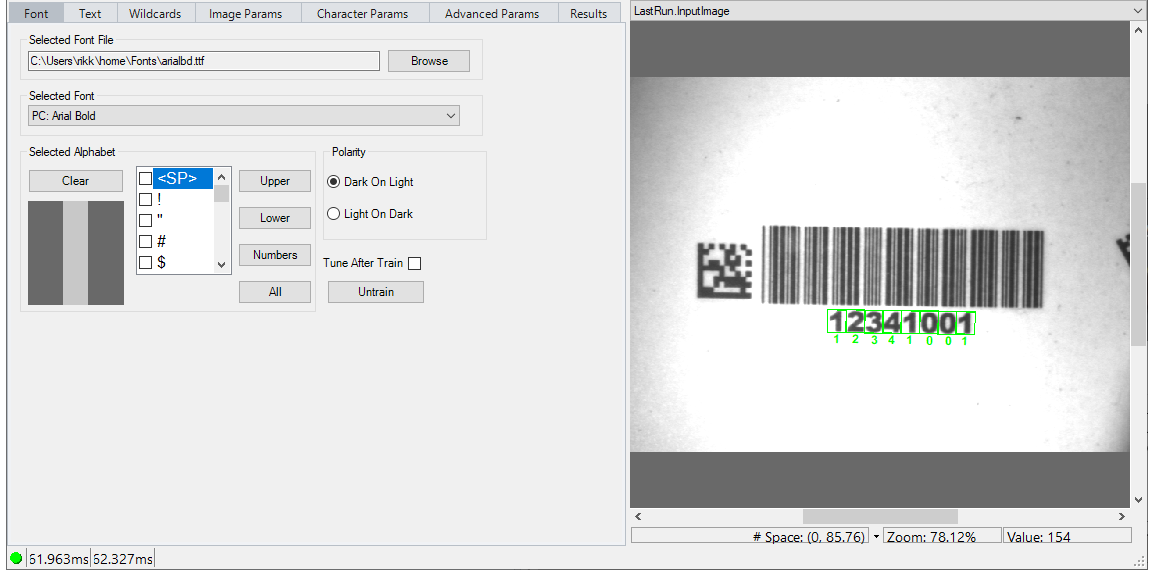
Use the following parameters to select the correct font for your character string:
| Parameter | Description |
|---|---|
| Selected Font File |
Click Browse to open a dialog box that lets you select a file containing a single font or multiple fonts. Be aware that you cannot select a font from the /WINDOWS/Fonts directory. If you need a font file from that directory, first copy it to any other directory and select it from there.
An OCVMax tool can load the following font file types:
|
| Selected Font | If you choose a font file containing multiple fonts, select the particular font file you want to use. If the font file you chose contains only one font, this field displays Single Font File. |
| Selected Alphabet |
The edit control displays each character key in the font. Enable those character keys that can appear in the character string you want to verify. Restricting the set of keys to just the characters that can appear in the character string prevents the tool from comparing the characters you want to verify with irrelevant characters, which reduces the amount of possible confusion and improves the overall performance of the tool.
Use the following buttons to select specific groups of character keys all at once:
You must enable punctuation marks individually. |
| Polarity | Choose whether the characters in the string are dark on a light background or light on a dark background. |
| Tune After Train | Perform the tuning operation after the tool has been trained with the character string you want to verify. |
| Train | Train the OCVMax tool with the character string you want to use. You must specify the character string on the Text tab before you can train the tool. |