Use the Region tab to specify the input region for the tool:
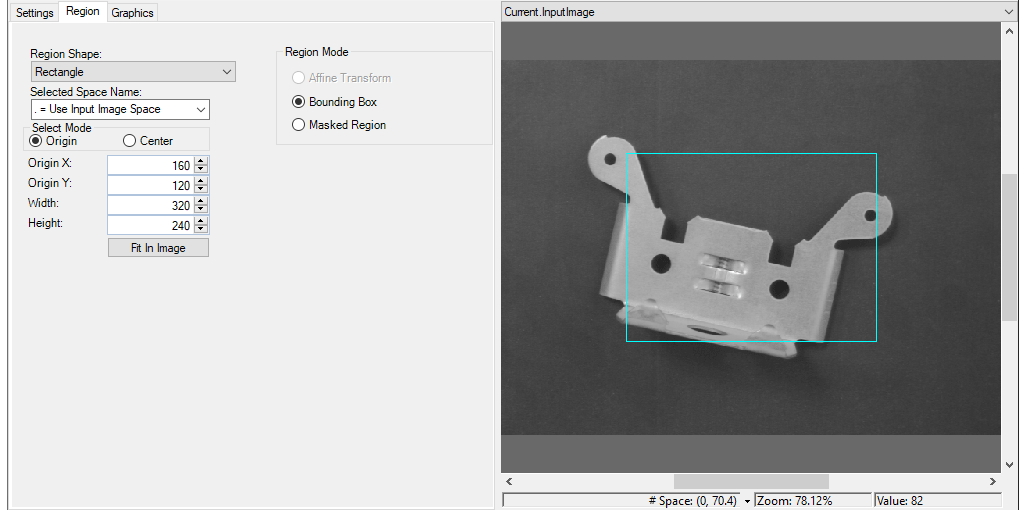
Configure the following features of the tab:
| Feature | Description |
|---|---|
| Region Shape |
Defines how the tool interprets the training region you specify. Choose either of the following options:
|
| Region |
Select the shape of the input region. Selecting None=Use Entire Image means that the tool uses the entire input image. An Image Processing One Image tool supports the following input region shapes:
The set of region-defining parameters that appear depend on the region shape you use.
The tool applies the input region to the input image prior to the first operation only. |
| Selected Space Name | The coordinate space in which the training region is interpreted. For information, see Coordinate Space Names. |
| Select Mode | Selects the set of parameters that define the rectangle when the available Region Shape is Rectangle or RectangleAffine. If RectangleAffine is chosen, the angles of rotation and skew can be specified in degrees or radians, although the underlying tool keeps the measurements in radians. |