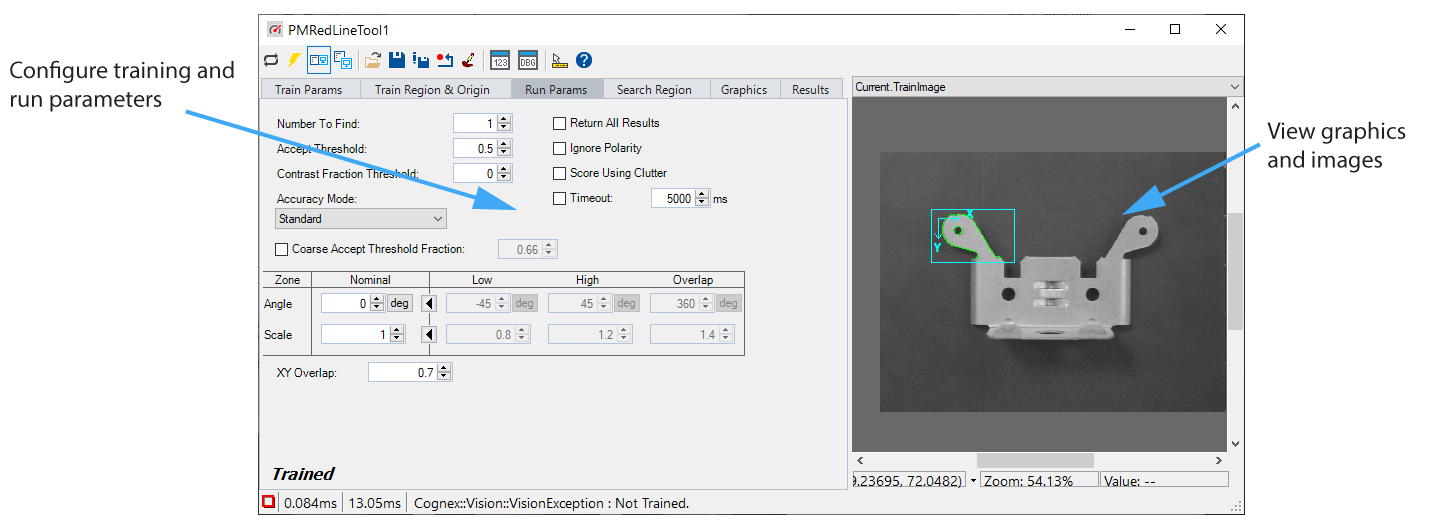
All vision tools support an edit control interface for use in QuickBuild or .NET applications:
Perform common functions with the button bar across the top of the edit control:
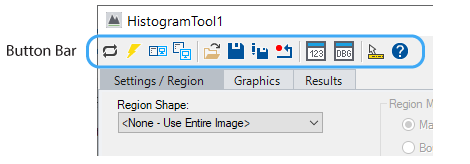
The following table lists the buttons common to most vision tools.

|
Runs the tool on the current image with the current set of run parameters. The tool might require a trained pattern to run successfully. |

|
Toggles electric mode, which causes the vision tool to run automatically when you modify select parameters indicated with an electric bolt. |

|
Opens the local image display window, which can display any image buffer that belongs to the tool. |

|
Opens one or more floating image display windows that can display any image buffer that belongs to the tool. Unlike the local image display window, you can resize or move the position of floating image display windows. |

|
Loads a VisionPro persistence (.vpp) file, which contains a set of saved properties for this vision tool object type. Loading a persistence file for another object type throws an error and the load is unsuccessful. |

|
Saves the current properties of the underlying tool to a VisionPro persistence file. You have the option to save either the entire tool or the tool without its images or results. |

|
Saves the current properties of the underlying tool to a new VisionPro persistence file. |

|
Resets the underlying tool to a default state. |

|
Opens a new, separate results window, allowing you to view run results without turning to the Results tab. |

|
Toggles the display of tool tips for individual elements in this edit control. |

|
Access VisionPro Documentation. |
See the following topics for more information: