Add an Application Manifest
Perform the following steps to add an application manifest to the project that has a dependency on Cognex.VisionPro.Displays.Controls.css:
-
Right-click on the project, Add -> New Item -> Application Manifest File (Windows Only).
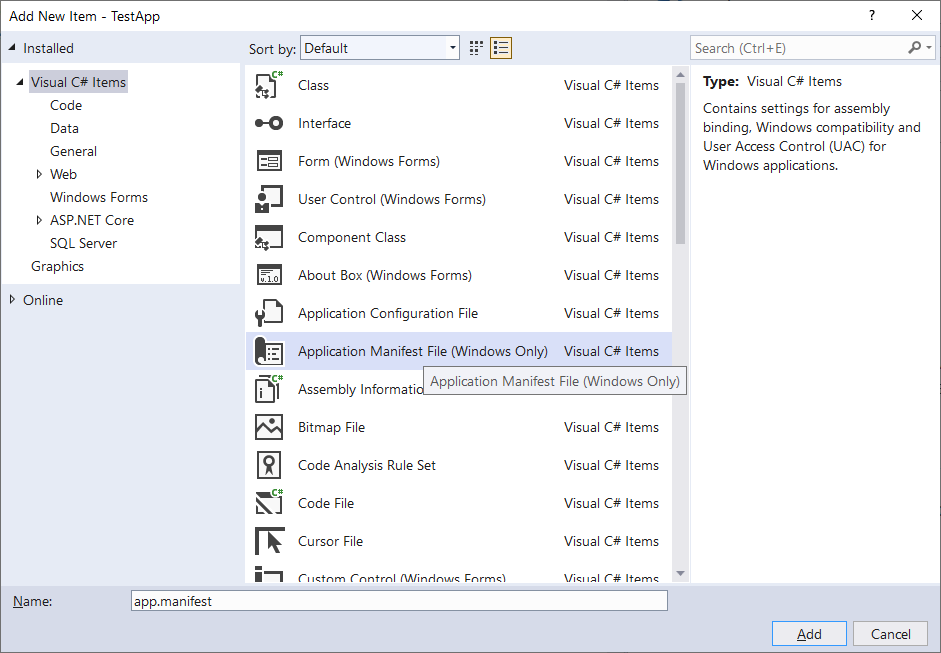
-
Add the following statements inside the <assembly> tag:
Copy<dependency>
<dependentAssembly>
<assemblyIdentity
name="Cognex.Vision.Display.Controls.sxs"
version="71.0.0.0"
processorArchitecture="ia64"
type="win32" />
</dependentAssembly>
</dependency> - Copy the file DotNetApp.exe.manifest from C:\Program Files\Cognex\VisionPro10.0\manifest to the directory where your application is located.
-
Right-click on the project in Visual Studio, select Properties, and disable creating a manifest for the application by changing the following setting:
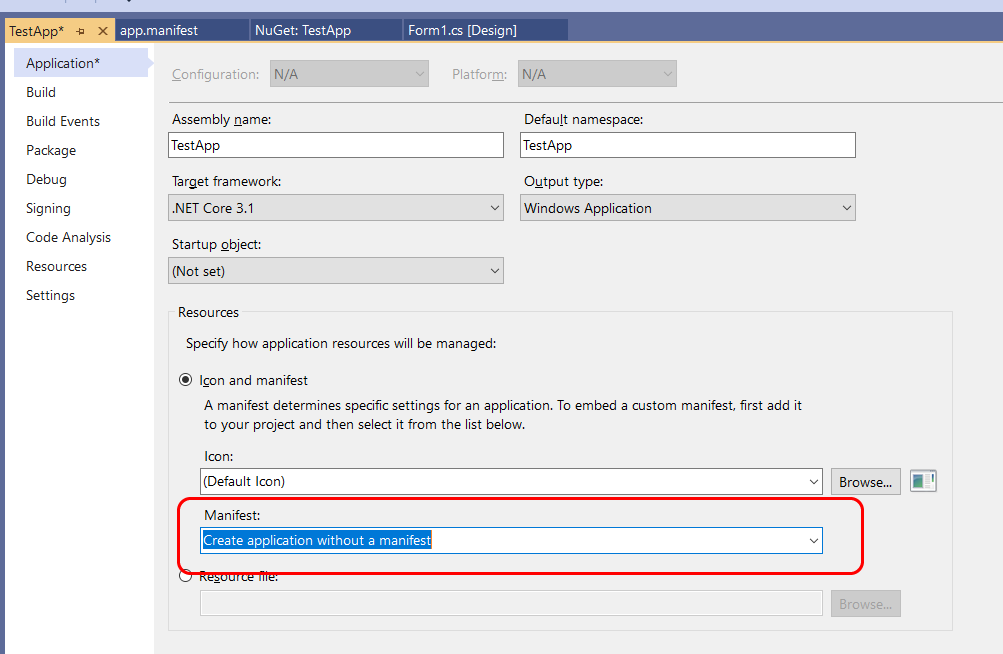
-
Build and compile the solution.
You must build the solution or the edit controls will not appear in the Form Designer's ToolBox.
-
Add a ToolBlock Edit control.
-
Open up the Form Designer (Right-Click on the Form1.cs -> View Designer)
-
Open the Visual Studio Toolbox window (View -> Toolbox).
-
Drag and drop the ToolBlock edit control onto your form.
-
-
Initialize VisionPro code:
-
Add calls to Initialize() and Shutdown() in your the following In the Program.cs's static void Main():
Copy[STAThread]
static void Main()
{
Cognex.Vision.Startup.Initialize();
...
...
Cognex.Vision.Startup.Shutdown();
}
-
- Run your application.
-
(Optional) Create a basic Blob tool test:
Add the following code below the InitializeComponent(); call in Form1.cs:
Copyvar imageFileTool = new ImageFileTool();
// Update the location of the image to use to fit your set up
imageFileTool.Operator.Open("Images\\blobs.bmp", ImageFileModeConstants.Read);
var blobTool = new BlobTool();
toolBlockEdit1.Subject.Tools.Add(imageFileTool);
toolBlockEdit1.Subject.Tools.Add(blobTool);
toolBlockEdit1.Subject.AddLink(imageFileTool.Outputs[0], blobTool.Inputs[0]);
toolBlockEdit1.Subject.Run();