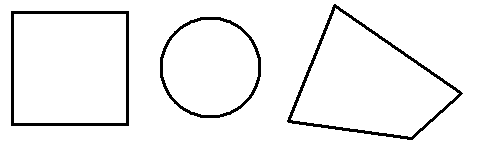
You can choose from a variety of region shapes when selecting the portion of the input image you want to copy. By default, the tool uses a rectangular region and provides you with a graphic to change the location and size of the region in your input image. If necessary you can choose to use another shape for the region, such as a circle, an ellipse, a polygon, and so on.
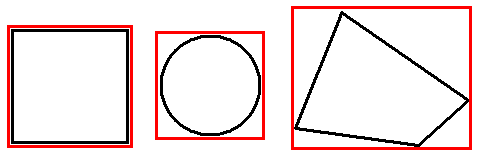
Regardless of which region shape you use, the Copy Region tool surrounds the region with a bounding box that determines the overall size of the output image:
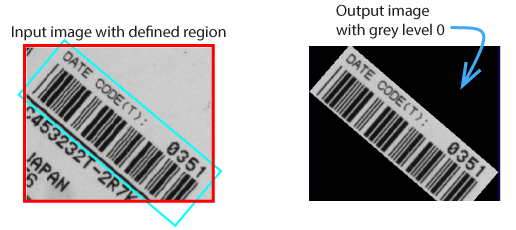
By default, the tool uses a bounding box with an adjust mask, which allows the pixels outside the input region but within the bounding box to be treated in two different ways. The pixels can be filled with a constant value, as shown:
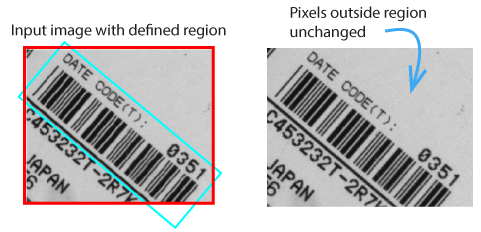
Alternatively, the pixels outside the input region but within the bounding box can be left uninitialized and appear in a 2D display in random appearance:
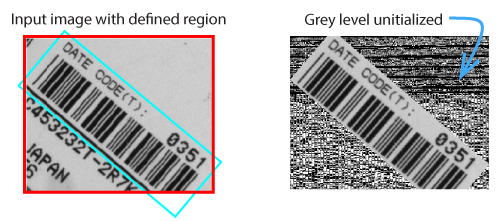
You can also use a bounding with no adjust mask, which generates an output image based entirely by the bounding box without regard to the shape of the input region: