VisionPro requires that you attach a USB security key to your computer to ensure the software is properly authorized for use. The USB security key contains programmed licenses that enable your vision application to acquire images and run vision tools. Your vision application throws the exception CogSecurityViolationException if the key is not attached or the appropriate license required by a specific vision tool is not enabled.
See the following sections for possible solutions:
You must have a Cognex USB security key installed to run VisionPro and VisionPro-based applications. Use the Cogtool utility to verify the hardware detects the Cognex security key. Enter the following at a command prompt:
cogtool --print | more
If you have a Cognex security key installed, the output begins with something like the following.
There is 1 Cognex Security device installed.

  Cognex Security Key v8
    Serial Number: 3-4346701
    Device: Wibu CmStick/C, FW 4.05, FAC: 1
Certified Time: 2018-04-03.00:22:If you receive a security error when you try to use a particular vision tool, your USB security key might not have the appropriate licenses enabled. Use the Cogtool utility to check which licenses are enabled on your Cognex hardware. See the topic VisionPro Licenses for details.
To use a VisionPro tool that is not enabled on your security key, contact your Cognex Sales Representative.
Open Windows Task Manager and verify that the following security services are running:
- CodeMeter.exe
- cogss3_srv
Some antivirus software products can conflict with Cognex security; they might generate entries in your Windows Event Viewer concerning license violations and application errors. Add the services cogss2_srv.exe and CodeMeter.exe to your application whitelist. Refer to your Windows OS documentation for details.
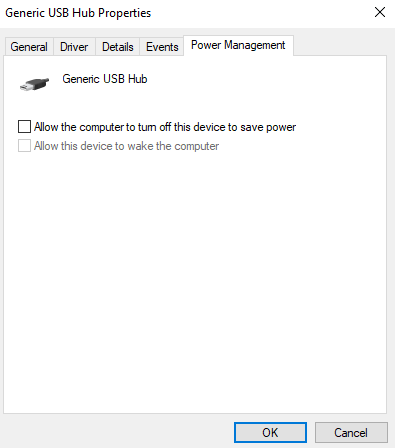
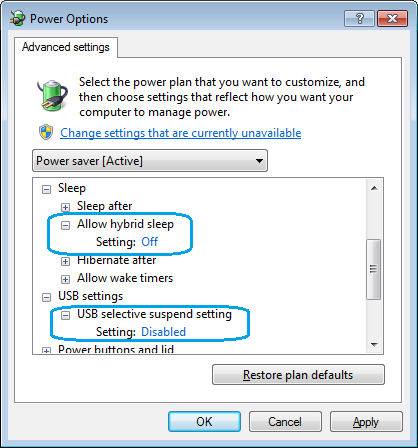
Be aware that if your computer enters power-saving sleep mode for five minutes or longer, your vision application has a high probability of throwing a CogSecurityViolationException when it resumes. To prevent security violations related to the power management options for your computer and your USB hub in particular, Cognex recommends you access the Power Options settings in your Windows Control Panel and ensure the following:
Turn off the Allow hybrid sleep setting and disable the USB selective suspend setting option:
Under Generic USB Hub properties, disable the Allow the computer to turn off this device to save power option: