Your processor must support the AVX2 instruction set for any Cognex 3D operations.
This release adds the CPUCanExecute3D method to return True if the processor in your computer is capable of executing Cognex 3D operations. Otherwise the method returns False. Use the CPUCanExecute3D method to verify any computer you use to create or deploy your application can perform 3D operations.
VisionPro supports the 3D PatMax tool for locating the position and orientation of 3D shapes in successive 3D range images. Once you train a 3D PatMax tool with a 3D model, it can return one or more results from a given volume of space:
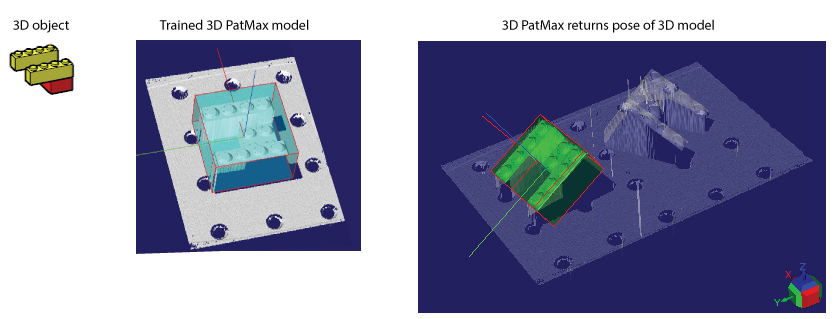
See the following sections for more information:
Note: Your processor must support the AVX2 instruction set for any Cognex 3D operations. VisionPro supports the CPUCanExecute3D method to return True if the processor in your computer is capable of executing Cognex 3D operations. Otherwise the method returns False.
While you use a 3D PatMax tool to create and search for a trained 3D model, a 3D PatMax application requires additional tools to generate useful 3D coordinate spaces and rerender the original 3D range image based on the pose of a found result. A typical 3D PatMax application uses a collection of the following tools:
- A Cog3DRangeImagePlaneEstimatorTool to identify a base plane where the objects you want your application to analyze can be found.
A Cog3DFixtureFromPlaneScript CogToolBlock to create a 3D coordinate space aligned with the base plane found by the Cog3DRangeImagePlaneEstimatorTool.
This new 3D coordinate space allows you to easily specify 3D regions of space that are aligned with the base plane.
The Cog3DFixtureFromPlaneScript CogToolBlock requires no additional configuration after you add it to your application.
- A Cog3DPatMaxTool to define a 3D model, the volume of the 3D range image where you want to search for that 3D model, and other run parameters that define how your 3D models might be rotated about the X, Y and Z axes in successive runtime images.
A Cog3DVisionDataRerenderTool to rerender the orignal 3D range image in the 3D coordinate space represented by the orientation of a found 3D model.
3D tools such as 3D Height Calculation tool and 3D Volume Calculation tool might generate more accurate results after the image has been rerendered in the new 3D coordinate space.
The following procedure describes one method of creating a 3D PatMax application using a LEGO model that can change its orientation as shown in the following figure:
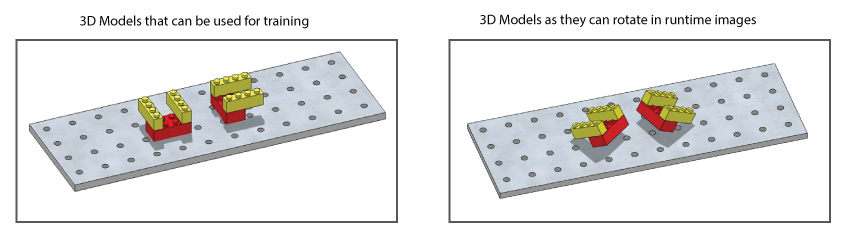
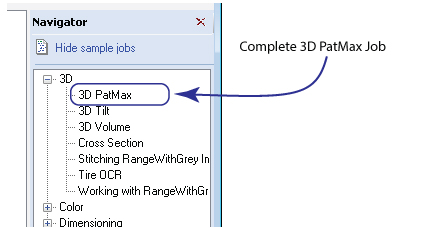
The complete application exists as a QuickBuild sample job as part of your VisionPro installation. Find the job in the Navigator pane under the 3D category:
Perform the following steps to create this application as a guide to creating your own:
Create a new Job in QuickBuild and configure the Image Source to use the image-database file %VPRO_ROOT%\Images\3DPatMaxLego.cdb.
The image-database file contains two 3D range images. One is for suitable for creating a 3D model and the second can be used for locating that model in a sample runtime image:
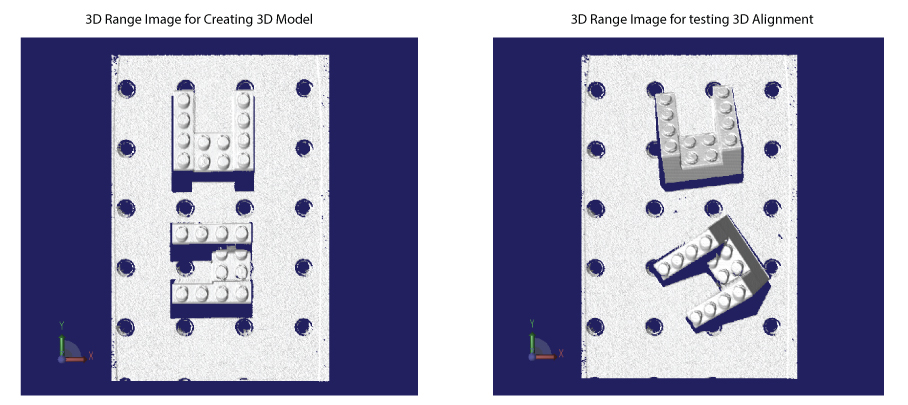
Use the first 3D range image for developing this application.
Add a Cog3DRangeImagePlaneEstimatorTool, link the Image Source to the InputImage of the tool, and use it to locate the plane representing the surface on which the LEGO models rest .
Refer to Estimating a 3D Plane for details on using a Cog3DRangeImagePlaneEstimatorTool. For this application, the tool uses four 2D points to identify the surface. Position the 2D location of the points as shown:
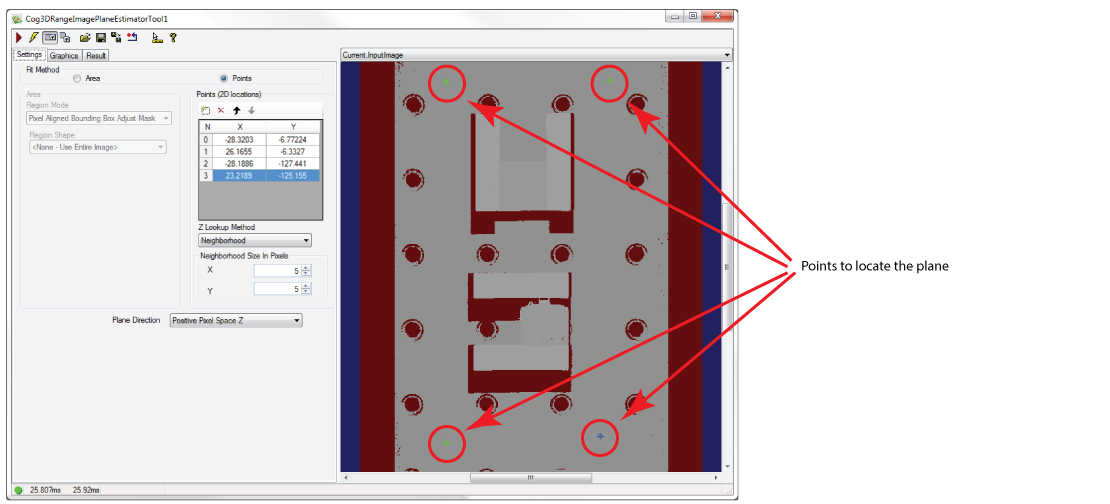
Run the Job so that the Cog3DRangeImagePlaneEstimatorTool has a plane to pass onto the next tool.
Add a Cog3DFixtureFromPlaneScript CogToolBlock and give it the Image Source from the image-database file and the plane found by the Cog3DRangeImagePlaneEstimatorTool, as shown:
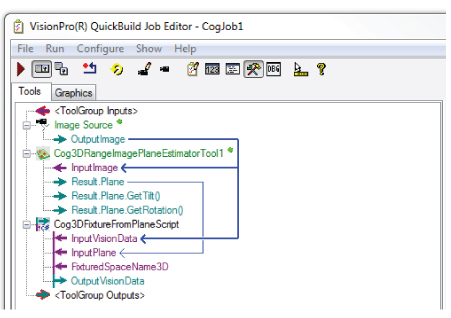
The CogToolBlock contains a script that creates a new 3D coordinate system based on the plane of the surface and makes it the current SelectedSpaceName3D.
Run the Job again and the CogToolBlock generates OutputVisionData you can pass to a 3D PatMax tool.
Add a Cog3DPatMaxTool and pass it the OutputVisionData from the Cog3DFixtureFromPlaneScript CogToolBlock:
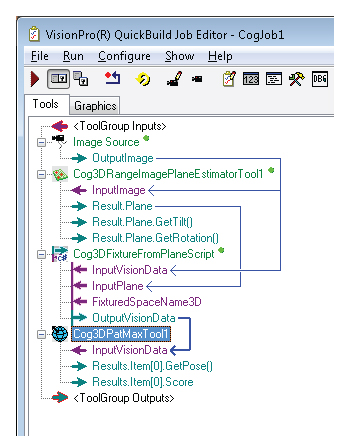
Run the Job to give the Cog3DPatMaxTool the 3D range image from the Cog3DFixtureFromPlaneScript CogToolBlock.
Open the Cog3DPatMaxTool edit control and confirm that the tool uses the first image from the image-database file:
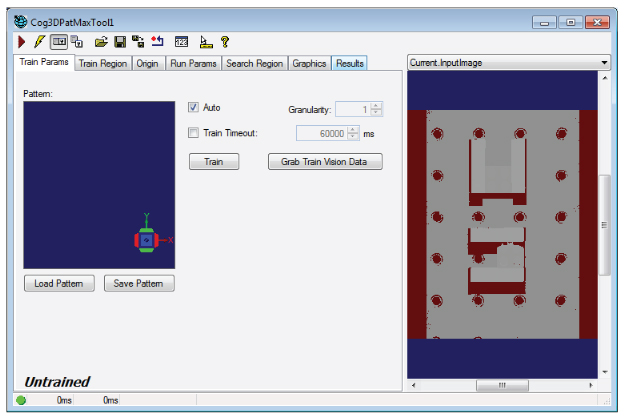
Perform the following steps to create a 3D model from one of the LEGO structures:
- Click Grab Train Vision Data on the Train Params tab.
Select the Train Region tab.
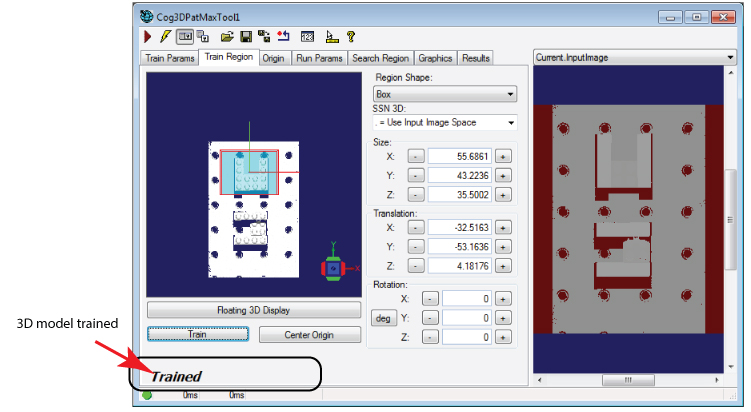
The Train Region tab contains a user interface for creating the 3D model you want to search for in successive 3D range images, including a 3D display containing the 3D range image and a 3D graphic representing the current train region:
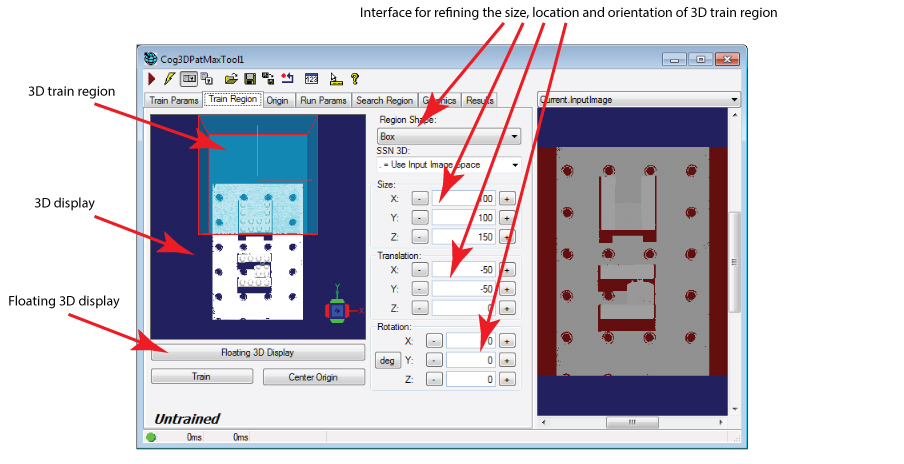
The 3D Display reflects any changes you make to the Size, Translation and Rotation parameters of the train region. The tab also contains a Floating 3D Display button to open a floating 3D display containing the 3D range image and the train region, which can make it easier to see the changes you make to the dimensions of the train region.
Double-click on the Cog3DBox to enable controls that let you change the location and size of the train region:
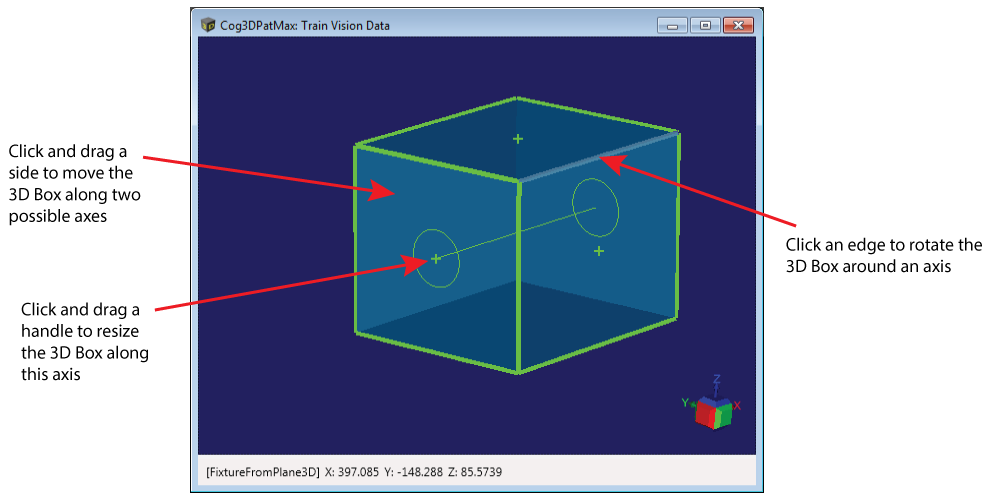
Use the controls to change the dimensions of the Cog3DBox train region to surround one of the LEGO structures, as shown:
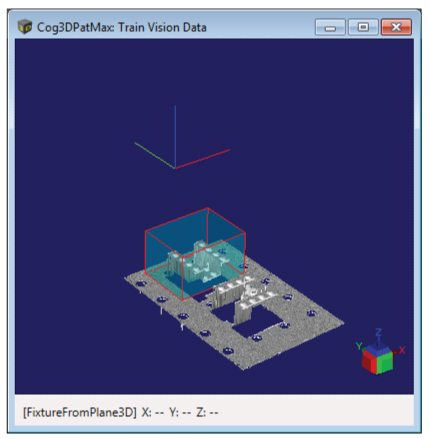
Note: Do not intersect the train region with the base plane whenever possible. A 3D model that includes features from the base plane will have a negative impact on the performance of the 3D PatMax tool.
- Click Center Origin to center the origin of the model in the middle of the train region.
Click Train to create a trained 3D model. It can take several minutes to train the 3D model. The Cog3DPatMaxTool edit control will display a notice when the model has been trained:
Click on the Search Region tab:
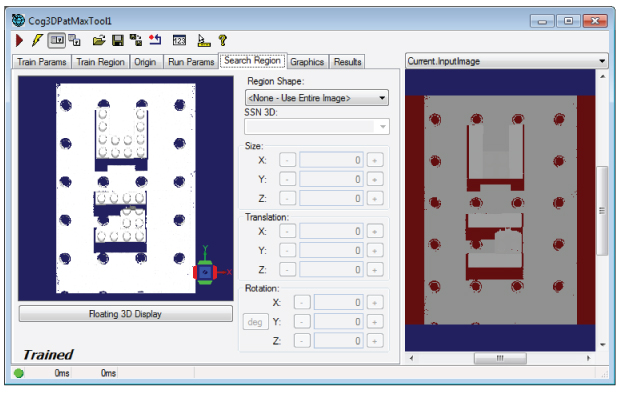
The Search Region tab allows you to define the volume of 3D space where you want to search for the trained search model. By default, the Cog3DPatMaxTool will search for the trained model in the entire 3D range image, but specifying a smaller search volume will allow the tool to execute faster.
Select the Region Shape and choose Box.
Similar to the Train Region tab, the Search Region tab allows you to select the search region Cog3DBox and modify its size, shape and rotation.
Launch a floating 3D display to help you set the best parameters for your application. In the following image, the tool uses a search volume large enough to find both 3D models:
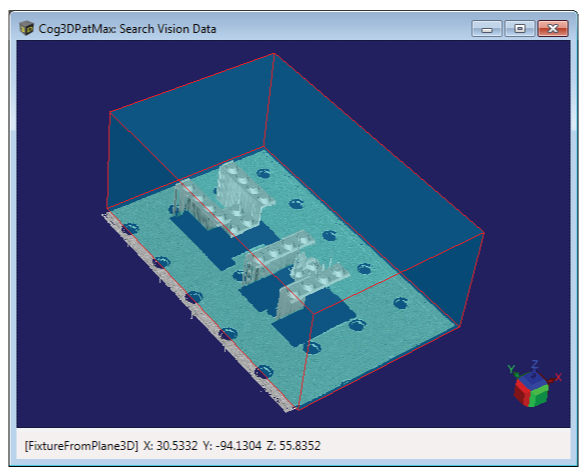
Avoid defining a search volume that intersects the base plane to improve the performance of the 3D PatMax tool.
Select the Run Params tab to set parameters that indicate how the trained 3D model can rotate along the (X, Y, Z) axes of a 3D coordinate system, as well as other parameters:
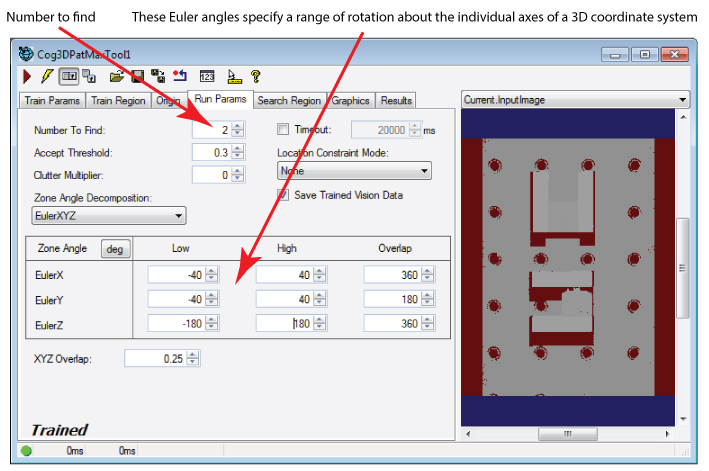
The tool allows you to specify a set of Euler angles to describe the range of rotation and translation the 3D model can exhibit from one 3D range image to the next.
The following run parameters work well for the 3D PatMax tool in this application:
- Number To Find: 2
- Accept Threshold: 0.3
- EulerX Low: -40
- EulerX High: 40
- EulerY Low: -40
- EulerY High: 40
- Click the Run button and allow the tool to search for the current 3D range image for the trained 3D model.
Select the Results tab to see the results the Cog3DPatMaxTool generated:
The Cog3DPatMaxTool should locate two results regardless of which image you are using:
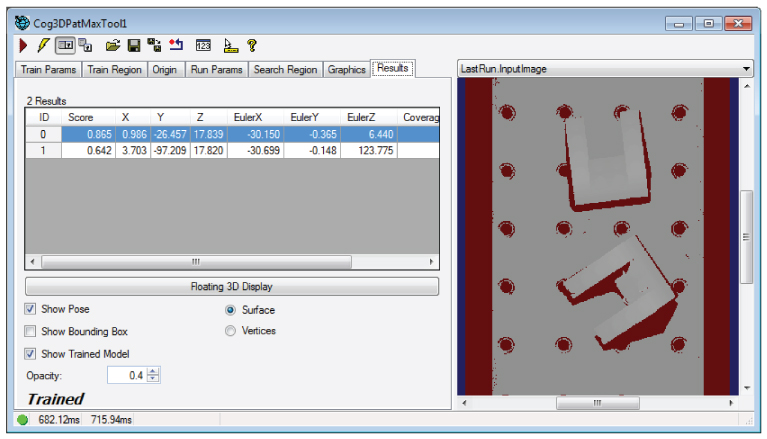
Click Floating 3D Display to see the results in a 3D Viewer:
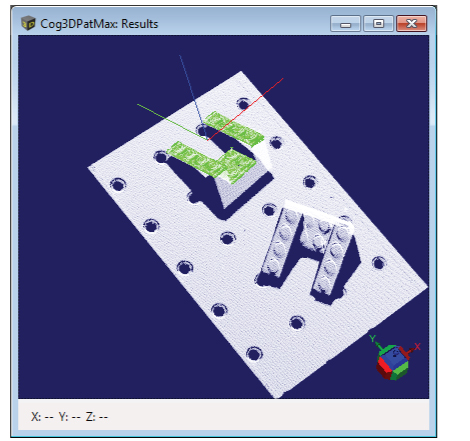
The Results tab contains a variety of options for graphics in the 3D Viewer:
- Show Pose: Display a graphical set of coordinate axes that reflect the found position and orientation for the pose of the selected result.
- Show Bounding Box: Display a translucent dark green bounding box for the selected result.
- Show Trained Model: Display a bright green set of points representing the actual trained 3D model points at their found position and orientation for the selected result.
Be aware the Save Trained Vision Data checkbox on the Run Params tab must be enabled to view this graphic.
In addition, the Results tab gives you the option of displaying the results in Surface or Vertices mode. Surface mode is the default but Vertices mode can display the points of the acquired 3D range image or 3D point cloud.
Note: Support for Vertices mode depends on your hardware platform. See the topic About this Release for more information.
- Close the Cog3DPatMaxTool edit control.
Return to the Job and add a Cog3DFixtureScript CogToolBlock, giving it the 3D image from your image-database file and the first found pose of the Cog3DPatMaxTool:
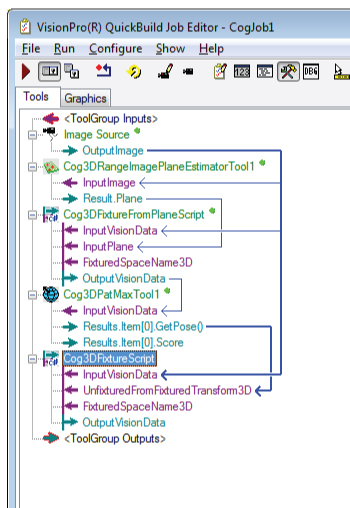
The Cog3DFixtureScript CogToolBlock takes the 3D transform represented by the first found pose result, creates a new 3D coordinate system based on that transform, and then adds it to the original 3D range image. The new 3D coordinate space becomes the SelectedSpaceName3D of the OutputVisionData from the CogToolBlock.
Add a Cog3DVisionDataRerenderTool to the Job and give it the OutputVisionData generated by the Cog3DFixtureScript CogToolBlock:
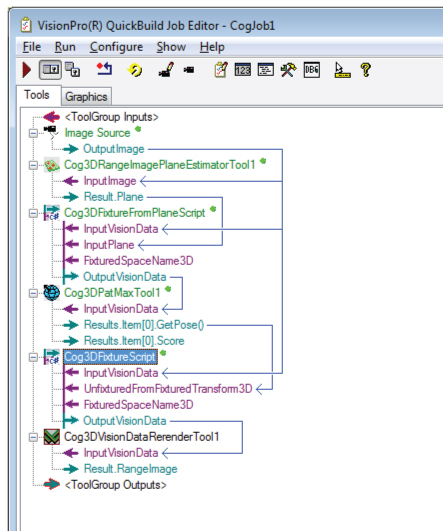
The Cog3DVisionDataRerenderTool rerenders a 3D range image in a different coordinate space of its 3D coordinate space tree. Rerendering a range image can improve the effectiveness of other vision tools that later analyze the rerendered image.
Run the Job again with the second image in the image-database file and select the LastRun.Cog3DVisionDataRerenderTool.OutputRangeImage buffer.
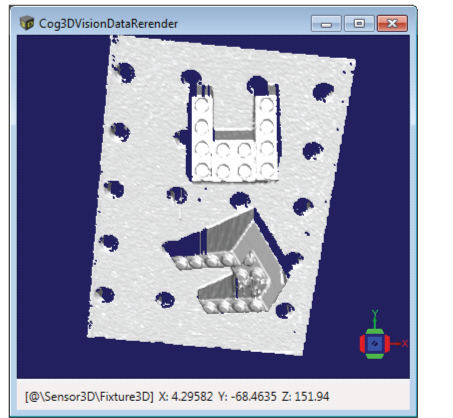
The 3D range image has now been rerendered based on the pose of the first 3D model found by the Cog3DPatMaxTool:
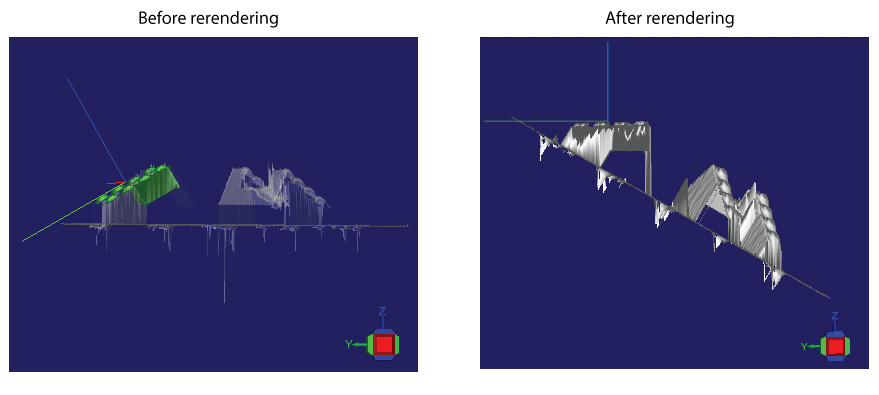
If you open the Cog3DVisionDataRerenderTool edit control, you can access a 3D Viewer and view the 3D range image that way: