To run successfully, any VisionPro Visual Studio application you create depends on the proper installation of the VisionPro .NET assemblies. When you deploy your application, you need to verify that the target PC has the necessary files installed. The simplest and most reliable method to ensure this is to install VisionPro on the target machine by integrating the installation of the required VisionPro components with the installation procedure of your customized vision application.
This topic contains the following sections.
The following table shows the files included in the top-level directory of the VisionPro installation media that you must consider including as you deploy your customized vision application:
| File Name | Description | Required |
| 0x0407.ini | Language file | Yes |
| 0x0409.ini | Language file | Yes |
| 0x0411.ini | Language file | Yes |
| 0x0412.ini | Language file | Yes |
| 0x0804.ini | Language file | Yes |
| 1031.mst | Language file | Yes |
| 1033.mst | Language file | Yes |
| 1041.mst | Language file | Yes |
| 1042.mst | Language file | Yes |
| 2052.mst | Language file | Yes |
| Cognex VisionPro x64 (R) 9.7 msi | Installer package for VisionPro software. | Yes |
| vpro32.cab | VisionPro Development Software | No |
| ISSetupPrerequisites/{44FCC612-A6E7-4369-903A-6CA265AC105F}/vcredist_x64.exe | Support file | Yes |
| ISSetupPrerequisites/{47C4119B-3ADD-4803-B278-9ABA39415D83}/vc_redist.x86.exe | Support file | Yes |
| ISSetupPrerequisites/{6B1A5E34-475A-4039-94A2-76F8E38762A3}/vcredist_x86.exe | Support file | Yes |
| ISSetupPrerequisites/{93A18296-3BF5-4F9D-BCDB-789FC6DC41B7}/vcredist_x64.exe | Support file | Yes |
| ISSetupPrerequisites/{BFF4A593-74C5-482F-9771-7495035EBBB0}/NDP472-KB4054530-x86-x64-AllOS-ENU.exe | Support file | Yes |
| ISSetupPrerequisites/{C89FAEA3-88AC-4F9F-ADB5-CAA7689CEB3A}/vcredist_x86.exe | Support file | Yes |
| ISSetupPrerequisites/{D093EE4D-527D-4CC7-AB3C-DCE3219FA508}/vc_redist.x64.exe | Support file | Yes |
| ISSetupPrerequisites/{D5538F3C-D9E4-45B9-966E-F628E5B7050C}/vcredist_x64.exe | Support file | Yes |
| ISSetupPrerequisites/{E9B238C1-6181-470B-9405-90DBD0960946}/vcredist_x86.exe | Support file | Yes |
| ISSetupPrerequisites/{FE5C07B1-EA54-4FB3-8DFB-ED9C76A4B294}/CodeMeterRuntime64.msi | Support file | Yes |
| vpro.cab | VisionPro software | Yes |
| a5000v.cab | A5000 Viewer Software | No |
| handeye.cab | 3D HandEye Field Calibrator | No |
| setup.exe | Installer startup | Yes |
| Setup.ini | Installer startup data | Yes |
| samples3d.cab | VisionPro 3D sample programs | No |
| samples.cab | VisionPro sample programs | No |
| doc.cab | VisionPro documentation | No |
| dsfldcal.cab | DS Field Calibrator | No |
| pylon6_driver/pylon_6_Runtime_6.1.1.19832-RC2.exe | Required | Yes |
The VisionPro installation does not redistribute the prerequisites installer for Visual Studio. If you wish to deploy a Visual Studio application, you must install the appropriate prerequisites installer for Visual Studio on the deployment PC.
This section contains the following subsections.
A silent installation lets you install VisionPro without displaying any windows or dialog boxes and without the need for user interaction.
Use the following command to perform a silent installation using the setup.exe program from your VisionPro media:
setup.exe /s /v"/qn ADDLOCAL=<list of internal feature names> INSTALLDIR=<Installation Directory>"
- You can use the /L option to specify a language other than that of the current OS for the installation. Use /L1033 for English, /L1031 for German, /L1041 for Japanese, /L1042 for Korean, or /L2052 for Chinese.
- The INSTALLDIR string specifies the installation directory. If the path includes any spaces, then you must enclose it with backslash-quotes (\”…\”).
Refer to the following table for internal feature names:
| VisionPro Internal Feature Name | Description | Comments |
| vpro | VisionPro Core software (required) | Must always be installed |
| a5000v | A5000 Viewer Software | Requires installation of pylon 6 driver (see below) |
| dsfldcal | DS Field Calibrator | |
| handeye | 3D HandEye Field Calibrator | Requires installation of pylon 6 driver (see below) |
| vpro32 | VisionPro Development Software | |
| sample3d | VisionPro 3D sample programs | |
| samples | VisionPro sample programs | |
| doc | VisionPro documentation |
For example:
setup.exe /s /v"/qn ADDLOCAL=vpro INSTALLDIR=\"C:\Program Files\Cognex\""
If you silently install either the A5000 Viewer Software (a5000v) or 3D HandEye Field Calibrator (handeye) feature, you must also install the pylon 6 driver. Use the following command to perform a silent installation of the pylon 6 driver from the Disk1 directory:
pylon6_driver\pylon_6_Runtime_6.1.1.19832-RC2.exe /quiet /install=Cpp_Runtime;USB_Support
If you install VisionPro silently, then you must install the Cognex drivers with a separate command. You can install Cognex drivers independent of the VisionPro software. The following table shows the files in the \drivers directory of the VisionPro installation media that you must include in your deployed application to install the Cognex drivers:
| File Name | Description |
| setup.exe | Cognex drivers installation utility |
| Cognex x64 Drivers 5.19.msi | Installer package for Cognex drivers. |
| Data1.cab | Driver software |
| 1031.mst | Language file |
| 1033.mst | Language file |
| 1041.mst | Language file |
| 1042.mst | Language file |
| 2052.mst | Language file |
| 0x0407.ini | Language file |
| 0x0409.ini | Language file |
| 0x0411.ini | Language file |
| 0x0412.ini | Language file |
| 0x0804.ini | Language file |
| Setup.ini | Setup parameters |
| DSMaxDriver/disk1.cab | DSMax software |
| DSMaxDriver/Setup.x64.msi | DSMax installer |
The Cognex Driver installer can install any supported driver. Specify a driver by name:
| Feature Name | Description | Comment |
| _8504 | MVS-8500/8500e Driver | |
| _8700 | Cognex 8700 Driver | Installs Cognex 8700 driver and GigE Interface |
| _8800 | Cognex 8800 Driver | Installs Cognex 8800 driver and GigE Interface |
| _gige | GigE Interface | Installs GigE Interface only |
| _commcard | Cognex Communication Card Driver | |
| DSMax Driver | Installs the DSMax driver Install separately, as shown below. See Uninstalling Silently Without Installation Image to uninstall the DSMax driver. |
To install the Cognex drivers, use setup.exe and specify the features you want in the ADDLOCAL parameter:
setup.exe /s /v"/qn INSTALLDIR=\"C:\Program Files\Cognex\Common\" ADDLOCAL=_gige,_commcard"
To install all the drivers, use ADDLOCAL=ALL.
To prevent the PC from rebooting after installing the Cognex drivers, use the REBOOT=ReallySuppress option. The following command installs all Cognex drivers without rebooting:
setup.exe /s /v"/qn INSTALLDIR=\"C:\Program Files\Cognex\Common\" ADDLOCAL=ALL REBOOT=ReallySuppress"
To install the DSMax drivers, use the Windows msiexec process and run this command from the Disk1\drivers directory:
msiexec /I DSMaxDriver\Setup.x64.msi /qn
You can silently install Asian language versions of the VisionPro documentation after VisionPro has been successfully installed by running the following command from the vprolocalizeddocs directory:
setup.exe /s /v/qn
The following table lists the files in the \vprolocalizeddocs directory of the VisionPro installation media that you must include in a separate directory of your deployed application to install the Asian language versions of the VisionPro documentation:
| File Name | Description |
| setup.exe | Cognex documents installation utility |
| Cognex VisionPro x64 (R) 9.7 Asian Language Documents.msi | Installer package for Cognex VisionPro Asian Language Documents |
| Data1.cab | Document files |
| 1031.mst | Language file |
| 1033.mst | Language file |
| 1041.mst | Language file |
| 1042.mst | Language file |
| 2052.mst | Language file |
| 0x0407.ini | Language file |
| 0x0409.ini | Language file |
| 0x0411.ini | Language file |
| 0x0412.ini | Language file |
| 0x0804.ini | Language file |
| Setup.ini | Setup parameters |
If your VisionPro application configuration requires any non-default settings in the VisionPro.ini configuration file, you must make sure that your deployment installation procedure installs the appropriate VisionPro.ini on each deployment system.
This section contains the following subsections.
During any interactive uninstall of VisionPro or the Cognex drivers, a dialog box similar to the following might appear:
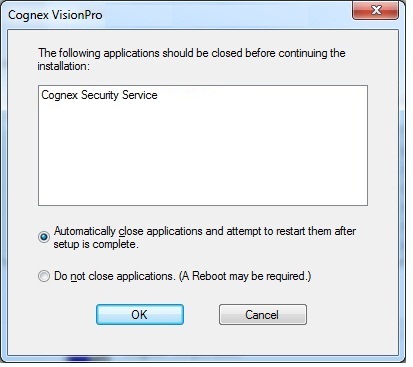
The default choice Automatically close applications and attempt to restart them after setup is complete is appropriate for most situations, and allows the uninstallation to continue without additional user interaction.
To perform a silent uninstall of VisionPro, use the following command from the 64-bit installation image downloaded from the Cognex Corporation support site:
setup.exe /s /v"/qn REMOVE=all"
To uninstall the drivers silently, use the same command in the directory where you installed the Cognex drivers. Prevent the PC from rebooting with the REBOOT=ReallySuppress option:
setup.exe /s /v"/qn REMOVE=all REBOOT=ReallySuppress"
Without the REBOOT=ReallySuppress option the uninstall process will automatically reboot your PC when it completes.
To uninstall the Asian language versions of VisionPro documentation, use the same command in the \vprolocalizeddocs directory:
To perform a silent uninstall of any VisionPro component without the installation image, use the Windows msiexec process and the globally unique identifier (GUID) of the particular component, as listed in the following table:
| Application | Uninstall with msiexec |
| Cognex VisionPro x64 (R) 9.7 msi | msiexec /qn /X{1A3FE172-032F-4042-BB6C-A060BF7AFD59} |
| Cognex VisionPro x64 (R) 9.7 Asian Documents.msi | msiexec /qn /X{7E735E02-F9EE-4250-8C55-31B1430110AE} |
| Cognex x64 Drivers 5.19.msi | msiexec /qn /X{913715CB-BE20-4D8E-AF3F-90CE6775AAB9} |
| Expresso PCI Express ("DSMax Driver") | msiexec /qn /X{5411640-F5BE-45F7-98BC-B47ADAFE82D0} |
| pylon 6 Runtime 5.0.11.10913 (installed silently by default) | "C:\ProgramData\Package Cache\{317b839f-3842-413b-aefc-f80c0cfca8b7}\pylon 6 Runtime.exe" /uninstall /quiet |
Various command line switches allow you to create a desktop short for VisionPro utilities:
| Utility | Executable | Command Line Switch |
| GigE Vision Configurator | gigeconfiggui.exe | GIGECONFIGSHORTCUT=1 |
| Comm Card Configurator | Cognex.VisionPro.Comm.EthernetConfigurator.exe | COMMCARDCONFIGSHORTCUT=1 |
Command line switches can be combined on the command line. For example, the following command launches the VisionPro installer interactively and will include these desktop shortcuts:
setup.exe /v”COMMCARDCONFIGSHORTCUT=1 GIGECONFIGSHORTCUT=1”
The following command installs VisionPro silently to the default install path and includes desktop shortcuts:
setup.exe /s /v”/qn ADDLOCAL=vpro COMMCARDCONFIGSHORTCUT=1 GIGECONFIGSHORTCUT=1”