This topic contains the following sections.
The Results Analysis edit control provides a graphical user interface to the Results Analysis tool, which you use to define a set of expressions that will allow the most recent run of the tool group to give a passing, warn-level, or reject-level result. Using a Results Analysis tool, you can combine the results from one, several, or all the vision tools in a tool group and generate a value that can be used to judge whether the tool group generates a Warn or Reject status. VisionPro ultimately uses this Warn or Reject status to determine the value of the RunStatus property for the tool group.
The following figure shows a Results Analysis edit control before any expressions have been created:
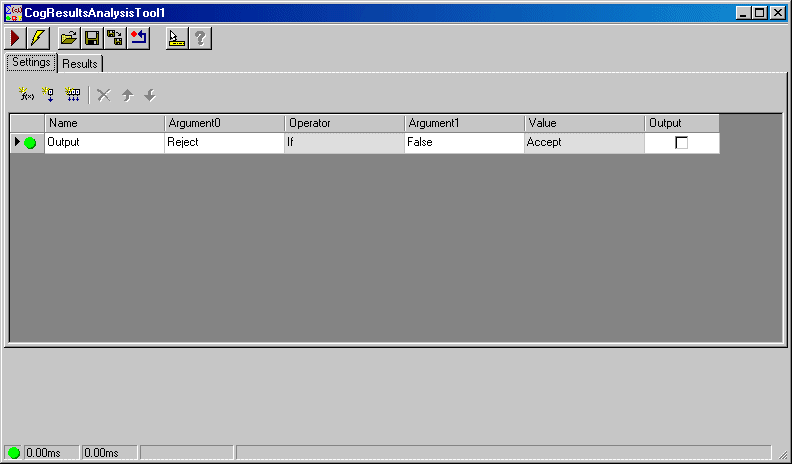
The edit control offers a Settings tab for defining the expressions that evaluate the results of other vision tools, and a Results tab for viewing the results of those expressions.

| Button | Description | Function |
 | Run | Reevaluate all the expressions currently defined for this Results Analysis tool and generate a new Accept, Warn, or Reject result. |
 | Electric mode | Toggle electric mode, where the Results Analysis tool executes automatically when you change the value of any argument to an expression. |
 | Open | Open a VisionPro persistence (.vpp) file that contains a set of saved properties for this vision tool object type. VisionPro reports an error if you try to open a .vpp file for another object type. |
 | Save | Save the current properties of the vision tool to a VisionPro persistence (.vpp) file. The edit control allows you to choose between saving the vision tool with or without its image buffers and tool results. |
 | Save As | Save the current properties of the vision tool to a new VisionPro persistence (.vpp) file. |
 | Reset | Reset the vision tool to its default state. |
 | Show ToolTips | Enable or disable the display of tooltips for individual items in the edit control. |
 | Help | Open this VisionPro online help file. |
Use the Settings tab to define the arguments and expressions you need to evaluate the results of other vision tools. The topic Using Results Analysis contains an example of defining the criteria for an application using the Settings tab. The following figure shows a Settings tab with one argument and two expressions:
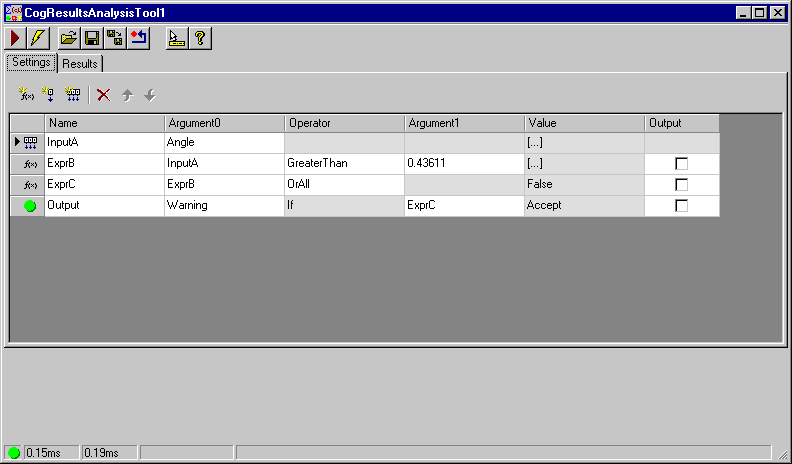
Use the following icons to add arguments and expressions to the Settings tab:
| Icon | Description |
 | Add a new expression. |
 | Add a new value input, which can be any numeric, string, or boolean result from a vision tool in your application. |
 | Add a vector input, which is the entire array of values in a collection. |
 | Delete the currently selected input or expression from the Settings tab. |
 | Move the currently selected input or expression up within the Settings tab. |
 | Move the currently selected input or expression down within the Settings tab. |
Use the Results tab to view the value of any input value or the result of any expression. The following figure shows an example Results tab after each the Results Analysis tool has executed:
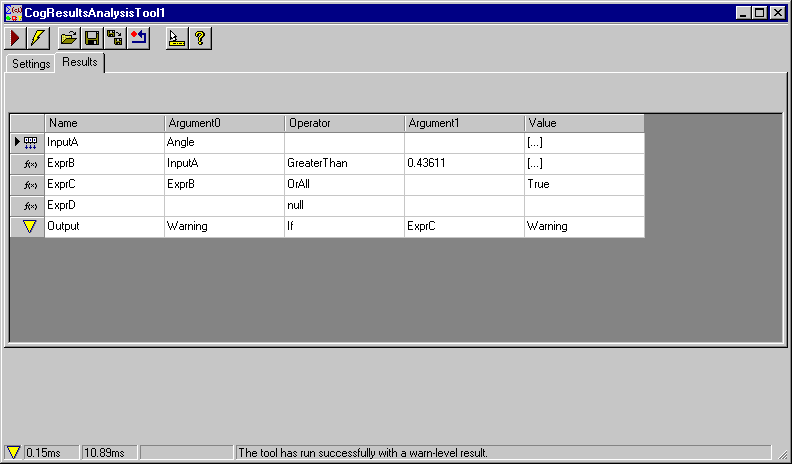
The tab updates the contents of each input value and expression after each execution of the QuickBuild job.