This topic contains the following sections.
Your VisionPro application, whether created using QuickBuild or entirely through Visual Studio.NET, supports the following languages:
- English
- German
- Korean
- Japanese
- Simplified Chinese
VisionPro can conform to the current language settings or it can be configured to operate in any supported language regardless of which language the PC is currently using.
By default, your VisionPro application adheres to the current settings for Regional and Language Options on the PC, which can be accessed using the Windows Control Panel. The following figure shows the Regional and Language Options dialog box for Windows XP and Windows 7:
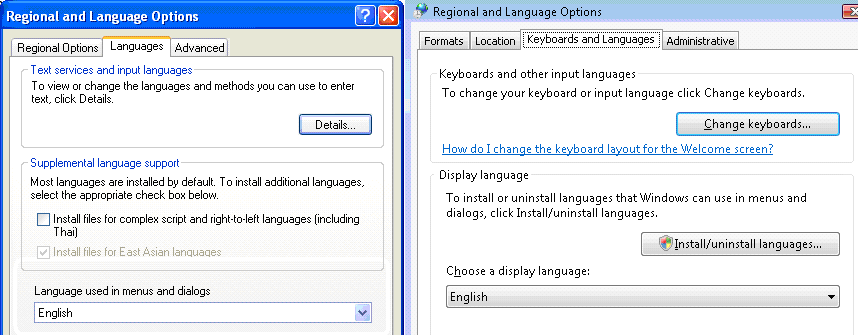
Use this dialog box to set a variety of language categories:
Use the Languages tab (Windows XP) or the Keyboards and Language tab (Windows 7) to set the language and methods you can use to enter text as well as the language used by the VisionPro menus, dialog boxes and tool edit controls
Note: You must have the Multilingual User Interface (MUI) Pack of Windows XP Professional or Windows 7 Ultimate or higher to change the language used in menus and dialog boxes.
- Use the Regional Options tab (Windows XP) or the Formats tab (Windows 7) to set the format for dates, times, currencies, formatted numbers and so on
- Use the Advanced tab (Windows XP) or the Administrative tab (Windows 7) to change the language for non-Unicode software
Be aware that VisionPro defaults to English if you select a language other than one supported in this release. For example, VisionPro uses English if the current language is set to French. In addition, if you change the current language while a VisionPro application is running, you must exit the application and restart it before the new language setting will take effect.
VisionPro can be configured to use a supported language regardless of which language the PC currently uses.
To change the language QuickBuild uses, select Configure->QuickBuild Application Properties. Select the Language tab, as shown in the following figure:
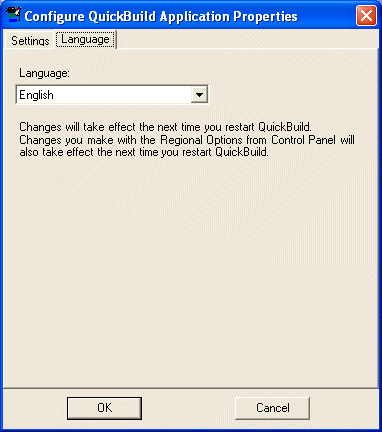
QuickBuild will prompt you for a restart so the language change can take effect.
If you select Korean, Japanese, or Simplified Chinese as the new language, QuickBuild will prompt you to install East Asian languages if they cannot be found on the PC:
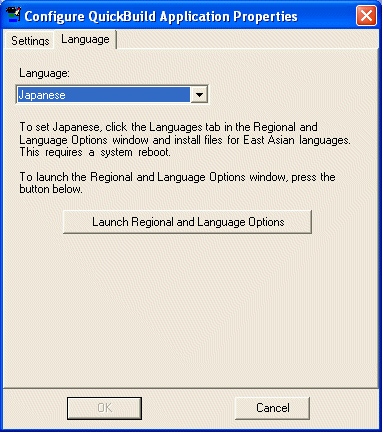
Use the Regional and Language Options dialog box to install the East Asian languages with the appropriate Windows operating system CD. Once the language is installed, you can reselect your East Asian language choice in QuickBuild.
You can change the language used by your Visual Studio.NET application regardless of the current language setting in the Control Panel by setting the application thread UI culture to the desired language using an ISO letter code, as shown in the following example:
[STAThread]
static void Main()
        {
        // Set the desired language code - Korean in this case
        System.Threading.Thread.CurrentThread.CurrentUICulture = new System.Globalization.CultureInfo("ko");

        // Enforce the language change
        Cognex.VisionPro.CogLocalizer.SetVisionProCulture();
        Application.Run(new Form1());
}VisionPro supports the following language codes:
- en: English
- de: German
- ko: Korean
- ja: Japanese
- zh-Hans: Simplified Chinese
Set the desired language at the beginning of the Main() function before creating the main WinForm.