This topic contains the following sections.
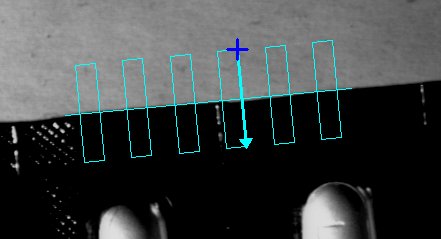
The input region graphics for the CogFindLineTool and CogFindCircleTool are complex graphics that let you specify both the expected shape and the caliper regions used to find the shape. This topic shows how to add these graphics to a CogDisplay without exposing the entire tool edit control.
Note: For most VisionPro tools, exposing the input region graphic in a CogDisplay is as simple as adding the tool's Region property to the display's InteractiveGraphics collection. That method does not work for the shape finding tools because the input region graphics are complex composite graphics that are not exposed as simple tool properties.
The shape finding tools' region selection graphics are stored within the tools' Current Tool Records. To expose these graphics in a CogDisplay, you must retrieve the graphics from the tools' current record, then add them to the display's InteractiveGraphics collection.
Both tools' region selection graphics are composed of an expected shape graphic (a CogLineSegment for the ExpectedLineSegment or a CogCircularArc for the ExpectedCircularArc) and a CogGraphicCollection containing the collection of caliper region graphics. The expected shape is stored as a shape graphic under the InputImage.ExpectedShapeSegment record key for both the CogFindCircleTool current record and the CogFindLineTool current record while the caliper regions are stored as a CogGraphicCollection under the InputImage.CaliperRegions record key for both tools.
You obtain the contents of a current record key by calling CreateCurrentRecord. Keep in mind the following points:
- The CreateCurrentRecord method is part of the CogTool interface, which is not the default interface for the shape finding tool objects. You must obtain an interface pointer before calling the method.
- The contents of the current record are determined by the bits that are set in the CurrentRecordEnable property. By default, both the find line and find circle tools enable the creation of the selection graphics.
- The CogFindCircle and CogFindLine tools do not create caliper region graphics unless the tool's InputImage is set to a non-null value.
The sample code shown below performs each of the steps described above.
CogFindCircleTool myCircleFinder = new CogFindCircleTool(); CogCircularArc myArc; CogGraphicCollection myRegions; ICogRecord myRec;// Set input image to an allocated image, create all input graphics myCircleFinder.InputImage = (CogImage8Grey) cogDisplay1.Image; myCircleFinder.CurrentRecordEnable = CogFindCircleCurrentRecordConstants.All;// Obtain the current record, then use the record keys to obtain the graphics myRec = myCircleFinder.CreateCurrentRecord(); myArc = (CogCircularArc) myRec.SubRecords["InputImage"].SubRecords["ExpectedShapeSegment"].Content; myRegions = (CogGraphicCollection) myRec.SubRecords["InputImage"].SubRecords["CaliperRegions"].Content;// Add the graphics to the display cogDisplay1.InteractiveGraphics.Add(myArc, "", false); foreach (ICogGraphic g in myRegions ) cogDisplay1.InteractiveGraphics.Add((ICogGraphicInteractive)g, "", false);
The preceding example shows a CogFindCircleTool. The code for the CogFindLineTool is identical, except for the data types, because the record key names are the same for the two tools. You can use the method described in this topic to retrieve any graphics from any tool's current and last run record. Also, instead of using the tool's record keys, you can search for records by ContentType.