This topic contains the following sections.
The CogCompositeColorMatchTool can be used to compare the color distribution in a run-time image ROI to one or more trained color samples. The output is a Score in the range 0 through 1 for each trained sample, with the highest score being the best match. The tool also calculates a Confidence score in the range 0 through 1 that compares the difference between the scores of the trained samples. A high confidence score means that the highest scoring trained image is significantly higher than other trained images, meaning that it is clearly the best match with no close seconds.
This section presents an example that uses the QuickBuild graphical user interface and the CogCompositeColorMatch tool to build an application that can identify different patterns of plaid cloth. The example uses an image file that contains three images of different plaid cloth samples.
In explaining this example, we don't exhaustively describe all of the color tool features and options, we only describe the features we use. For a complete description of all of the CogCompositeColorMatch tool features and options, see CompositeColorMatch Tool Control Reference. Also, for information about how this tool works, see CompositeColorMatch Tool Theory, and for sample code examples see C:\Program Files\Cognex\VisionPro\Samples\Programmatic\Color\CompositeColorMatch that is part of your release.
In a deployed application the image source will likely be a color camera connected to a Cognex frame grabber, or a FireWire color camera. However, for this example we will use the image database file \Program Files\Cognex\VisionPro\Images\color_plaids.tif from the VisionPro installation.
- Double-click the Image Source item in the QuickBuild window.

QuickBuild opens a QuickBuild Job Editor dialog and then an Image Source dialog.
- When the Image Source dialog opens, click Image database to acquire from an image database. (This option is selected by default.)
- Click Choose File to select an image database file.
Select the file C:/Program Files/Cognex/VisionPro/Images/color_plaids.tif.
- Click the Live Display button in the dialog.
A live display window opens and displays the images.
- Close the live display window and the Image Source dialog.
At this point your job has only the image source in it. (The Image Source is a special kind of tool that is only available within in QuickBuild.) You can run the job to see how an image appears in the tool group window.
- Click the Run button in the tool group's tool bar.

- The image acquired from the image database file appears in the display area.
- When you run a tool, a small green dot next to the tool indicates that it ran successfully.
- When all the tools in a job have run successfully, a green dot appears in the lower left corner of the Job Editor.
The CogCompositeColorMatch tool finds the color content in a ROI of the run-time image. This ROI is the same for all images so in a real application it is required to register and align each image before running the tool. One way to do this is to configure a CogPMAlign tool and a CogFixture tool ahead of CogCompositeColorMatch. However, to simplify this example we have omitted the alignment steps and have just focused on using the CogCompositeColorMatch tool.
In this application we will train the color tool with three plaid cloth patterns. At run time we will inspect plaid cloth samples and identify which of the three trained patterns it is.
- Click the toolbox icon to open the toolbox.
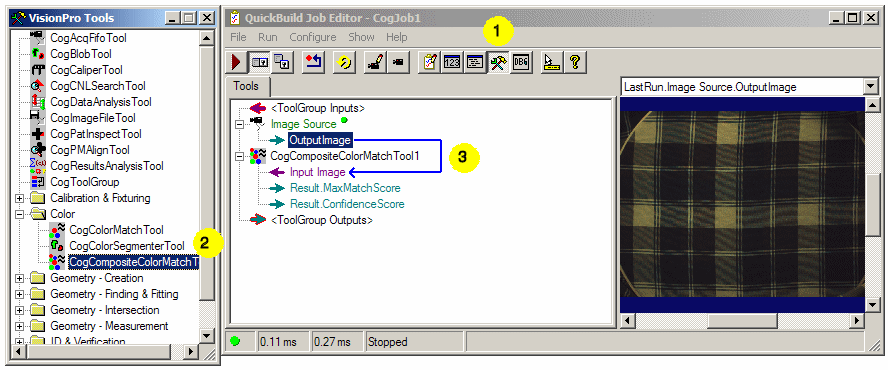
- When the toolbox appears, select the CogCompositeColorMatch tool and drag it to the Job Editor.
- A new CogCompositeColorMatch tool appears under the Image Source.
- Click on the OutputImage of the Image Source and drag it to the InputImage of the first CogCompositeColorMatch tool to link the source image. This tells the CogCompositeColorMatch tool to use the image source for its input image.
You train the CogCompositeColorMatch tool with patterns you wish to find in run-time images. You use the Colors tab to choose colors (patterns) and train the tool. The Region tab has controls you use to define the ROI in run-time images where the tool compares the color content with the trained colors. The RunParams tab contains parameters you can set to control the color matching at run time. The Result tab shows the results of the color match for each of the trained colors.
- Select the Region tab. Here you define the region of interest (ROI) where the tool will measure the color in run-time images.

- From the Region Shape pull down menu, select a geometric shape you would like to use for the run-time ROI.
Use the dialog to choose a geoemtric shape and position it, or use your mouse in the image to adjust the size and shape. The interior of the geometric shape
defines the run-time ROI.
For this application we have chosen to use the entire image.
Use the defaults.
- In the QuickBuild Job Editor click on the Run icon to run the entire job.

- A green dot in the lower left-hand corner indicates the tool ran successfully.
- The tool compares the colors in the run-time image ROI with the trained color patterns and assigns a score in the range 0 through 1 to each pattern. The trained pattern table shows each pattern and its score. The Best Match dialog describes the best match pattern.
- The best match pattern is assigned a Confidence score in the range 0 through 1.
The Confidence score indicates the difference between the scores of the trained patterns.
A high confidence score means that the highest scoring trained pattern is significantly higher than other trained patterns,
meaning that it is clearly the best match with no close seconds.
Repeat the steps above to run the tool on the other two plaid patterns.