This topic contains the following sections.
VisionPro provides three fitting tools that determine the geometric shape that best fits a set of two-dimensional points that you supply. The VisionPro fitting tools let you fit CogLine, CogCircle, and CogEllipse to sets of points that you supply.
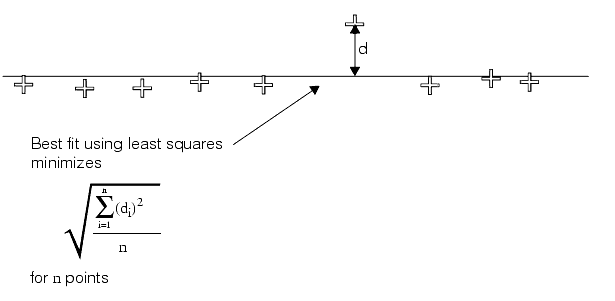
The CogFitLine lets you fit a straight line to a set of points. The line fitting tool returns the CogLine that fits the points you supply with the smallest RMS error. (The RMS error is the square root of the sum of the squares of the distances from the line to each point.)
The following figure shows how the line fitting tool works:
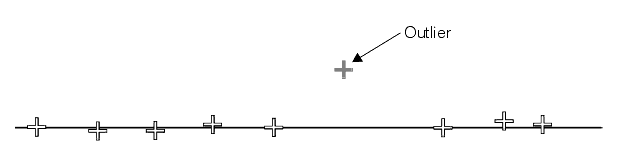
You can specify that the line fitting tool NumToIgnore some of the points you specify. In this case, the tool attempts to fit a line using every possible combination of the points you supply after discarding the number of points to discard you specify. This has the effect of discarding outlying points, as shown below:
Keep in mind that the values you specify for the number of input points and the number of points to ignore can result in an extremely large number of possible combinations of points, especially when you specify a large number of input points and the difference between the number of input points and the number of points to ignore is large. In these cases, the tool may take considerable time, since it must fit and evaluate each point combination.
The CogFitCircle and CogFitEllipse fitting tools let you fit circles and ellipses to sets of point.
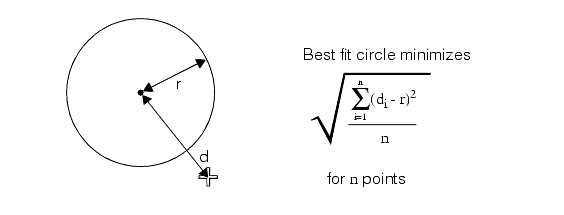
The circle fitting tool returns the CogCircle that fits the points you supply with the smallest RMS error, as shown in the following figure:
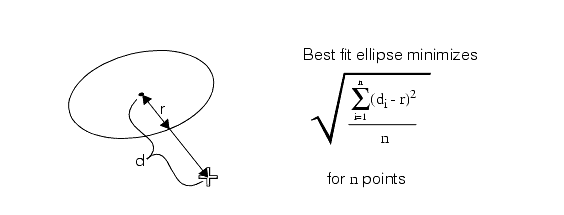
The ellipse fitting tool returns the CogEllipse that fits the points you supply with the smallest RMS error, as shown in the following figure:
As with the line fitting tool, both the NumToIgnore and NumToIgnore fitting tools let you ignore some of the points you specify. The tools compute the fit using every possible combination of the points you supply after discarding the number of points to discard you specify. This has the effect of discarding outlying points, as shown below:

Keep in mind that the values you specify for the number of input points and the number of points to ignore can result in an extremely large number of possible combinations of points, especially when you specify a large number of input points and the difference between the number of input points and the number of points to ignore is large. In these cases, the tool may take considerable time, since it must fit and evaluate each point combination.
Both the circle and the ellipse fitting tools let you specify fitting constraints. In the case of the circle tool, you can constrain the circle being fit to a specific RadiusConstraint, while the ellipse tool lets you constrain the ellipse being fit to a specific RotationConstraint.
Using constrained fitting can greatly reduce the time required to compute the fit in cases where the constrained degree of freedom is known. Keep in mind that using constrained fitting can reduce the accuracy of the fit in cases where you specify an incorrect value for the constrained degree of freedom.
In some cases, the points you specify for circle or ellipse fitting can result in unstable, ambiguous, or non-existent solutions. An example of this is specifying three collinear points to the circle fitting tool. As the following figure shows, two different circles of the same size would fit the points equally well:
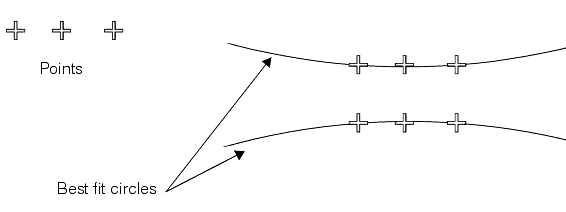
In these cases, the tool throws the e_CogFit_AmbiguousData error.