This topic contains the following sections.
The CogColorExtractorTool tool analyzes a color input image and generates grey scale and color output images that explicitly include or exclude portions of the original image based on ranges of color that you specify. The tool accepts input images in the RGB (red, green, blue) color space and generates images of grey scale and color, depending on how the tool is configured.
For example, the following figure shows an input image and the color output image it generates when configured to locate the red roses:
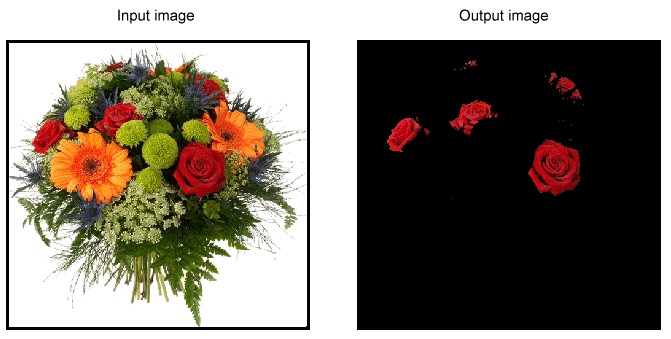
For more information on the Color Extractor tool, see the topics Color Extractor Tool and Color Extractor Tool Edit Control.
The following example application shows how to configure a Color Extractor tool to produce the image shown in the previous figure:
- Launch QuickBuild.
- Double-click on the Image Source for CogJob1 and configure the image source to use the image file color_flowers.bmp, which is located by default in C:\Program Files\Cognex\VisionPro\Images.
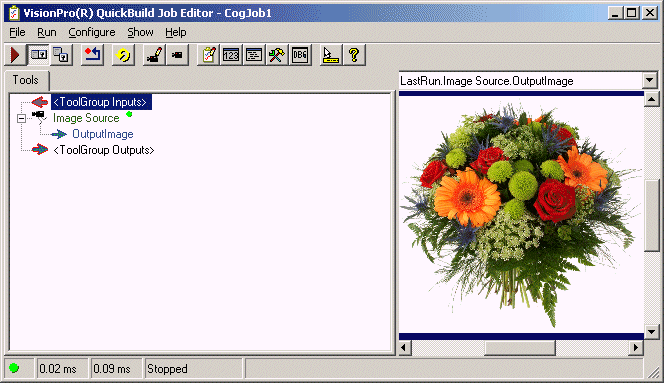
Close the image source dialog box and run the Job once to give it an initial image, as shown in the following figure:
Open the QuickBuild toolbox and add a Color Extractor tool, as shown:
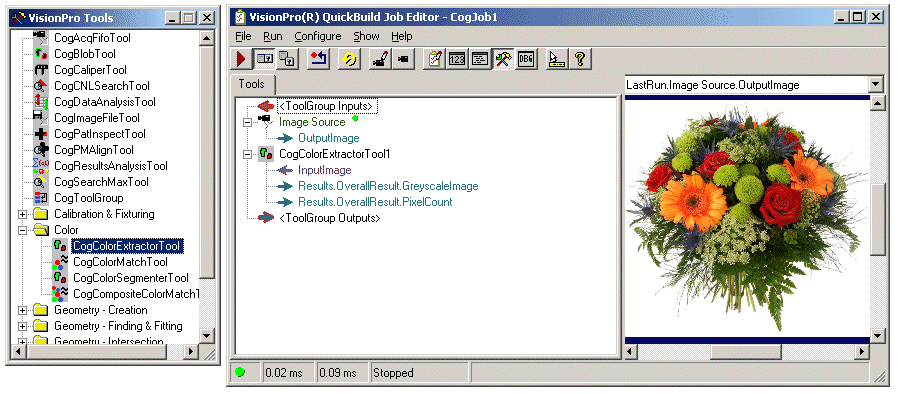
Give the new CogColorExtractorTool1 the OutputImage from the Image Source, as shown:
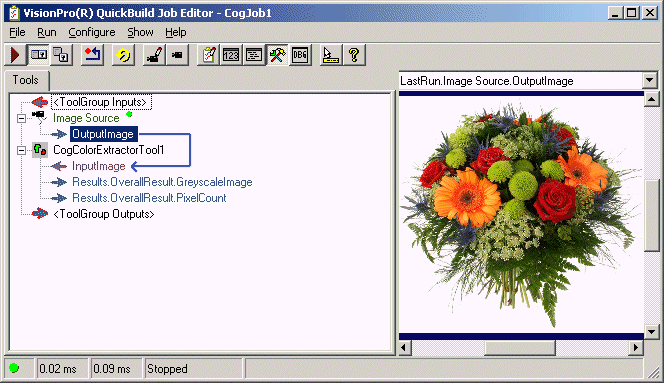
Double-click on CogColorExtractorTool1 to open its edit control:
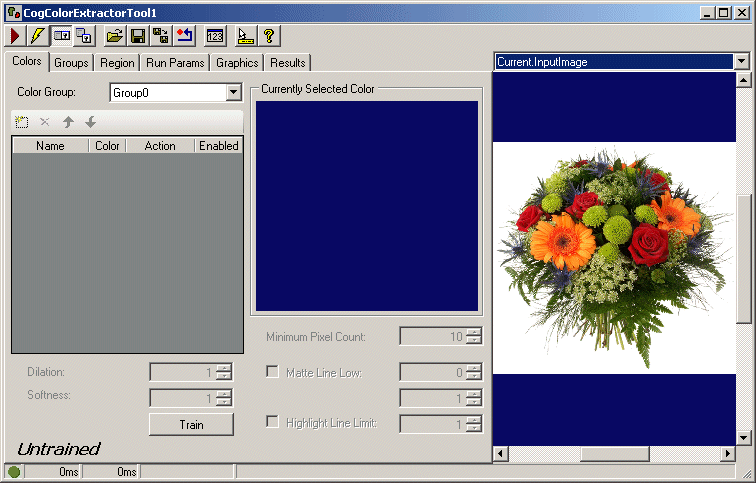
Click the Add New button, highlighted in the following figure, to add a new color to the edit control:
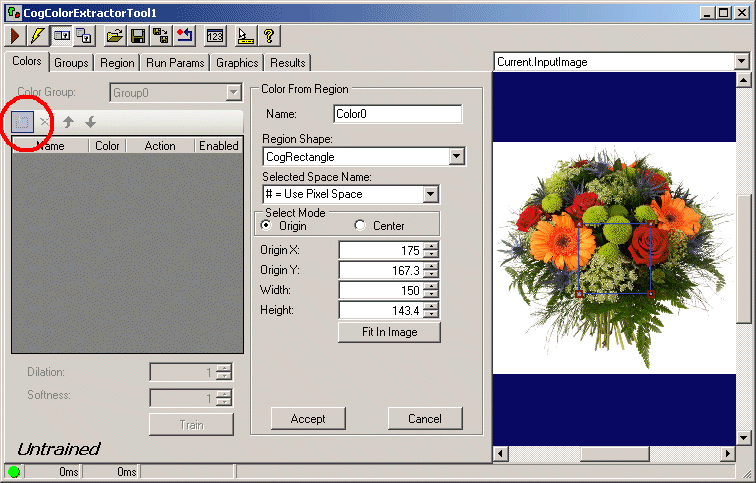
This places a region graphic over the Current.InputImage, as shown:
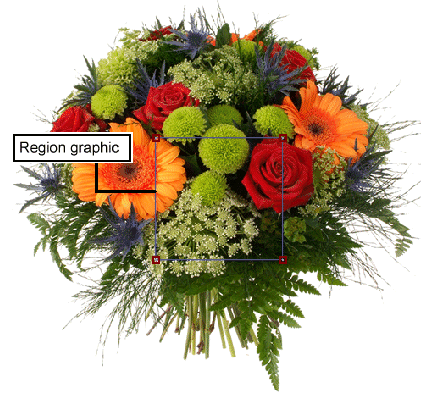
The default shape of the region is CogRectangle, but the edit control allows you to switch to other region shapes. For this example, use the Region Shape pulldown list to switch to the CogCircle shape.
Move and resize the region graphic to capture the largest rose of the image. Zoom in on the Current.InputImage buffer as necessary to allow you to encircle as much of the rose as possible.
The following figure shows the edit control with most of the rose captured within the graphic:
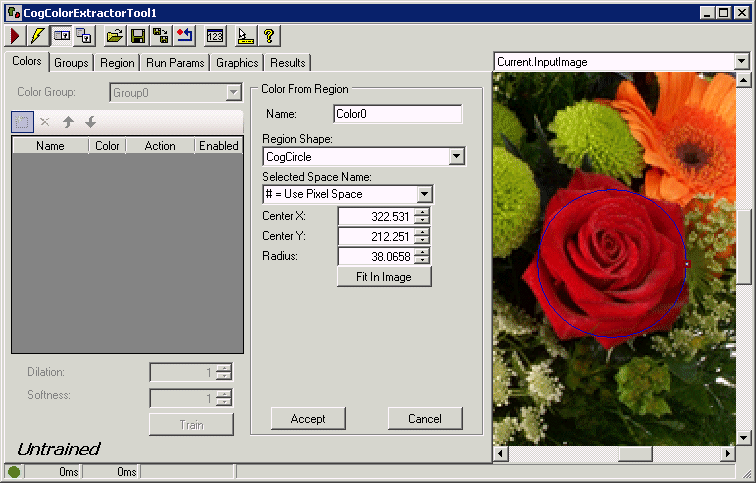
Use the Name field to change the default name of Color0 to something more descriptive, such as Rose1, and click Accept.
The Color Extractor edit control now includes a record of the pixels within the graphic, as shown in the following figure:
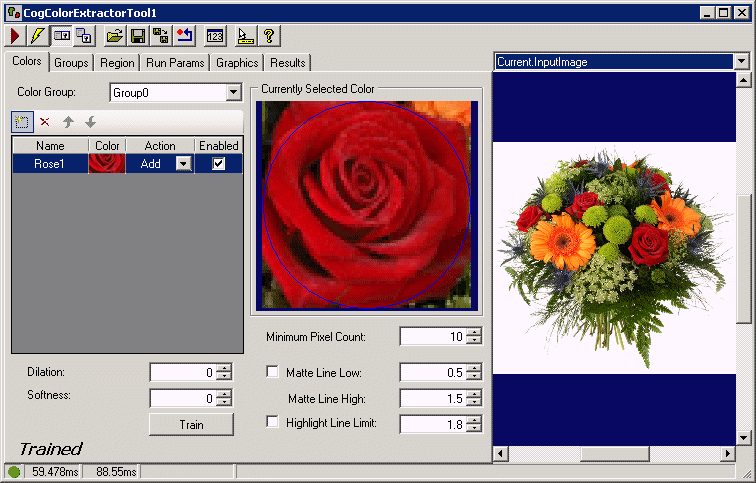
Run the tool once and examine the LastRun.OverallColorImage to see its effect:
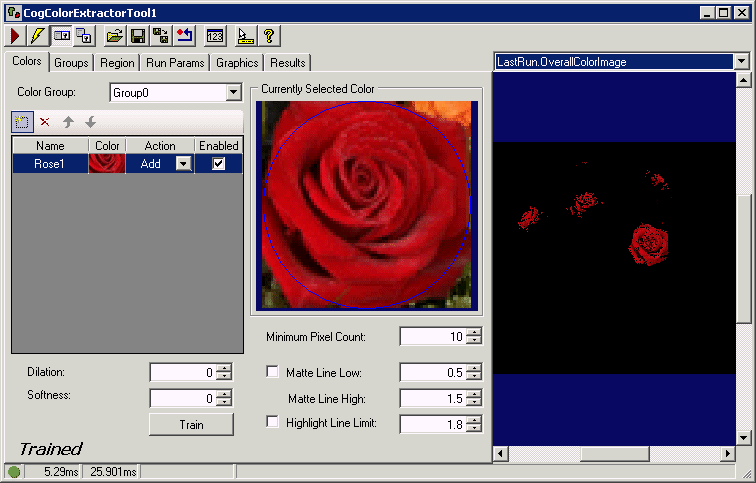
The tool does a good job identifying pixels that belong to roses, but by modifying tool parameters we can extract more pixels that represent the roses.
- Increase the Dilation paramter from 0 to 3 to include more pixels similar to those found in the pixels that represent the rose.
- Keep the default Minimum Pixel Count at 10 to include substantial areas of pixels that match the color.
Run the tool again to see the results, which should include more of the roses from the input image:
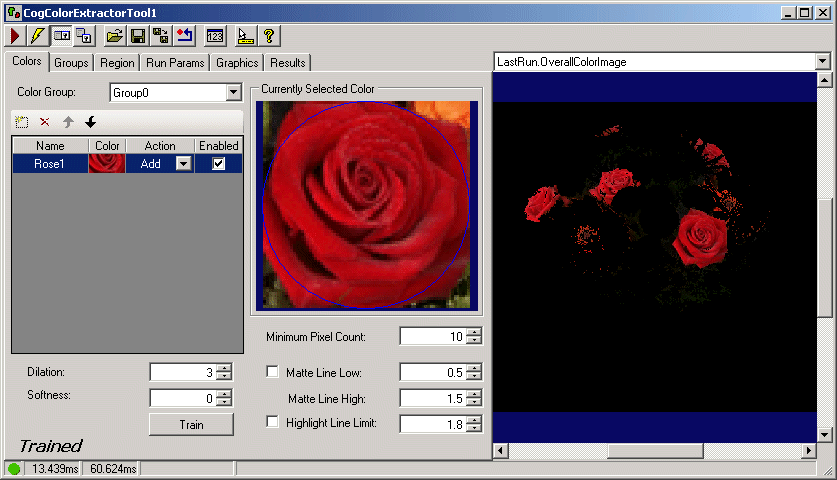
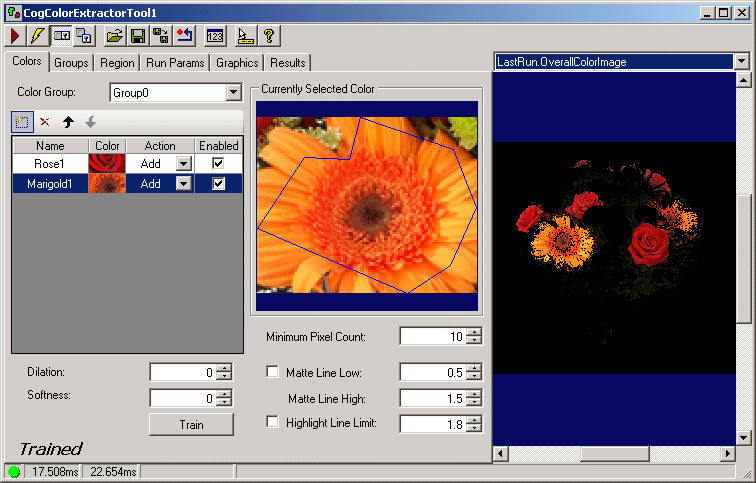
While the color output image successfully contains the pixels from the roses, it also contains erroneous pixels from the orange marigolds. While we have configured the Color Extractor tool to successfully add the pixels from the roses in the color output image, next we must configure it to explicitly remove the marigolds.
Click the Add New button again to create a new color, and use a CogPolygon region to define a region inside the large marigold as shown in the following figure:
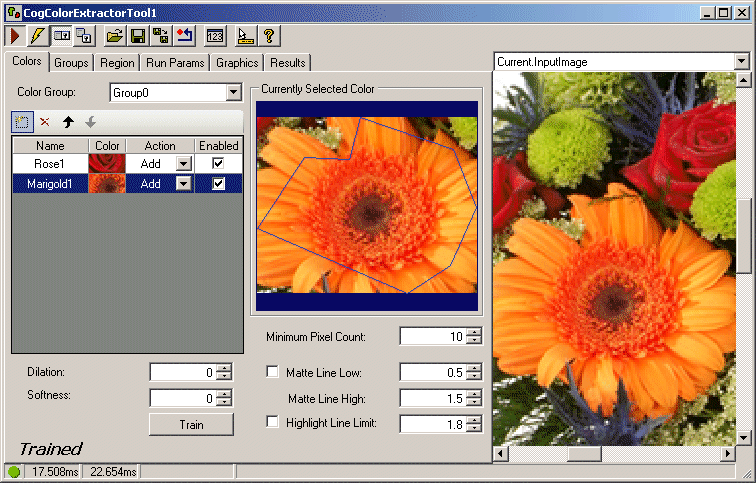
If you run the tool again, you will notice that the color image contains pixels from the both the roses and the marigolds, as shown in the following figure:
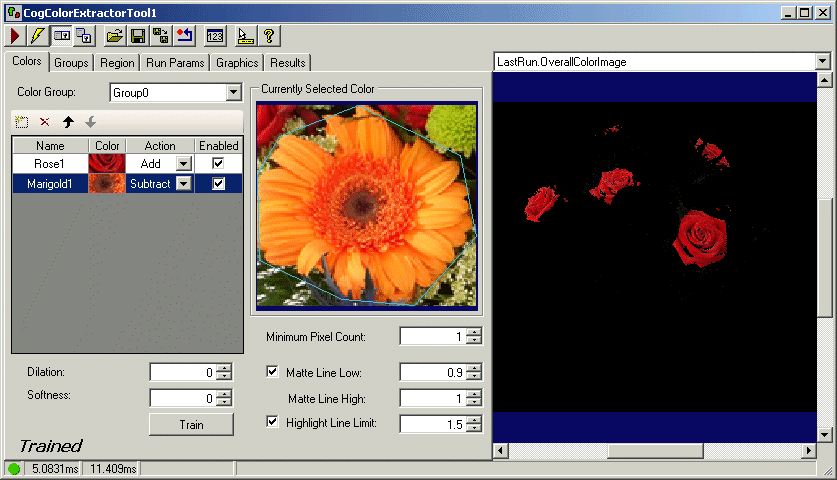
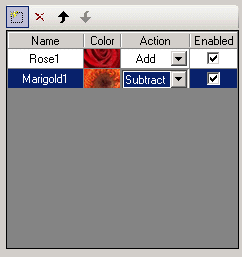
Use the Action column of the edit control to specify Subtract for the color Marigold1, as shown:
- Drop the Minimal Pixel Count to 1 to remove even the smallest bits of color that match a marigold.
Run the tool again to see the effect of subtracting the color defined within Marigold1:
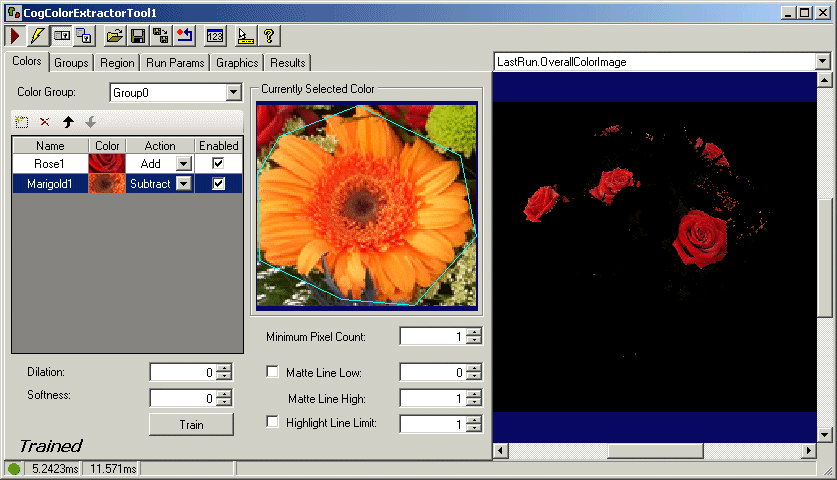
Clearly most of the marigold components have been removed, although some remain. By adjusting values for Matte Line and Highlight Line, the Color Extractor tool can generate a color output image consisting of only pixels from the original roses.