This topic contains the following sections.
The CNLSearch tool that lets you find patterns in images.
This section defines some terms and concepts used in this chapter.
| Term | Definition |
| edge detection | Process of finding edge pixels in an image. |
| edge pixel | Pixel in an image that lies on the boundary between two regions of different pixel values. |
| feature | Any specific pattern of grey levels or edges in an image. A feature is a portion of an actual image, as opposed to a pattern, which is an idealized representation of a feature. |
| pattern | An idealized representation of a collection of features, stored as a set of grey levels or edges, and containing other data, such as pattern size and contrast. |
| pattern image | Image that contains the pattern you are searching for. |
| search image | Image in which to locate patterns similar to the pattern image. |
| score | Value assigned to a pattern in the search image that measures the similarity between the trained pattern and the features in the search image. Score values are scaled to the range 0.0 to 1.0; the higher the score, the closer the match. |
| mask | An image used to designate each pixel in a pattern as care or don't care. |
This section contains the following subsections.
- Features and Patterns
- Search Strategies
- Search Score
- Image Variations: Linear and Nonlinear Brightness Changes
The purpose of searching is to locate and measure the quality of one or more previously trained features in an image. Applications for which searching can be useful generally fall into four categories:
- Alignment: Determine the position and orientation of a known object by locating features (e.g., registration marks) on the object.
- Presence/Absence Detection: Verify that the expected number of features are present in an image.
- Gauging: Measure lengths, diameters, angles, and other critical dimensions for part inspection by locating features in an image, then computing distances between them.
- Defect Detection: Search for defects in an image. Only useful when the appearance of defects is known beforehand.
The search operation measures the extent to which a feature in an image matches a previously trained pattern of that feature.
A feature is any specific pattern in an image. A feature can be anything from a simple edge a few pixels in area to a complex pattern tens of thousands of pixels in area. CNLSearch can find features that are defined by a pattern of grey-scale pixel values or by a pattern of edges.
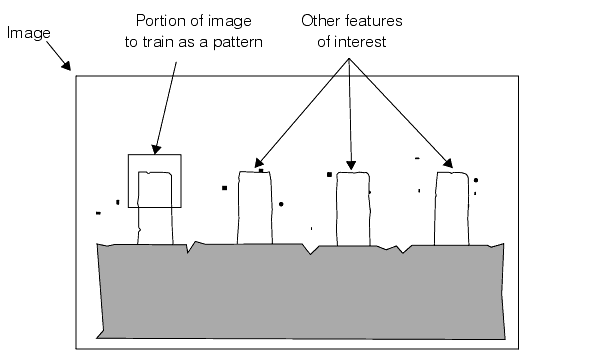
In most cases, you train a representative pattern from one image and use it to search for similar patterns in that image or in other similar images. Figure 1 shows an image containing a feature of interest: a lead tip on an electronic component. To train the pattern of the lead tip, you specify the portion of the image that contains the feature as input to a pattern training function. CNLSearch creates a pattern that can be used to search for lead tips in the image from which it was trained or in other similar images.
Figure 1. Selecting part of an image as a search pattern
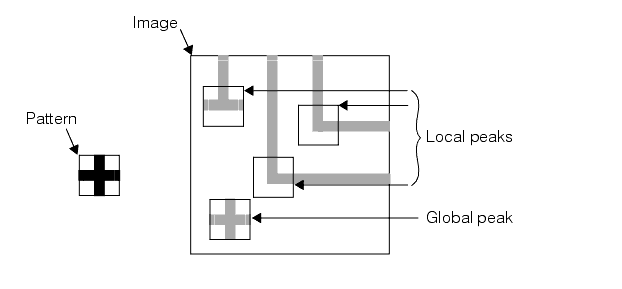
CNLSearch locates features by finding the area of the image to which the pattern is most similar. The term most similar can be used in a global sense, meaning the position of greatest similarity (used when looking for a single feature), or in a local sense, meaning a position having a degree of similarity that exceeds that of its neighbors (used when looking for multiple instances of a feature).
Figure 2 shows a pattern and an image, and the areas of the image that are most similar to the pattern. An image and pattern similar to those shown in Figure 2 might be used to search for a single instance of a feature such as a fiducial mark on a printed circuit board.
Figure 2. Local and global peaks
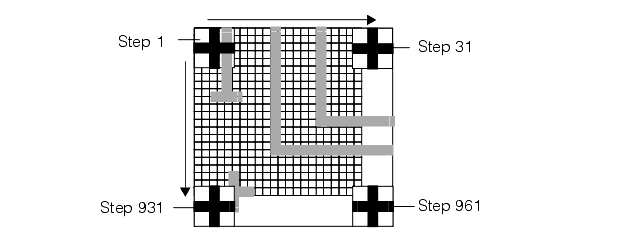
A number of strategies can be used to search for a pattern in an image. Figure 3 illustrates an exhaustive search method of finding a match for the pattern. The pattern is evaluated at every possible location in the image. The location in the image with the greatest similarity is returned. In Figure 3, the image is 36 pixels square and the pattern is 6 pixels square. To locate a match for the pattern, similarity is assessed at all 961 possible locations.
Figure 3. Exhaustive search
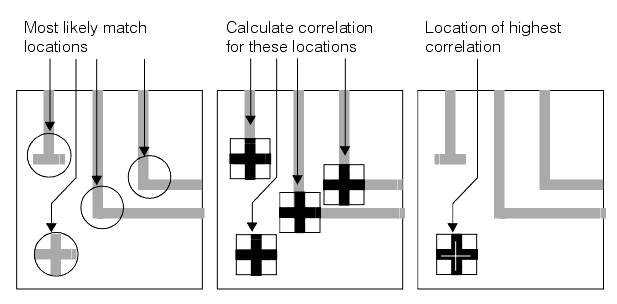
Even with high-performance CPUs, exhaustive search is too slow for most real-world applications. CNLSearch uses a more sophisticated technique for locating features in images. First, the image is quickly scanned to locate positions where a match is likely. Similarity is then assessed only for those candidate locations. The location of the best match is returned. Figure 4 illustrates this technique.
Figure 4. CNLSearch search technique
CNLSearch finds the location of a pattern in a search image based on a training image of that pattern. In addition to returning the location of the pattern in the search image, CNLSearch also indicates how closely the pattern in the search image matches the pattern in the training image by returning a score. The score indicates how close a match exists between the trained image and the image whose location was returned. Scores range from 0.0, indicating no similarity between the pattern and the feature, to 1.0, indicating a perfect match.
In addition to returning the location and score of the closest match found in the search image, CNLSearch can also return the locations and scores of other, less similar instances of the pattern within the image.
In a typical application, you use CNLSearch to find the location of a particular feature within each of a series of search images. In many applications, the brightness of the image changes between successive search images. These brightness changes are due to a number of factors:
- Changes in illumination intensity
- Changes in illumination source location
- Changes in reflectance of part or all of the scene
- Changes in color of part or all of the scene
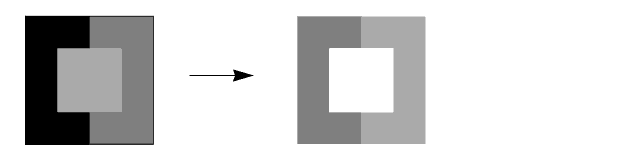
The change in brightness that occurs between images can be linear, in which case all parts of the image have undergone a proportional change in brightness, or nonlinear, in which case some parts of the image have changed in brightness to a different degree than others, or some parts of the image have become brighter while others have become dimmer.
Typically, changing the intensity of light with which a scene is lit causes a linear change in the brightness of different parts of the image. Figure 5 shows an example of two images with a linear brightness change.
Figure 5. Linear brightness change
Specifically, if the brightness of two images, j and k, is linearly different, for each pixel value Pjxy in image j, the value of the corresponding pixel Pkxy in image k can be calculated using the following formula:
Figure 6. Linear change in pixel values
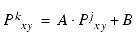
where A and B are constants. If the differences between all corresponding pixel values in the two images cannot be expressed with a linear function of this type, the two images are nonlinearly different.
Nonlinear brightness changes between images are often the result of changes in the reflectance of different parts of the scene. Images of an object obtained at different points during a manufacturing process can undergo nonlinear brightness changes. These changes are a result of process steps that change the surface characteristics of the object. For example, as a metal stamping is painted, the color and reflectance of the stamping changes. Search images obtained at different steps in the painting process can exhibit nonlinear brightness changes with respect to each other and with respect to the pattern image.
Nonlinear brightness changes in an image can take one of two forms. Different areas within the image may have changed brightness relative to each other while retaining consistent brightness within each area. This is called a uniform nonlinear brightness change. Figure 7 shows an image that has undergone a uniform nonlinear brightness change.
Figure 7. Uniform nonlinear brightness change

Nonlinear brightness changes within an image can also occur within formerly uniform areas of the image. This is called a nonuniform nonlinear brightness change. Figure 8 shows an image that has undergone a nonuniform nonlinear brightness change.
Figure 8. Nonuniform nonlinear brightness change

CNLSearch can find patterns in search images with both uniform and nonuniform nonlinear brightness changes from the pattern image.
This section contains the following subsections.
- Searching in Linear Mode
- Searching in Nonlinear Mode
- Search Parameters
- Linear Searches
- Nonlinear Searches
- Comparing Linear and Nonlinear Mode Scores
- Finding Features at the Edge of the Image
- Partial Match Searching
- Restrictions on Partial Match Searching
- Training Patterns for Partial Match Searching
- Scoring Partial Matches
When you use CNLSearch to search for a pattern in an image, you must specify whether the search image is linearly or nonlinearly different in brightness from the pattern image. If you specify that the search image is linearly different, CNLSearch operates in linear mode; if you specify that the search image is nonlinearly different, CNLSearch operates in nonlinear mode.
Nonlinear mode searches work with both linear and nonlinear brightness changes between the pattern image and the search image, whereas linear mode searches only work with linear brightness changes between the pattern image and the search image. Nonlinear mode search tends to be less accurate and take longer than linear mode search, however.
CNLSearch computes the search score differently depending on whether CNLSearch is used in linear mode or nonlinear mode. In addition, in nonlinear mode CNLSearch computes two component scores that describe different aspects of the similarity between the pattern image and the search image. The overall score is based on the component scores.
The next two sections describe the operation of CNLSearch in both linear and nonlinear modes. For information on how to choose between linear mode and nonlinear mode for your application, see the section Choosing Between Linear and Nonlinear Mode.
If you specify that the search image is linearly different in brightness from the pattern image, CNLSearch finds the part of the search image where the pattern of pixel values is the most similar to the pattern of pixel values in the pattern image. This type of searching is called intensity correlation searching because the degree of similarity between the search image and the pattern image is determined by calculating the correlation coefficient between the patterns of grey-scale pixel values in the two images.
The method that CNLSearch uses to compute the correlation coefficient between the two images is not affected by linear changes in brightness between the images.
If you specify that the search image is nonlinearly different in brightness from the pattern image, CNLSearch searches for the pattern within the image by finding the location within the search image where the pattern of edges and non-edges is the most similar to the pattern of edges and non-edges in the pattern image.
Because CNLSearch's nonlinear mode searches for patterns of edges instead of patterns of pixel values, CNLSearch is immune to both linear and nonlinear brightness changes between the pattern image and the search image, as long as the brightness changes do not affect the pattern of edges in the search image.
When you perform a search using CNLSearch, you specify parameters that CNLSearch uses to determine whether a particular feature within the image is a valid instance of the pattern. In both linear mode and nonlinear mode, you specify the following parameters for the search:
- The acceptance threshold The acceptance threshold is the score (between 0.0 and 1.0) that CNLSearch uses to determine whether a match represents a valid instance of the pattern within the search image. Matches with nonzero scores greater than or equal to the acceptance threshold are valid matches. You use the acceptance threshold to indicate to CNLSearch the degree of image degradation that you expect in search images. If you expect search images to be degraded, you should specify a lower acceptance threshold.
- The number of instances of the pattern you expect the search image to contain CNLSearch returns the location of every instance of the pattern within the search image that has a score that exceeds the acceptance threshold, up to the number of instances you specify. If there are fewer instances of the pattern with scores above the acceptance threshold than you specify, CNLSearch might return the location and score of some additional instances with scores below the acceptance threshold, although those instances will be marked as not found.
- The confusion threshold The confusion threshold is the score (between 0.0 and 1.0) that represents the highest score that a feature that is not an actual instance of the pattern will receive. You should always set the confusion threshold greater than or equal to the acceptance threshold. CNLSearch treats the confusion threshold you specify as a hint about the nature of the image being searched. You should specify a high confusion threshold to indicate that the scene contains features that resemble the pattern but are not valid instances of the pattern; specify a low confusion threshold to indicate that the only features in the scene that resemble the pattern are valid instances of the pattern. You use the confusion threshold to indicate the difficulty you expect CNLSearch to have discriminating between valid instances of the pattern and other features in the image. If you expect CNLSearch to have difficulty discriminating which are valid instances of the pattern, you should specify a higher confusion threshold. In general, a higher confusion threshold can increase the reliability of searches at the cost of somewhat slower searching. A properly selected confusion threshold lets CNLSearch provide the best balance of reliability and speed.
- The accuracy CNLSearch supports coarse, fine, and very fine searches. More accurate search methods take more time and require more memory than less accurate search methods.
This section contains the following subsections.
- Linear Mode Search Algorithms
- Correlation Searching
- Computing the Correlation Coefficient
- Score for Linear Mode Searches
When you perform a search using CNLSearch in linear mode, it returns the location of the part of the search image with pixel values that are the most closely correlated to the pixel values in the pattern image.
Linear Mode Search Algorithms
CNLSearch lets you choose between two algorithms to perform linear mode searches. These algorithms use different search strategies. For most applications, the Linear CNLPAS algorithm is the best choice. It uses a relatively conservative strategy for identifying likely matches within the image. This strategy is somewhat time consuming, but it greatly reduces the risk of missing an actual instance of the pattern in the image.
If your application needs maximum speed, you can use the Linear Search algorithm. This algorithm takes a more aggressive approach to locating likely matches. Because of this, it may tend to discard some unpromising locations prematurely.
Correlation Searching
The correlation coefficient of one pattern of pixel values to another is expressed as a number between -1.0 and 1.0. A correlation coefficient of 1.0 means that the pixel values in the two images are perfectly matched. A correlation coefficient of -1.0 means that the pixel values in the two images are perfectly mismatched. A correlation coefficient of 0 means that pixel values in the two images are randomly different.
Figure 9 shows three sets of image pairs, one pair with a positive correlation (Figure 9a), one pair with a negative correlation (Figure 9b), and one pair with an insignificant correlation (Figure 9c).
Figure 9. Image pairs showing different correlation coefficients
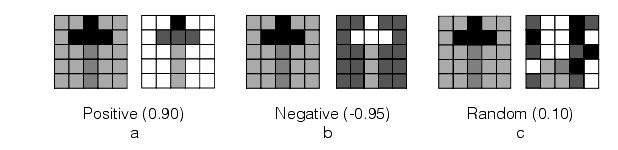
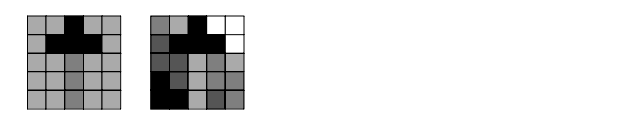
Figure 10 shows the effect that a nonlinear brightness change has on the correlation coefficient of a pair of images. While the pattern is still recognizable, the correlation coefficient is little better than that of the random image pair shown in Figure 9.
Figure 10. Image pair with weak positive correlation coefficient (0.15) due to nonlinear brightness change.
Computing the Correlation Coefficient
Mathematically, the correlation coefficient r of a pattern and a corresponding portion of an image at image offset (u,v) is given by
Figure 11. Correlation coefficient

where
N is the total number of pixels. Ii is the value of the image pixel at (u+xi, v+yi). Pi is the value of the corresponding pattern pixel at the relative offset (xi, yi).Figure 12 shows the relationship among these components.
Figure 12. A pattern and the corresponding portion of the image

The value of r is always in the range -1.0 to 1.0, inclusive. A value of 1.0 signifies a perfect match between the area of the image and the pattern. Specifically, if r = 1.0, there exist some values a and b such that for all i:
Figure 13. Perfect correlation of pixel values
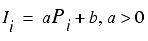
A value of -1.0 signifies a perfect mismatch, which is the same as a perfect match except that a < 0: the feature found is the negative of the pattern. The negative of a pattern or image is a corresponding image in which the sense of light and dark has been reversed. Figure 14 shows an example of a perfect match and perfect mismatch.
Figure 14. Perfect match and perfect mismatch
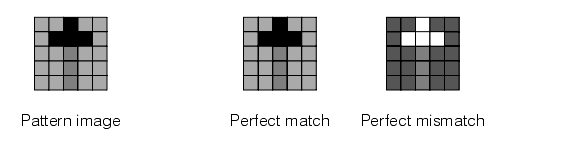
You can direct CNLSearch to treat mismatches as if they were matches by specifying that CNLSearch ignore the polarity of found pattern instances. If you specify that CNLSearch consider the polarity of pattern instances, then patterns with correlation coefficients less than 0.0 receive a score of 0.0. If you direct CNLSearch to ignore polarity, then the score for a pattern with a negative correlation coefficient is the same as if the pattern was positively correlated
Score for Linear Mode Searches
Table 1 summarizes how the CNLSearch scores are computed for linear mode searches. In all cases, the scores are derived from the correlation coefficient between the pixel values in the pattern and the pixel values in the image, as described in the section Computing the Correlation Coefficient.
| Polarity | Score | Notes |
| Consider polarity | If the correlation coefficient is less than 0, the score is 0.0. Otherwise, the score is equal to the correlation coefficient squared. | Treats mismatches as if they received a score of 0 |
| Ignore polarity | Correlation coefficient squared | Treats mismatches as if they were matches |
For more information, see the section Choosing Between Consider and Ignore Polarity.
This section contains the following subsections.
- Edge Detection
- Edge Maps
- Edge Threshold
- Edge Sharpness
- Searching Edge Maps
- Score for Nonlinear Mode Searches
- Occlusion and Clutter
- Using Area Score and Edge Score in Nonlinear Mode Searches
- Repeating Patterns
When you perform a search using CNLSearch in nonlinear mode, it returns the location of the part of the search region with the pattern of edges that most closely resembles the pattern of edges in the trained pattern image.
Edge Detection
Within an image, the boundary between two regions with different pixel values is called an edge. An edge has a magnitude which is related to the difference in pixel values for pixels on either side of the edge. Figure 15 shows an edge.
Figure 15. An edge
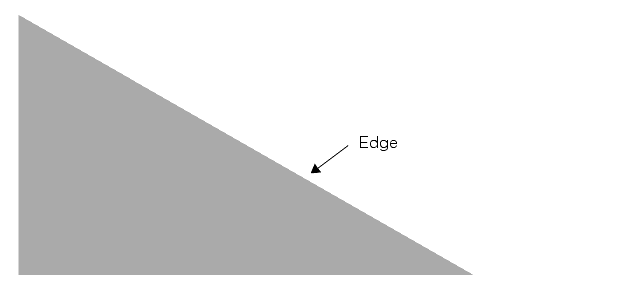
A pixel in an image that lies on an edge in the image is called an edge pixel. The process of determining which pixels in an image are edge pixels is called edge detection.
In order to be considered to be an edge pixel by CNLSearch, a pixel must be one of a group of connected pixels where the average difference in pixel values between the regions on either side of the edge is greater than an edge threshold that you can specify.
Figure 16 shows an idealized representation of an edge along with a graph showing the edge peak.
Figure 16. Locating an edge.
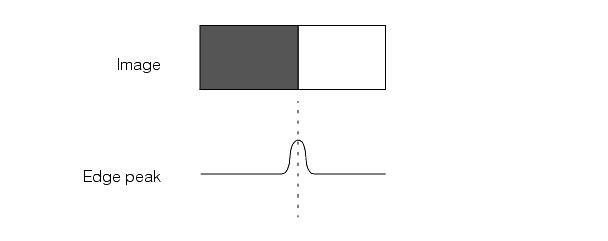
The only information contained in images that have undergone nonlinear brightness changes that does not change as a result of the brightness changes is the location of edges within the image. Figure 17 shows how the edge peak occurs in the same location despite a nonlinear change in brightness between the images.
Figure 17. Edge detection with nonlinear brightness change

Edge Maps
For each pixel in an image, CNLSearch determines the edge magnitude of that pixel. CNLSearch performs edge detection in both the pattern image and the search image and creates edge maps of both images.
Figure 18 shows a grey-scale image and an edge map created from that image.
Figure 18. Converting a grey-scale image into an edge map

Figure 19 shows an edge map created from an image with a nonlinear brightness change from the source image used in Figure 18. Note that the edge maps are very similar, despite the nonlinear brightness change between the source images.
CNLSearch lets you generate edge maps of any image.
Figure 19. An edge map generated from an image with a nonlinear brightness change

Edge Threshold
When you train a pattern and when you perform a search using CNLSearch in nonlinear mode, you specify a pair of edge thresholds. The edge thresholds set the edge strength (expressed as the difference in pixel values across the edge) that CNLSearch uses to identify an edge.
You specify a low threshold and a high threshold. All edges with strengths above the high threshold are included in the edge map. All edges with strengths below the low threshold are excluded from the edge map. Edges with strengths between the thresholds are included in the edge map if they are 8-connected to another edge with a strength above the threshold, either directly or through other edges with strengths between the thresholds.
Edge Sharpness
The edges in an image can be sharp, in which case the change in pixel value that defines an edge takes place across a small number of pixels, or the edges in an image can be fuzzy, in which case the change in pixel value that defines an edge takes place across a large number of pixels. Figure 20 shows examples of sharp and fuzzy edges.
Figure 20. Sharp and fuzzy edges

Nonlinear mode CNLSearch searches produce more accurate results when the search and pattern images have sharp edges.
Searching Edge Maps
When you perform a search using CNLSearch in nonlinear mode, it locates the part of the search image's edge map that is the most closely correlated to the pattern image's edge map. The correlation is computed using a formula similar to that used to compute correlation coefficients in linear mode, but instead of computing the correlation coefficient of the grey-scale images, CNLSearch computes the correlation coefficient of the edge maps.
An important consequence of this method of computing the correlation coefficient of a pair of edge maps is that both missing and extraneous edge pixels in a search image have an effect on the resulting score. Also, since the correlation coefficient is computed based on the entire area contained within the pattern, pattern images should contain as small a proportion of non-edge pixels as possible.
Score for Nonlinear Mode Searches
The score for Nonlinear mode search is computed in the same way as for linear mode searches, except that instead of comparing pixel values between the pattern image and the search image, CNLSearch compares the pattern image edge map and the search image edge map.
In addition to the overall score, CNLSearch also computes a pair of component scores.
- The area score considers the edge pixels in the entire area of the search image that corresponds to the pattern image. The area score is based on the correlation coefficient between the entire area of the pattern image edge map and the search image edge map.
- The edge score considers on the pixels in the search image that correspond to edge pixels in the pattern image. The edge score is the percentage
Table 2 summarizes how CNLSearch computes scores in nonlinear mode.
| Area Score | Edge Score | Overall Score |
| If the correlation coefficient is less than 0, the score is 0.0. Otherwise the score is equal to the correlation coefficient squared. | The percentage of edge pixels from the pattern image that are also present in the search image mapped to the range 0.0 through 1.0 | Area score |
Note that nonlinear mode search does not support absolute scoring. All mismatches are assigned a score of 0.0.
Occlusion and Clutter
When CNLSearch computes the area score in nonlinear mode, it considers the entire area of the pattern image. Every non-edge pixel in the pattern image that is also a non-edge pixel in the search image is counted as a matching pixel and increases the area score. Every edge pixel in the pattern image that is also an edge pixel in the search image is counted as a matching pixel and increases the area score.
Mismatches between the pattern image edges and the search image edges fall into two categories.
- Pattern edge pixels that are not present in the search image. These are called occlusions.
- Search image edge pixels that are not present in the pattern image. These are called clutter.
By default, when CNLSearch computes the score for a match, it weights occlusion more heavily than clutter when it computes the area score in nonlinear mode. This tends to increase the difference between the scores received by actual instances of the pattern, which might be degraded by image defects and noise, and other parts of the image that might be confused with actual instances. This weighting makes it easier for your application to distinguish actual instances of the pattern from other, confusing parts of the search image.
Using Area Score and Edge Score in Nonlinear Mode Searches
Because the area score for nonlinear mode searches is affected by both missing edge pixels and extraneous edge pixels in the search image, and because the overall score for a nonlinear search is the same as the area score, a low score for a nonlinear search can be caused by any of the following situations:
- If the search image has such low contrast that CNLSearch cannot reliably detect edges within the image, CNLSearch returns a somewhat reduced area score and a low edge score.
- If the search image is a poor match for the pattern image, CNLSearch returns both a low area score and a low edge score.
- If the search image is a good match for the pattern image, but the search image contains extraneous edges, then CNLSearch returns a high edge score and a low area score.
Your application can distinguish between these three causes by comparing the area score with the edge score returned for a search. This technique is illustrated in Figure 21.
Figure 21a shows an edge map generated from a pattern image. Figure 21b-d shows edge maps generated from three search images. The first search image edge map (Figure 21b) shows an image that had very low contrast. The second search image edge map (Figure 21c) shows a poorly matched image. The third search image edge map (Figure 21d) shows a well matched image that contains extraneous edge pixels.
The first search image (Figure 21b) has a high area score, because almost all of the non-edge pixels in the pattern image correspond to non-edge pixels in the search image. The image has a low edge score, indicating a lack of similarity between the edges in the pattern image and the search image.
The second search image (Figure 21c) has a low area score and a low edge score, indicating a lack of similarity both between the entire area of the edge maps and between the edges in the pattern image and the edges in the search image.
The third search image (Figure 21d) has a low area score but a high edge score, indicating that the edges in the pattern image are also present in the search image, but that when the entire area of the image is considered, the pattern image edge map is not very similar to the search image edge map.
Figure 21. Area score and edge score for nonlinear search
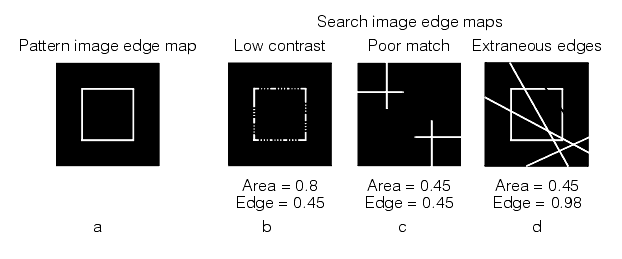
By considering both the area score and the edge score for nonlinear searches, your application can distinguish between low scores caused by low contrast images, low scores caused by poorly matched images, and low scores caused by extraneous edge pixels.
Repeating Patterns
If the pattern image contains a repeating pattern of edges and the search image contains a partial instance of the pattern, CNLSearch might return a poor area and edge score. In this case, the position reported for the pattern instance is inaccurate.
Figure 22 illustrates an example of this condition. An instance of the pattern is located partially outside the image area. The upper left corner of the pattern instance in the search image matches the lower right corner of the pattern image. CNLSearch returns a low score for the instance because only part of the pattern matches, but the location returned does not represent the actual location of the pattern in the image.
Figure 22. False match of repeating pattern

Although CNLSearch returns a score in the range between 0.0 and 1.0 when used in both linear mode and nonlinear mode, scores for linear searches are not directly comparable with scores for nonlinear searches. Scores can only be compared if they are the results of searches performed using the same mode.
In general, scores are more variable for nonlinear mode searches than for linear mode searches.
Note that scores for both linear mode algorithms are comparable with each other, since the same formula is used to compute the score.
When CNLSearch finds a feature at the edge of the search image, the accuracy with which it can report the position of the feature is reduced. When CNLSearch returns result information, it includes information about whether or not the feature was found at the edge of the image. You can use this information to make sure that you interpret the position information for different matches correctly.
If you are using the Linear Search algorithm, you can configure CNLSearch to find patterns that lie partially outside of the search image. This capability is called partial match searching.
This section lists the restrictions and limitations associated with partial match searching.
- Partial match searching is only supported for the Linear Search algorithm. You cannot use partial match searching with Linear CNLPAS or Nonlinear CNLPAS searches.
- Partial match searching only applies to patterns that lie partially outside of the search image. Partial match searching is not intended to find partially occluded patterns within the search image. (Partially occluded patterns typically receive lower scores or may not be found at all, depending on the extent of the occlusion.)
If you enable partial match searching, you should keep in mind that only part of the pattern you train may be used to match pattern instances close to the edge of the search image. This can tend to increase the confusion in a search image.
CNLSearch lets you specify how you want to score partially matched patterns. You can compute the score based only on the quality of the portion of the pattern in the image, or you can further weight that quality score by the fraction of the pattern that is visible. Weighting the score will produce a lower score.
This section contains the following subsections.
- Overview of Using CNLSearch
- Training a Pattern
- Searching for the Pattern Within the Search Image
- Advanced Topics
- CNLSearch Advanced Training
- User-Configurable Overlap Tolerance
This section describes how to use CNLSearch.
The process of using CNLSearch can be divided into the training-time steps and the search-time steps.
In general, you should follow these training-time steps:
- If you are using linear mode search, select your algorithm. You can train the pattern for both linear mode algorithms.
- Select the search accuracy level. You can train the pattern for any or all accuracy levels.
- Select a pattern image and train the pattern.
In general, you should follow these search-time steps:
- Fine-tune the various search parameters, including the acceptance and confusion thresholds using the results of the test searches.
- (Optional) Re-train the pattern using just the algorithms and accuracies that work best for your application. This can reduce the amount of memory required to store the pattern, but it does not change the speed of subsequent searches.
Table 3 contains an overview of the different training-time and run-time parameters you supply to CNLSearch.
| Phase | Parameter | Values | Notes |
| Training | Accuracy |
| You must train the pattern for all accuracy levels you intend to search with. Training for additional accuracy levels increases training time and the amount of memory required for the pattern. |
Algorithm |
| You must train the pattern for all the algorithms you intend to search with. Training for additional algorithms increases training time and the amount of memory required for the pattern. | |
Polarity |
| No effect on training time | |
| Search | Accuracy |
| Specify the search accuracy. The greater the accuracy, the slower the search. For more information, see the section Selecting a Search Accuracy. |
Algorithm |
| Use the guidelines in the section Choosing Between Linear and Nonlinear Mode. | |
Polarity |
| Use the guidelines in the section Choosing Between Consider and Ignore Polarity. | |
| Confusion Threshold | 0.0 - 1.0 | The best score that a non-instance of the pattern can receive. For more information, see the section Selecting a Confusion Threshold and an Acceptance Threshold. | |
| Acceptance Threshold | 0.0 - 1.0 | The worst score that an instance of the pattern can receive. For more information, see the section Selecting a Confusion Threshold and an Acceptance Threshold |
This section contains the following subsections.
- Selecting the Pattern Image
- Pattern Origin
- Specifying Pattern Image Edge Threshold
- Creating a Scaled Pattern
- Creating a Masked Pattern
This section discusses in more detail the operations that CNLSearch performs to train a pattern. It describes the parameters that you supply when you specify a pattern.
When you train a pattern using CNLSearch, you specify the types of searches to be performed using the pattern. CNLSearch generates and stores only the information about the pattern needed to perform the types of searches that you specify. You can specify that a pattern be trained to perform all types of searches, in which case CNLSearch generates and stores all the information required to perform all types of searches.
Selecting the Pattern Image
Observing the following guidelines will help you select an effective pattern image.
- If you plan to train the pattern for both linear mode and nonlinear mode searches, you should select a pattern that includes both grey-scale pattern information and edge information.
- Your pattern should include a balance of both strong horizontal and vertical elements; avoid a pattern that has all horizontal or all vertical features. Selecting a pattern that is roughly square can help achieve a balance of horizontal and vertical features.
- Select patterns that contain as much redundancy as possible. A redundant pattern contains enough elements that there will be something to match even if the pattern is partially obscured in the search image.
Figure 23 shows some examples of patterns that are roughly square, contain a balance of vertical and horizontal elements, and contain redundant features.
Figure 23. Good patterns

Once you have identified the feature within the pattern training image that you want to use for a pattern, you need to define the rectangular region of the image that you actually train as a pattern. There are two important guidelines to remember when specifying the image area to train as a pattern.
- CNLSearch only finds instances of the pattern that are entirely contained within the search image. Unless you specify partial-match searching, described in the section Partial Match Searching, CNLSearch does not find pattern instances that are only partially contained within the search image. Remember that CNLSearch considers the entire area that you specify to be part of the pattern.
- For nonlinear mode searches, make sure that your pattern contains as little non-edge-related information as possible. You can display an edge map of the trained pattern to help identify how much edge information it contains.
Figure 24 shows an image where an otherwise acceptable pattern image is trained incorrectly, resulting in search failures. The cross-shaped fiducial in the first sample image (Figure 24a) is used as the pattern feature. Because the area used to define the pattern is so close to the edge of the image, when the search image is shifted (Figure 24b), the pattern area falls partially outside the image and CNLSearch fails to locate the pattern.
Figure 24. Poorly trained pattern
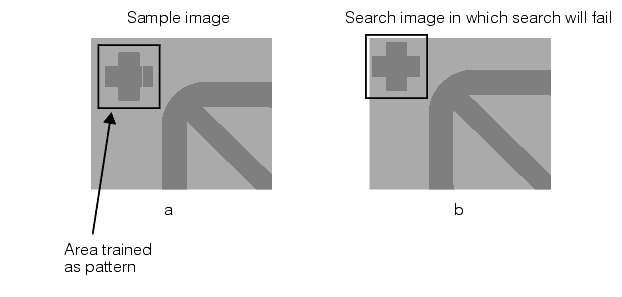
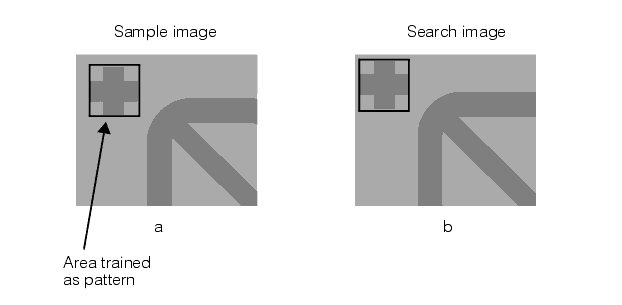
Figure 25 shows how the same feature in the same image can be trained correctly. By making sure that sufficient area exists between the edge of the pattern and the edge of the image, you ensure that the search will succeed even when presented with images in which the position of the feature has moved.
Figure 25. Properly trained pattern.
Pattern Origin
When you define and train the pattern, you can specify its origin. When CNLSearch returns the location where it found an instance of the pattern within the search image, it returns the point within the search image that corresponds to the origin of the pattern. If you do not specify an origin for the pattern, CNLSearch sets the origin to 70, 70 (the center of a default-constructed CogRectangle object.
You can specify the origin of a pattern to be any point expressed within the pattern image coordinate system. The origin of a pattern can be located outside the pattern. Figure 26 shows the relationship between the origin of a pattern and the location of the pattern in a search image.
Figure 26. Pattern origin and pattern location

The origin of a pattern is used only to determine how CNLSearch returns the location at which it finds the pattern in the search image. A pattern's origin has no effect on the speed, accuracy, or reliability of the search.
Specifying Pattern Image Edge Threshold
When you define a pattern to be used for nonlinear mode search, you can specify the edge threshold for the pattern. CNLSearch uses this edge threshold to construct an edge map from the pattern image. In most cases, the default edge threshold values work well. You can estimate the effect of different edge thresholds by training a series of patterns using a single pattern image with different edge threshold values, then displaying the edge maps produced by different edge threshold settings.
Creating a Scaled Pattern
Depending on your application, you might need to search images that were acquired at different magnifications from the pattern image. You can make this task easier by creating one or more scaled versions of your pattern.
Creating a Masked Pattern
When you train the pattern, you can specify a mask image in addition to the pattern image. If you specify a mask image, only those pixels in the pattern image that correspond to pixels in the mask image with nonzero values are included in the pattern.
Figure 27 shows an example of how you might use a mask image to exclude information from the pattern image when you train a pattern.
Figure 27. Using a mask image to train a pattern

This section contains the following subsections.
- Search Area
- Choosing Between Linear and Nonlinear Mode
- Selecting a Confusion Threshold and an Acceptance Threshold
- Image Confusion in Nonlinear Mode
- Using Test Searches to Select a Confusion Threshold
- Selecting a Search Accuracy
- Choosing Between Consider and Ignore Polarity
- Specifying a Search Image Edge Threshold
- Search Results
This section discusses in more detail the operations that CNLSearch performs when it searches for an instance of the pattern image within the search image.
Search Area
When you supply a search image to CNLSearch, it searches the entire area of the image.
Choosing Between Linear and Nonlinear Mode
As you develop your application using CNLSearch, you need to decide whether to use linear mode search or nonlinear mode search. This section describes how to make that choice.
If your application will encounter only linear brightness changes between search images, linear mode searches will produce accurate results in less time than nonlinear mode searches. In addition, linear mode searches are slightly more tolerant of rotation or scale changes between the pattern image and the search image, although CNLSearch is not an appropriate choice if you will be experiencing scale and rotation changes.
Because linear mode searches compare pixel values between the pattern image and the search image, linear mode searches are better at discriminating between valid instances of the pattern and other features in the image than nonlinear mode searches.
If your application will encounter search images with both linear and nonlinear brightness changes, linear mode works well on the images with linear brightness changes, but poorly on the images with nonlinear brightness changes. Nonlinear mode works equally well on scenes with both kinds of brightness changes, although searches are slower and may not work with even slightly scaled and rotated images.
If you are confident that the search images encountered by your application will undergo linear brightness changes only, you should select linear mode search because of its better performance. If you suspect that you may encounter nonlinear brightness changes, you should select nonlinear mode. A complicating factor in making your decision is that often changes in brightness that appear to be nonlinear are actually linear.
One way to choose between linear mode and nonlinear mode search is to perform a series of test searches on a variety of sample images using both linear and nonlinear mode. If these tests show that linear mode searches tend to fail, produce low scores, or return inaccurate locations more often than nonlinear mode searches, you can assume that the search images have nonlinear brightness changes, and you should select nonlinear mode for your application. If the accuracy of the searches does not vary between linear and nonlinear mode, you can assume that the brightness changes between search images are linear, and you should select linear mode for your application.
You can train your search patterns for both linear and nonlinear mode searches. Because a pattern trained for both search modes stores all the information required for both linear and nonlinear mode searches, your application can easily switch between linear and nonlinear mode while it is running. If your application fails to find the pattern in a particular image or group of images while being used in linear mode, one approach is to temporarily switch to nonlinear mode. Determining whether or not a search succeeds can be very application-dependent. Mismatches in linear mode search can receive high scores.
Keep in mind, however, that the scores returned for a particular search of a particular image are different for linear mode and nonlinear mode. Also, the variability of scores is greater for nonlinear mode searches. If your application will be switching between linear mode and nonlinear mode, you need to determine appropriate acceptance thresholds and confusion thresholds for each mode separately.
Selecting a Confusion Threshold and an Acceptance Threshold
CNLSearch uses the confusion threshold and acceptance threshold that you supply to ensure that the correct instance of the pattern within the search image is located as quickly as possible. Of the two thresholds, the confusion threshold is the more important to obtaining good results from CNLSearch.
CNLSearch uses both the acceptance threshold and the confusion threshold when considering whether or not a match represents a valid instance of the pattern. The confusion threshold is the score above which any match is guaranteed to be an instance of the pattern; all matches with scores greater than or equal to the confusion threshold are considered to be valid. The acceptance threshold is the score at or above which the scores of all valid matches will lie. But other matches, which might not be actual instances of the pattern, can receive scores above the acceptance threshold.
CNLSearch uses the confusion threshold to speed the search process. If you are searching for a single instance of the pattern in an image, as soon as CNLSearch finds an instance with a score above the confusion threshold, it stops searching and returns the location of the match. If CNLSearch does not find a match with a score above the confusion threshold, it locates all the matches with scores above the acceptance threshold and returns the location of the match with the highest score.
CNLSearch uses the confusion threshold to determine how to go about discriminating among potential instances of the pattern within the search image. CNLSearch takes the acceptance threshold as an indication of the degree of image degradation it may expect to encounter.
You should set the confusion threshold high enough to ensure that confusing features in a search image do not receive scores above the confusion threshold. Search images with a high degree of confusion contain features that receive high scores even though they are not valid instances of the pattern. Search images where the only features that receive high scores are valid instances of the pattern have a low degree of confusion.
After performing several test searches, you may be tempted to set the acceptance threshold value equal to or very close to the score of your test search. Because of the way the confusion threshold interacts with the acceptance threshold, doing so may result in your search not finding any valid instances. The acceptance threshold is the lowest score that any possible instance will receive. Figure 28 shows examples of scenes with low and high degrees of confusion.
Figure 28. Images with low and high degrees of confusion
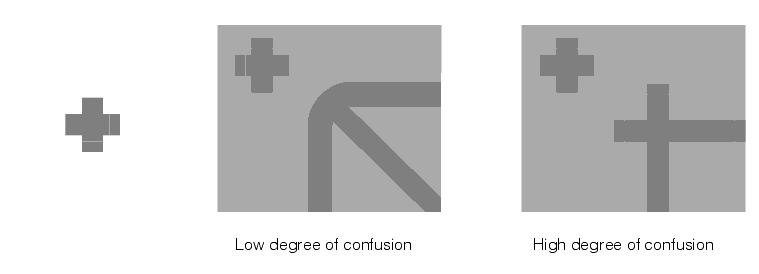
Image Confusion in Nonlinear Mode
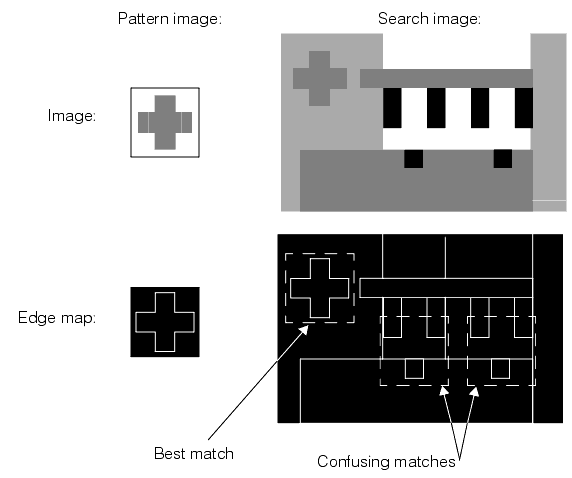
Because nonlinear mode searches are based on a comparison between edge maps instead of pixel values, some images that do not appear to be confusing to a human observer can be extremely confusing for CNLSearch when it performs a nonlinear mode search.
Figure 29 illustrates a pattern image and search image pair that would not be confusing for a linear mode search but that would be confusing for a nonlinear mode search. The upper pair of images in Figure 29 shows the pattern image and search image; the search image contains only a single instance of the pattern, and it appears to have a low degree of confusion. The lower pair of images in Figure 29 shows the edge maps generated from the pattern image and the search image. The edge map generated from the search image shows that there are three locations within the search image that have patterns of edges that are very similar to the pattern image.
Figure 29. Image confusion in nonlinear mode
Using Test Searches to Select a Confusion Threshold
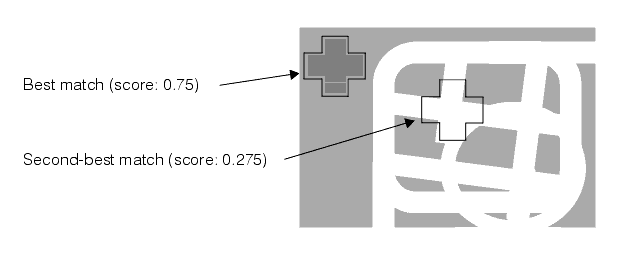
One technique you can use to estimate the correct confusion threshold is to perform a search with a confusion threshold of 1.0, an acceptance threshold of 0.0, and where you specify that there is one more instance of the pattern in the search image than there actually is. CNLSearch returns the location and score of both the actual instance and the nearest match. You should select a confusion threshold that lies between these two scores; as a starting point, you might select a confusion threshold that is midway between the scores.
Figure 30 shows an example of this technique. The search image contains one instance of the pattern (a cross-shaped fiducial mark). A search for two instances of the pattern produces a score of 0.75 for the actual instance of the pattern and a score of 0.275 for the second-best match. Consequently, a good starting value for the confusion threshold in this case would be around 0.5.
Figure 30. Estimating the confusion threshold
You should perform a series of these test searches, using as many different search images as possible, before selecting a final confusion threshold. Keep in mind that your confusion threshold should be higher than the score received by any second-best match.
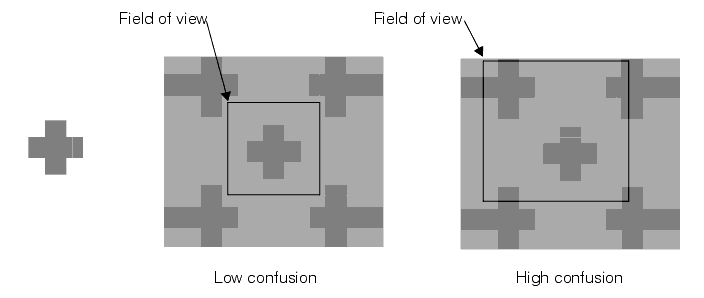
In many applications, the search image represents only a portion of the overall image area. When you are conducting test searches to select a confusion threshold, you should vary the position of the search image within the overall image area so that you can determine the effect that features that are not normally visible have on the degree of confusion in the image.
Figure 31 illustrates an image where different fields of view produce different degrees of confusion. You should consider the degree of confusion in parts of the image that are not normally included in the search image when you are selecting a confusion threshold.
Figure 31. Different fields of view from the same image with low and high confusion
Once you have selected a confusion threshold, you can select an acceptance threshold. The acceptance threshold should be less than or equal to the confusion threshold. You should set the acceptance threshold low enough that CNLSearch never rejects an actual instance of the pattern. As you perform the test searches, note the lowest score that an actual instance of the pattern receives; you should select an acceptance threshold below this score.
You should keep in mind that a search of the same image for the same pattern returns a different score for linear mode and nonlinear mode. If your application will be switching between linear mode and nonlinear mode, you should determine the confusion threshold and acceptance threshold independently for the two modes. Also, the scores returned for nonlinear mode searches tend to be more variable than those returned for linear mode searches. In addition, if you adjust the effect of occlusion and clutter on nonlinear mode scores the scores returned for nonlinear mode searches will change.
If you are using nonlinear mode, you should perform enough test searches to be confident about the range of scores that represent valid matches.
Selecting a Search Accuracy
When you perform a search using CNLSearch, you can specify the relative accuracy level for the search. CNLSearch supports coarse, fine, and very fine searches. The search methods produce increasingly accurate results at the cost of requiring additional memory and time. In addition, the more accurate search methods provide for better discrimination in confusing images. To optimize the performance and space requirements of your application, you should specify the coarsest search method that provides the accuracy and discrimination that your application requires.
Table 4 lists the accuracy of the different search methods for each of the supported CNLSearch algorithms.
| Algorithm | Coarse | Fine | Very Fine |
| Linear CNLPAS | ± 2 pixels | ± 1 pixel | ± 0.25 pixel |
| Linear Search | ± 2 pixels | ± 1 pixel | ± 0.25 pixel |
| Nonlinear CNLPAS | ± 2 pixels | ± 1 pixel | ± 0.5 pixel |
The search accuracies listed in Table 4 represent the best accuracy that CNLSearch can achieve. Depending on the particular image being searched, the actual accuracy may be less than that listed in Table 4.
Table 5 and Table 6 indicate the relative speed difference for using the different search methods with each of the CNLSearch algorithms.
| Algorithm | Coarse | Fine | Very Fine |
| Linear CNLPAS | 100% | 110% | 120% |
| Linear Search | 100% | 110% | 120% |
| Nonlinear CNLPAS | 100% | 150% | 200% |
| Algorithm | Coarse | Fine | Very Fine |
| Linear CNLPAS | 100% | 150% | 200% |
| Linear Search | 100% | 150% | 200% |
| Nonlinear CNLPAS | 100% | 200% | 300% |
Choosing Between Consider and Ignore Polarity
For most applications, you should choose to consider pattern polarity. Ignore polarity only if you want to search for inverted instances of the pattern. In general, ignoring polarity increases the amount of confusion in an image, and it can prevent CNLSearch from finding actual instances of the pattern.
Specifying a Search Image Edge Threshold
When you perform a nonlinear mode search, you can specify the edge threshold for the search. CNLSearch uses this edge threshold to construct an edge map from the search image. In most cases, the default edge threshold values work well. You can estimate the effect of different edge thresholds by examining the edge maps produced by different edge threshold settings.
Search Results
CNLSearch returns a collection of information called a search result for each instance of the pattern that it finds in the search image, up to the number of instances you specify for the search. The results are returned in score order, with the highest score first.
Table 7 describes the information contained in each search result.
| Search Result | Notes |
| LocationX, LocationY | The location at which the instance was found |
| Score | The score the instance received |
| EdgeHit | A flag indicating whether this instance was found at the edge of the search image. |
| AreaScore | The area score for this instance (nonlinear search only) |
| AreaCoverageScore | The fraction of the pattern that lies within the search region (partial-match searching only) |
| EdgeScore | The edge score for this instance (nonlinear search only) |
| Contrast | The ratio of the standard deviation of the pixel values in the search image to the standard deviation of the pixel values in the pattern image |
The following sections describe some advanced features of CNLSearch. The use of these features is not required for most applications.
CNLSearch supports a special advanced training method. You should select the advanced training method only if you experience search failures (such as inaccurate location results) using standard training. The failures that advanced training can correct are usually associated with pattern training images that contain repeating patterns of evenly spaced features such as grids or sets of parallel lines or bars.
Note: The CNLSearch advanced training method applies only to the Linear Search algorithm.
If you decide to use the advanced training method, observe the following guidelines:
- Training will take substantially longer using advanced training; as much as several seconds may be required to train a pattern using advanced training.
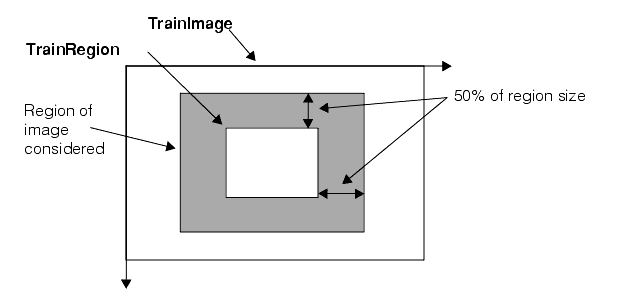
- Training will consider pixels outside of the training region in the training image. If possible, supply a training image that is larger than the training region. The following figure shows the area outside the training window that advanced training may use:
Figure 32. Advanced training considers pixels outside the training region
- CNLSearch patterns trained using advanced training may exhibit differences in search speed than patterns trained using standard training. Depending on image content, searches might be faster or slower.
The CNLSearch tool lets you specify the amount of tolerance for partially overlapping results. You specify overlap tolerance by specifying the maximum allowed percentage of overlap between two search results. If more than the specified percentage of the results' areas are overlapped, then the result with the lower score is discarded. If the percentage of overlap is below the value you specify, then both results are returned.