This topic contains the following sections.
The Image Average tool allows you to accumulate a number of acquired images of the same scene and generate an average image. Generating an average image can be helpful for reducing image noise or for generating a reliable image where lighting can be erratic.
For example, the following figure shows three acquired images and the average image they generate:

The Image Average tool can be used when you want to capture several images of the same non-moving scene. The average image can contain more accurate data than a single acquired image in situations where the light source is variable or flickering, or when the effects of noise from the camera sensor can cause false grey values to be present in the image.
The tool calculates the average image as the sum of the numerical pixel values for each pixel position in a set of images, divided by the number of images. The tool uses a 16-bit accumulator to calculate the average image, which can cause the tool to produce unpredictable results if you try to average more than 256 images. In practice, an overflow on the 256th image would occur when each acquired image had a grey value of 255 for the same pixel in all images, so the actual limit for the number of images you can average depends on the images themselves.
The tool does not store the individual images that generate the average image, so previously added images cannot be accessed.
Finally, the Run method of the CogImageAverageTool causes the average image (and standard deviation image, if requested) to be calculated for each new input image. The Image Average CogImageAverage, meanwhile, supports an Add method to add images to the Image Average tool but does not generate the average image until you call the ExecuteAverage method. An Image Average operator, therefore, can offer substantial performance improvements over a CogImageAverage tool in your Visual Studio.NET vision application. For more information on choosing between tools and operators, see the topic Understanding Tools and Operators.
In addition to the average image, the tool can also calculate a standard deviation image, where lighter pixels indicate a higher degree of variation between images. For example, the following figure shows three acquired images and the standard deviation image they generate:
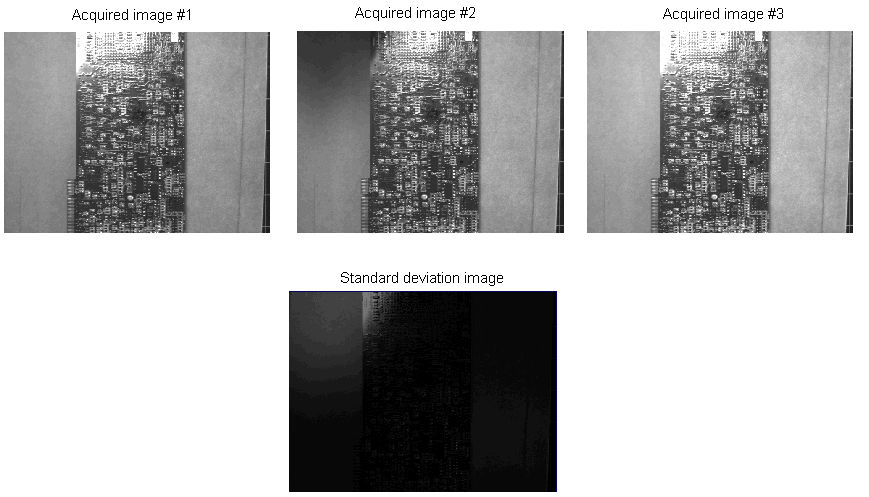
An all black standard deviation image indicates no variation in the set of input images.
The standard deviation image can be helpful in diagnosing lighting problems as you configure your vision application. The tool calculates the standard deviation image, for each pixel position in a set of images, as the root mean square difference between the sum of pixels in the set and its corresponding average value.