3D-L4000 series sensors incorporate firmware to program features of the camera. Some 3D-L4000 sensors that work with Cognex In-Sight software can have the firmware replaced to work with this VisionPro release.
Note: To replace the firmware you must have an install of Cognex In-Sight 3D and a 3D-L4000 series sensor capable of loading the VisionPro firmware. Look for a label on your 3D-L4000 sensor and verify the part number begins with the characters "IS3DL4XXX". If the part number does not begin with this string of characters you cannot load VisionPro firmware onto this 3D-L4000 sensor.
Perform the following steps to replace the firmware on a 3D-L4000 series sensor:
- Connect your 3D-L4000 sensor to your install of In-Sight 3D software and take note of the IP address and the MAC address.
Locate the VisionPro 3D-L4000 firmware file in the directory %VPRO_ROOT%\bin of your VisionPro installation.
VisionPro supports a firmware file with the format vpro-l4000_XXX.bin.
Copy the VisionPro 3D-L4000 firmware file to C:\ProgramData\Cognex\Firmware\In-Sight 3D\<version> of your In-Sight 3D installation.
Navigate to the latest version of In-Sight 3D software available to store the VisionPro firmware file.
Launch In-Sight 3D software and navigate to where you can upload new firmware:
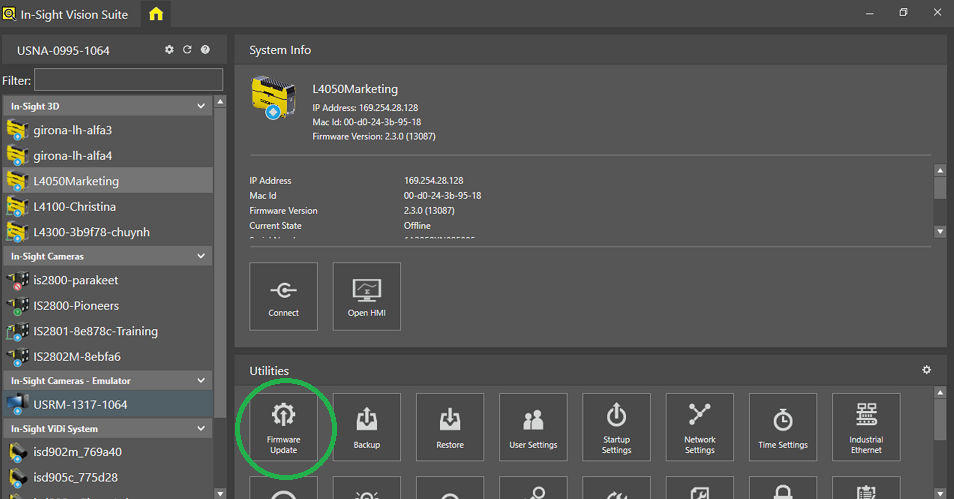
Click Firmware Update.
Select the file that begins with VisionPro 3D-L4000 and click Update. The In-Sight software loads the VisionPro firmware on the sensor.
When the process completes, the In-Sight software no longer lists the 3D-L4000 sensor.
- Connect the 3D-L4000 to your PC with the VisionPro install and launch the GigE Vision Configurator from the Start menu.
Confirm the 3D-L4000 appears in the GigE Vision Configurator.
Compare the MAC address noted in the first step to confirm this is the same sensor.