This topic contains the following sections.
- New Versions of the Tool Edit Controls
- Previous Tool Edit Controls Not Supported
- Identifying V1 Edit Controls
- Migrating Embedded Tool Edit Controls to the New Tool Edit Controls
- Migrating Dynamically Created Tool Edit Controls to the New Tool Edit Controls
- Removing Undesired References
- Vision Tool Edit Controls
- Color Vision Tool Edit Controls
- Shape Edit Controls
- Display Edit Controls
- No Access to ActiveX Properties
- Add the Tool Edit Control
- Tool Edit Control Properties
- Tool Edit Control Methods and Events
Each vision tool in VisionPro supports an edit control to provide a graphical user interface to the underlying application programming interface (API). The edit control allows you to set and change the properties of the vision tool, run the tool on an acquired image, and view tool results. QuickBuild, a key component of the VisionPro development environment, uses tool edit controls exclusively. Using QuickBuild you can configure an image source, add the image-processing and vision tools to analyze the acquired images, and then include any necessary results analysis logic and I/O configuration your application requires.
If desired, you can add edit controls directly to your Visual Studio.NET application. This allows you to add more sophisticated data and control flow as well as error handling capabilities while continuing to use the Cognex-supplied edit controls to configure the individual VisionPro tools. The result can be a deployable application without the cost of creating a complex user interface for each tool.
VisionPro release 5.2 replaces many of the V1 tool edit controls supported in previous releases with new V2 versions. The new V2 edit controls exist as pure .NET controls, which eliminates the need to reference control interop assemblies and adds built-in support for Windows Themes. Any vision tool enhancements in this release occur only in the V2 versions of the edit controls.
VisionPro no longer supports the tool edit controls from releases prior to release 5.2. Any existing QuickBuild application you open in this release will automatically use the V2 edit controls, and no additional steps are necessary.
Unlike QuickBuild, however, your Visual Studio.NET application will not use the V2 edit controls automatically. Any existing Visual Studio.NET application that uses V1 versions of tool edit controls will not compile and run successfully. You must migrate the tool edit controls you use to the V2 versions in order to access the new functionality available from the underlying vision tools supported in this release. VisionPro no longer includes the V1 edit controls.
Be aware that the following tool edit contols have not been updated and do not need to be replaced:
- OCVMax
- OCV
- OCV Font Editor
- Results Analysis
- Model Maker
Visual Studio.NET will display an error for any V1 edit controls in your current application, as shown in the following example:
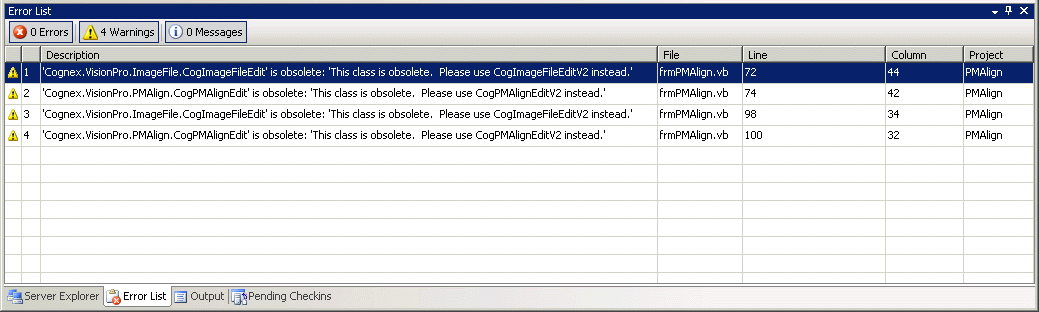
To replace a V1 tool edit control with its V2 version in your Visual Studio.NET application, perform the following steps:
Record any parameters currently configured for the existing tool edit control in the Properties window.
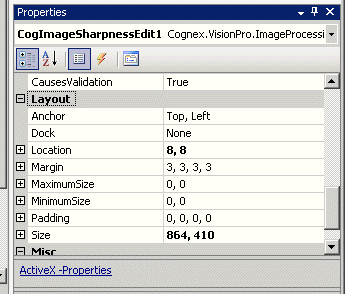
Once you delete the existing tool edit control, any configured properties will also be deleted.
Examine the Code Editor for the Name of the control instance.
For example, the following statements prepare a PMAlign tool edit control for use:
..... this.cogPMAlignEdit1 = new Cognex.VisionPro.PMAlign.CogPMAlignEdit(); ... ((System.ComponentModel.ISupportInitialize)(this.cogPMAlignEdit1)).BeginInit(); ... // // cogPMAlignEdit1 // this.cogPMAlignEdit1.Enabled = true; this.cogPMAlignEdit1.Location = new System.Drawing.Point(6, 6); this.cogPMAlignEdit1.Name = "cogPMAlignEdit1"; this.cogPMAlignEdit1.OcxState = ((System.Windows.Forms.AxHost.State)(resources.GetObject("cogPMAlignEdit1.OcxState"))); this.cogPMAlignEdit1.Size = new System.Drawing.Size(777, 433); this.cogPMAlignEdit1.TabIndex = 0; ... ((System.ComponentModel.ISupportInitialize)(this.cogPMAlignEdit1)).EndInit(); ...- Copy the Name of the tool edit control ("cogPMAlignEdit1" in the previous example).
Select the existing tool edit control and delete it from the form.
Visual Studio.NET removes all the designer-generated code from the Code Editor but leaves any user-generated code that references the edit control.
Select the new version of the tool edit control from the Toolbox and add an instance of the control to the form.
The new version of the tool edit controls have the same name as the previous versions but have "V2" on the end of their .NET Framework Component names.
When you add the tool edit control to the form, Visual Studio.NET automatically adds the programming statements to support the tool edit control in the Code Editor.
Use the Propterties window to replace the default name of the tool edit control with the name used for the previous version of the edit control.
Visual Studio.NET might put up a dialog box listing all the user code that will now reference the new and renamed version of the tool edit control. Click OK to accept the changes.
- Finish the migration by disabling, or removing completely, any references to any public property, method or event that is not available to the new tool edit control, as described later in this section.
To modify your Visual Studio.NET application and replace dynamically created tool edit controls with the new versions supported in this release, perform a find/replace operation for the programming statements in the Code Editor and replace any reference to the tool edit control with its new version, which has the same name appended with a "V2". For example, replace "CogBlobEdit" with "CogBlobEditV2" to migrate to the new Blob edit control.
After that, fix any references that do no compile or generate runtime exceptions by disabling them or removing them. For example, the following statement will generate a runtime error and is not needed for the new edit controls, and it should be disabled or removed:
CType(mBlobEdit, System.ComponentModel.ISupportInitialize).BeginInit()
You should disable or remove any properties, methods or events supported by the previous versions of the tool edit controls that are not supported by the new versions in this release, which vary by release.
The public properties CogControls and EditFrame are not available in the new version of the vision tool edit controls (for example, PMAlign, Caliper, Blob, and so on) and should be disabled or removed. For example:
// Cognex.VisionPro.PMAlign.CogPMAlignEdit.CogControls
// Cognex.VisionPro.PMAlign.CogPMAlignEdit.EditFrame
The public property ToolSyncObject and public events ToolSyncObjectChanged and ToolSyncObjectChanging are not available in the new version of the color vision tool edit controls and should be disabled or removed. For example:
// Cognex.VisionPro.ColorSegmenter.CogColorSegmenterEdit.ToolSyncObject
// Cognex.VisionPro.ColorSegmenter.CogColorSegmenterEdit.ToolSyncObjectChanged
// Cognex.VisionPro.ColorSegmenter.CogColorSegmenterEdit.ToolSyncObjectChanging
The public properties CogControls and ElectricIndicators and the public event Changed are not available in the new version of the shape edit controls and should be disabled or removed. For example:
// Cognex.VisionPro.CogCircleEdit.CogControls
// Cognex.VisionPro.CogCircleEdit.ElectricIndicators
// Cognex.VisionPro.CogCircleEdit.Changed
The public property CogControls is not available in the new version of the display edit controls (for example, Display Status bar, Display Tool bar, and so on) and should be disabled or removed. For example:
// Cognex.VisionPro.Display.CogDisplayStatusBar.CogControls
The tool edit controls in this release do not support setting some ActiveX properties using the Propterties window.
To use an edit control in your Visual Studio.NET application, select it from the VisionPro Tool Edit Controls tab of the toolbox. See the topic Add a Control for more information.
The following table lists the Cognex-defined properties that are implemented by the tool edit controls:
| Property | Description |
| AutoCreateTool | If true (the default value), then a tool of the appropriate type is automatically created and connected to the tool edit control when the tool edit control is initialized at run time. You can only set this property at design time, from within Dev Studio. |
| EnableDelegateQueuing | Whether this control will allow delegate queuing whenever SubjectInUse is true. If queuing is disabled, the control will disable all subcontrols instead. Default is false. |
| Filename | The most recently used file name. This is the file specified by the user on the most recent click of the “Save”, “Save As”, or “Load” toolbar button. Default is the empty string. See also FilenameChanged event. |
| LocalDisplayVisible | Whether the tool display located on the right hand side of the tool edit control is visible. Default is true. |
| ShowElectricIndicators | Whether this control should show electric indicators (a lightning bolt graphic next to any subcontrol that is electric, i.e. that will automatically cause the tool to run whenever the parameter value changes). Note that this property only controls whether the electric indicators are shown when SubjectInUse is false – the indicators are always invisible when SubjectInUse is true. |
| ShowToolTips | Whether this control should show tool tips for its various subcontrols. |
| Subject | A reference to the tool being edited by this control. If the edit control AutoCreateTool property is true (the default), then the Subject property is automatically set to the automatically created tool. Note that if you assign a new value to this property while SubjectInUse is true, the assignment will not actually take effect until SubjectInUse becomes false. |
| SubjectInUse | Whether or not the subject tool is currently running in a non-GUI thread (and therefore should not be accessed). If your custom vision application runs the tool in a non-GUI thread, you may wish to set this property to true before running the tool, and to false after running the tool. |
| SuspendElectricRuns | Set this to true to temporarily disable electric behavior in this control. |
The following table lists the Cognex-defined methods and events that are implemented by the tool edit control.
| Method | Description |
| ProcessQueuedDelegates | Calling this method causes any previously queued changes to be acted upon. |
| SetSubjectAndInitialize | Set the edit control’s subject to the supplied value and initialize the control based upon this new data. Unlike the Subject setter, this method assumes that it is now safe to set the Subject. |
| Event | Description |
| FilenameChanged | The Filename property has changed. |
| SubjectChanging | The Subject property is about to be replaced. |
| SubjectChanged | The Subject property was just replaced. |