Your processor must support the AVX2 instruction set for any Cognex 3D operations.
This release adds the CPUCanExecute3D method to return True if the processor in your computer is capable of executing Cognex 3D operations. Otherwise the method returns False. Use the CPUCanExecute3D method to verify any computer you use to create or deploy your application can perform 3D operations.
Use a Cog3DDisplayV2 control to visualize range images and 3D graphics in your Visual Studio applications.
Be aware that VisionPro also supports Cog3DDisplayV2WF, a Windows Forms version of the control that supports the same functionality.
This topic contains the following sections.
This section contains the following subsections.
VisionPro supports two types of 3D data:
- Vision data captured by supported 3D sensors
- Geometric graphics such as 3D boxes and 3D planes
The 3D Display control allows you to combine the display of both vision data and geometric graphics.
Use a Cog3DRangeImageGraphic object to contain 3D vision data that you want to display. The object stores either:
- A CogImage16Range range image
A CogImage16Range range image and its CogImage16Grey grey-scale pair.
VisionPro automatically checks to verify that the grey-scale image is not null and the range image and its grey-scale counterpart have the same dimensions in width and height.
Use the Add method of the 3D display control to add your Cog3DRangeImageGraphic to what is currently shown. See the sample application included with VisionPro for an example.
VisionPro supports the following 3D graphic types:
- Cog3DBoxGraphic
- Cog3DCircleGraphic
- Cog3DLineSegGraphic
- Cog3DPointGraphic
- Cog3DRectangleGraphic
- Cog3DSphereGraphic
Unlike 2D shapes, VisionPro maintains separate classes for 3D shapes and 3D graphics. To display a 3D graphic, you must create and configure the 3D shape you want to use and then pass the 3D shape to the appropriate 3D graphic object. See the sample application included with VisionPro for an example.
VisionPro also inclues the Cog3DDisplayV2StatusBar control to offfer status bar features for a 3D Display. Use the status bar to report mouse coordinates of the display and the name of the current coordinate space.
Your VisionPro installatoin includes a sample Visual Studio solution at %VPRO_ROOT%\samples\Programming\3D\Cog3DDisplayV2WithGraphics\C#\Cog3DDisplayV2WithGraphics. The sample application:
- Loads the %VPRO_ROOT%\Images\RangeWithGrey.idb file containing RangeWithGrey range images.
- Demonstrates how to create a graphic wrapper for a range image.
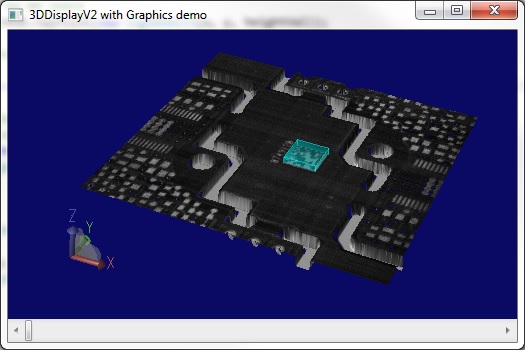
- Uses a preconfigured CogToolBlock (ToolBlock.vpp) that searches for a 2D Data Matrix code on the grey image data and displays the result within a transparent 3D bounding-box.
- Illustrates the steps necessary to process the results of the grey image data, which are stored in Sensor2D space.
- Shows how to transform (x,y) coordinates in Sensor2D space into (x,y, z) coordinates in Sensor3D space.
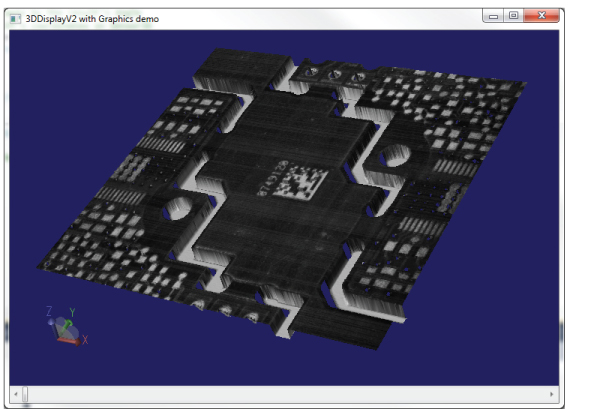
The following figure shows the sample application in use: