Node Model
You can create node models that describe the spatial relationship between a group of characters, and also which character values (a digit or an uppercase letter) are legal for each node in the model. The node model is for use with strings that should contain the same number of characters in each image. They are also useful in situations where the characters are situated along an arc, for example.
To use a node model, do the following:
- After adding the tool, configuring the ROI and setting the character Feature Size, process the tool (press the Book icon).
-
Select all of the yellow found characters you want to include in the node model (shift-click or shift-drag to draw a box), then right-click over a selected character and select Create Model.

 Note:
Note:- If you select Create Model with nothing selected, then the model will be created from all of the features found in the image.
- For more information about the parameter settings of the node model editor, see the Node Model Editor Parameters topic.
-
Define your node model within the Model Editor dialog.
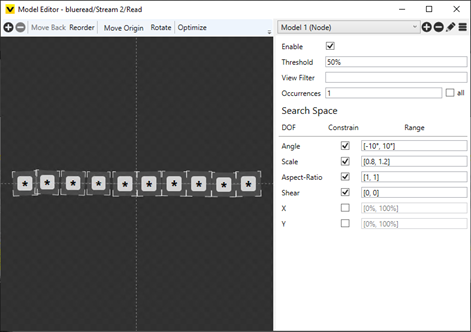
-
For each node within the model, you can refine the characteristics of the node, such as specifying if it should be a numeric digit or an uppercase letter character (the default is that the node can be any type of character).
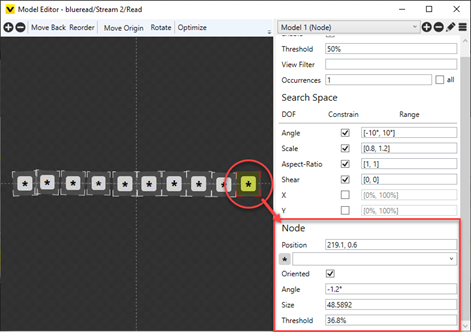
To specify characteristics of a node, select the node, which will open the Node settings for the selected instance.
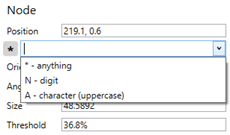
- Close the dialog by pressing the X button in the top-right corner of the dialog.
- The model will then be applied to the view that was open when the Model Editor was launched.
- Process the tool (press the Book icon) to apply the model to the rest of the views.
- Review the results. For more information, refer to the Working with Labels and Models topic.
While the node model is capable of extracting curved strings, it may have trouble ordering the characters in instances where the curvature is very high, or if the characters are rotated away from the horizontal. In these cases, you may encounter a situation where the characters are all being found, but the string being returned is incorrect. For example, consider the following:
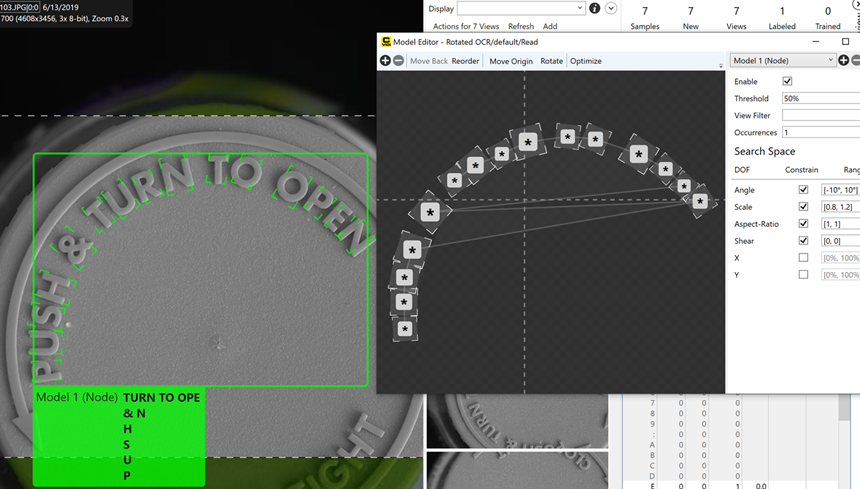
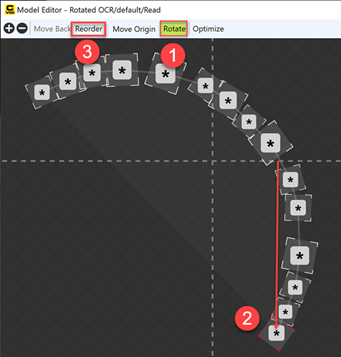
To correct this issue, you need to modify the orientation of the model so that it re-orients the order of the string.
Within the Model Editor, do the following:
- Press the Rotate button.
- Move the model so that the first character starts near the top left of the model.
- Press the Reorder button. This will place the nodes in a better order, and the returned string should be more accurate.