Setting Up the VisionPro® Tool Block
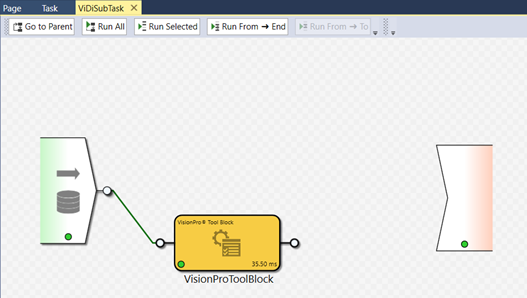
Within this application scenario, a VisionPro® Tool Block will be used to find a specific feature in the image, and then output a pose, which is a transform that will be used by a ViDi tool to orient its search area.
-
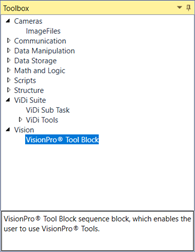
Working within the ViDi Sub Task block, from the Task Toolbox, open the Vision node and select the VisionPro® Tool Block.
-
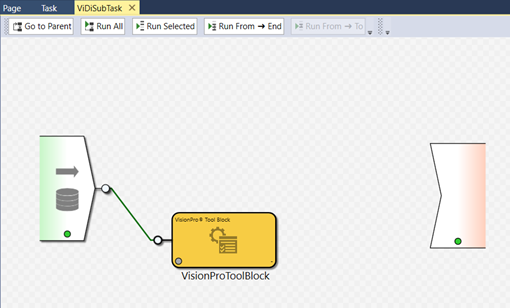
Drag and drop the VisionPro® Tool Block into the ViDi Sub Task, and then connect the image pin to the input pin of the VisionPro® Tool Block.
-
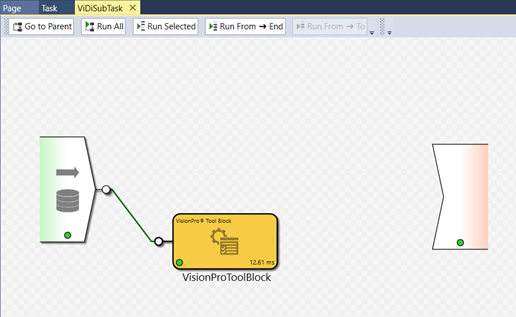
Press the Run All button to pass the image into the VisionPro® Tool Block.
-
Double-click the VisionPro® Tool Block to open the QuickBuild Job Editor.
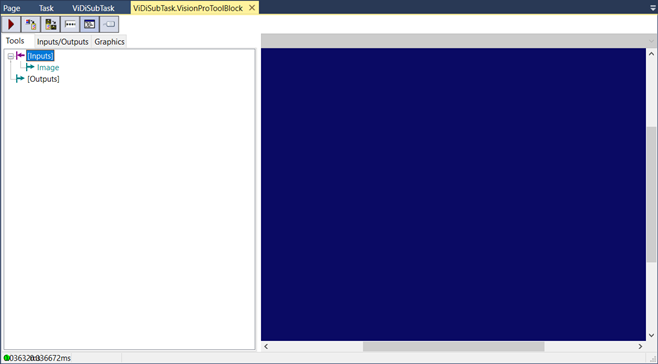
- Press the Play button to add the image.
-
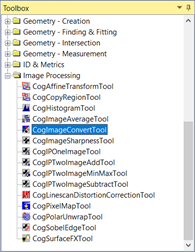
From the QuickBuild Job Editor Toolbox, select the CogImageConvertTool and drag it to the Job Editor.
-
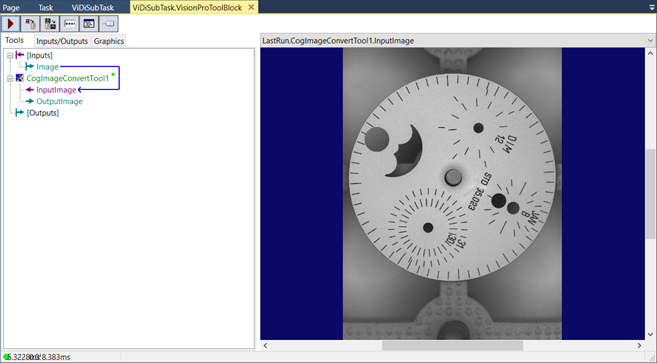
Connect the Inputs Image terminal to the CogImageConvertTool's InputImage terminal.
-
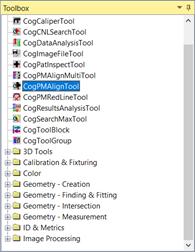
From the QuickBuild Job Editor Toolbox, select the CogPMAlignTool and drag it to the Job Editor.
-
Connect the CogImageConvertTool's OutputImage terminal to the CogPMAlignTool's InputImage terminal.
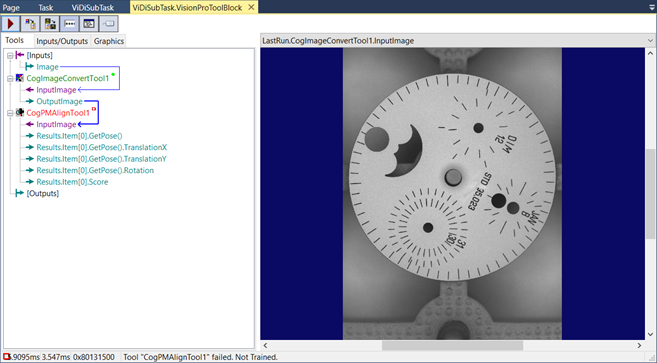
- Press the Play button to add the image to the CogPMAlignTool.
-
Double-click the CogPMAlignTool to open the tool.
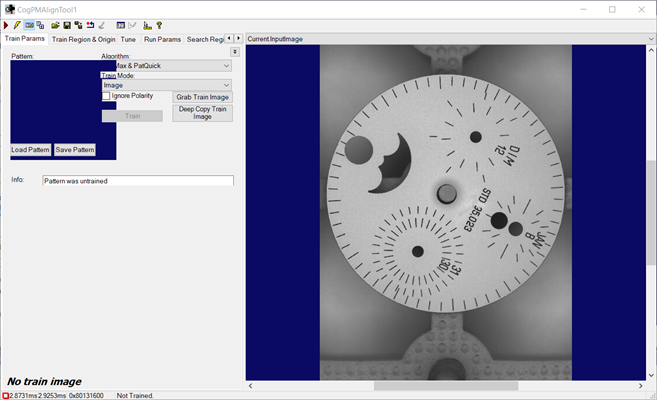
-
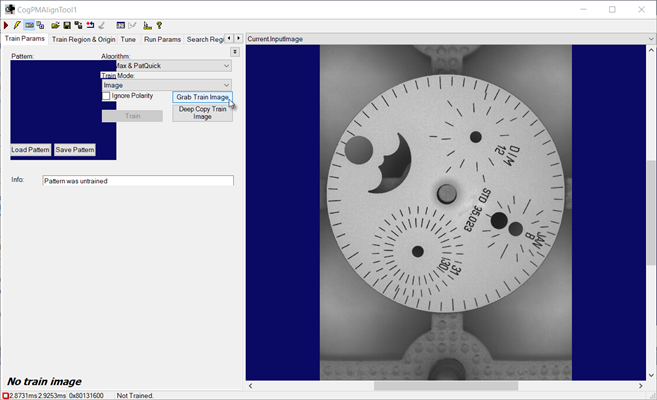
Press the Grab Train Image button to have the tool use the current image as the training image.
-
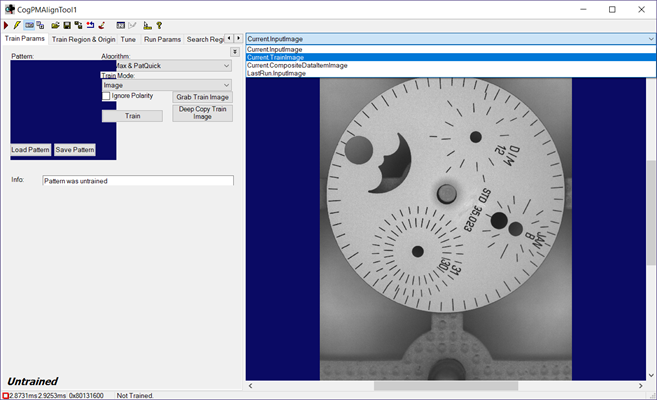
From the display menu, choose Current.TrainImage.
-
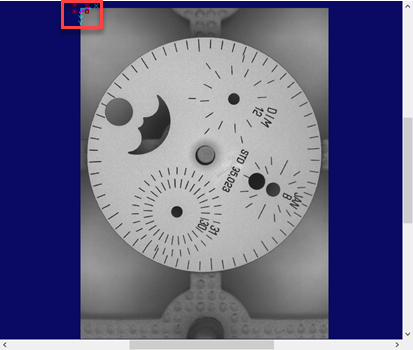
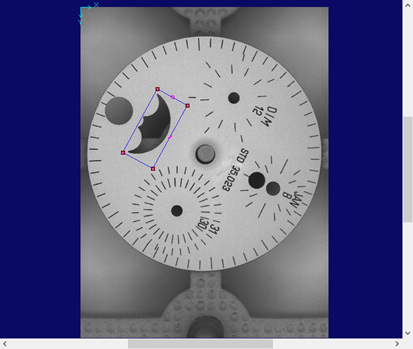
Click and drag the small training region rectangle to enclose the feature that will be used as the pattern.
-
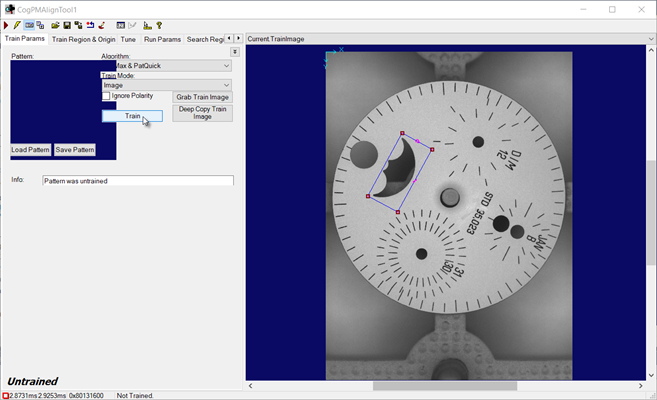
With the region configured, press the Train button.
-
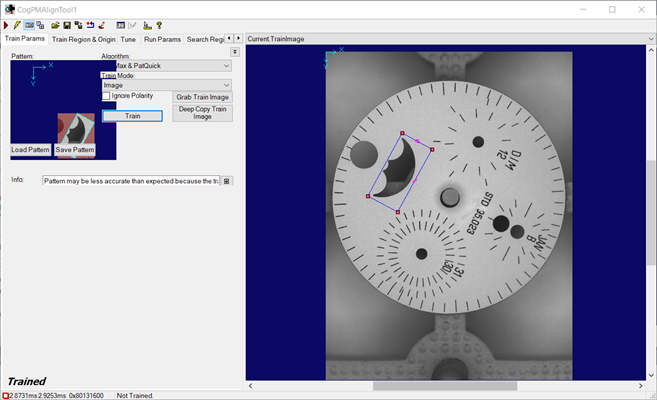
The pattern should now be trained.
-
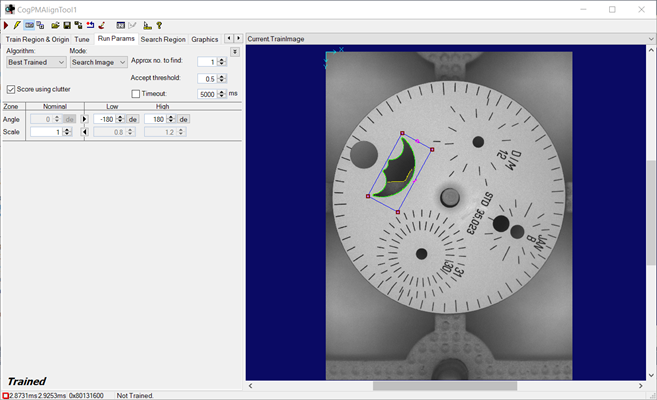
Click the Run Params tab, and if the part will exhibit angular rotation, set the Angle parameters to account for the rotation.
-
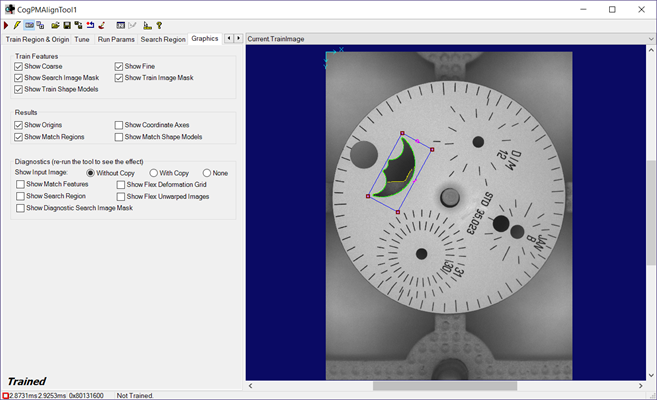
Click the Graphics tab, and enable the Show Coarse and Show Fine checkboxes.
-
The CogPMAlignTool should now be configured.
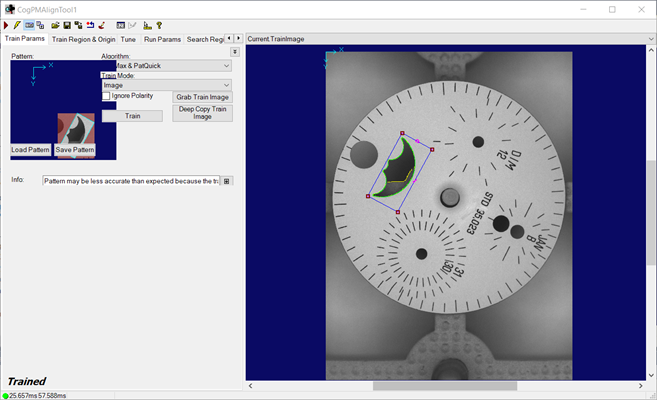
- Close the CogPMAlignTool tool dialog, and return to the Job Editor.
-
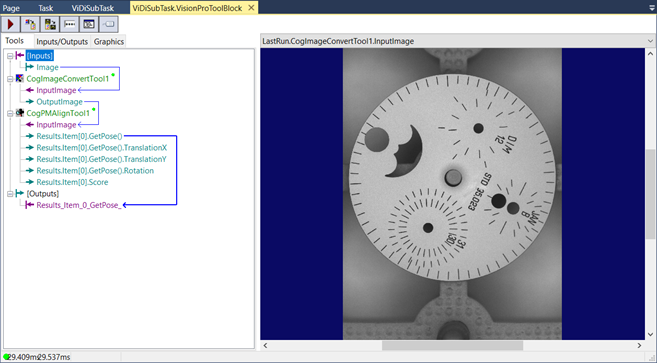
Connect the CogPMAlignTool's Results.Item[0].GetPose() terminal to the Outputs terminal.
 Note:
Note:If the CogPMAlignTool will be finding more than one pattern, you can configure the tool to report all of the pattern results.
- Right-click the CogPMAlignTool and select Add Terminals.
- Select the Results object.
- Drag the Results to the Outputs terminal.
- Close the ViDiSubTask.VisionProToolBlock tab to return to the ViDi Sub Task.
-
Press the Run All button again to ensure the VisionPro® Tool Block is functioning correctly and the output pin is outputting a CogTransform2DLinear result.