Client Device Setup
-
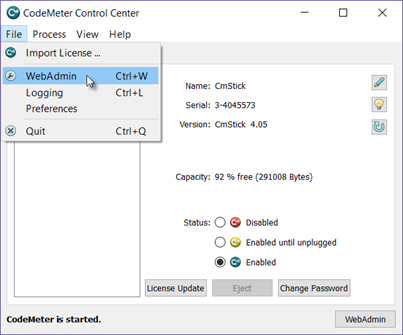
On the client device, from the CodeMeter Control Center, open the WebAdmin in your browser.
-
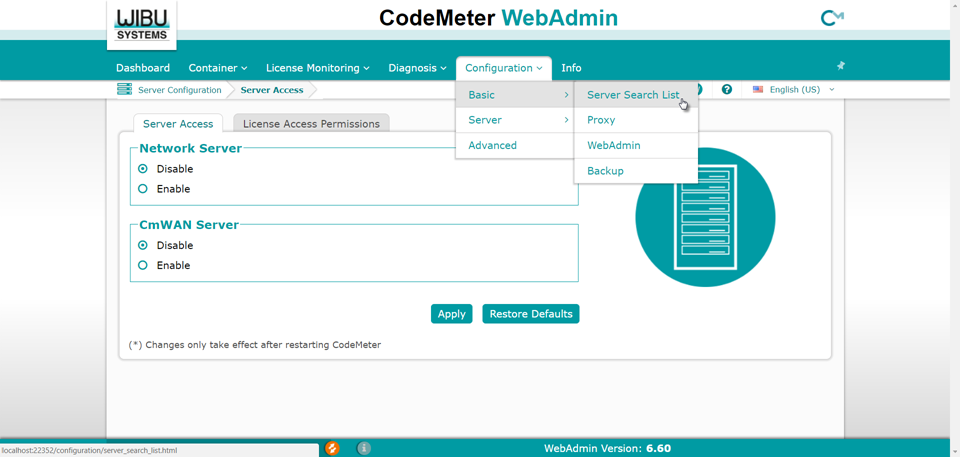
From the Configuration drop-down menu, select Basic, then Server Search List.
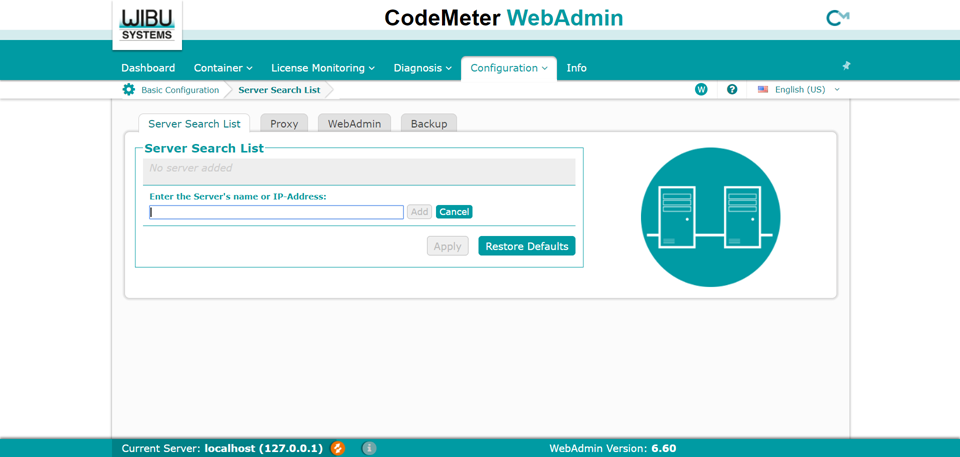
- Press the Add Server button.
-
In the Enter the server’s name or IP Address field, provide the necessary information about the Server device.
-
Press the add new Server button.
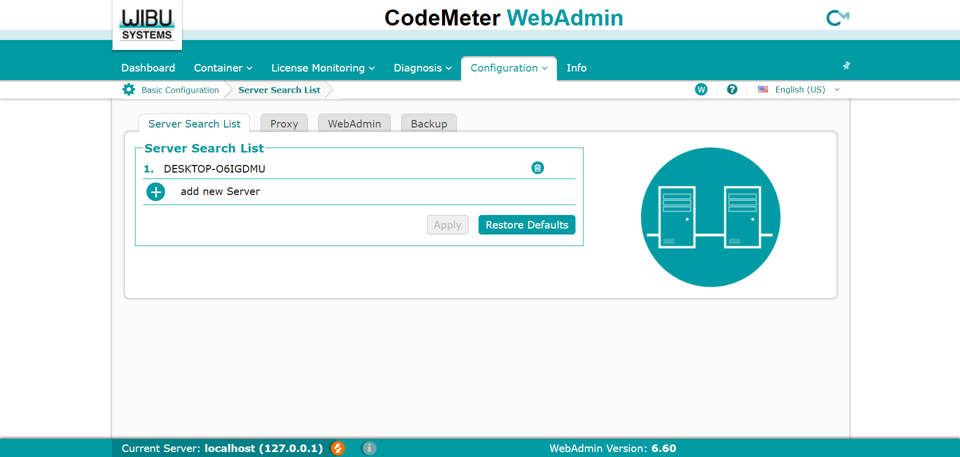
- Press the Apply button.
- Repeat these steps on each Client device you wish to enable.
-
Once the setup is complete, open the ViDi Suite GUI, and the launch window will prompt you to specify a URL for the server. You will need the IP address (or hostname), followed by a colon, and the port number the server is using to listen for training requests (e.g. 10.10.10.10:46892).
 Note: The port number can be displayed by opening the ViDi Suite Service application on the server.