Set Up an FTP Connection
Set up data forwarding through an FTP connection from the Data Forwarding page. Data forwarding through FTP only supports transferring results data. To set up the connection, you need to provide a custom file path.
Prerequisites
Before you start, ensure that the following prerequisites are met:
-
The Unit is connected to the local network.
-
You are subscribed to the devices from which you intend to forward data.
Procedure
To set up an FTP connection:
-
Click Create Connection on the Data Forwarding page.
-
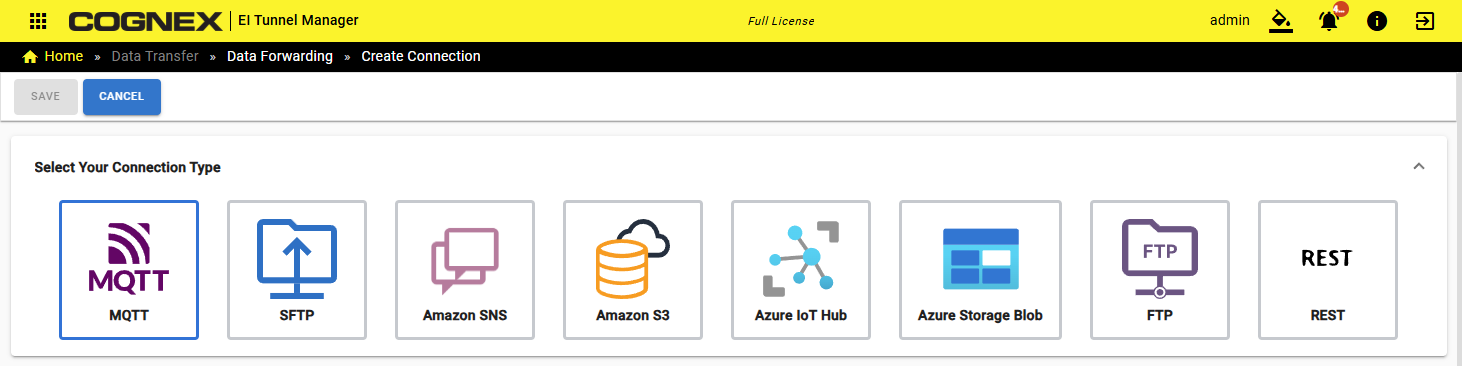
Choose FTP.
-
Configure your connection:
-
Provide the Connection Name.
-
Optionally, to help differentiate between connections, provide a custom Client ID.

-
-
Define a custom file path.
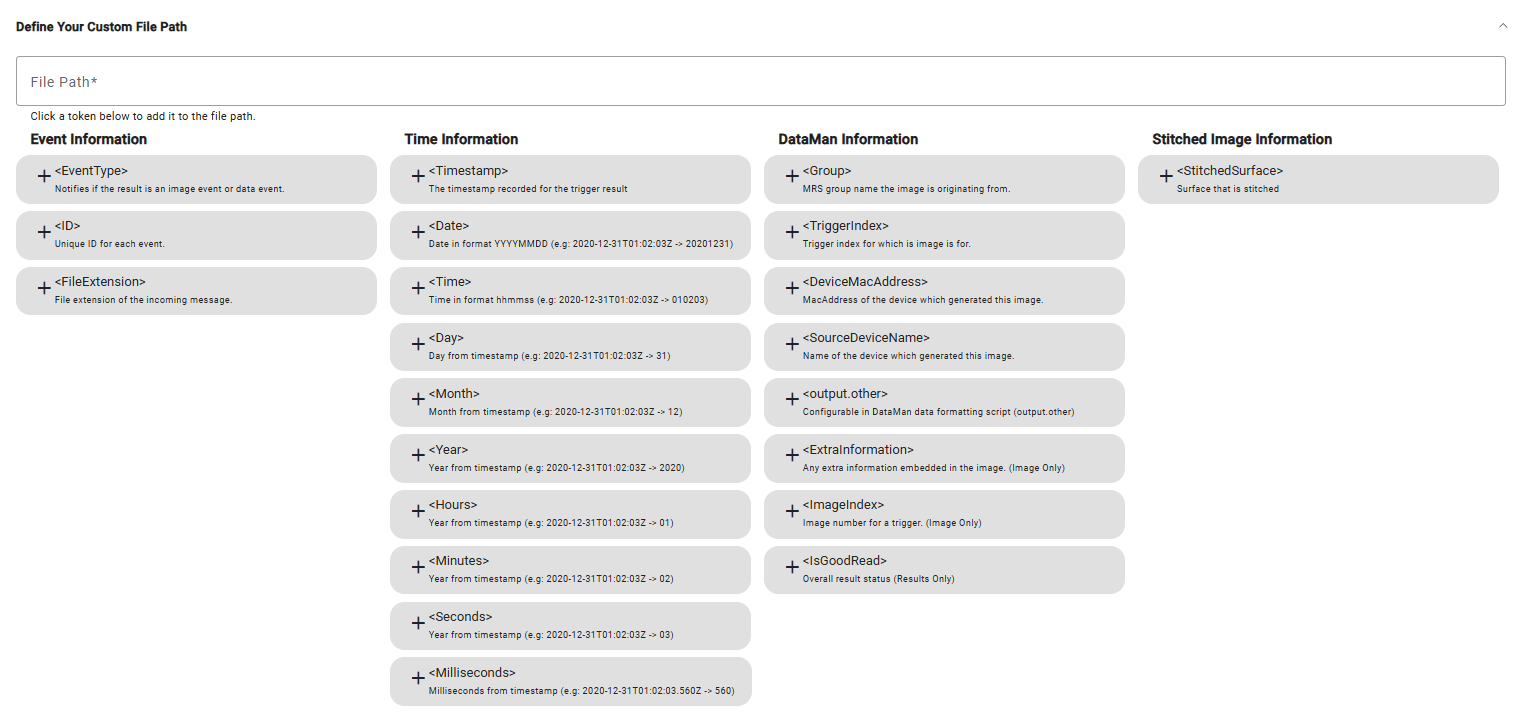 Note: You can use a mix of literals and tokens to set up the custom file path. Tokens are replaced object information at the time of forwarding (for example, triggerID, timestamp). Image information tokens are only available for forwarding images and are not replaced on other data types.
 -
Configure your connection:
-
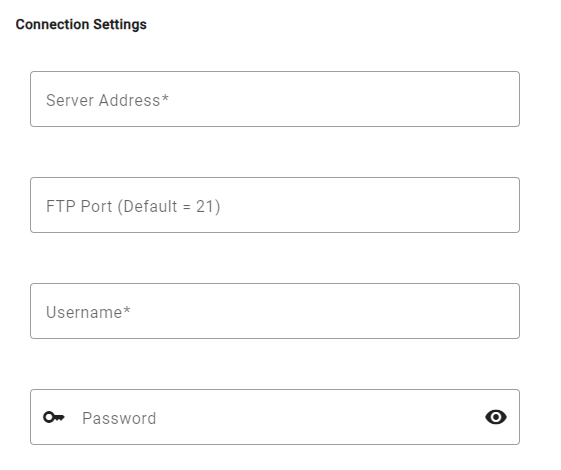
Provide the Server Address.
-
Optionally, provide an FTP Port.
-
Provide a Username.
-
Optionally, provide a Password.
-
-
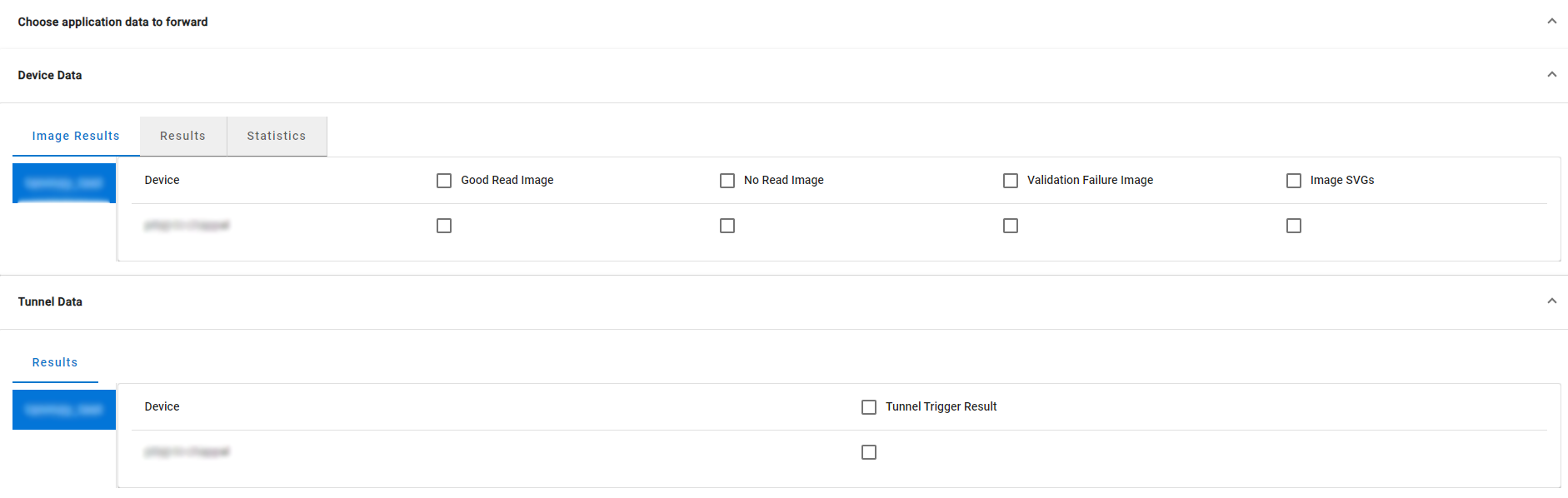
Choose the application data you want to forward and from which device. Under Device Data and Tunnel Data, you can choose specific data from each device by checking the corresponding box.
-
Click Save.
Your connection is now listed on the Data Forwarding page. You can edit, pause, and delete connections here.