Notification Center
The Notification Center allows you to filter and sort the notifications that EI Tunnel Manager sends you. You can access the Notification Center from the main menu or from the notification bell icon.
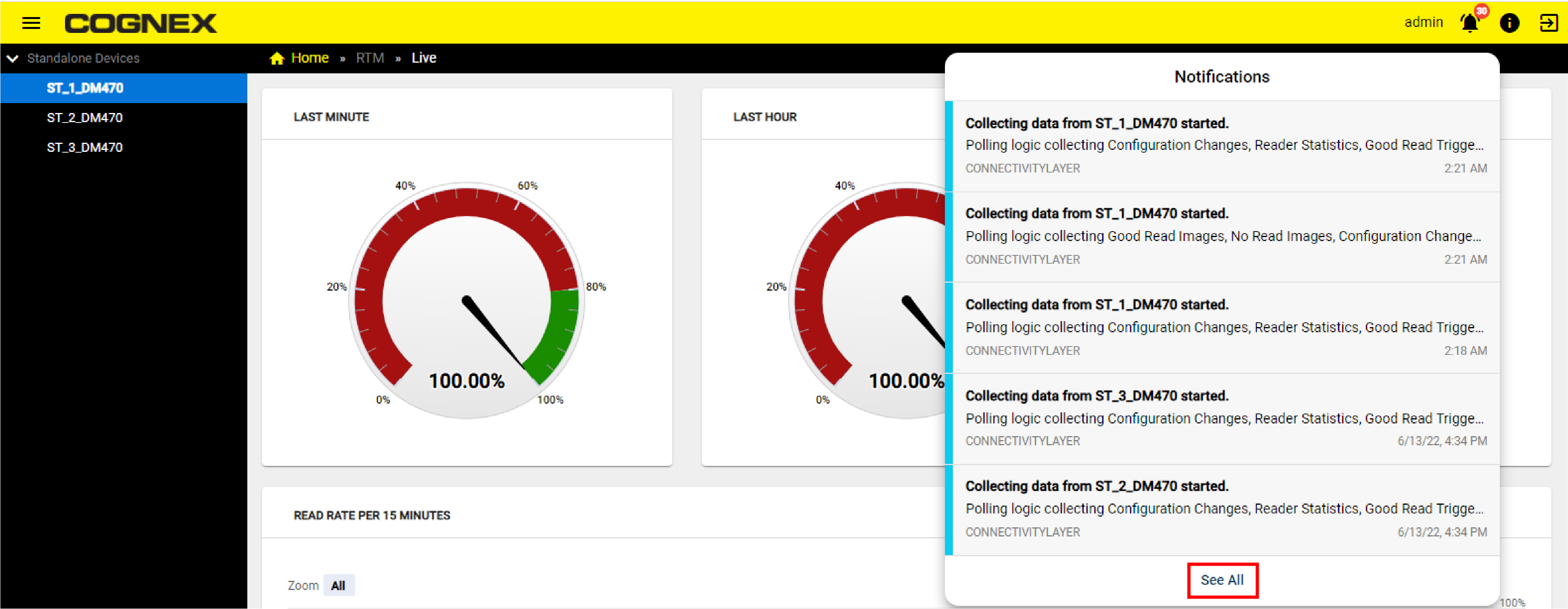
For access from the notification bell, click on the bell icon in the upper right corner of the home page to see the latest notifications. Click the See All button to open the Notification Center.
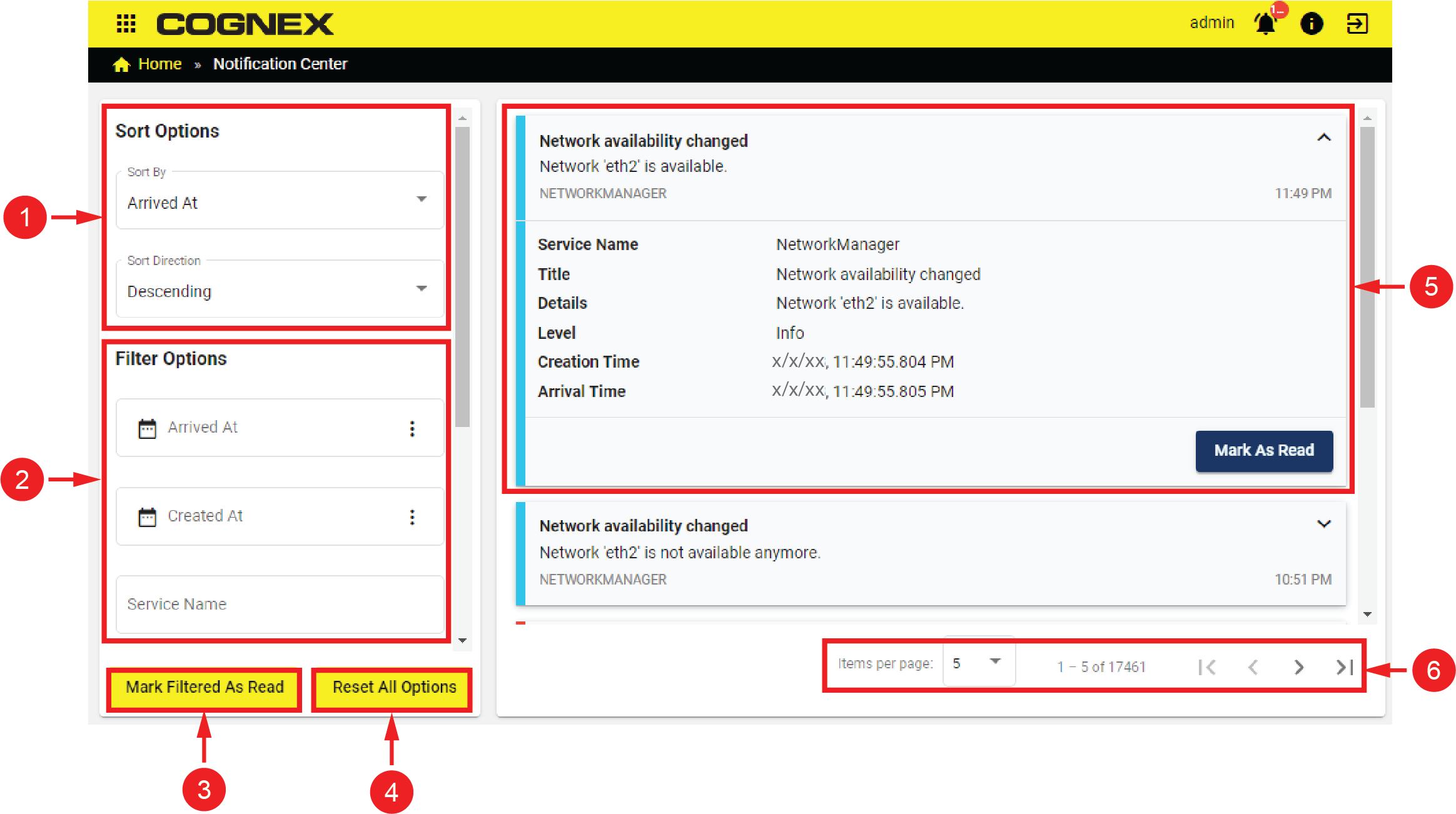
Notification Center Features
|
||
|---|---|---|
| Number | Element | Description |
| 1 | Sort Options |
Click on the Sort By dropdown to sort your notifications according to the following options:
Click on Sort Direction dropdown to determine the order of the notifications:
|
| 2 | Filter Options |
You can filter the notifications by using the following filter options:
|
| 3 | Mark Filtered as Read | Mark the filtered notifications as read. |
| 4 | Reset All Options | Clears the selected Sort and Filter options. |
| 5 | Notification | Click on the notification to see the details. Click on the Mark as read button to mark the notification as read. |
| 6 | Paging buttons | Click on the Items per page dropdown to choose the number of notifications showed on the screen. Click on the arrows to turn pages between the notifications. |
Notification Levels
The Notification Center displays four levels of notifications:
- Info: Updates about general processes. No action is required.
- Warning: Caution, your process can be halted. You have to resolve the issues in the notifications before continuing.
- Error: Blocks your process. You have to resolve the issues in the notifications before continuing.
- Critical: Your process is no longer working. You have to resolve the issues in the notifications before continuing.