Download Center
The Download Center page of the Archiver application allows you to manage your current and historical archives.
When you download image or trigger data from the Results Explorer page of the Performance Analytics application, EI Tunnel Manager stores it in an archive file. Downloaded archives reside on the hard drive of the EI Tunnel Manager unit. The time it takes to create the archive depends on the size and the number of images that needs processing, and can take from around one minute to up to two hours. Depending on the amount of data, EI Tunnel Manager generates one or more archives. The size limit for a single archive is 1 GB. When the remaining disk space approaches approximately 50 GB, EI Tunnel Manager automatically starts to delete older images.
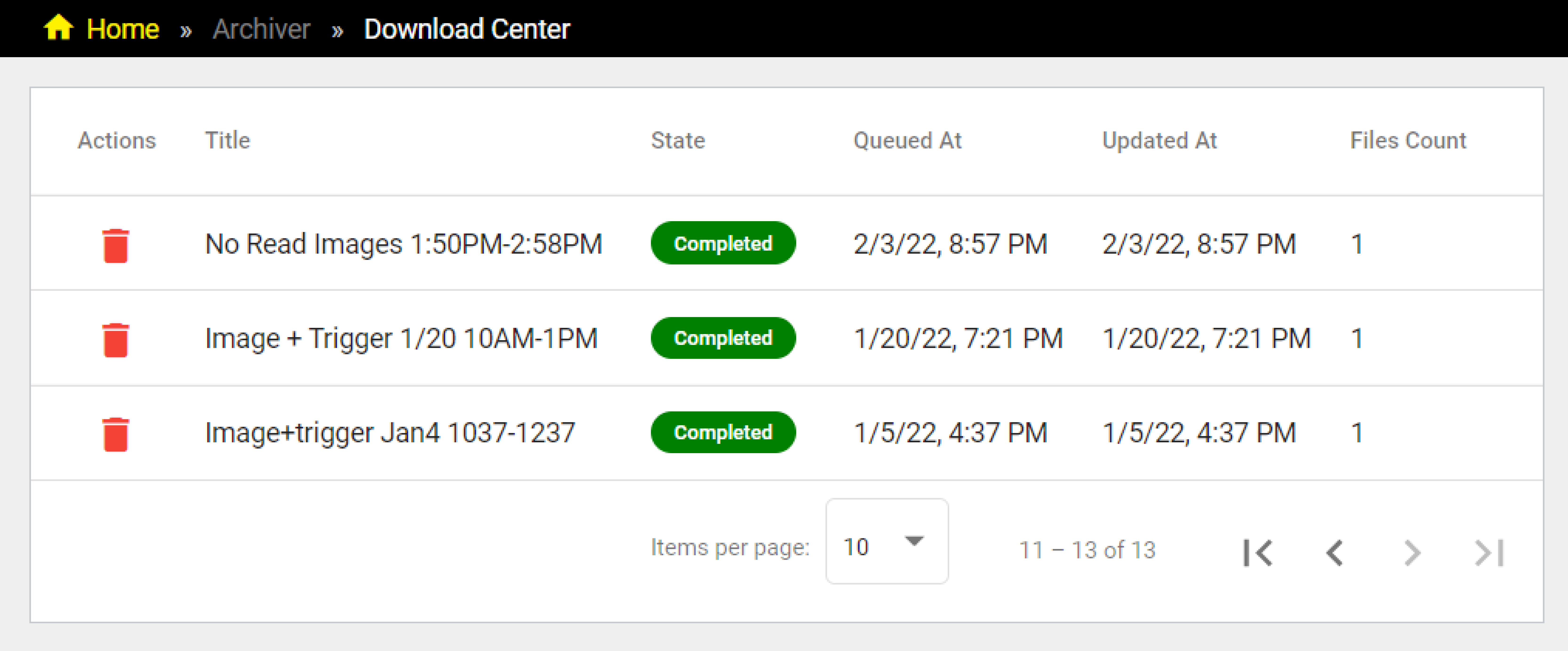
The Download Center page:
|
|
|||||||
|---|---|---|---|---|---|---|---|
| Column | Description | ||||||
| Actions |
The possible actions for an archive. The following actions are available when clicking in the appropriate icon:
|
||||||
| Title | The user-specified name of the archive. | ||||||
| State |
The status of the archive. Displays one of the following states:
|
||||||
| Queued At | The time when download starts. | ||||||
| Updated At | The time of the last status update or when the download finishes. | ||||||
| Files Count | The total number of ZIP files in the archive. | ||||||


The archive file has the following contents:
-
One or more folders that contain the images. EI Tunnel Manager organizes the folders by date, and each folder name has the format of YYYYMMDD.
The images in each folder follow a naming convention based on whether they originate from a standalone reader or from an MRS group:
- For standalone readers, the image name contains the device name, the trigger index, the image index, and the time stamp, in this order and separated by underscores. For example, ST_1_DM470_566898_0_20211221T190905.jpg.
- For readers in an MRS group, the image name contains the group name, the device name, the trigger index, the image index, the time stamp, and four random characters to prevent name collision, in this order and separated by underscores. For example, Tunnel1_ST_3_DM470_1126_0_20220204T141531_6802.jpg.
-
One CSV file that contains trigger data. The name of the file contains the MRS group name when applicable, and the name of the primary device, for example, Tunnel_1_ST1_DM470.csv. The file organizes data into the following columns:
- time: The time stamp of the image.
- deviceMacAddress: The MAC address of the device.
- group: The MRS group name.
- type: The trigger type
- triggerIndex: The index of the trigger.
- goodRead: TRUE indicates a Good-read, FALSE indicates a No-read.
- readString: The read string. For an MRS group, this column contains the overall result string.
Extract a Single Archive File
-
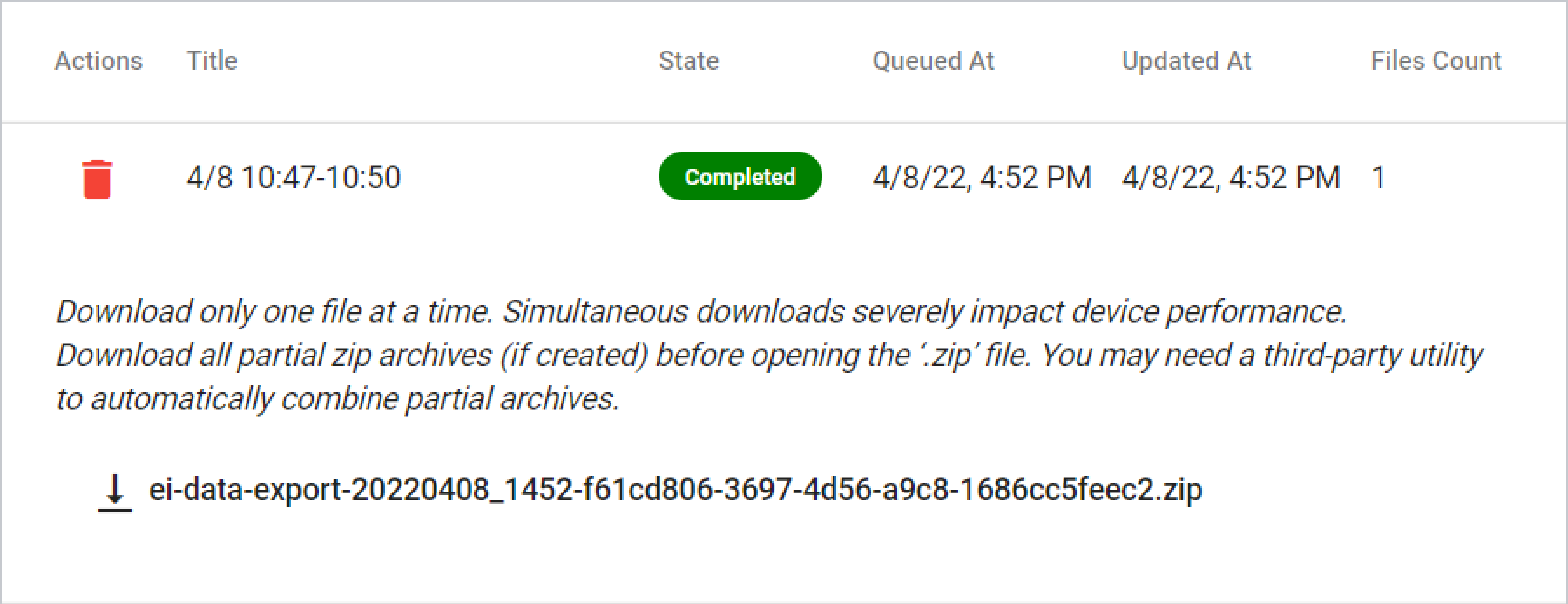
In the Download Center, click on the row of the archive you want to download to see its contents.
-
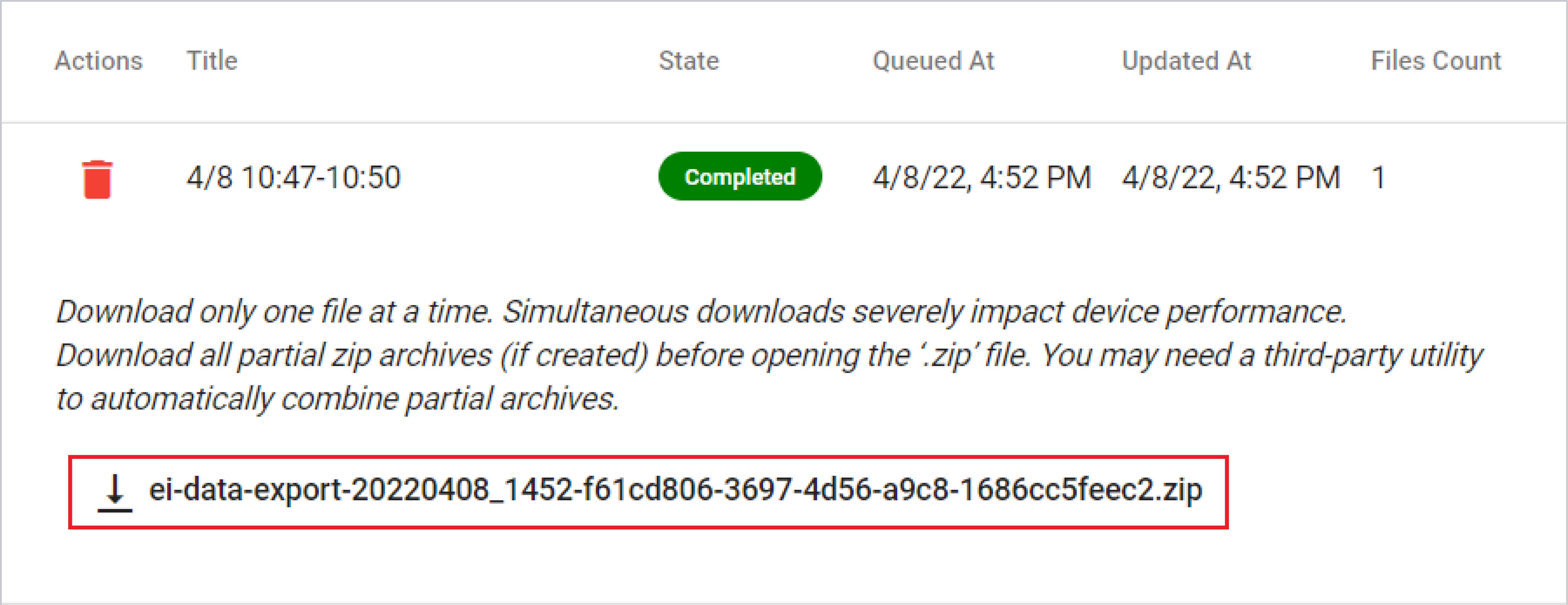
Click on the download icon to download the ZIP file.
The default download location depends on the browser you are using.
- Navigate to the folder on your computer that contains your downloaded file, and extract the contents of the file.
Extract a Multi-Archive File
When the size of the archive exceeds 1 GB, EI Tunnel Manager creates multiple partial ZIP files from that archive.
-
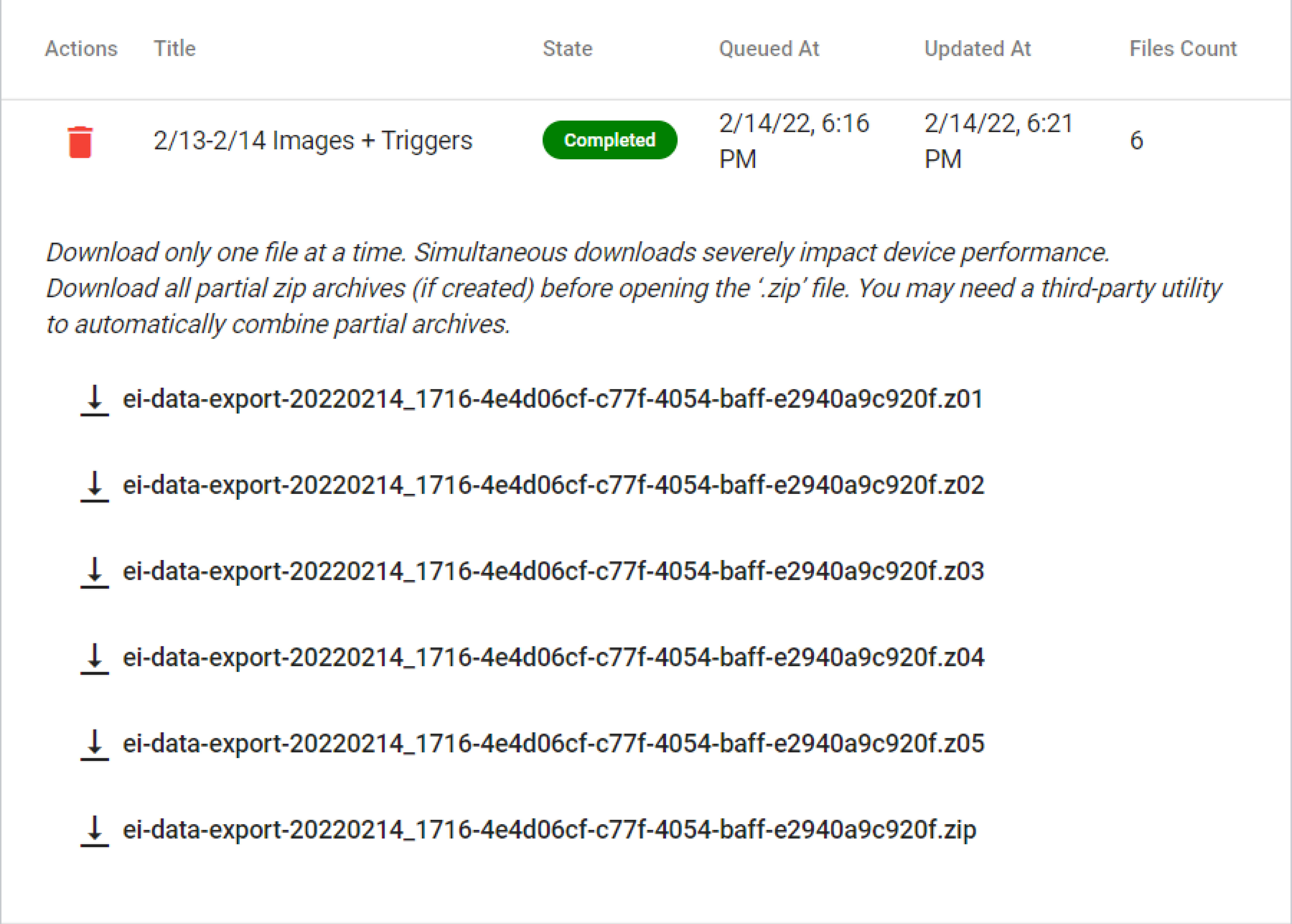
In the Download Center, click on the row of the archive that you want to download to see its contents.
-
Download each ZIP one at the time file by clicking on the download icon, and store them in the same location.
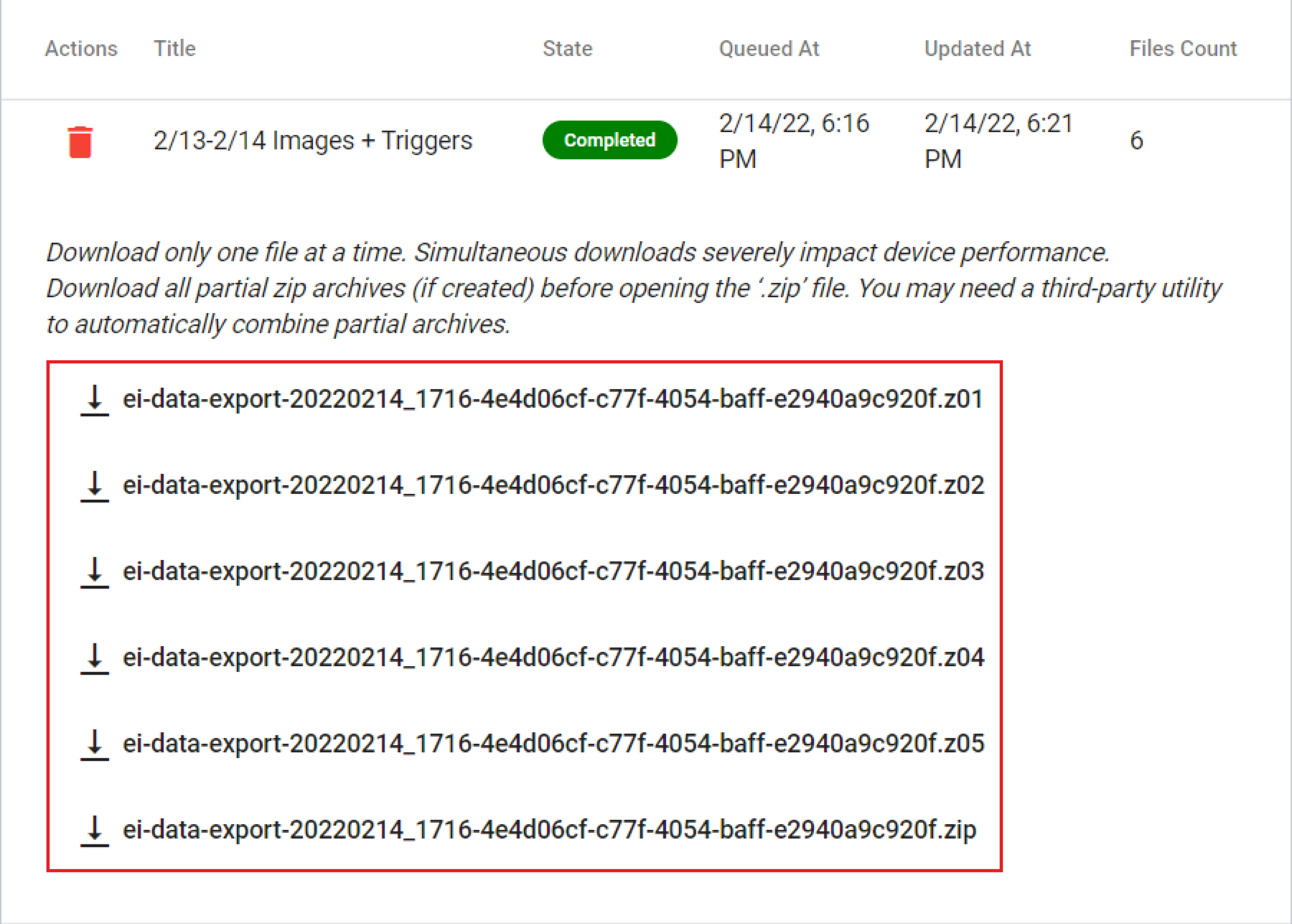
The default download location depends on the browser you are using.
- Navigate to the folder on your computer that contains all the downloaded partial ZIP files.
- Right-click on the file with ZIP extension.
- Click on the ZIP file extractor.
- Click on Extract to to merge all partial files.