Getting Started
Perform these steps to start using EtherNet/IP:
- Install the Rockwell Software tool.
- Set up the Rockwell Software tool so that it recognizes your DataMan device.
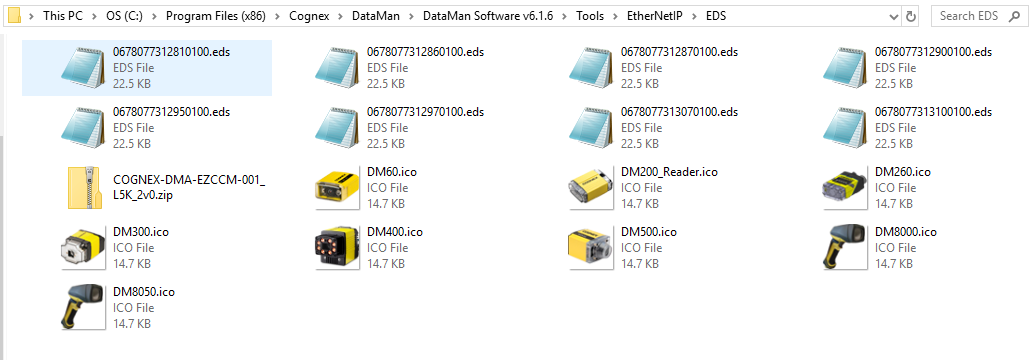
- Install the DataMan Electronic Data Sheet (EDS) for the DataMan reader.
Perform the following steps to set up EtherNet/IP:
- Make sure that you select the Add-on Profile (AOP) installation and the Samples installation. The Add-on Profile is only used with Rockwell ControlLogix or CompactLogix PLCs.
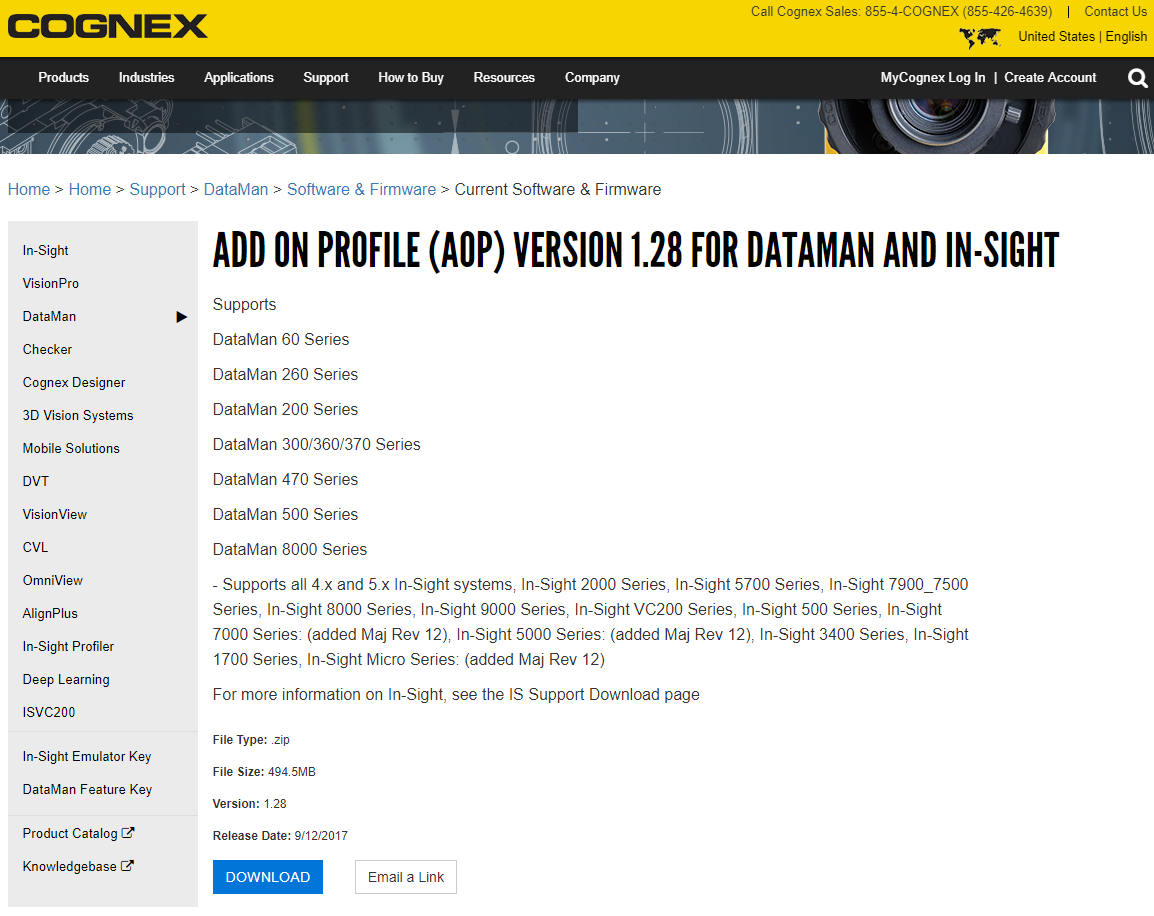
- Install the Rockwell Add-on Profiles by navigating to the following directory on Cognex.com: https://support.cognex.com/en/downloads/dataman/software-firmware.
- In the search box, type Add-on Profile. Click the file and download it from the following page:
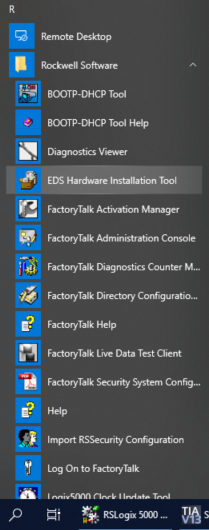
- From the Start menu, go to Programs -> Rockwell Software -> EDS Hardware Installation Tool.
- Run the EDS Installation Tool.
Note: If you have an existing EDS file, uninstall it first, then install the latest version of the EDS.
- Run the DataMan Setup Tool and update the DataMan firmware.
- Check if the DataMan firmware is up-to-date by clicking, in the Setup Tool, View and then System Info.
- Make sure that in the Setup Tool, EtherNet/IP is enabled.
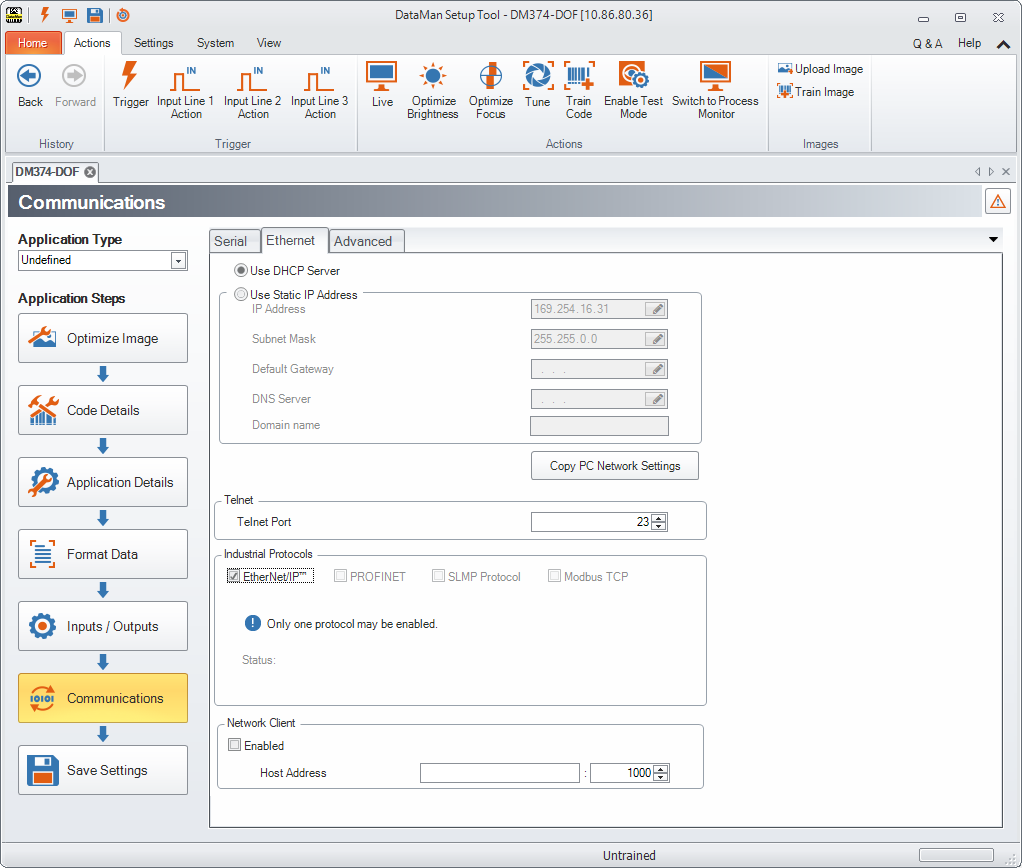
- In order for the changes to take effect, save your settings and cycle power. Go to System and click Save Settings.
- Reboot your reader.
- Your DataMan is visible now in the RSLinx.
- Open one of the sample jobs and integrate your DataMan into your program using the Add-on Profile.
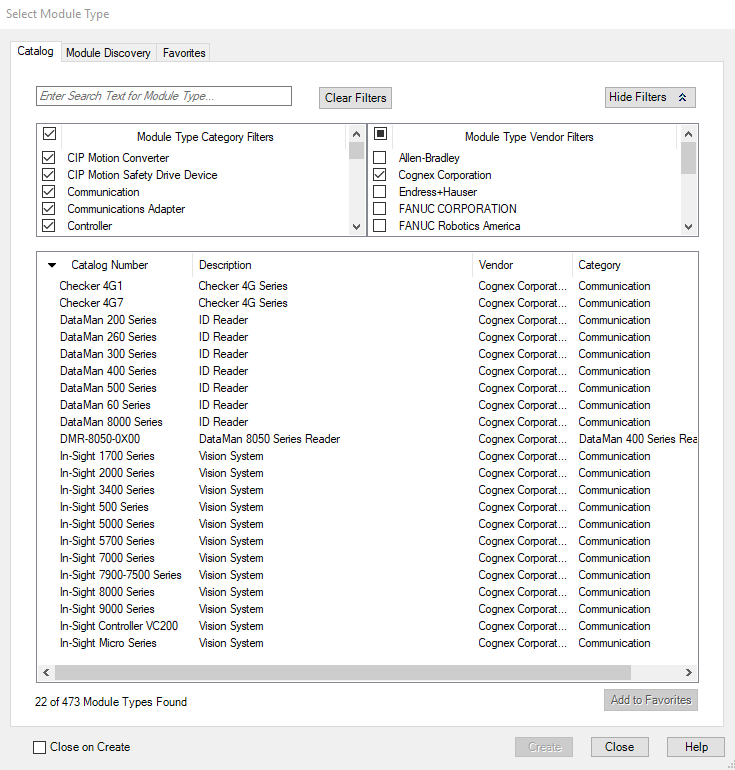
|
Note: If your DataMan is visible, but the icon is a question mark, repeat the EDS Installation.