3D Profile Functions
The In-Sight Spreadsheet Profile functions allow you to extract features from a Profile3D structure, which is the result of a Cross-Section Tool and perform additional analysis using the extracted data. You can use the extracted profile features for applications such as:
- Inspecting glue and weld seams
- Verifying component height
- Identifying surface defects
- Measuring gaps, diameters, or thickness
|
|
|
| 3D Point Cloud with ProfileExtractCircle3D | Profile View |
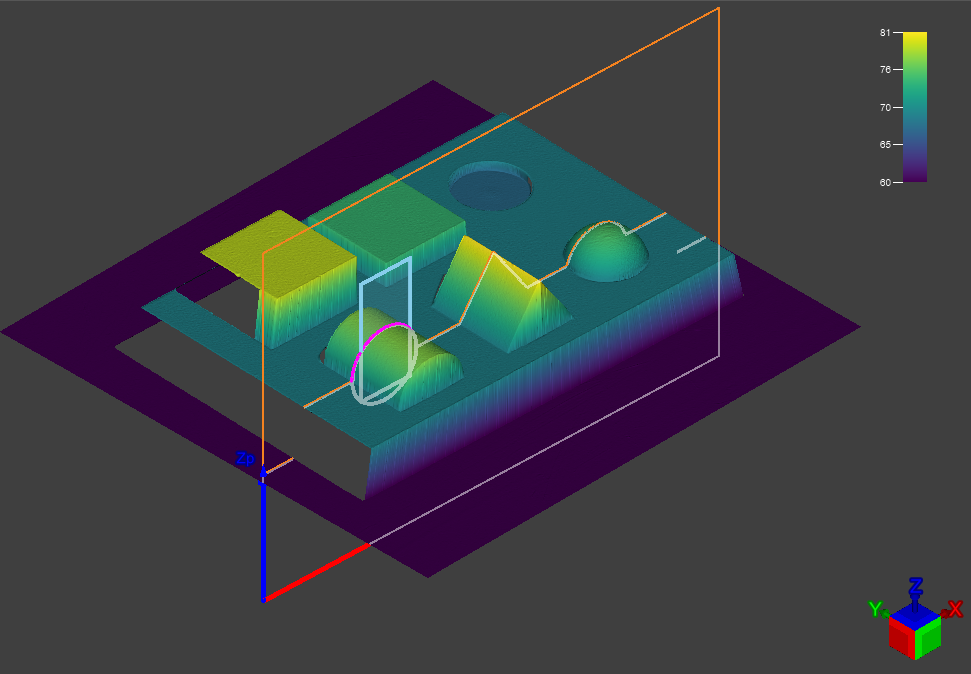
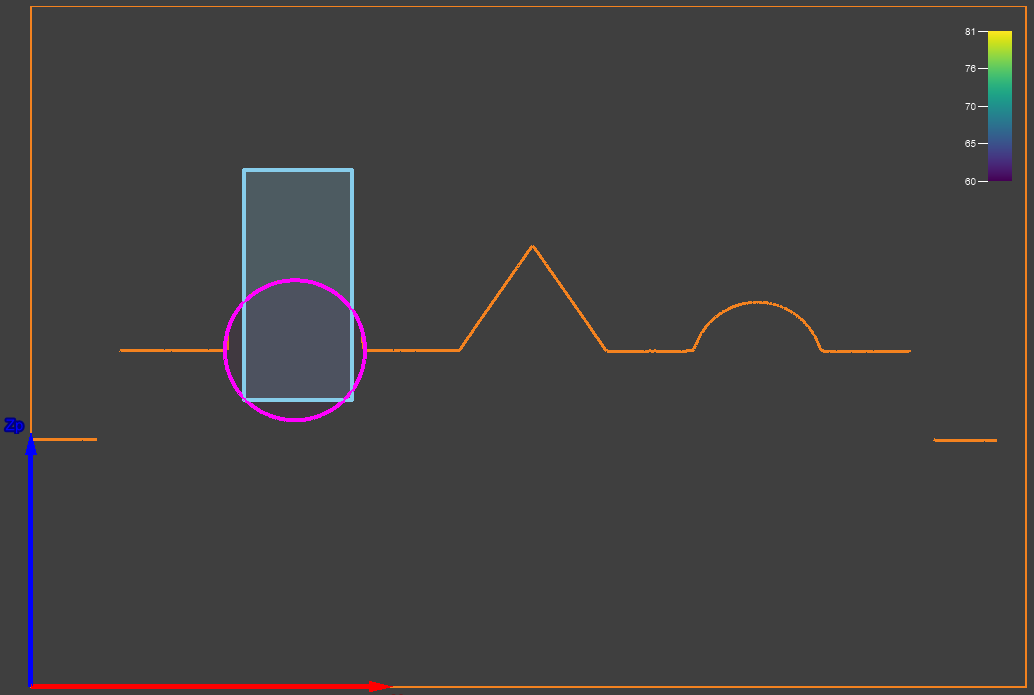
Profile feature extraction functions allow you to extract circles, points, and lines from a profile. Profile feature extraction functions require an External Profile input, for which you can reference the Profile3D output cell of a cross-section extraction function. The following profile feature extraction functions are available:
- ProfileExtractCircle3D: Extracts a Circle3D structure and associated parameters from a profile.
- ProfileExtractCorner3D: Extracts all found corners as Point3D structures with associated parameters from a profile.
- ProfileExtractEdgePoint3D: Extracts all points of an edge as Point3D structures from a profile.
- ProfileExtractLine3D: Extracts a Line3D structure and associated parameters from a profile based on an average of the points in the Region of Interest.
- ProfileExtractPoint3D: Extracts minimum, maximum, and average points on the X and Z axis as Point3D structures from a profile.
- ProfileExtractTangent3D: Extracts a tangent above or below the profile as a Line3D structure.
When you add any profile feature extraction functions, profile fixture functions, or profile measurement functions to the Spreadsheet, the first argument is A0 by default. You can change the argument to a cell that contains an extracted profile. Changing the default A0 cell means that the inputs and outputs from the changed tool are not displayed on the PointCloud view, but only on the defined Profile view. For more information, see 3D Toolbar on page 1.
For information on how to display profile views on HMI, see Profile Views on HMI on page 1.