Install the EDS Files
Electronic Data Sheets (EDS) are text files used by various network configuration tools to identify In-Sight vision systems on a network. These EDS files are then imported into the appropriate software.
To install the EDS file bundled with your In-Sight vision system, perform the following steps:
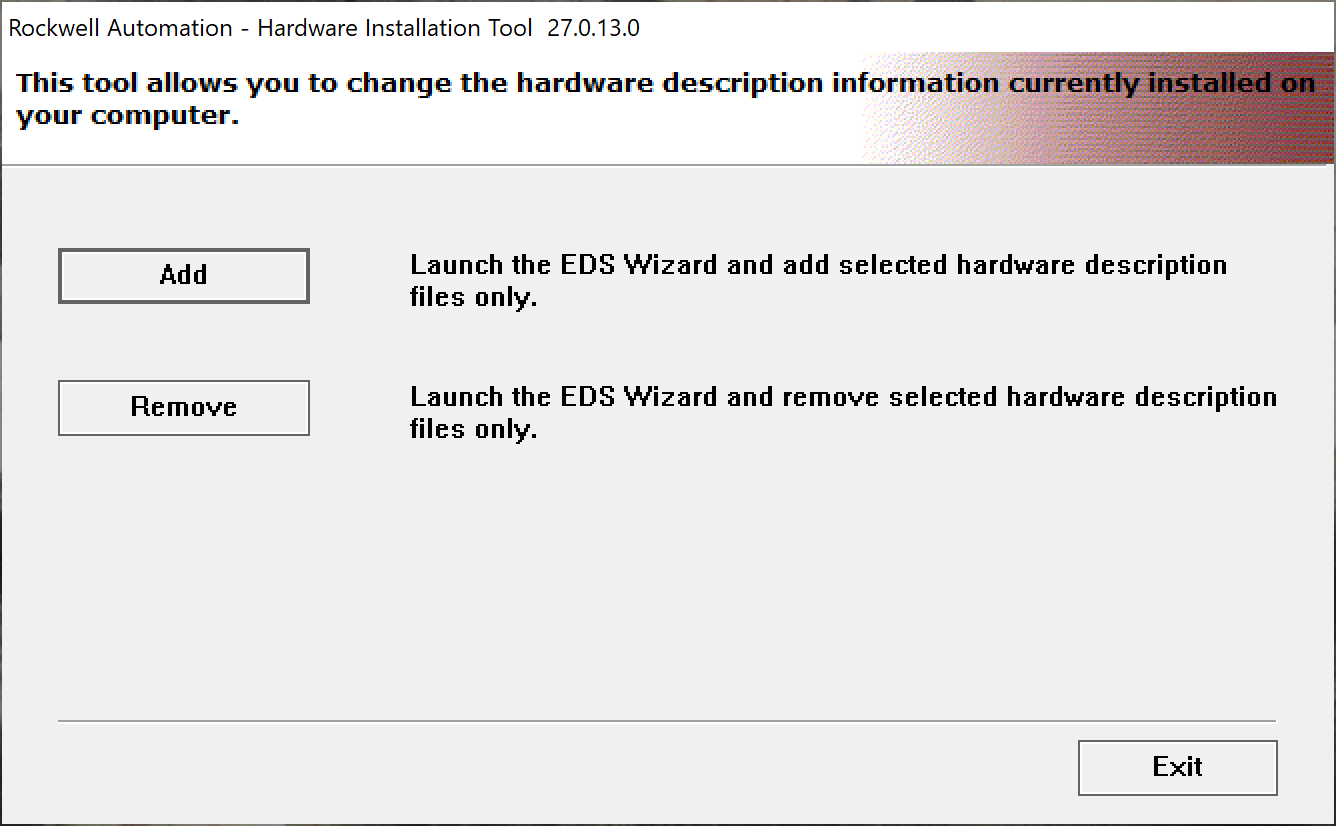
- Select Start > All Programs > Rockwell Software > EDS Hardware Installation Tool in the Windows Start menu to launch the software. The Rockwell Automation Hardware Installation Tool launches.
-
Click the Add button.
-
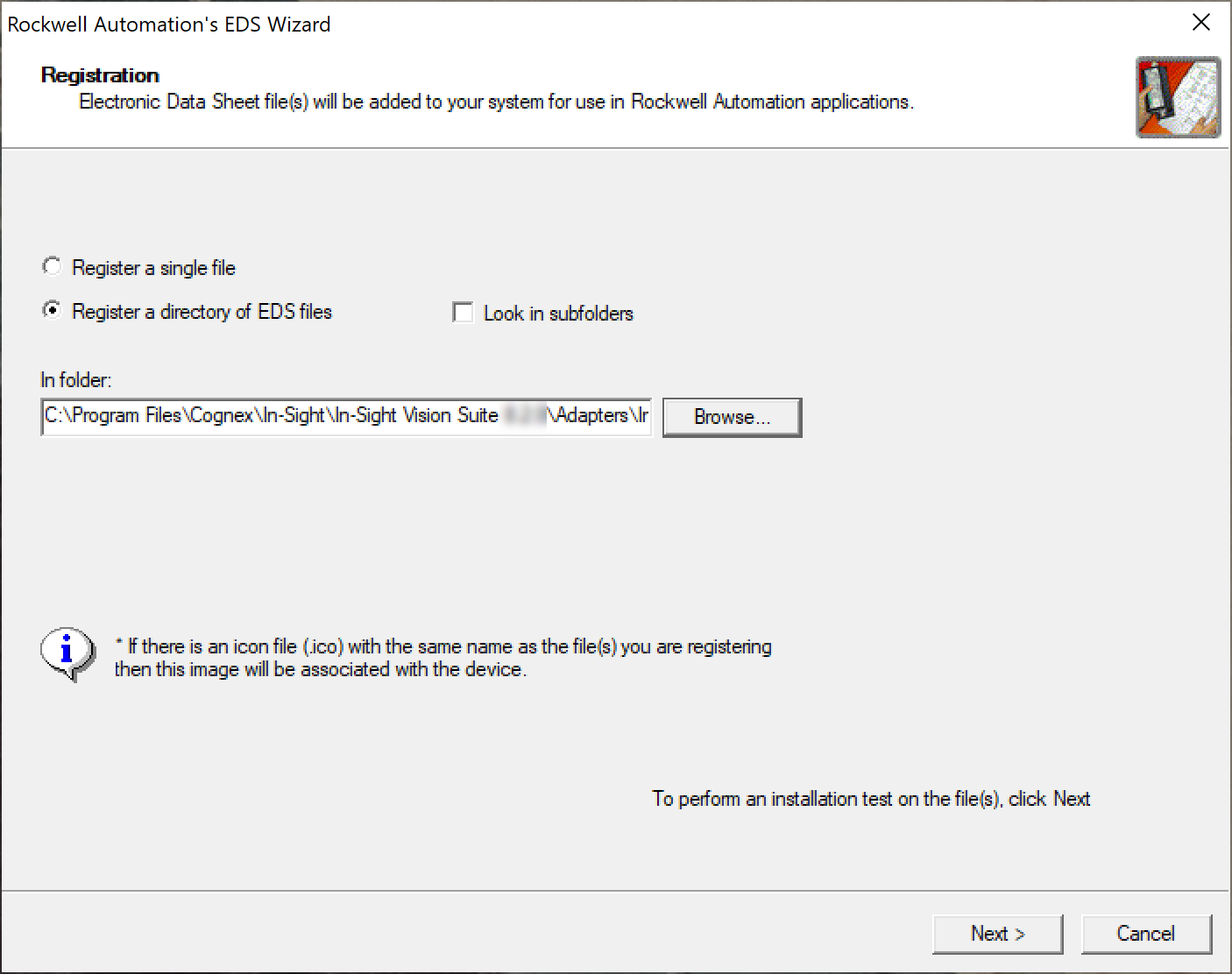
Select Register a directory of EDS files. Next, click the Browse button to navigate to the EDS subdirectory of the In-Sight Vision Suite installation:
C:\Program Files\Cognex\In-Sight\In-Sight Vision Suite Editors\In-Sight\In-Sight 24.1.0\FFP\EDSClick Next once you selected the EDS file.
-
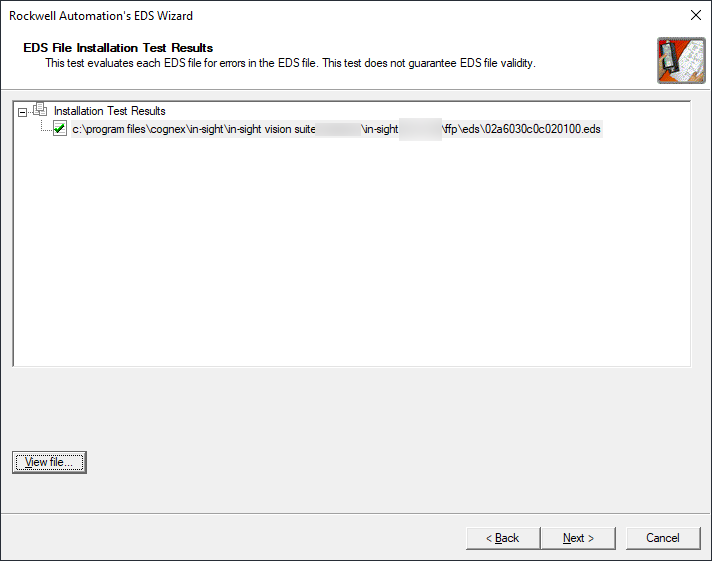
Confirm the EDS file you want to install, then click Next.
-
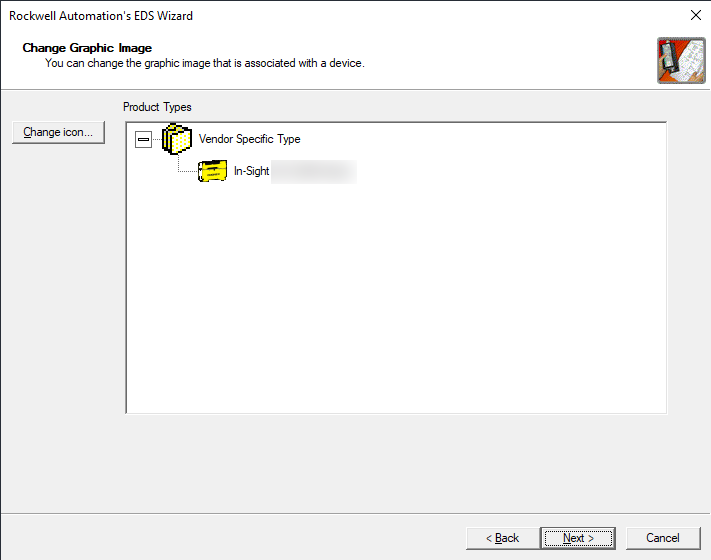
The Change Graphic Image window appears. Click Next to continue.
-
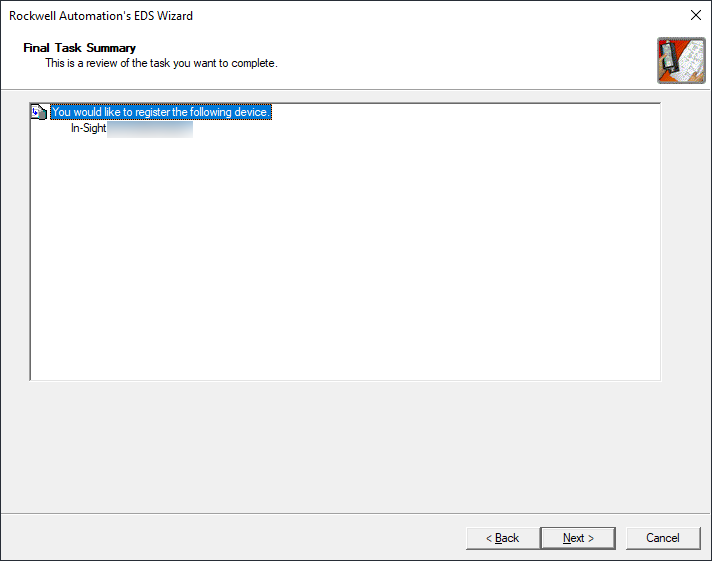
The Final Task Summary window appears. Click Next again to continue.
-
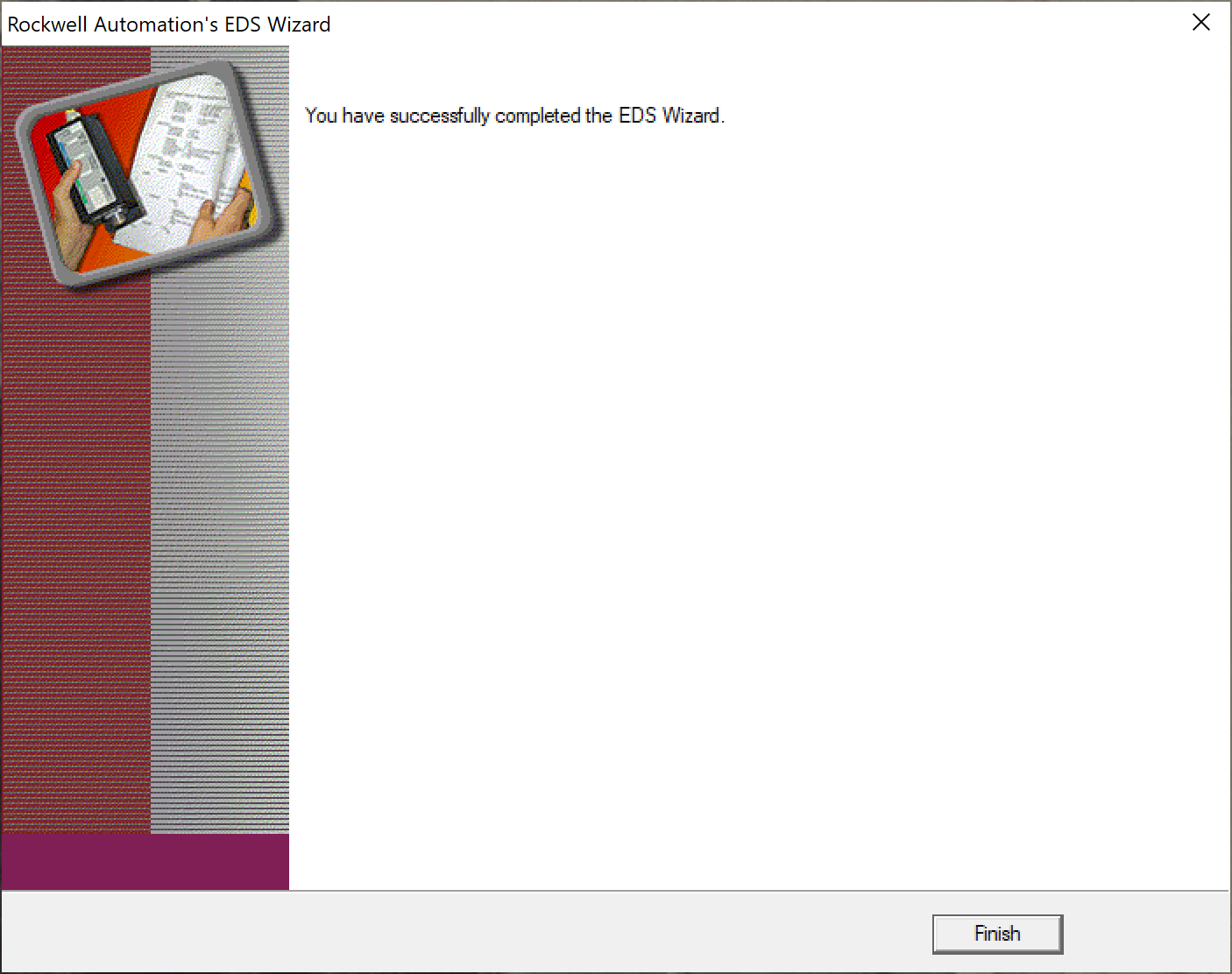
Click Finish to complete the installation of the EDS file.
- Finally, click Exit to close the Hardware Installation Tool.