Send Data to an In-Sight Vision System
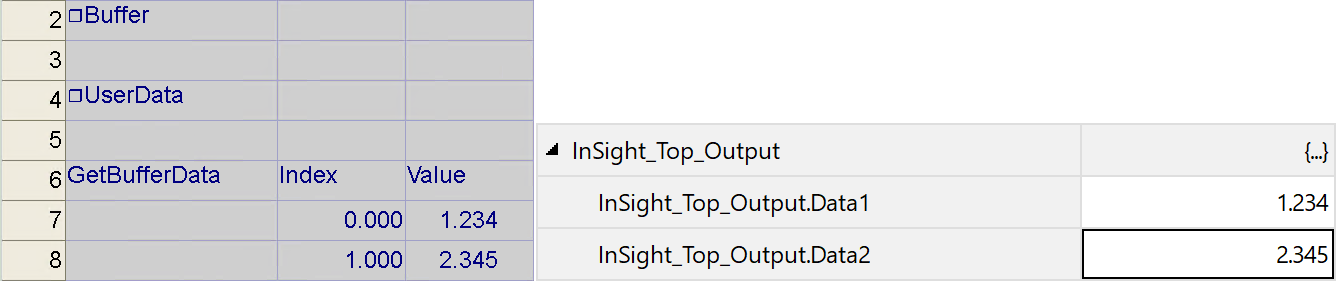
To send data from the ControlLogix PLC to the spreadsheet, the data must be pulled from the EtherNet/IP stack by using the ReadUserDataBuffer function. This function takes the data format created within the FormatInputBuffer function and reads the data from the data area of the (output from the network), and formats this data into the spreadsheet. This data is received from the PLC every RPI cycle and the corresponding spreadsheet data is updated only when the spreadsheet executes.
- Right-click an empty cell and insert the FormatInputBuffer function into the spreadsheet.
-
From the FormatInputBuffer dialog, click on the Add button and add two 32 bit floating point to the list.
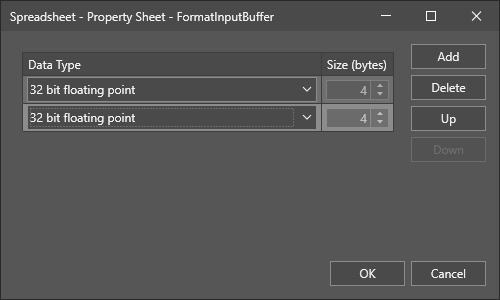
- Close the FormatInputBuffer property sheet by clicking the OK button.
- Right-click an empty cell and insert the ReadUserDataBuffer function into the spreadsheet. Set the Buffer parameter of the ReadUserDataBuffer function as a cell reference to the recently created FormatInputBuffer function.
-
Right-click an empty cell and insert the GetBufferData function into the spreadsheet. Set the ReadBuffer parameter of the GetBufferData function as a cell reference to the recently created ReadUserDataBuffer function. The index parameter of the GetBufferData function determines which data value in the FormatInputBuffer to reference. For example, if you set the index parameter to 0, the first floating-point data value in the FormatInputBuffer returns. If you set the index parameter to 1, the second floating-point data value in the FormatInputBuffer returns.
- In RSLogix, go to Offline mode.
-
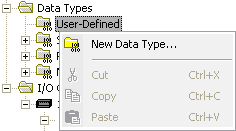
Within RSLogix, right-click on the User-Defined >Data Types folder and select New Data Type... from the menu.
-
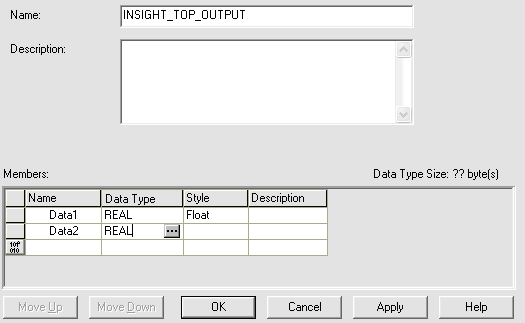
Give the new data type a descriptive name and add two floating point values to the Members list.
-
Next, add a new tag to the Controller Tags of the project, using the user-defined data type.
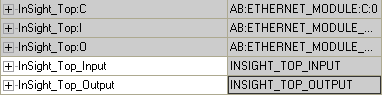
-
Add a COP instruction to the MainRoutine ladder logic program.
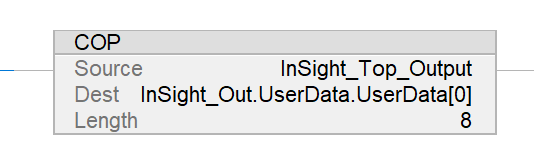
- Place the In-Sight vision system Online.
-
In RSLogix, click the dropdown arrow on the Offline button, and click Download.
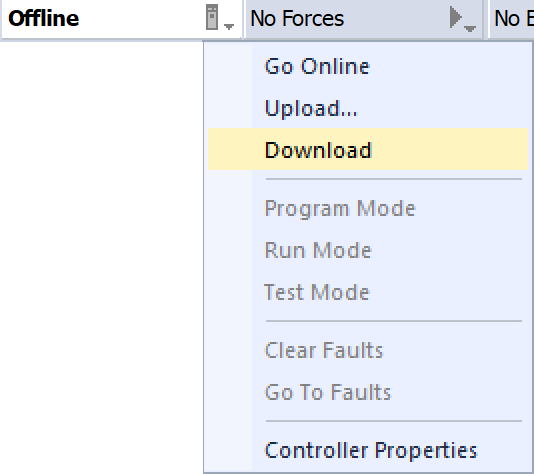
-
Open the Controller Tags dialog and change the values of the InSight_Top_Output.Data1 and InSight_Top_Output.Data2. After changing the InSight_Top_Out.Data1 and InSight_Top_Out.Data2 values in the PLC, set the SetUserData bit in the PLC and wait for the SetUserDataAck bit to be set and then clear the SetUserData bit. Once the ReadUserDataBuffer cell runs in the spreadsheet, the values are updated in the spreadsheet.