Time Settings
The Time Settings utility is used to configure the date and time settings of an In-Sight vision system.
This is carried out by connecting the device to a Network Time Protocol (NTP) or Simple Network Time Protocol (SNTP) server. Do this as follows:
- Launch In-Sight Vision Suite if it is not already running.
-
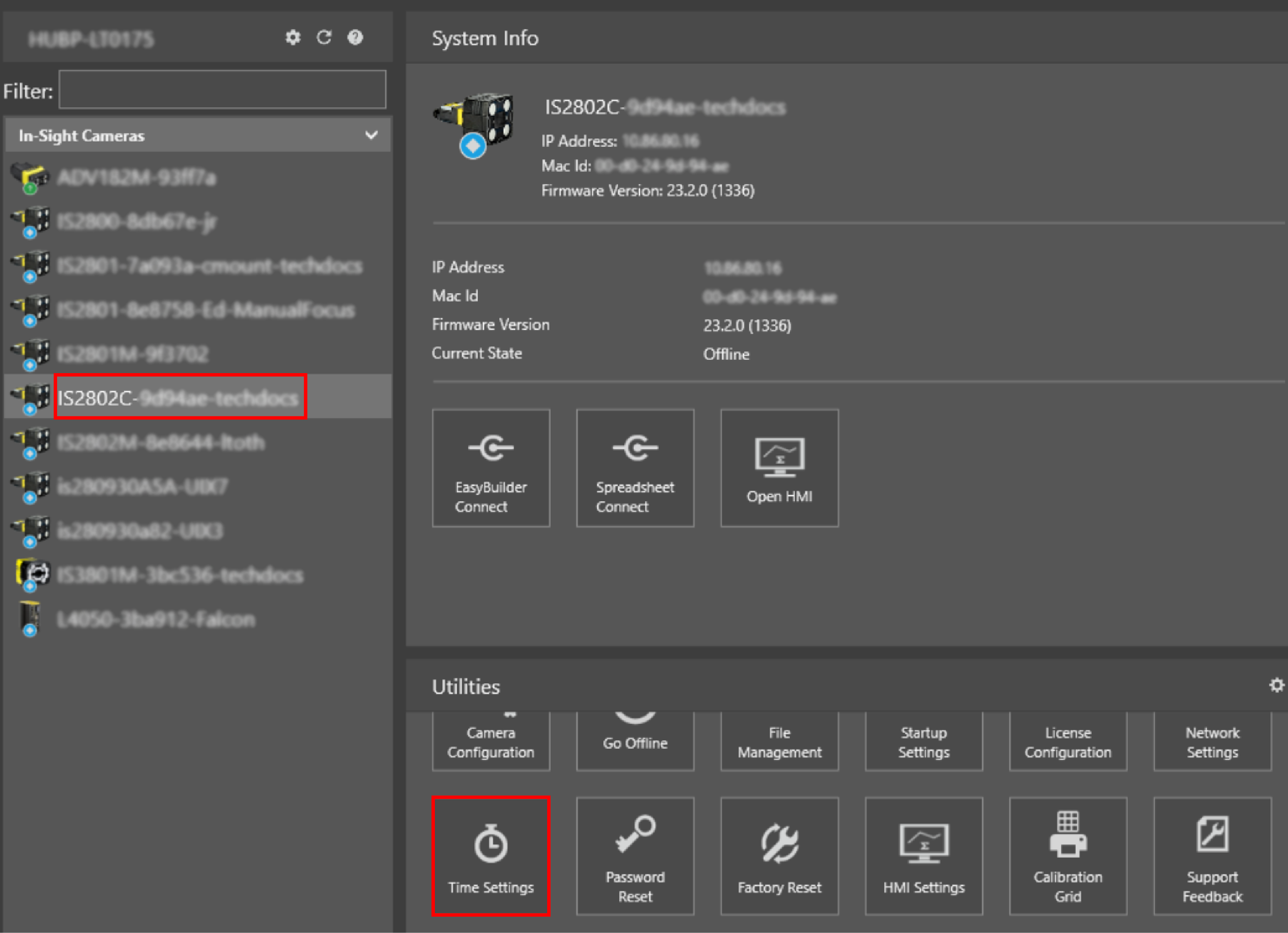
Left-click the device you want to configure on the In-Sight® Device Pane on the left. The list of Utilities applicable to the selected vision system that appears at the bottom of the window.
-
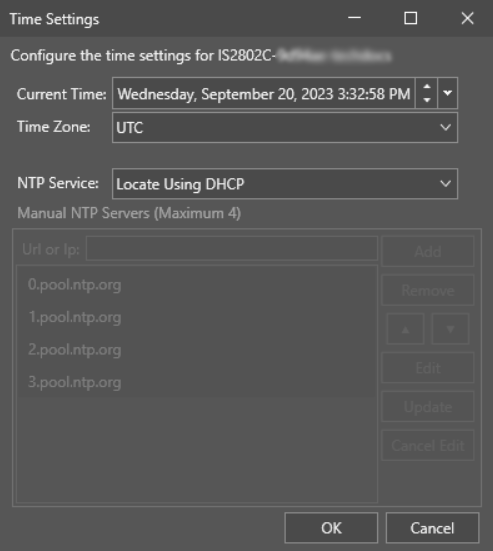
Press the Time Settings button to launch the dialog. The dialog appears:
-
Configure the settings as follows:
-
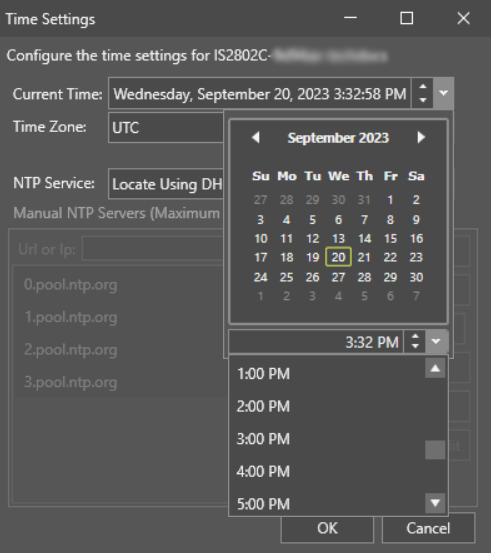
Current Time: Determines the device date and time. You can set the current time two ways:
-
Use the up or down arrow to change the day to the next or previous day. The time does not change in this case.
-
Use the arrow on the right side to open the calendar and time drop-down menu.
-
-
Time Zone: Determines the time zone. Open the drop-down menu and choose the time zone you need.
-
NTP Service: Specifies how the NTP/SNTP service is configured.
-
Manual: You can specify the NTP server or servers to use to establish the date and time. You can add, remove, move up/down, edit or update NTP servers by entering or modifying URL or IP addresses of the desired NTP servers. This is the default setting. The maximum number of NTP servers you can add manually is four.
-
Locate Using DHCP: Specifies that the device attempts to connect to an NTP server provided by a DHCP server.
Note: If the DHCP server does not advertise an NTP server or the NTP servers advertised by DHCP are not accessible, the date and time are set to the default setting (Sat Jan 1 00:00:00 UTC 2000). -
None: Specifies that no NTP server is used. Instead, the date and time is established by the default setting of the In-Sight device (Sat Jan 1 00:00:00 UTC 2000).
Note:- You can also set the current date and time values manually for the job in the adapter with the $System.DateTime.SetSystemClock function. See the $ Functions: System - DateTime topic in the applicable adapter help for more information.
- If the device is power cycled, the date and time return to the default setting of the device (Sat Jan 1 00:00:00 UTC 2000).
-
-
- Once you set all settings, click OK to apply the changes.