Firmware Update
The Firmware Update dialog is used to load the most current version of In-Sight firmware for the In-Sight vision system.
- You can perform firmware update on a device only if you have Full permission.
- If multiple devices are selected for update, but you do not have Full permission on all the devices, then the firmware update will be performed only on the devices on which you have Full permission. The rest of the devices will indicate that you have "Invalid user credentials".
Perform firmware update on a vision system as follows:
-
Before proceeding, verify the following:
- All of the targeted vision systems are Offline.
- No other users are logged on to the targeted vision systems.
- Launch In-Sight Vision Suite if it is not already running.
-
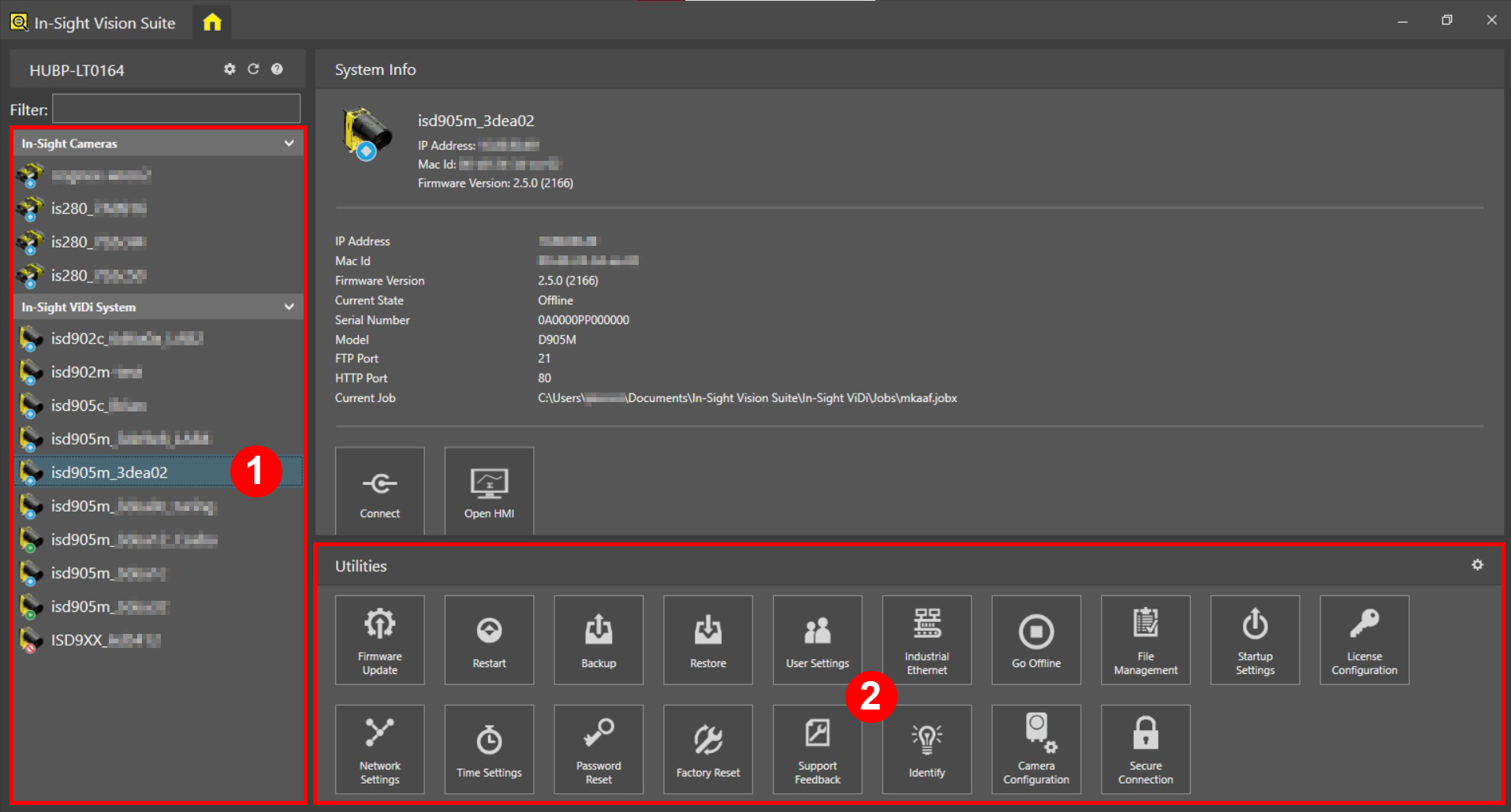
Left-click the device you want to configure on the In-Sight® Device Pane on the left (1). The list of Utilities applicable to the selected vision system then appears at the bottom of the window (2).
-
Press the Firmware Update button to launch the Firmware Update dialog.
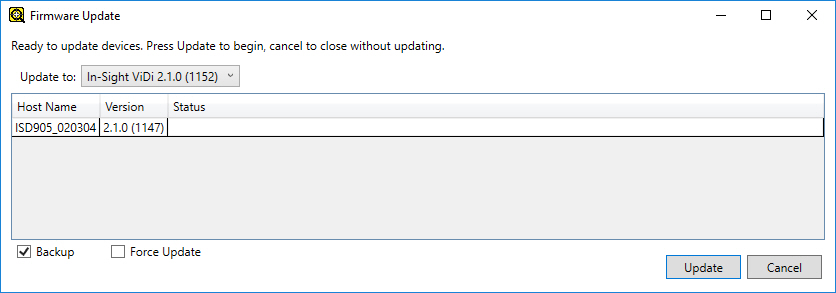
- From the Update to drop-down menu, select the firmware version to use. Verify that each vision system listed in the dialog should receive the new firmware version.
-
Set the Backup setting to configure whether you want to back up the vision system prior to the firmware update. This setting is enabled by default.
Note:The backup files are located at the following location:
C:\Users\[username]\Documents\In-Sight Vision Suite\Backups
- Check the Force Update setting to let the utility perform the firmware update even if the backup fails for some reason. This setting is disabled by default.
- Click the Update button to start the firmware update.
- While the update is in progress, the Status column will display details about the progress of the update process, and provide information about any errors that are encountered.
- Once all vision systems have been updated and rebooted, click Close to exit the Firmware Update dialog.