In-Sight® Device and Status Icons
The In-Sight® Device Pane displays the host names of the discovered vision systems, as well as icons that indicate the type and current state of the devices.
Device Icons
| Icon | Device Type |
|---|---|
|
|
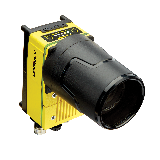
Indicates an In-Sight D900 series vision system. |
|
|
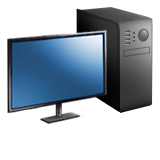
Indicates an In-Sight ViDi PC system or an Emulator. |
|
|
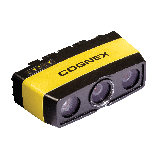
Indicates an In-Sight 3D-A1000 series vision system. |
Status Icons
Depending on the current state of the device, its status icon may contain the following graphics:
| Icon | Mode | Description | Corrective Actions |
|---|---|---|---|
|
|
Connected |
A user is currently connected to the device. This mode can occur while the device is online or offline. Whenever a user is connected to a device, this graphic is shown along with one of the following status graphics listed below. |
If the Connect button of the device is disabled, check the following:
|
|
|
Offline |
The device is in Offline mode and available to be programmed. |
If the device is offline, but the Connect button is disabled, check the following:
|
|
|
Online | The device is in Online mode, currently running a job. |
If the device is online, but the Connect button is disabled, check the following:
If the device goes online after being restarted, the device may have been configured to startup in online mode, with a job pre-loaded. If this behavior is not the desired behavior, take the device offline, and change the startup settings of the device in the Startup Settings utility. For more information, see the Startup Settings topic. |
|
|
Available |
The device is available, but some of its services are not running properly. |
The device can be in the available state temporarily before switching states. If the device remains in this state for longer than five minutes, check the following:
|
|
|
Maintenance |
The device is undergoing a maintenance operation, such as a Firmware. It should only remain in this state while the maintenance operation is being performed. |
If the device remains in this state for longer than five minutes, perform the following:
|
|
|
Misconfigured |
The device has misconfigured network settings. |
If the device is in this state, perform the following:
|
|
|
Missing |
The device has been discovered, but is no longer detected on the network. |
If the device is in this state, perform the following:
|
|
|
Faulted |
The device has faulted and is in failsafe mode. |
If the device is in this state, perform the following:
|
|
|
Error |
The device has been detected with a failure in one or more critical services. |
If the device is in this state, perform the following:
|


