Industrial Ethernet
The Industrial Ethernet utility selects and configures an Industrial Communications protocol for the vision system. If using an In-Sight ViDi PC device, the utility also lets you configure its network settings.
Perform the following steps to configure an Industrial Ethernet protocol on the vision system:
-
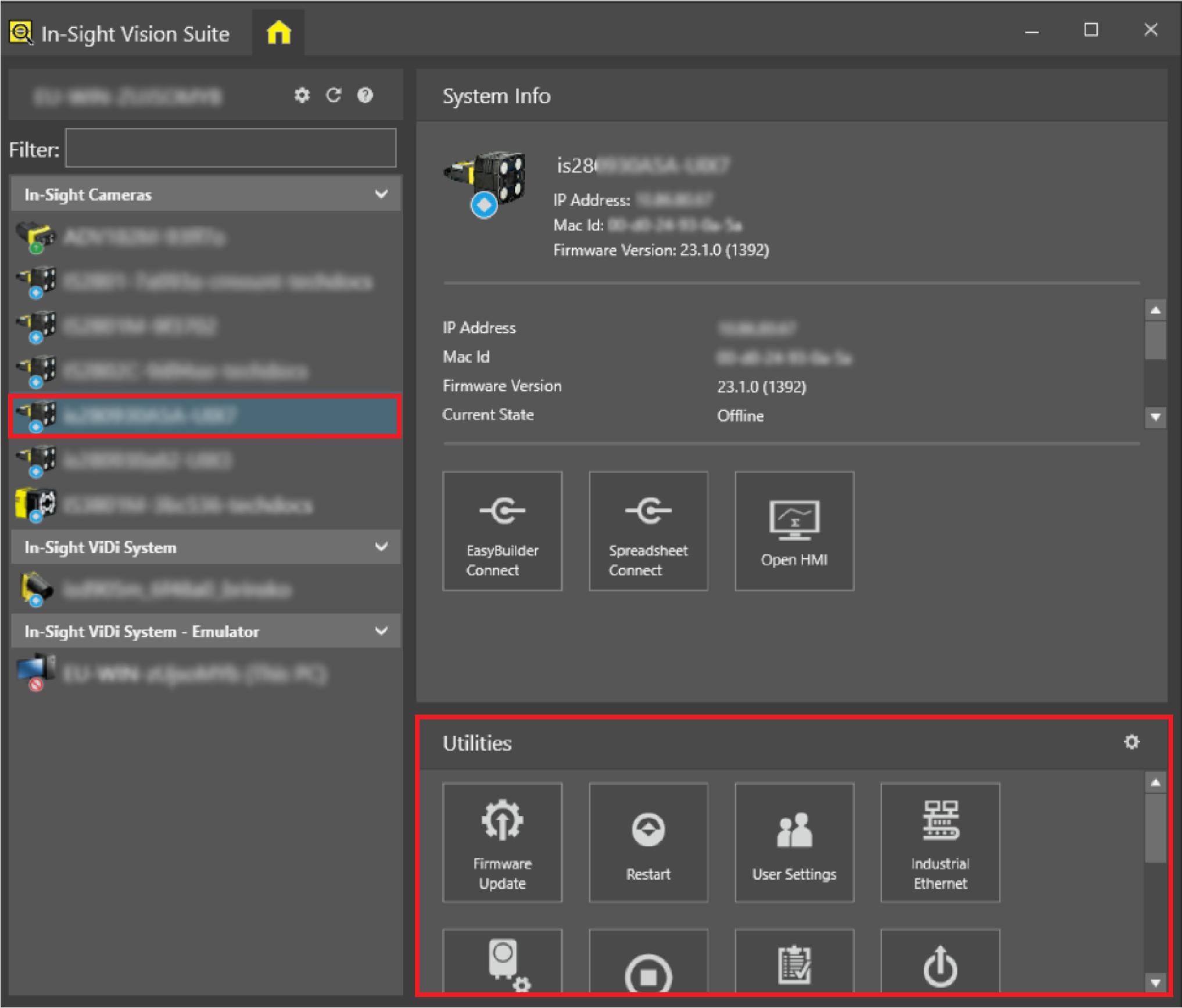
Left-click the vision system you want to configure on the In-Sight® Device Pane on the left. The list of Utilities applicable to the selected vision system then appears at the bottom of the window.
-
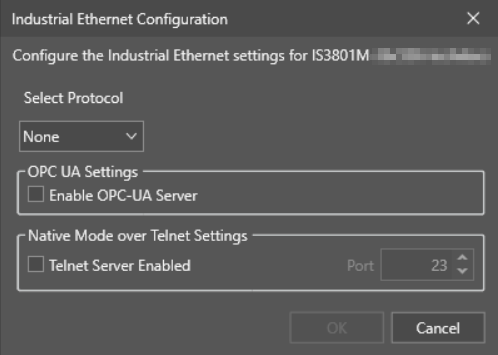
Click the Industrial Ethernet button to launch the Industrial Ethernet Configuration utility:
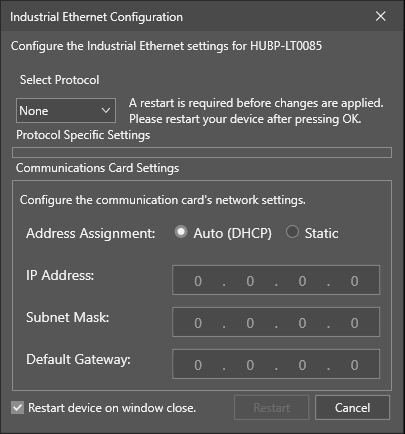
If you use an In-Sight ViDi PC deployment, the utility also contains additional network settings in the Communications Card Settings section. These settings are available for other vision systems in the Network Settings utility. See that topic for a description of the available network configuration options.
-
From the Select Protocol drop-down menu, select the desired Ethernet protocol:
-
None
-
EtherNet/IP
-
PROFINET
-
SLMP
-
Modbus TCP Server
-
EtherCAT
Note: In-Sight Vision Suite does not support the EtherCAT option for all vision systems. Refer to the hardware reference of your In-Sight vision system to verify that it supports the EtherCAT protocol.
-
-
Optional: If you intend to use the OPC-UA protocol, check the Enable OPC-UA Server checkbox.
-
Optional: If you intend to use Native Mode commands over Telnet, check the Telnet Server Enabled checkbox, and set the Telnet server port in the Port field.
-
Optional: If you select None for an Ethernet protocol, click Restart as the utility requires no further configuration. Otherwise, provide the utility with additional configuration parameters based on your choice of Ethernet protocol.