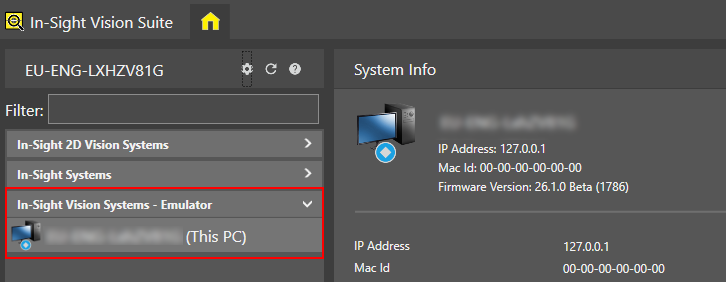
Configure In-Sight Emulator
Perform the following steps to configure an In-Sight Emulator on your PC:
-
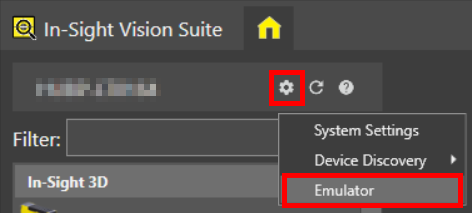
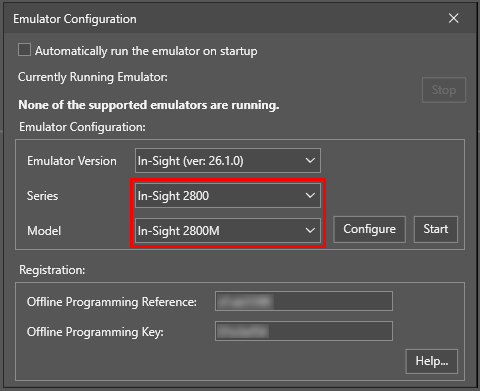
Open the System Settings dropdown menu by clicking on the cogwheel icon at the top of the device list, and click on Emulator to open the Emulator Configuration dialog.
-
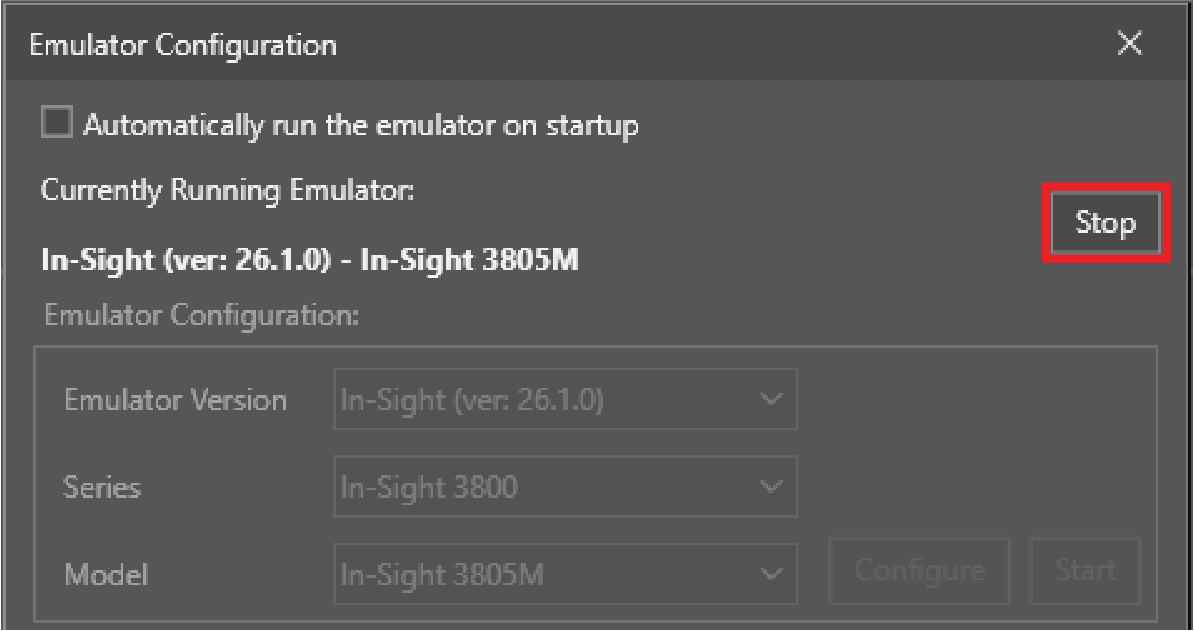
Optional: If any emulator is running, click Stop to stop it.
-
Optional: Check the Automatically run the emulator on startup checkbox if you want the emulator to automatically run with the defined configuration when you open In-Sight Vision Suite.
-
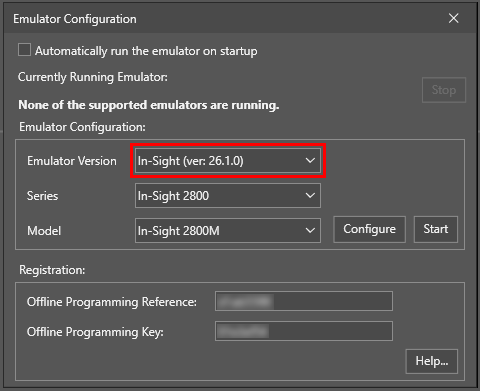
Select the Emulator Version.
-
Select the device you want to emulate from Series and Model.
-
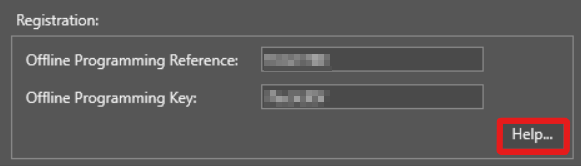
Generate an In-Sight Emulator Key if you do not have your Registration settings configured yet.
Click Help... under the Registration group to go to the In-Sight Key Generator web page, and follow the instructions on the page to acquire the necessary registration keys.
-
To run advanced vision tools on the emulator, including Cognex Edge Learning tools, you have to download and import a Cloud Credential file in CodeMeter. For instructions on how to import the Cloud Credential file, see the In-Sight Vision Suite support page.
-
Click Start to start the emulator with the configured settings.
Once the emulator is running, the configured emulated device appears in its own Emulator category in the In-Sight® Device Pane.