Snippets Panel
The Snippets panel allows you to automate frequently performed spreadsheet tasks by creating groups of pre-configured cells.
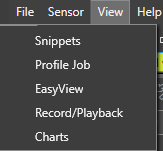
To access the Snippets panel, choose Snippets from the View tab of the Menu Bar.
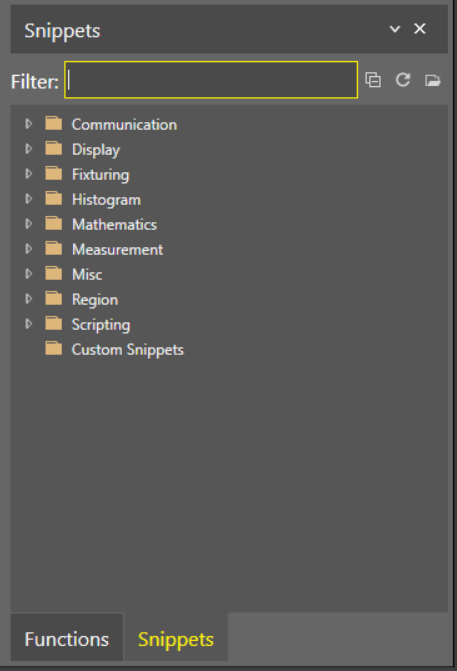
From the Snippets panel, you can access common snippets provided by Cognex. You can access your own exported snippets in the Custom Snippets folder.
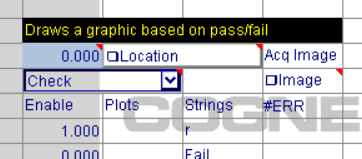
When you drag and drop a Cognex snippet A snippet is one or more pre-configured cell that allows you to automate frequently performed spreadsheet tasks. You can create your own snippets, or use snippets provided by Cognex. into the spreadsheet, the top row shows a description of the snippet.
Export Snippets
-
Select the cell(s) with the data to export.
-
From the File menu, click Export Snippet, or alternately, right-click on the cells with the data to export and select Snippets > Export Snippets from the shortcut menu. You can also use the hotkey ALT+E.
-
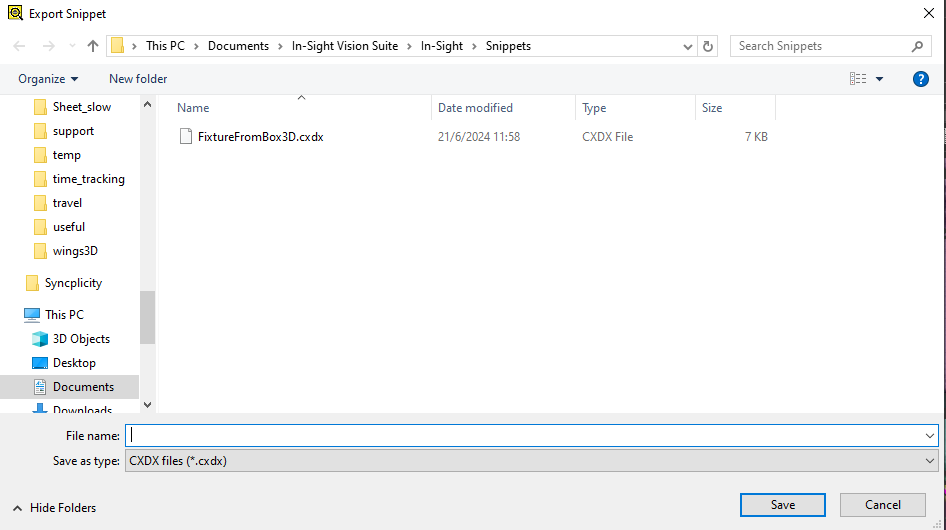
Name the snippet file and click Save.
Import Snippets
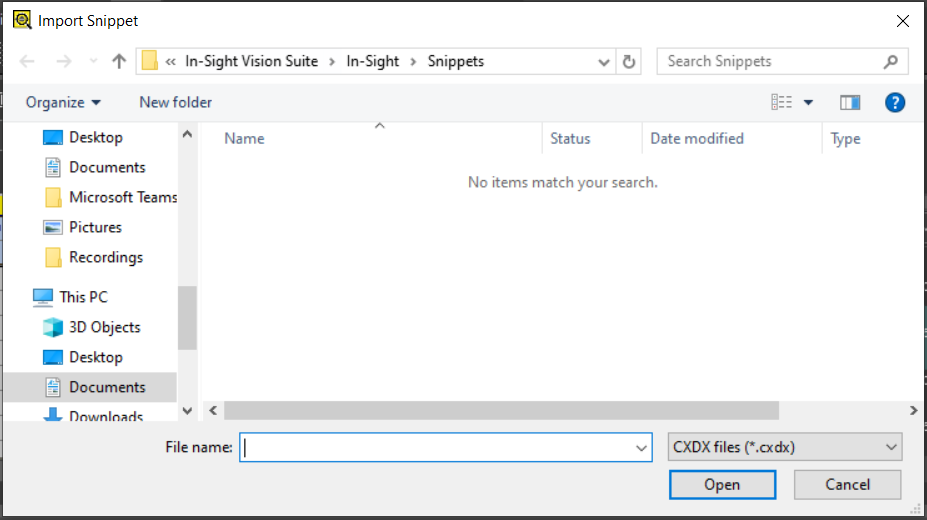
You can import snippets either through the file explorer or by dragging and dropping a snippet from the Snippets panel into the spreadsheet.
To import from the file explorer:
-
Select an empty cell.
-
From the File menu, click Import Snippet, or alternately, right-click on the cell and select Snippets > Import Snippets from the shortcut menu. You can also use the hotkey ALT+I.
-
Select the snippet file and click Open.