Configure MQTT Forwarding
In-Sight Vision Suite allows you to configure MQTT Message Queue Telemetry Transport (MQTT) is a lightweight messaging protocol used to send and receive data between devices. forwarding for metrics in your Spreadsheet job A job is a user-configured program in In-Sight Spreadsheet consisting of functions and designed for specific applications. You can create and edit jobs using the In-Sight Spreadsheet interface, and load them on a vision system for deployment in a live environment.. To set up MQTT forwarding, perform the following procedures.
Set Up MQTT Broker and Client on Your PC
Before you can set up MQTT forwarding in In-Sight Vision Suite, you need to set up an MQTT broker A broker is a server that receives messages from publishers and forwards them to subscribers. In MQTT, the broker acts as a central hub, managing topics and message delivery between devices and systems. and client on the PC where you intend to receive MQTT messages. The following procedure provides an example setup for the broker and client applications, but any application that supports MQTT v3.1.1 or v5 is compatible.
-
Install the latest version of mosquitto for Windows to use as an MQTT broker, only checking the Service option when prompted during the installation.
-
Open the Windows command prompt and execute the following command to put mosquitto on your path:
set "PATH=%PATH%;C:\Program Files\mosquitto"
-
Create a new text file called mosquitto.conf in the mosquitto directory, and add the following two lines to the file:
Copyallow_anonymous true
listener <port-number> <your-machines-ip-address> -
Start the mosquitto application with the following command:
&> mosquitto -c .\mosquitto.conf -v
-
Install the latest version of MQTTX for Windows to use as an MQTT client.
-
Start the MQTTX application.
-
Connect your MQTTX application to the mosquitto broker that you set up using the network IP address and port number that you defined in the mosquitto.conf file.
-
Create a new subscription to # to show all topics in the client window.
Set Up Certificates in In-Sight Vision Suite
If you want to establish secure communication over MQTT, you have to install the necessary certificate on your In-Sight vision system before configuring your connection. To install your certificate, use the Certificate Management utility in In-Sight Vision Suite.
You can install the following types of certificates using the Certificate Management utility:
-
TLS - allows other devices to trust your In-Sight vision system
-
Web HMI, WebSDK (HTTPS)
-
Secure File Transfer (FTPS)
-
Enterprise Connectivity (MQTT with mTLS)
-
-
Trusted (Certificate Authority) - allows your In-Sight vision system to trust other devices
-
Single Sign On (SSO Single Sign-On)
-
Enterprise Connectivity (MQTT with TLS)
-
For more information about installing certificates, see the Certificate Management section in the In-Sight Vision Suite Help document.
Configure MQTT Connection in In-Sight Vision Suite
Once you have the MQTT broker and client set up, and you have installed the necessary certificates, if any, you can configure the MQTT connection for your In-Sight vision system using the Enterprise Connectivity utility in In-Sight Vision Suite.
In the Enterprise Connectivity utility, perform the following procedure:
-
In the Connection Settings section of the dialog, enter the following information:
 Connection Settings
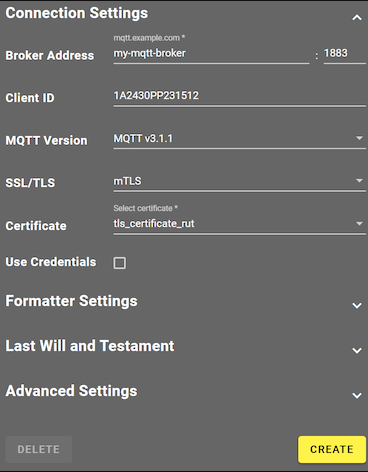
Parameter Description Broker Address Enter the hostname or IP address of your MQTT broker, followed by the port number. Client ID Define the unique identifier for your In-Sight Spreadsheetvision system on the MQTT broker. The broker uses the client ID to track client connections.
A default client ID is assigned automatically based on the serial number of your vision system.
MQTT Version Select the MQTT version of your broker:
-
MQTT v3.1.1
-
MQTT v5
SSL/TLS Select the security protocol you want to use for certification:
-
None
-
TLS - requires a Trusted Certificate Authority (CA) to be uploaded.
-
mTLS - requires a certificate for the vision system that is signed by a CA that the MQTT broker trusts.
Note: If you select TLS or mTLS, make sure you have a valid certificate installed using the Certificate Management utility.Certificate Select the certificate you want to use. Use Credentials Enable or disable the use of credentials when attempting to establish the MQTT connection. This is necessary when the MQTT broker requires authentication for communication.
If you check the Use Credentials checkbox, the following additional fields appear:
Username Enter a valid user name for the MQTT broker. Password Enter the password for the user name. -
-
Open the Formatter Settings dropdown to configure MQTT formatting:
-
If you select the Default option for the Mode setting, your In-Sightvision system uses the default script provided by Cognex. You can modify the following additional settings:
Formatter Settings - Default Mode
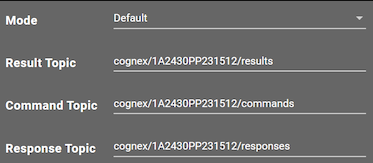
Parameter Description Result Topic Defines the MQTT topic In MQTT, a topic is a channel name where devices can publish messages, or can subscribe to for receiving messages. for publishing inspection results. A default result topic is assigned automatically based on the client ID. Command Topic Defines the MQTT topic for incoming commands from external systems. A default command topic is assigned automatically based on the client ID. Response Topic Defines the MQTT topic where responses to commands are published, unless the command message has its own definition in the response topic property. A default response topic is assigned automatically based on the client ID. -
If you select the Custom option in the Mode setting, you can upload your own custom script file to define the MQTT format. You can also click the Add Subscription button to add custom MQTT subscriptions.
Formatter Settings - Custom Mode
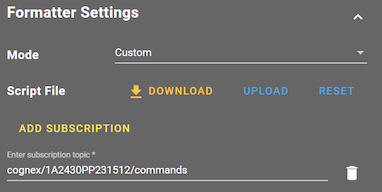
Parameter Description Script File Upload, download, or reset your custom formatter script:
-
Download - save the current script.
-
Upload - load a script from your computer.
-
Reset - clear and use the default script.
Add Subscription Add any number of MQTT topics to listen to for incoming messages. Each subscription allows your script to react to messages on that topic. If you want to use a custom script, see Create Custom Script for MQTTfor more information.
-
-
-
Open the Last Will and Testament (LWT) dropdown to configure any final messages in case of an unexpected disconnection:
Last Will and Testament Settings
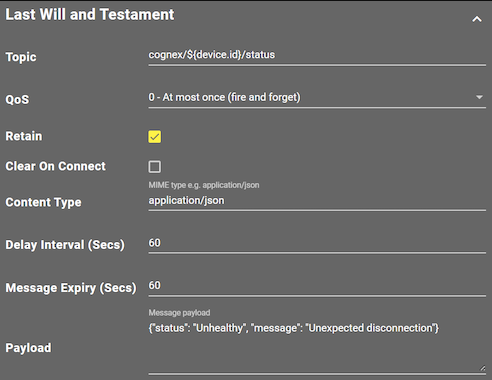
Parameter Description Topic The MQTT topic where the LWT message is published if the vision system disconnects unexpectedly. QoS The Quality of Service level for the LWT message to determine delivery guarantees:
-
0 - At most once (fire and forget)
-
1 - At least once (acknowledged delivery)
-
2 - Exactly once (assured delivery)
Retain If enabled, the broker retains the LWT message on the topic so that new subscribers receive it immediately upon subscribing. Clear On Connect If enabled, the vision system sends an empty message to the topic when it connects, clearing any retained LWT message on the topic. Content Type Defines the MIME type to describe the format of the message payload, such as application/json or text/plain.
Note: This setting is only available when using MQTT version 5.0.Delay Interval (Secs) Defines the delay in seconds between the disconnection and the publishing of the LWT message.
Note: This setting is only available when using MQTT version 5.0.Message Expiry (Secs) Defines the expiration of the LWT message in seconds, after which the broker removes the message.
Note: This setting is only available when using MQTT version 5.0.Payload Defines the content of the LWT message. This can be a plain text string or a JSON object, depending on the application. -
-
Open the Advanced Settings dropdown to fine-tune the MQTT connection for reliability, performance, and compatibility with your broker and network environment:
Advanced Settings
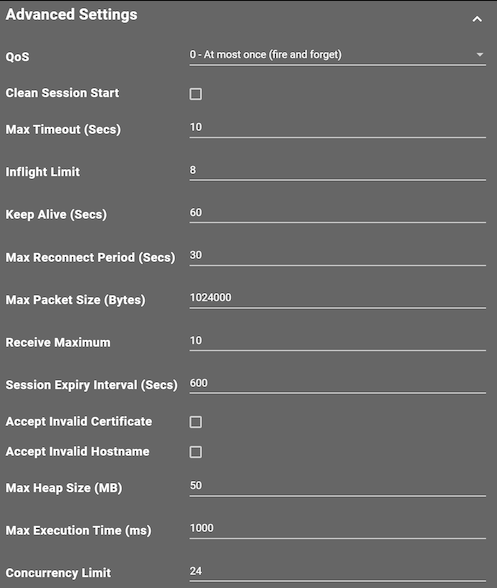
Parameter Description QoS The Quality of Service level for the MQTT connection to determine delivery guarantees:
-
0 - At most once (fire and forget)
-
1 - At least once (acknowledged delivery)
-
2 - Exactly once (assured delivery)
Clean Session Start If enabled, the vision system starts each connection with a clean session, clearing any previous subscriptions and pending messages. Max Timeout (Secs) Defines the maximum interval in seconds to wait before abandoning a non-responsive connection. Inflight Limit Defines the maximum number of unacknowledged messages that are allowed to be sent at once. This helps control message flow and device load. Keep Alive (Secs) Defines the interval in seconds for sending keep-alive pings to the broker to maintain the connection. Max Reconnect Period (Secs) Defines the maximum waiting period in seconds between automatic reconnection attempts after a disconnect. Max Packet Size (Bytes) Defines the maximum allowed size in bytes for outgoing MQTT packets. This prevents sending oversized messages. Receive Maximum Defines the maximum number of QoS 1 and QoS 2 messages that the vision system processes concurrently. Session Expiry Interval (Secs) Defines the time in seconds after which the MQTT session expires when the vision system has disconnected. This controls how long the broker retains subscriptions and pending messages. Accept Invalid Certificate If enabled, this setting allows connections to brokers with invalid or expired SSL/TLS certificates. Accept Invalid Hostname If enabled, this setting allows connections even if the certificate hostname of the broker does not match. Max Heap Size (MB) Defines the maximum amount of memory in mebibytes that can be allocated to the JavaScript script engine. Max Execution Time (ms) Defines the maximum time in milliseconds that the script or a promise is allowed to run before being forcibly terminated. This prevents runaway or stuck scripts from impacting device performance. Concurrency Limit Defines the maximum number of concurrent promises or asynchronous operations allowed in the script engine. -
-
Click Create to apply your changes.
Configure MQTT Metrics for Forwarding
Once you have your MQTT connection set up, you can add named cells in your Spreadsheet job for forwarding metrics. For more information, see Enterprise Connectivity Metrics.