Menu Bar – File
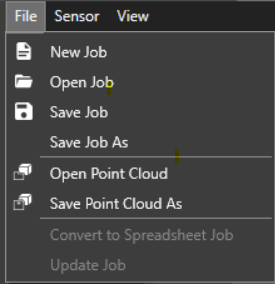
Use the File tab to create, open, save, and convert jobs.
|
||
| Option | Hotkey | Description |
| New Job A job is a user-configured program in In-Sight Spreadsheet consisting of functions and designed for specific applications. You can create and edit jobs using the In-Sight Spreadsheet interface, and load them on a vision system for deployment in a live environment. | Ctrl+N |
Allows you to quickly create a new job, for more information, see Managing In-Sight® Spreadsheet Jobs. Saving a new job creates a *.jobx file. |
| Open Job | Ctrl+O |
Allows you to open an existing job stored on the In-Sight vision system, on the PC running In-Sight Vision Suite, or on a local network storage. For more information, see Managing In-Sight® Spreadsheet Jobs. |
| Save Job | Ctrl+S | Saves the current job on the In-Sight vision system, on the PC running In-Sight Vision Suite, or on a local network storage. For more information, see Managing In-Sight® Spreadsheet Jobs. |
| Save Job As | F12 |
Saves the current job with the configured name to the specified location on the In-Sight vision system, on the PC running In-Sight Vision Suite, or on a local network storage. |
| Import Snippet A snippet is one or more pre-configured cell that allows you to automate frequently performed spreadsheet tasks. You can create your own snippets, or use snippets provided by Cognex. | Alt+I | Allows you to import a saved snippet file into the current job. |
| Export Snippet | Alt+E | Allows you to export a snippet file from the current job. |
| Convert to Spreadsheet Job |
|
|