Native Mode Communications
The In-Sight Native Mode protocol is an ASCII protocol that allows an In-Sight vision system to be controlled from any of the following:
- Custom application programs running on a PC.
- Telnet over an Ethernet network.
- Modbus TCP over an Ethernet network.
- Serial communication through a USB connection.
- Commands over an MQTT Message Queue Telemetry Transport (MQTT) is a lightweight messaging protocol used to send and receive data between devices. connection.
The following principles apply to Native Mode commands:
- Basic Native Mode commands are two characters long, plus parameters, if any, and a terminator character at the end.
- Commands that set values return 1 for success, 0 for unrecognized command, or a negative number for failure.
- Commands that get values return various values, depending on the command.
You can send a subset of Native Mode commands from any PLC A Programmable Logic Controller is a ruggedized computer that you can use for automating processes or even an entire production line. that allows a generic CIP message over an EtherNet/IP connection using Explicit Messaging, or over an SLMP connection using the following String Command blocks: Delete File, Get File, Get Online, Get Value, Load File, Set Event, Set Float, Set Online, Set String and Store File. For more information, see Native Mode Commands.
Basic Native Mode Syntax
The general syntax of a Basic Native Mode command is [command][parameter][terminator], where:
- The [command] consists of two characters. Some Native Mode commands take an optional [parameter].
- The Basic Native Mode command is completed with a [terminator] character. The default terminator is CR + LF (ASCII characters 13 + 10) or NUL (ASCII character 0) when sending Native Mode commands using a telnet connection.
-
When you remotely issue a Native Mode command to an In-Sight vision system, the vision system processes the command and then returns a response consisting of an ASCII string followed by the terminator character.
- Basic Native Mode commands are not case-sensitive. No spaces exist between parameters, except when numerical arguments need to be separated.
- Native Mode commands that are executed on a Job A job is a user-configured program in In-Sight EasyBuilder consisting of functions and designed for specific applications. You can create and edit jobs using the In-Sight EasyBuilder interface, and load them on a vision system for deployment in a live environment., such as Write Job and Delete Job, are included primarily for backwards compatibility.
- The checksum that is used by Native Mode file transfer commands is a standard 16-bit Cyclical Redundancy Check. For more information, see Native Mode Checksum.
Communicate with In-Sight Vision Systems through Telnet Using Native Mode Commands
Telnet is a built-in Microsoft Windows client that you can use to remotely communicate with the vision system using In-Sight Native Mode commands.
To enable the Telnet server for the vision system in In-Sight Vision Suite:
-
Open the Industrial Ethernet utility for the vision system.
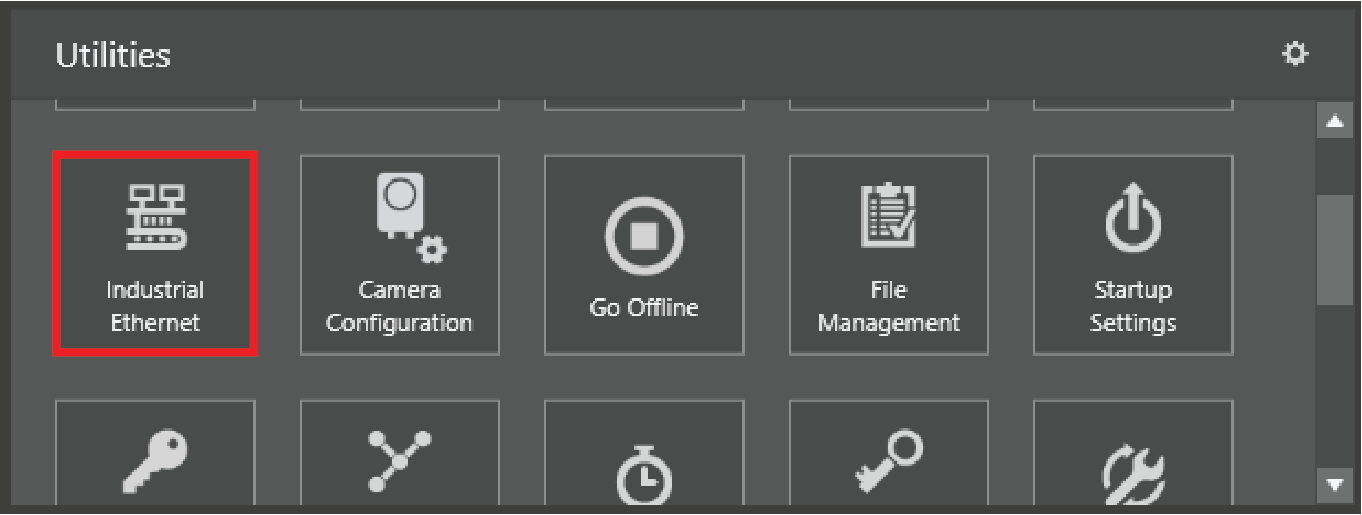
-
Check the Telnet Server Enabled checkbox in the pop up window:
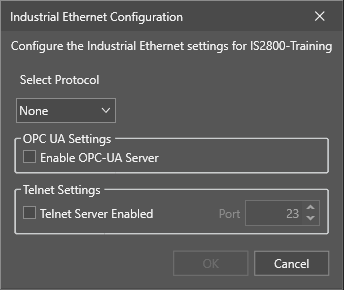
- Open the Telnet client application on the remote host.
- In the Telnet application, connect to the vision system using either the Host Name or IP address. If the connection is successful, a welcome message appears, along with the hardware model number and the session number.
-
Enter a valid user name and password for the In-Sight vision system. The user name and password you enter must exist in the User List for that vision system. If the login is successful, the message "User Logged In" appears. The default administrator login is admin and the password field is empty.
You can also write custom applications that you can run on a remote host to automate the Telnet login process, as well as to send and receive Native Mode data.
-
When you connect through Telnet, there is a 30 second timeout for logging in. Once you are logged in, there is no timeout.
- By default, password echo is disabled in the Telnet client application for security purposes.
-
When using Telnet to log into an In-Sight vision system from a Unix-based platform, the Telnet command line must be in the following format:
> telnet <host> <port>
where <host> is either the Host Name or IP Address of the In-Sight vision system, and <port> is the remote Telnet port, which is 23 by default.
-
You can change the default port in the Industrial Ethernet Configuration utility panel.