Set Float
Sets an edit box control contained in a cell to a specified floating-point value. The edit box control must be of the EditFloat type.
Set Float Inputs
Syntax: SF<
Set Float Outputs
| Status Codes | Description |
|---|---|
| 1 |
The command was executed successfully. |
| 0 |
Unrecognized command. |
| -1 |
Invalid |
| -2 |
The command could not be executed. For example, the specified cell may not contain an edit box control, or the edit box control was not created by the EditFloat function Functions are tools that are available in Spreadsheet for processing and analyzing acquisitions or other results. You can add functions to your Spreadsheet job to create tool chains and produce results for specific applications.. |
| -3 | Unable to set a read only |
| -4 |
Wrong argument type. |
| -6 |
User does not have Full Access to execute the command. |
Set Float Example
-
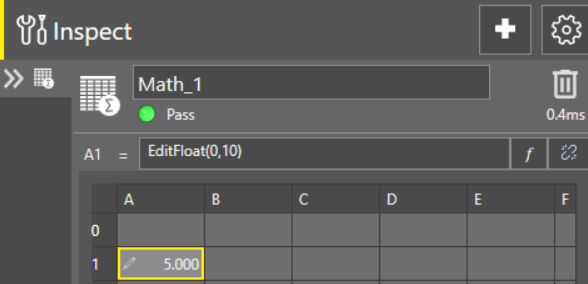
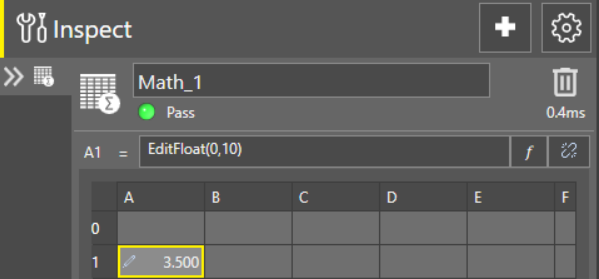
Assume cell A
A
The cell A1 is named Math_1.A1.
A
The EasyBuilder looks like this:
-
To change the value to
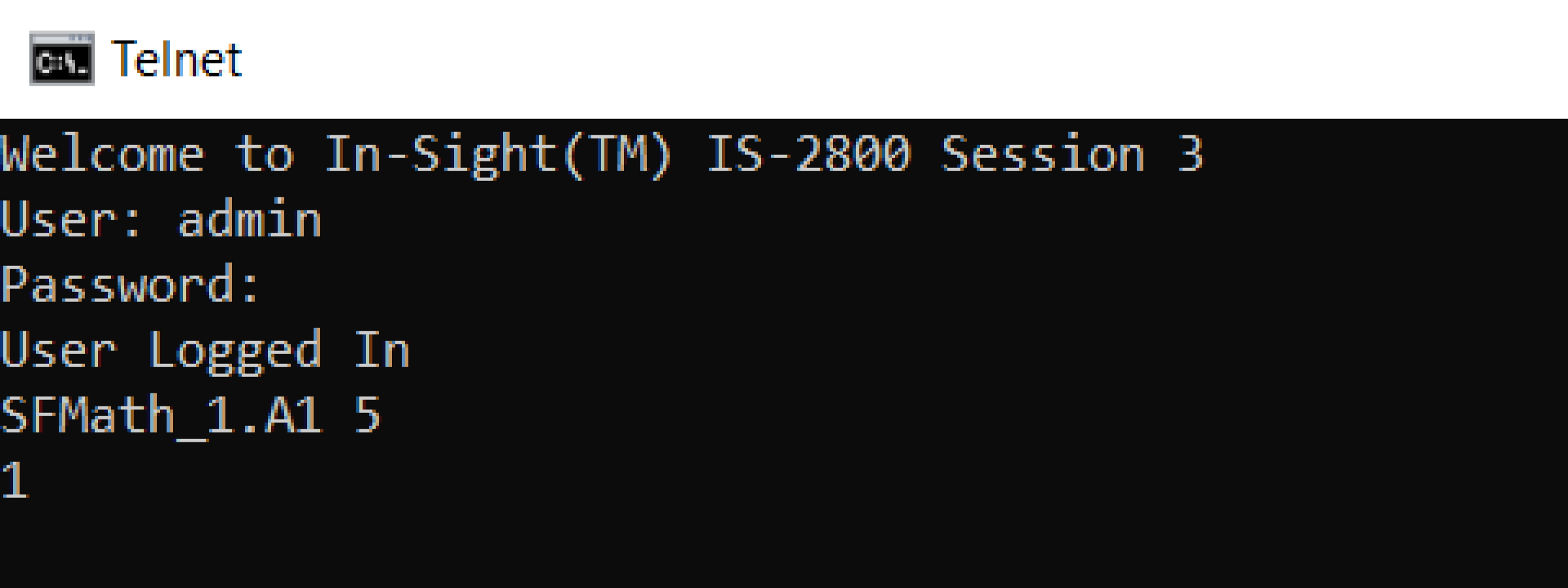
The In-Sight vision system responds with 1, indicating that the command was successfully executed, and the EditFloat control has been successfully changed from 3.5 to