Setting Up a Link-Local NTP Server On a Closed Network
An NTP server on a closed network reduces outbound network traffic by designating a small subset of computers to synchronize their time with the global time servers and then relay that time to all devices internal to the network.
Set Up the NTP Server On Windows
All versions of Windows (as of January 2021) have an outdated and unsupported implementation of the NTP protocol. Therefore, it requires some additional setup.
-
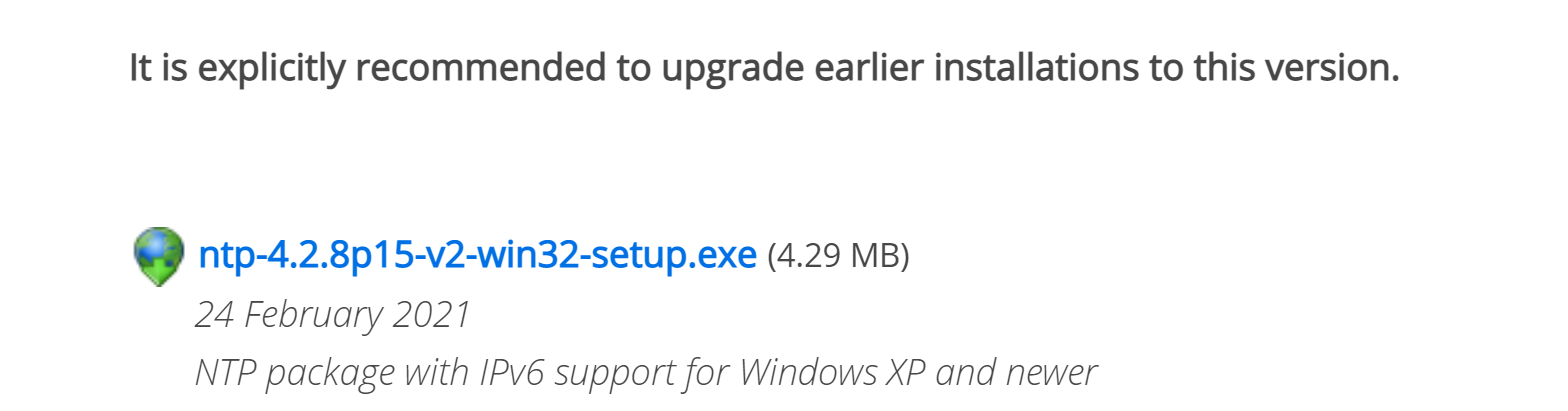
Download and install the latest NTP server installer for Windows from Meinberg Global. Scroll down to the bottom part of the page to find the setup.exe file next to the first drop-shaped icon.
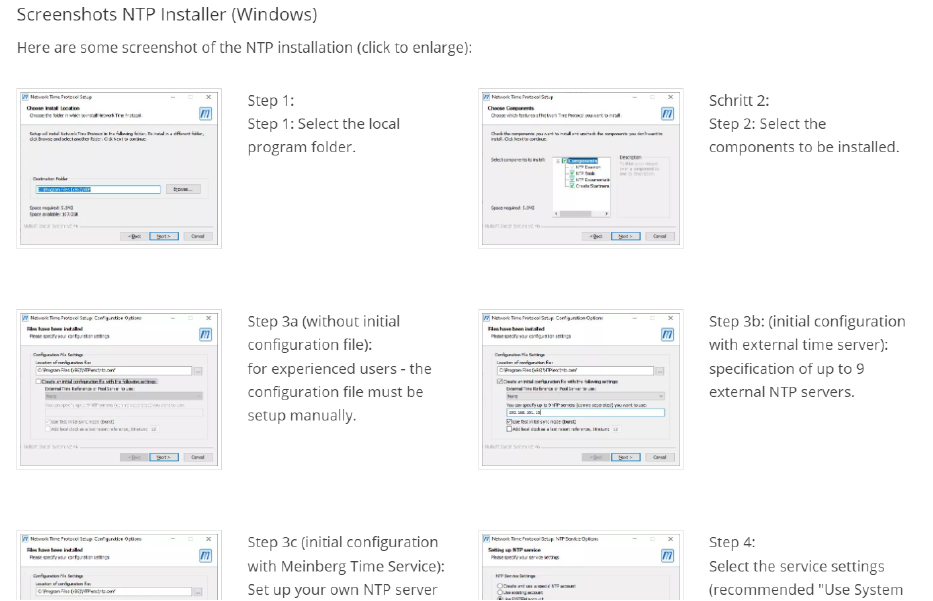
For more information about the installation, continue scrolling on the Meinberg Global webpage until you find screenshots of the NTP installation process.
-
Once installed, navigate to the following folder:
C:\Users\<USERNAME>\AppData\Roaming\Microsoft\Windows\Start Menu\Programs\Meinberg\Network Time Protocol\
-
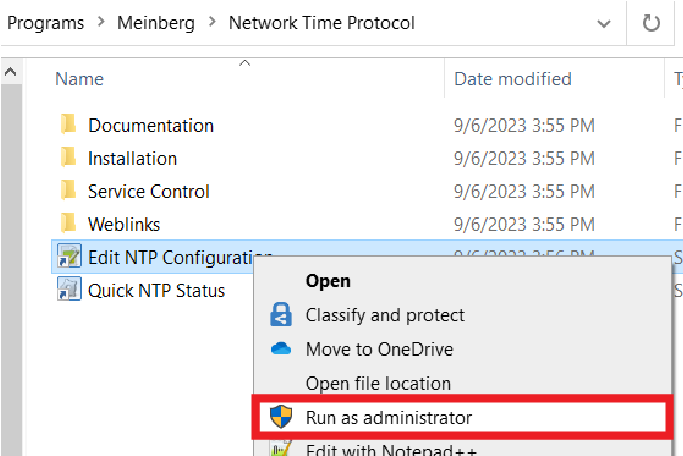
Right click the Edit NTP Configuration shortcut file and select Run as Administrator:
-
Modify the file to set up your NTP server. The file contains helpful comments and details if you want to customize the setup. For a simple solution, replace the contents of the file with the following text:
Copyrestrict 127.0.0.1
restrict -6 ::1
driftfile "C:\Program Files (x86)\NTP\etc\ntp.drift"
server 127.127.1.0
fudge 127.127.1.0 stratum 12
server 0.pool.ntp.org iburst minpoll 6 maxpoll 7
server 1.pool.ntp.org iburst minpoll 6 maxpoll 7
server 2.pool.ntp.org iburst minpoll 6 maxpoll 7
server 3.pool.ntp.org iburst minpoll 6 maxpoll 7
server pool.ntp.org iburst minpoll 6 maxpoll 7 -
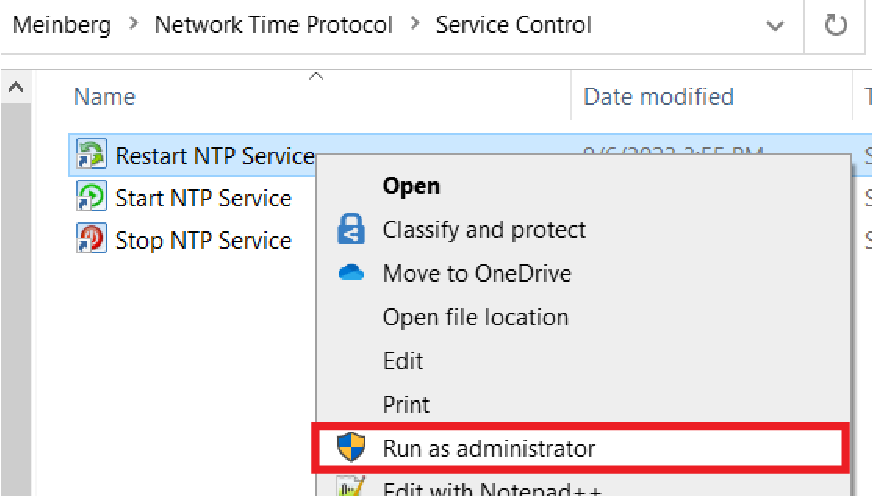
Back in the windows manager, open the Service Control folder, then right-click the Restart NTP Service shortcut file and select Run as Administrator.
-
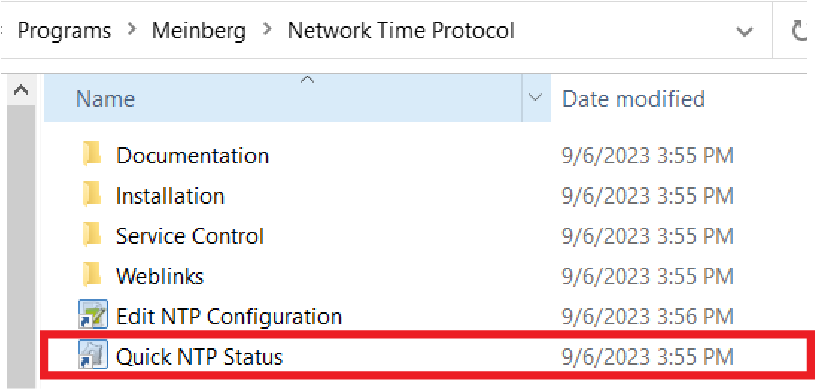
Once the restart has completed, go back to the previous folder and double-click the Quick NTP Status shortcut file to confirm that multiple servers appear. This can take several seconds.
-
If the status displays a list of upstream servers, everything works correctly. Connect the vision system to your computer to set up the link-local connection.
-
Open the command prompt and use the ipconfig command.
-
Record the IPvAddress of the Ethernet adapter connected to the vision system.
-
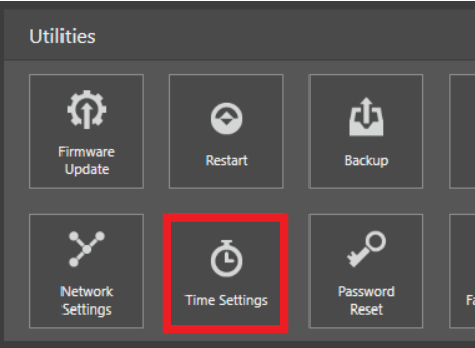
Open In-Sight Vision Suite. Select the vision system you have set up with link-local, and click the Time Settings button in the Utilities bar on the bottom.
-
In the utility dialog:
-
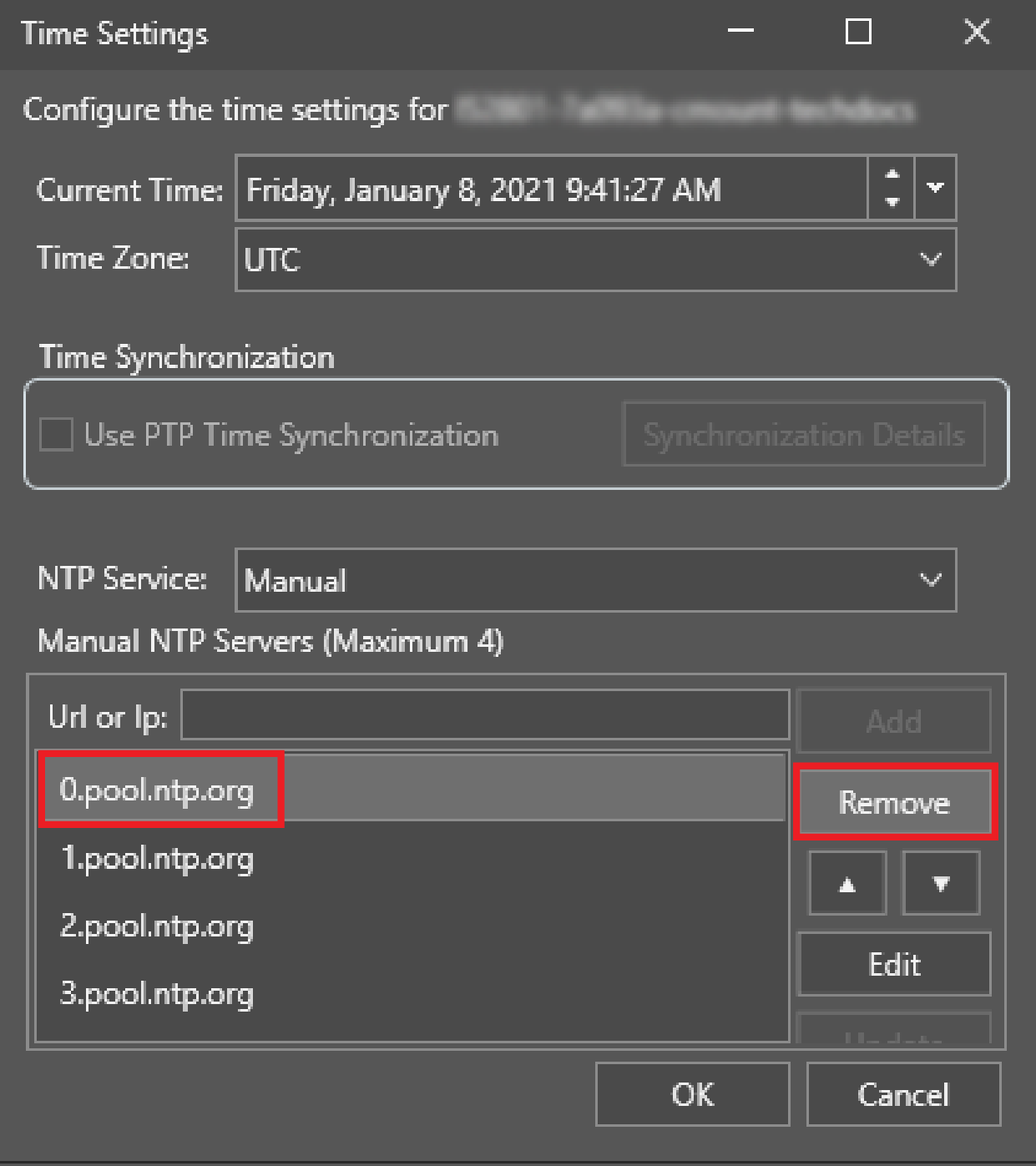
Set NTP Service to the Manual option.
-
Remove every existing NTP server by selecting a server from the list, then clicking the Remove button.
-
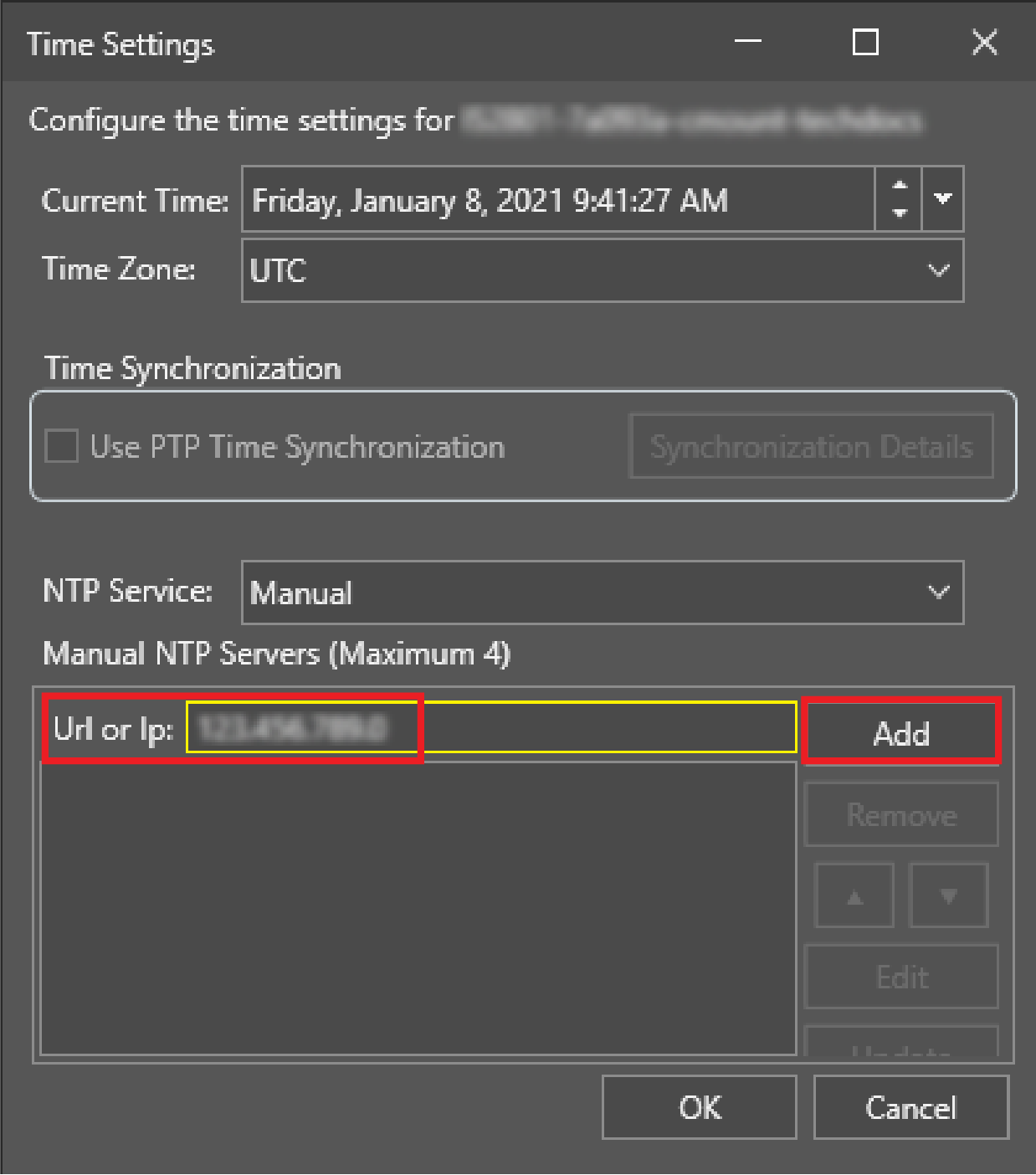
Type the IP address of the host computer into the Url or Ip field, then click Add.
-
-
Click OK then restart the vision system.
-
The initial date adjustment can take a few minutes. To confirm that the date adjustment is successful:
-
Once the vision system has rebooted, select the vision system in In-Sight Vision Suite and click the Time Settings button.
-
Verify that the Current Time shows the same time as your host computer.
-
If the server is set up correctly but the time of the vision system still does not synchronize, modify the firewall settings of the host for port 123 to allow UDP in and out.
-