Services & Ports
The Services & Ports utility helps you improve cybersecurity on your vision system. Use this utility to close optional services and the ports the vision system uses for communication. When you close a port, it remains closed after you reboot the vision system. You must manually re-enable the port to open it again.
Why Close Unused Ports
Consider closing unused open ports for the following reasons:
-
Closing unused ports is a security best practice. Open ports increase security risks since attackers can exploit open ports to attack your system.
-
The vision system uses ephemeral ports for File Transfer Protocol (FTP) service. Ephemeral ports are short-lived communication ports that the system allocates automatically from a range of port numbers. Limiting the range of ephemeral ports can help you meet security requirements and reduce risk.
-
Certain security standards, such as International Electrotechnical Commission (IEC) regulations, require you to disable specific ports and services. The Services & Ports utility helps you comply with these requirements.
For more information about the ports the vision system uses, see the Open Network Ports and Enabled Ports and Services section in the In-Sight Spreadsheet or In-Sight EasyBuilder documentation.
Instructions
To close unused ports and services, perform the following procedure:
-
Launch In-Sight Vision Suite if it is not already running.
-
Left-click the device you want to configure on the In-Sight® Device Pane on the left. The list of Utilities applicable to the selected vision system then appears at the bottom of the window.
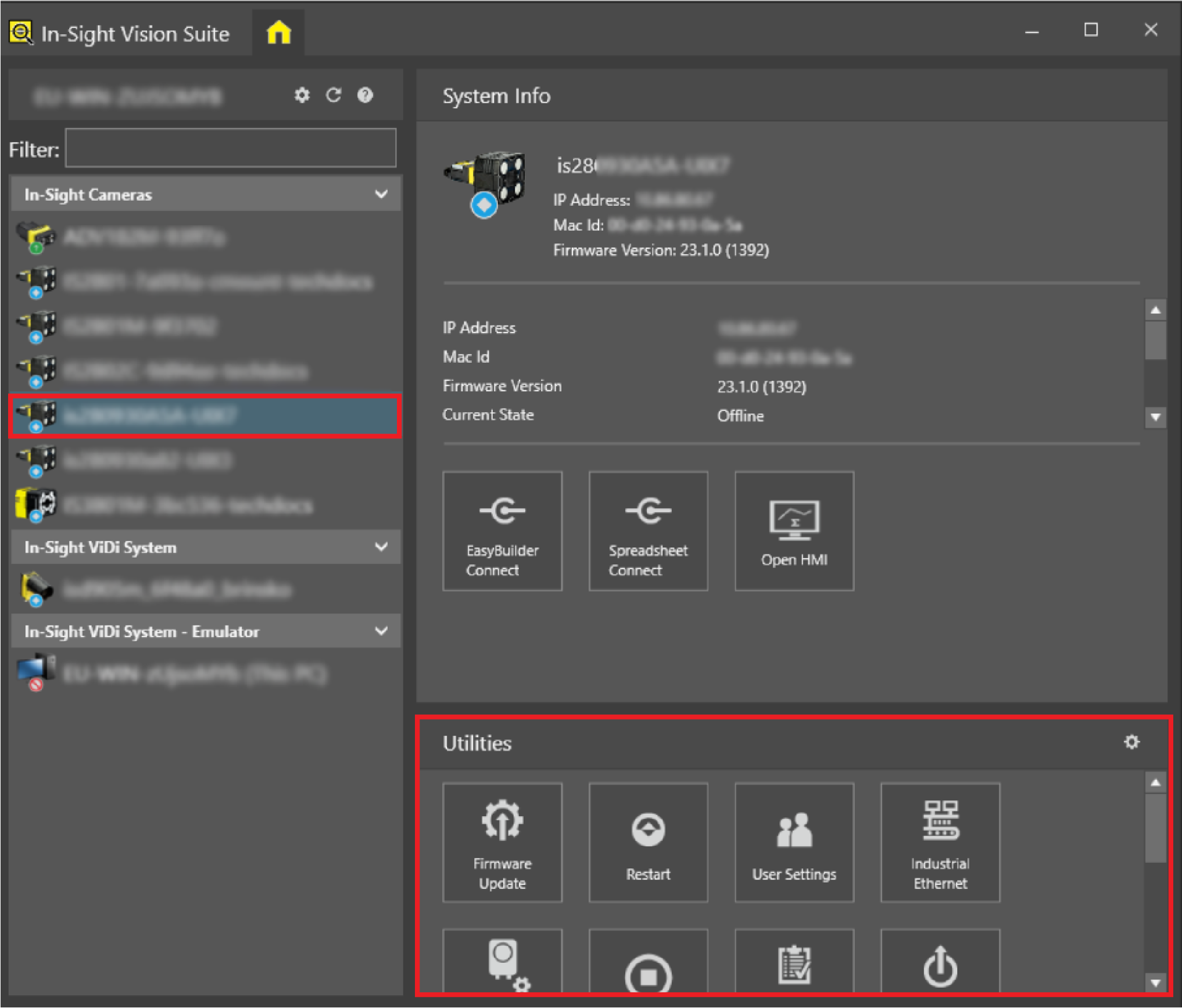
- Click the Services & Ports button. The utility pop-up window opens.
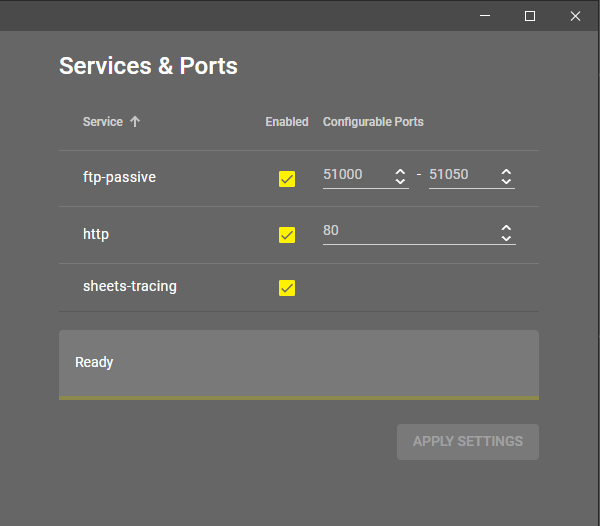
- Use the checkboxes in the pop-up window to disable services, or set port ranges to limit which ports are available for a service.
- Click APPLY SETTINGS to apply the changes. The progress bar displays the status of the update using the following messages:
Updating device...
Device configuration updated.
-
Optional: To restore the last applied configuration, click REVERT. This button appears only after you have made at least one change.
-
Close the utility pop-up window.
Services & Ports Options
|
|
|
| Option | Description |
| ftp-passive |
Check the checkbox to enable or disable all passive FTP services on ephemeral ports. Active FTP always remains enabled. If you set a port range without disabling the service, you limit passive FTP to the specified range of ephemeral ports. |
| http |
Check the checkbox to disable HTTP. Disabling HTTP means that the vision system can only use HTTPS. You cannot disable HTTPS. If you change the port number but leave HTTP enabled, HTTP traffic uses the new port instead of the default port 80. |
| sheets-tracing |
Check the checkbox to disable communication with TraceViewer, which is an optional Cognex diagnostic tool, separate from In-Sight Vision Suite, for viewing the trace logs of the vision system. Note: Disable this service if you do not use TraceViewer for viewing trace logs.
|
Potential Issues
Consider the following before closing ports or services:
-
If your vision system uses a port for communication, do not close it. Closing an active port can disrupt system functions.
-
Disabling HTTP causes In-Sight WebSDK HTTP requests to fail.
-
Disabling HTTP breaks your bookmarks for the WebHMI, because WebHMI uses HTTP on port 80 by default. Embedded WebHMI interfaces created with HTTP also stop working.