License Configuration
The License Configuration utility updates the existing product license of your In-Sight vision system on the Cognex Security Dongle, allowing you, for example, to renew or upgrade the available In-Sight ViDi adapter tools or Spreadsheet Vision Tools.
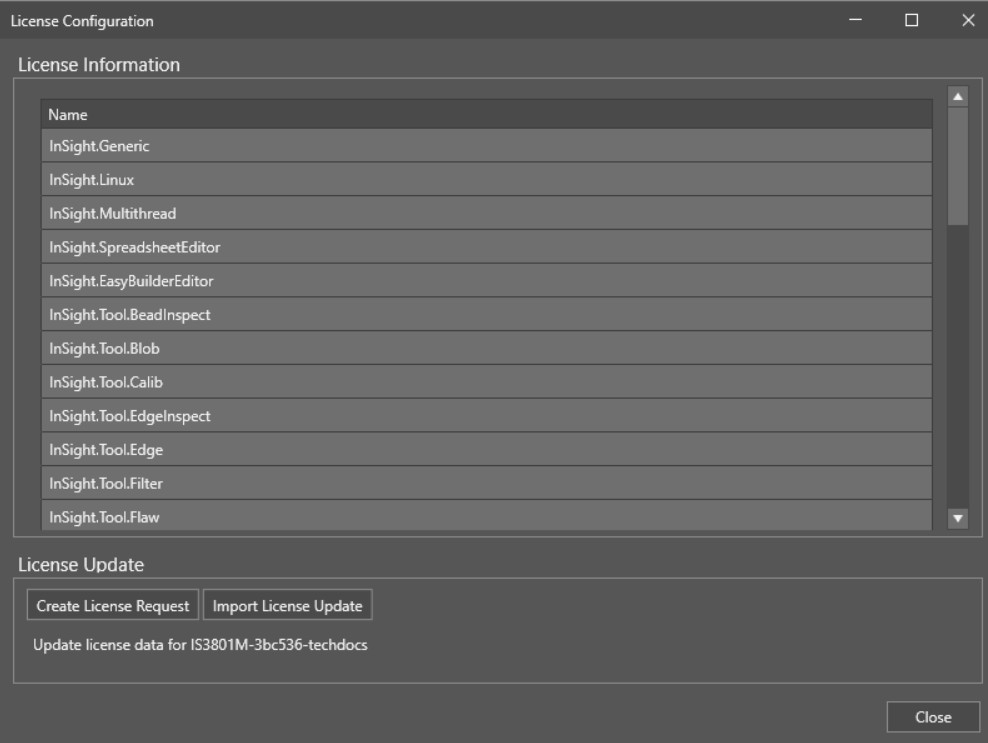
The dialog has two main parts:
- The License Information section, indicating the firmware version of the Cognex Security Dongle and listing the code, expiration date, and name of the licensed features.
- The License Update section, allowing you to change the current license of your device by generating a license update request, sending it to Cognex Support, and then updating your vision system with a license update file.
Perform the following steps to upgrade your Cognex license:
- Make sure you have a MyCognex account at the Cognex Support Site.
-
Contact your local Cognex Sales Representative, and request a purchase order with the new Product ID for a license upgrade or renewal. You receive an e-mail with order confirmation and instructions.
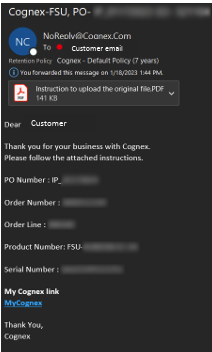
- Once your order has been processed, create a license request file for the upgrade or renewal. To do so, first launch In-Sight Vision Suite.
-
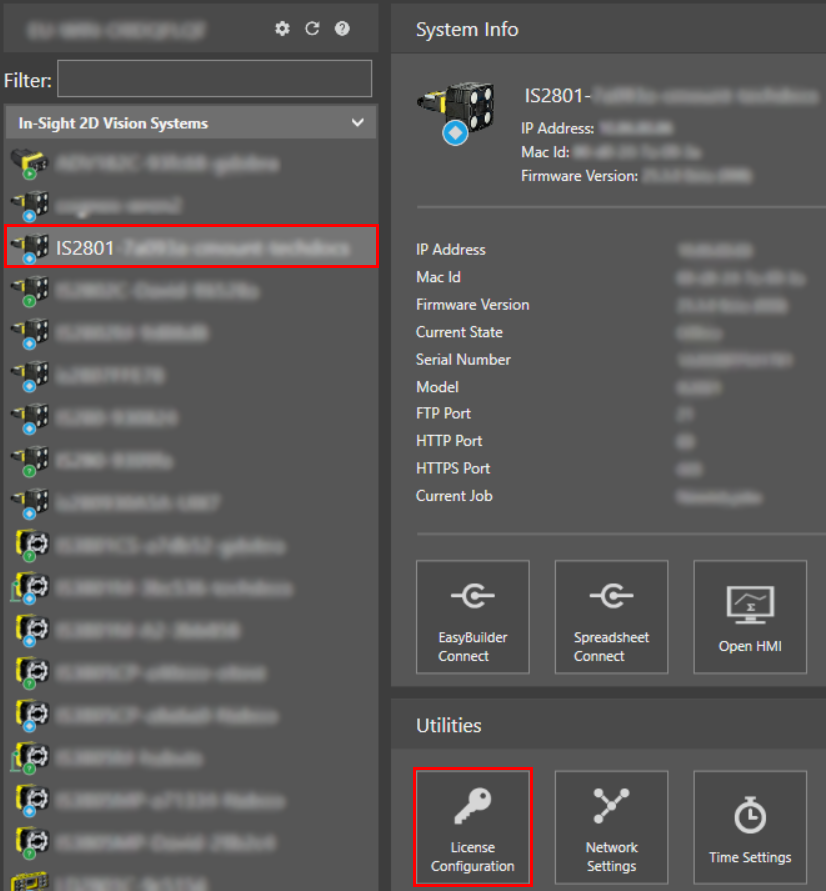
Left-click the device you want to configure on the In-Sight® Device Pane on the left. Click the License Configuration button to start the utility.
-
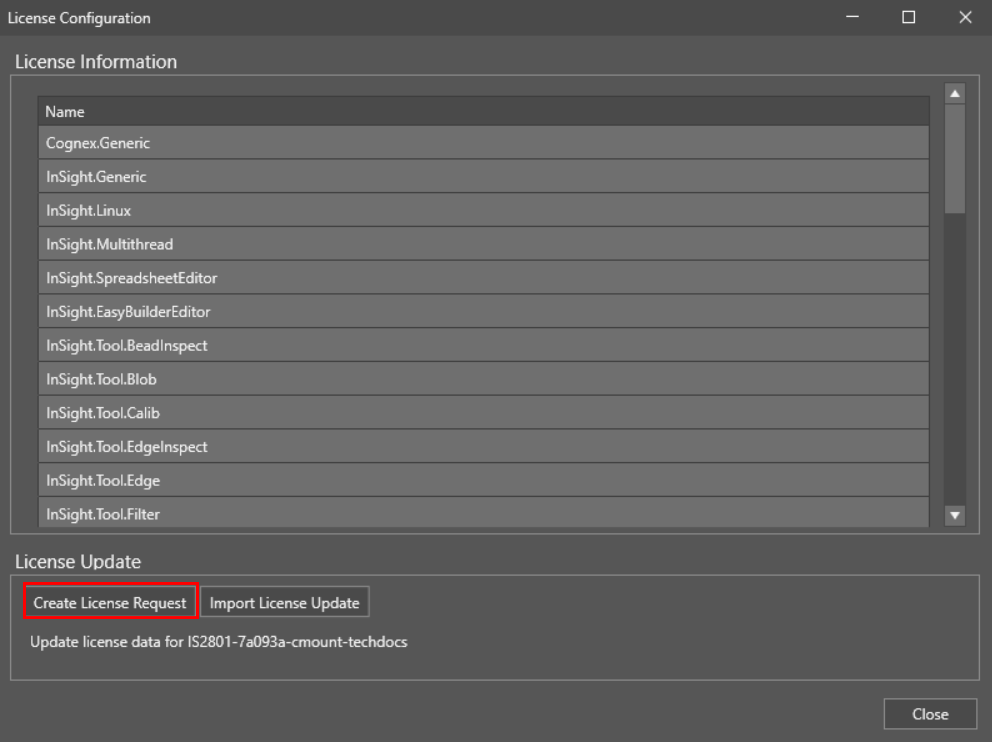
Click Create License Request to generate an upgrade request file
-
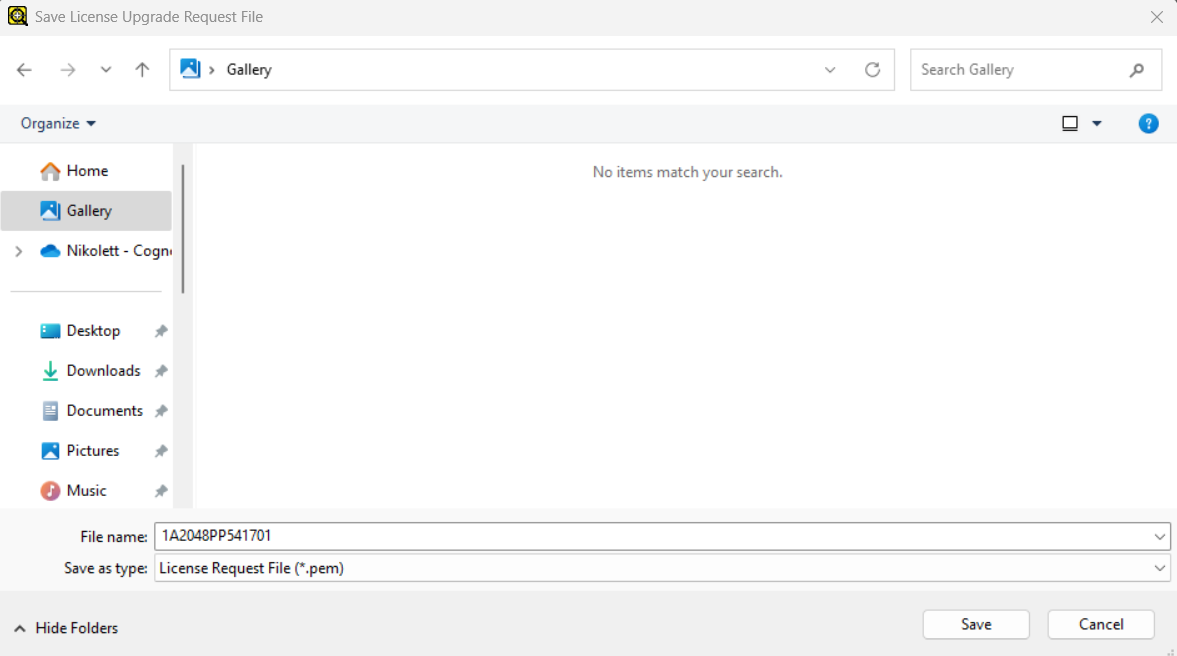
Save the license request file (.PEM) file on your PC.
-
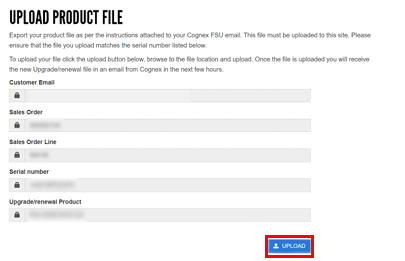
Upload the license request file from your vision system to MyCognex by following the .PDF instructions that came with your order confirmation e-mail.
-
After uploading the license request file from your PC, you receive a follow up e-mail with the final license upgrade file (.JSON) and a .PDF with instructions on how to upload it to the vision system.
-
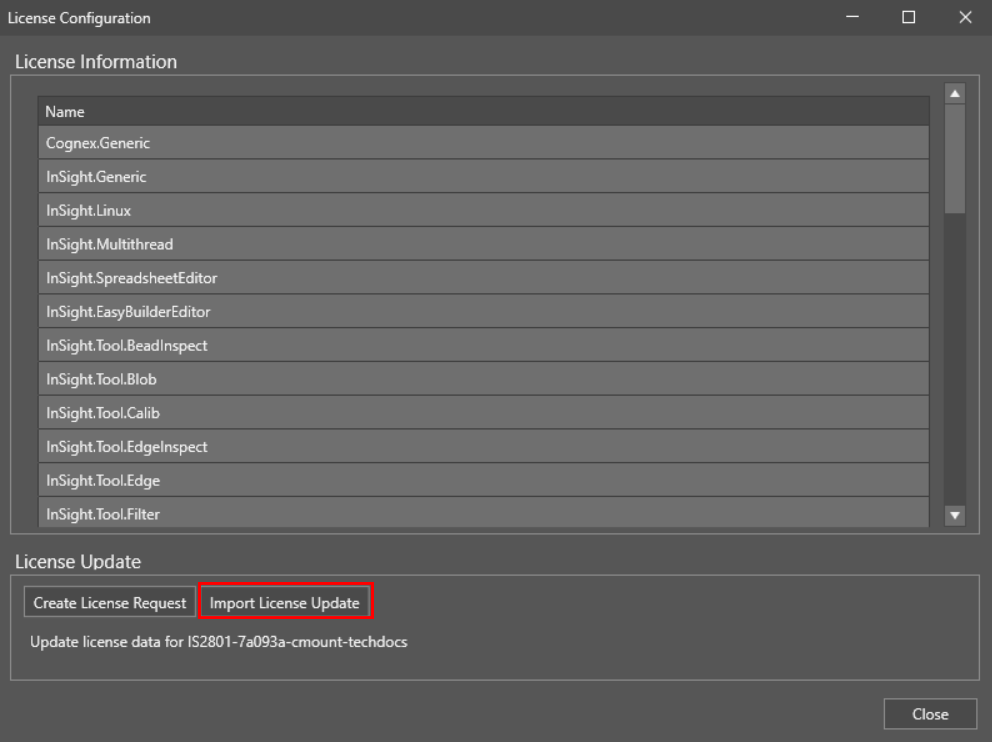
Open the License Configuration utility again and click Import License Update to upload the .json file to the vision system.
-
Restart the vision system.