Application Switcher
The Application Switcher utility allows you to switch your L38 vision systems between In-Sight mode and GigE Vision (GEV) server mode. When in GEV server mode, you can use the L38 vision systems with VisionPro software.
Application switching is only available on vision systems with In-Sight firmware version 24.3.0 or later. Previous firmware versions are not compatible with VisionPro software.
If you want to convert an L38 vision system that is currently licensed for VisionPro software to be able to switch it to In-Sight mode, you can purchase an FSU to install the appropriate firmware and licenses on your vision system. For more information, contact your Cognex sales representative.
L38 vision systems that are only licensed for VisionPro software are still visible in the In-Sight Vision Suite device list, but you cannot switch to In-Sight mode.

To use the Application Switcher utility:
- Launch In-Sight Vision Suite if it is not already running.
-
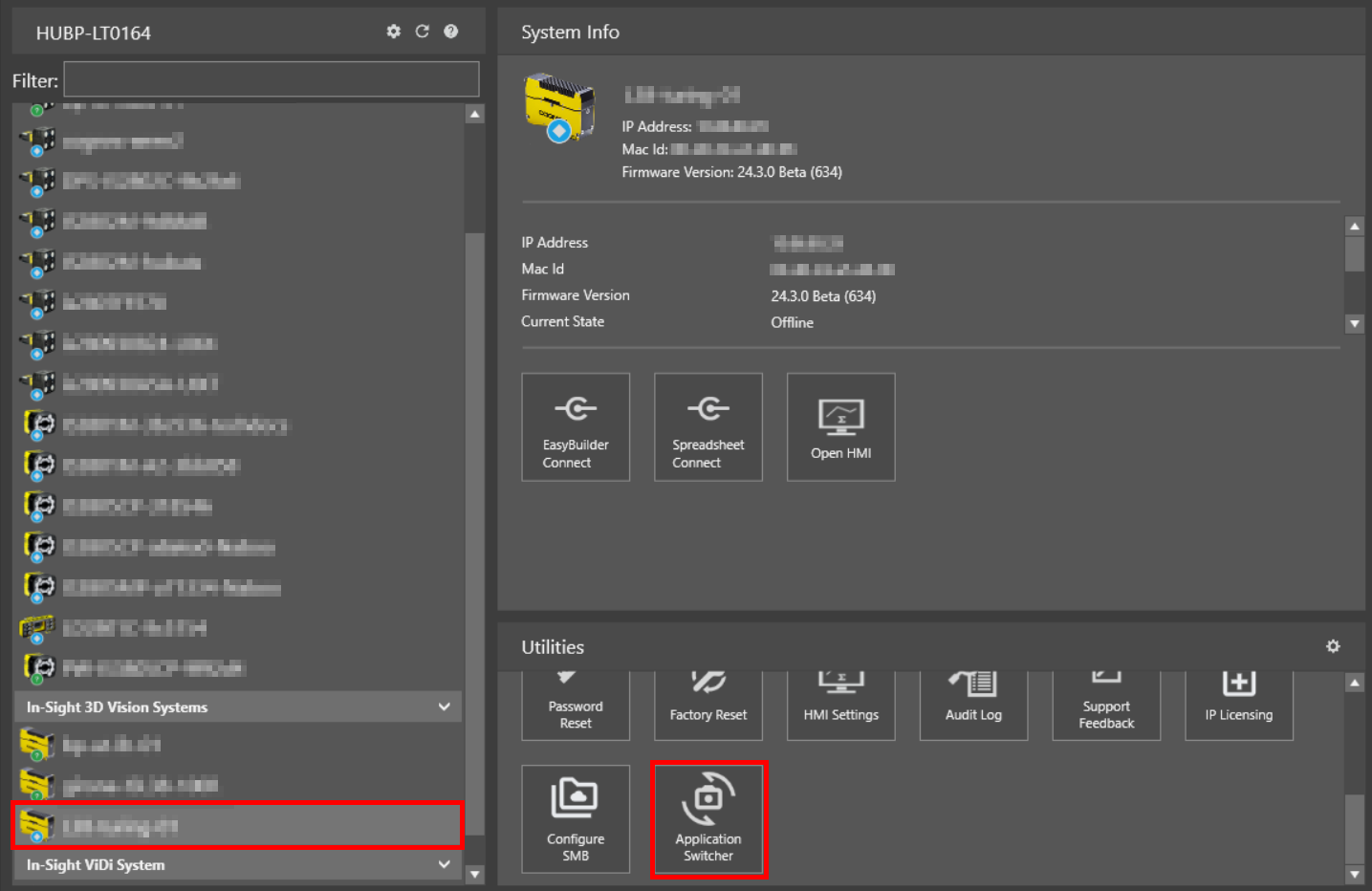
Click the device you want to configure on the In-Sight® Device Pane on the left. The list of Utilities applicable to the selected L38 vision system then appears at the bottom of the window.
-
Click the Application Switcher button in the Utilities pane to open the Application Switcher dialog.
-
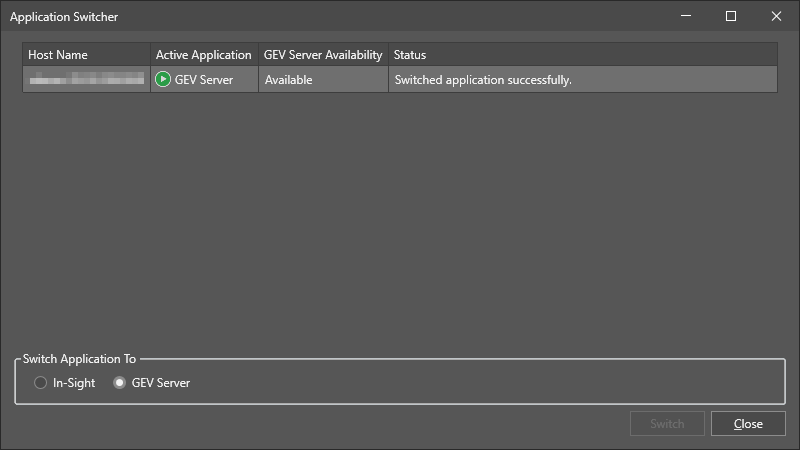
Select the vision system or vision systems that you want to switch modes on. You can select multiple L38 vision systems regardless of which vision system you opened the utility dialog for.
-
Click the radio button for the mode you want to switch the selected vision systems to.
-
In-Sight mode allows you to connect to the vision system using In-Sight EasyBuilder or Spreadsheet.
-
GEV Server mode allows you to connect to the vision system using VisionPro software.
-
-
Click Switch to apply the changes, and click Close to exit the dialog.
Note: When you switch modes on a vision system, it takes several seconds for the vision system to come back online with the selected mode.
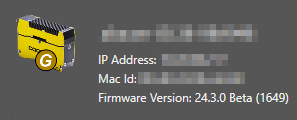
If the selected vision system is in GEV server mode, the device information section displays a notification that the vision system is running in GEV mode, and a G icon appears on the thumbnail image for the vision system: