ViDiELClassify
The ViDiELClassify function Functions are tools that are available in Spreadsheet for processing and analyzing acquisitions or other results. You can add functions to your Spreadsheet job to create tool chains and produce results for specific applications. automatically classifies images into the defined classes based on an initial training image set. To use this function, you must define the classes, load an initial set of images into the tool, and then individually label a subset of the training images to ensure that the tool recognizes the features on the images and classifies them correctly.
To use the ViDiELClassify function:
-
Drag and drop the ViDELClassify tool into the Spreadsheet.
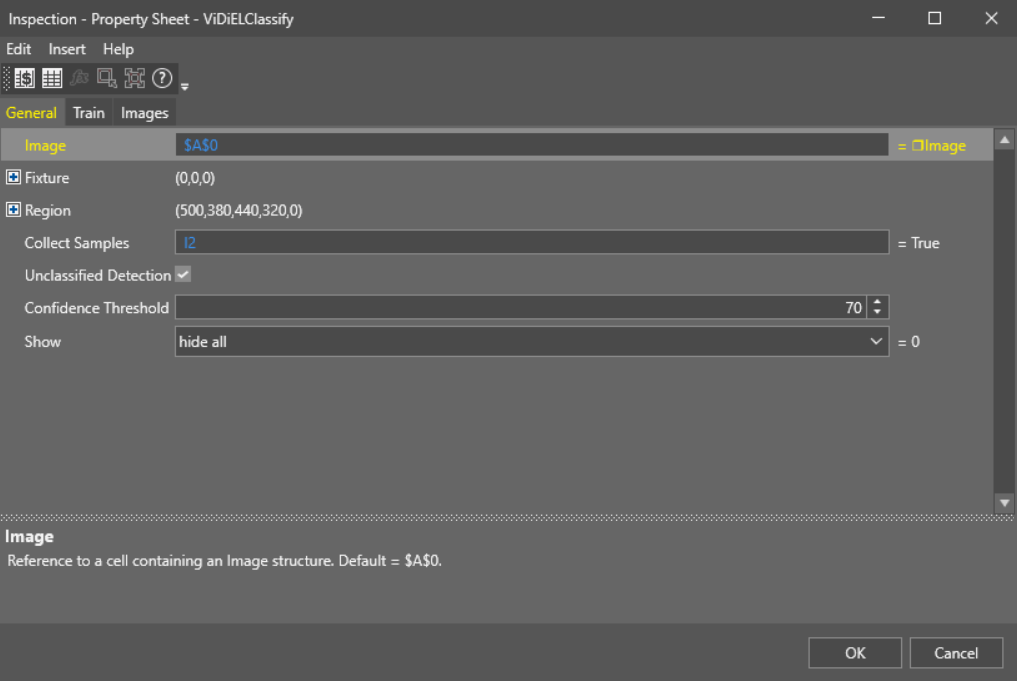
The property sheet pops up:
-
In the General tab of the property sheet, set up the Region of Interest using one of the following methods:
-
Double-click the Region parameter and adjust the ROI box on the acquisition Acquisition is the process or result of the vision system acquiring a new image. display.
-
Expand the Region parameter and define the box parameters manually.
-
-
In the Train tab of the property sheet, add the classes you want the function to use.
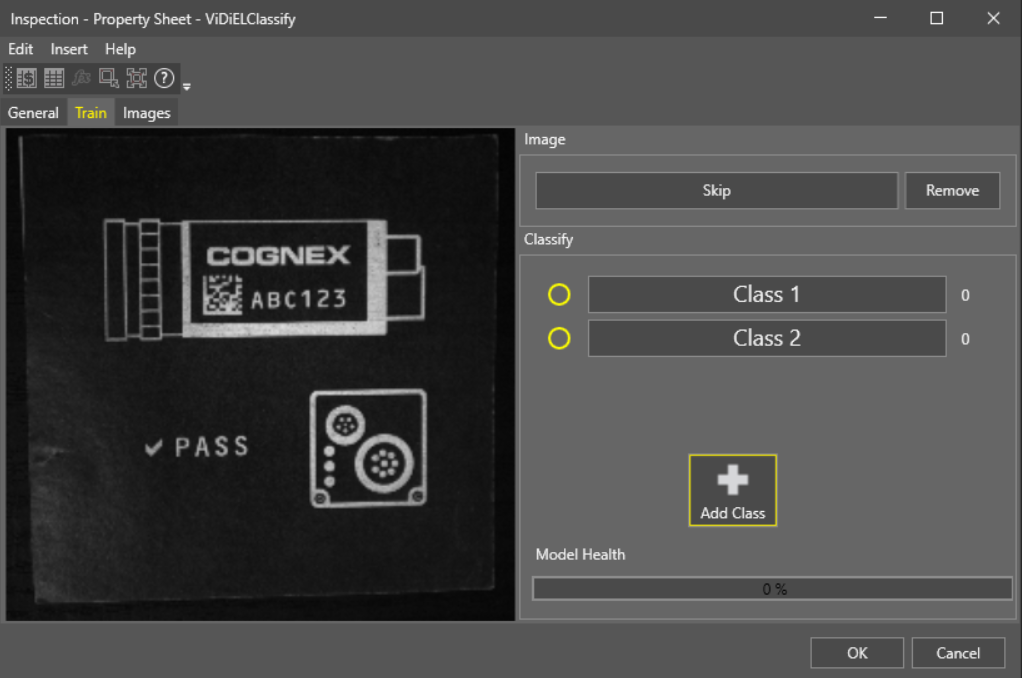
- Click OK to close the property sheet.
- In the Spreadsheet, check the checkbox in the Collect Samples cell of the function. This allows the tool to load images for training.
- Load images into the function either by double-clicking the desired images in the Filmstrip, or by clicking the Play button in the Filmstrip controls to load all of the images in the Filmstrip.
- Once you have loaded the training images, uncheck the checkbox in the Collect Samples cell of the function.
- Double-click the ViDiELClassify cell in the Spreadsheet to re-open the property sheet.
-
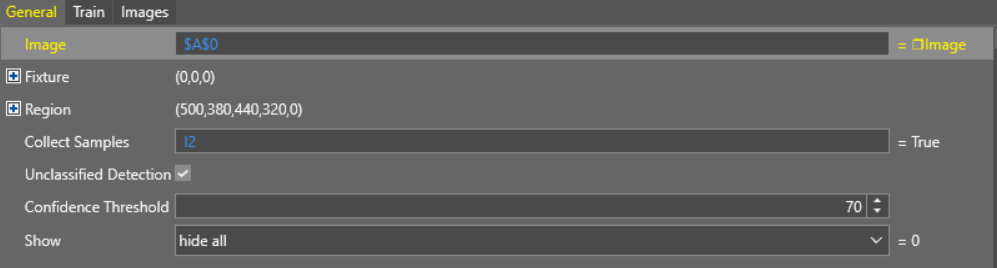
Optional: In the General tab, select Unclassified Detection if you want the tool to identify samples which do not fit into any of the trained classes.
Note: When you enable Unclassified Detection mode, the tool identifies sample outliers by setting the Is Unclassified flag to 1. The tool still assigns a predicted label to the sample, just with a lower confidence. If you disable Unclassified Detection mode, the tool tries to force every sample into one of the trained classes, even if the sample is not a good fit. - Set the Confidence Threshold parameter.
-
In the Train tab, label the training images one-by-one according to the desired class. Alternatively, you can label multiple images at the same time in the Images tab by dragging and dropping them into the Labeled Images column of the desired class. Press Ctrl and click to select multiple images in the Images tab.
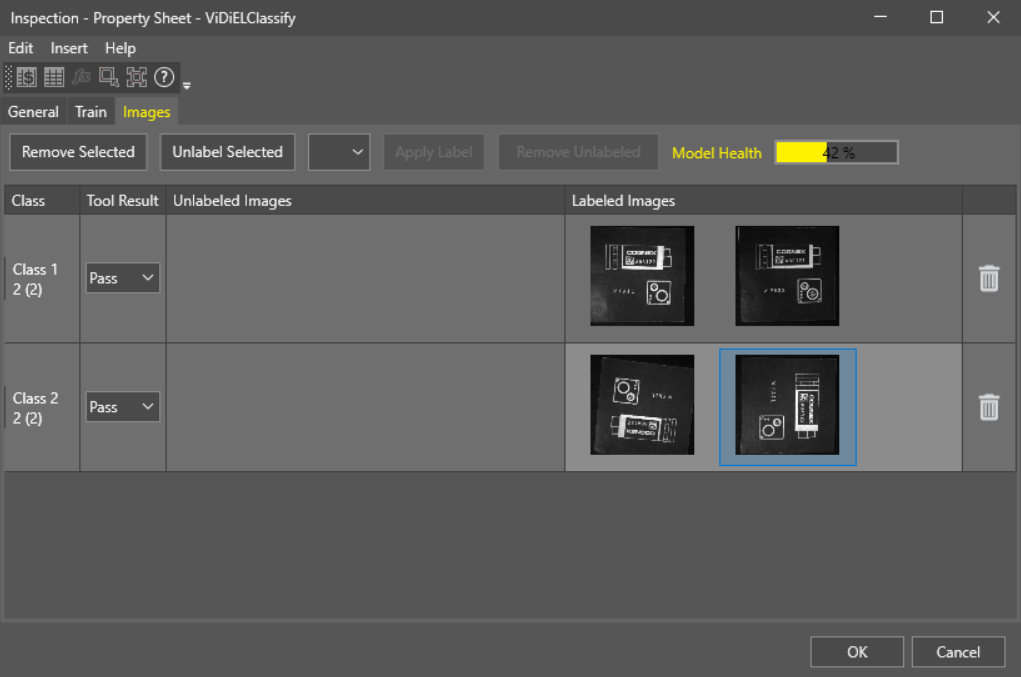
- As your training images are labeled, the Model Health percentage in the Images tab starts to rise. Keep labeling images until the Model Health is sufficiently high.
- Click OK to finalize the function settings.
 Inputs
|
|
|
|---|---|
| Setting | Description |
| Image |
Reference to a cell containing an Image structure. The default value is |
| Fixture A fixture is a coordinate location on the image that keeps the tool in the place determined by the fixture. | Fixture origin (X, Y, Theta). Offsets from the image origin. |
| Region | Region of Interest (X, Y, Width, Height, Angle). |
| Collect Samples | Enables or disables sample collection for training. |
| Unclassified Detection | Enables or disables the Unclassified Detection mode. |
| Confidence Threshold |
Specifies the minimum required confidence percentage when determining which pixel is assigned to which class. Specifies the minimum confidence threshold for valid classification (0-100, default = 70). |
| Show | Select the type of graphic to overlay on the image. |
 Outputs
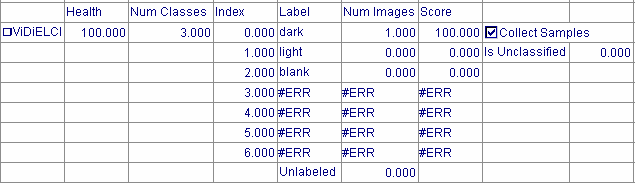
|
|
|---|---|
| Output | Description |
| Health | The Model Health of the function. |
| Num Class | The number of defined classes. |
| Index | The index of the defined classes. |
| Label | The name of the defined classes. |
| Num Images | The number of classified images in the defined classes. |
| Score | The overall confidence score for the defined classes. |
| Is Unclassified | The binary indicator for unclassified image detection. |
Vision Data Access functions
The following ViDiELClassify Vision Data Access functions are automatically inserted into the spreadsheet to create the result table:
| Function | Description |
|---|---|
| GetClassLabel(ViDiELClassify, [Index], [Mode]) | Returns the classification label. |
| GetIsUnclassified | Sets the Unclassified Detection Mode. |
| GetModelHealth(ViDiELClassify) | Returns the health of a model between 0 and 100. |
| GetNClasses(ViDiELClassify) | Returns the number of classes. |
| GetNImages(ViDiELClassify,[Index], [Mode]) | Returns the number of images. |
| GetPassed(ViDiELClassify,[Index]) | Returns the pass/fail status. Returns 1 on pass, and returns 0 on fail. |
| GetScore(ViDiELClassify,[Index1],[Index2]) | Returns the a score value between 0 and 100. |