Audit Logging
The Audit Logging utility of In-Sight Vision Suite allows you to track jobs and system level changes and enable traceability and accountability for modifications made to the vision system. To access the Audit Logging utility, you must switch from In-Sight Spreadsheet to the In-Sight Vision Suite application.
The following actions in In-Sight Vision Suite trigger audit logging events:
| Changes in the Spreadsheet Editor | System changes | Changing complex tools | Changing utilities |
|
|
|
|
 To use audit logging:
-
Launch In-Sight Vision Suite if it is not already running.
-
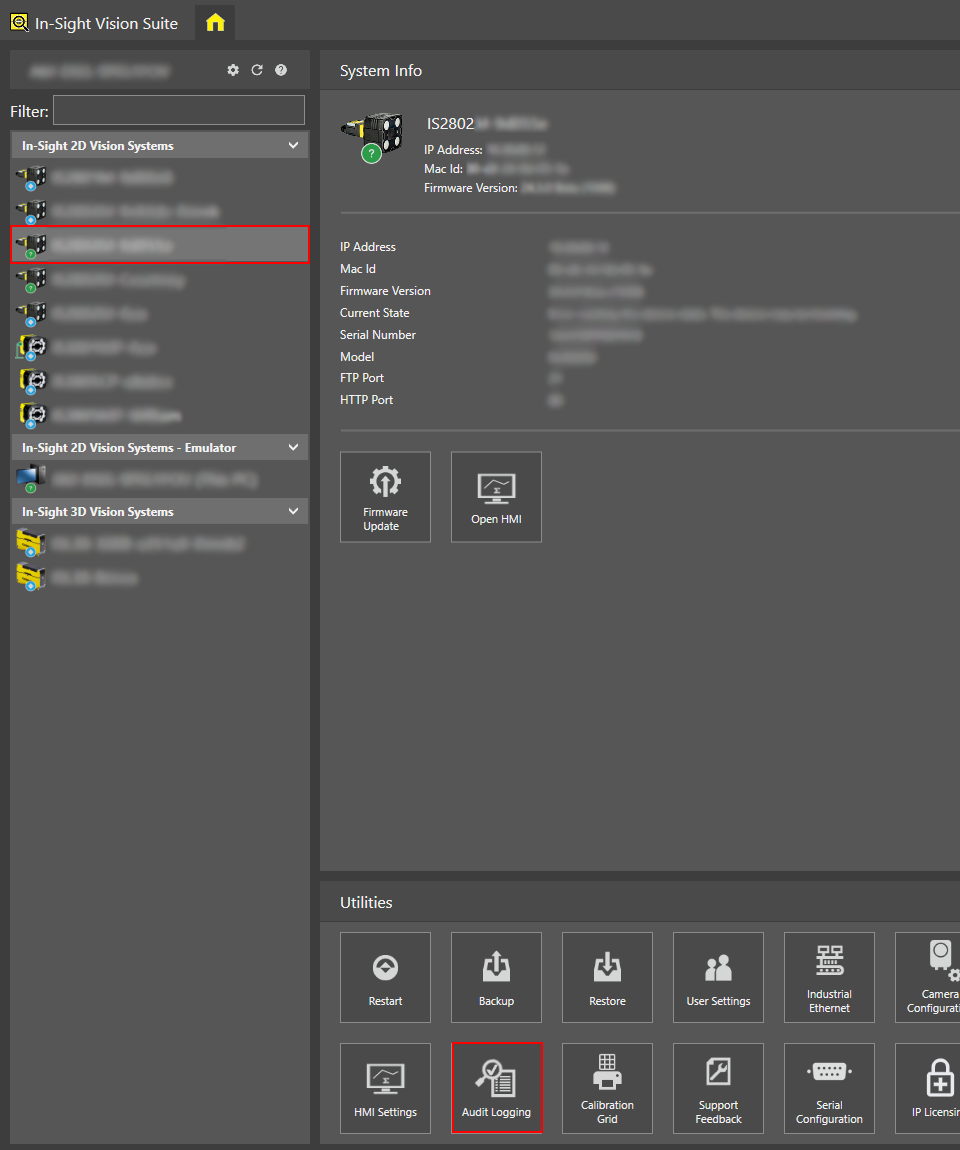
Left-click the vision system you want to configure on the In-Sight® Device Pane on the left. The list of Utilities applicable to the selected vision system then appears at the bottom of the window.
-
Click Audit Logging.
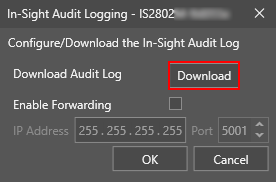
The Audit Logging window appears.
-
Retrieve the audit log by doing one of the following:
-
Download the audit log by clicking Download.
-
Click Enable Forwarding to enable sending the audit log to a remote server. Set up the IP address and the port number.
Note: In-Sight Vision Suite uses syslog forwarding protocol to store audit log records. You need to set up a syslog server for collecting audit records.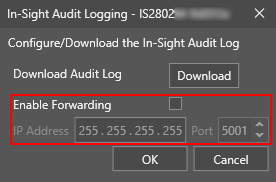
-
-
Click OK.
To set up syslog forwarding with a Windows command line tooI:
-
Download and install Fluentd for Windows.
-
Open the Audit Logging utility in the In-Sight Vision Suite. Perform the following:
-
Check the Enable Forwarding checkbox.
-
Set the IP address to the IP address of the host computer.
-
Select a Port Number.
-
-
Create the following files on the host computer according to the Fluentd instructions:
-
fluentd.conf
-
fluentd.key
-
fluentd.crt
-
-
Include the following settings in the fluentd.conf file and modify the port number and pathways to the location where you placed these files on your computer:
Copy<source>
@type syslog
port XXXX
tag system
frame_type octet_count
<transport tls>
ca_cert_path PATH\TO\YOUR\fluentd.crt
ca_private_key_path PATH\TO\YOUR\fluentd.key
</transport>
<parse>
@type syslog
with_priority true
time_format 1 %Y-%m-%dT%H:%M:%S.%N%:z
message_format rfc5424
</parse>
</source>
<match system.**>
@type stdout
</match> -
Select the same port as the Audit Logging utility in In-Sight Vision Suite.
-
Save the changes.
-
Open the Fluent Package Command Prompt. Run the following command, replacing the file pathway:
Copyfluentd -c PATH\TO\YOUR\fluentd.conf
The audit log messages now appear in the Fluent Package Command Prompt. To terminate the connection, press Ctrl+C.